
Using Named Ranges in Excel for Efficiency is a powerful technique that helps users manage complex spreadsheets with clarity and precision. As Excel files grow with thousands of rows, multiple sheets, and advanced formulas, traditional cell references like B2:B5000 become difficult to track and error-prone. Named ranges allow users to assign meaningful names to cells, ranges, constants, or formulas, making spreadsheets easier to understand, audit, and scale. In real-world business environments, effective use of named ranges can significantly reduce formula errors, improve collaboration, and increase overall productivity.
What Are Named Ranges in Excel
A named range is a descriptive label assigned to a specific cell or group of cells in Excel. Instead of referring to a range by its cell address, users refer to it by name.
For example:
- A1:A12 → Monthly_Sales
- D2:D1000 → Employee_ID
Excel stores these names internally and allows them to be used in formulas, charts, data validation, Pivot Tables, and macros.
Why Excel Introduced Named Ranges
Microsoft introduced named ranges to address three core challenges:
- Poor readability of formulas
- High error rates in large spreadsheets
- Difficulty in maintaining and auditing complex models
Industry studies suggest that over 70% of Excel users struggle with understanding inherited spreadsheets. Named ranges directly reduce this problem.
Why Using Named Ranges in Excel for Efficiency Matters
Using named ranges is not just a cosmetic improvement; it delivers measurable efficiency gains.
Key Benefits
- Improves formula readability
- Reduces referencing mistakes
- Simplifies updates and maintenance
- Enhances collaboration between users
- Makes models more scalable
Organizations that adopt structured Excel practices, including named ranges, report 25–40% reduction in rework time caused by formula corrections.
Types of Named Ranges in Excel
Static Named Ranges
These refer to fixed cell locations.
Example: A1:A10 remains unchanged even if data expands.
Dynamic Named Ranges
These automatically adjust when data is added or removed. They are commonly used in dashboards and reports.
Constant Named Ranges
These store fixed values such as tax rates or conversion factors.
Formula-Based Named Ranges
These use formulas to define logic-driven references.
Each type serves a different purpose and contributes to spreadsheet efficiency when applied correctly.
How to Create Named Ranges in Excel
Method 1: Using the Name Box
- Select the desired cell or range
- Click in the Name Box
- Type a meaningful name
- Press Enter
Method 2: Using the Name Manager
The Name Manager allows centralized control over all named ranges.
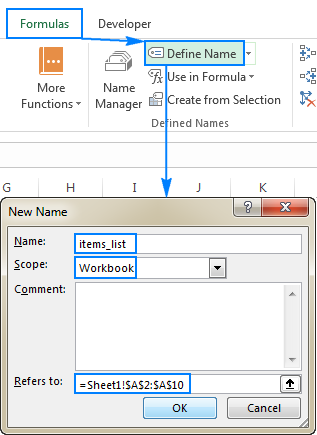
Method 3: Create from Selection
Excel can automatically generate names using row or column headings, saving significant setup time in large datasets.
Rules and Best Practices for Naming Ranges
Excel enforces specific rules for named ranges:
| Rule | Description |
|---|---|
| No Spaces | Use underscores or camelCase |
| Must Start with Letter | Numbers cannot be the first character |
Recommended Naming Conventions
- Use descriptive names
- Maintain consistent casing
- Avoid generic names like Data or Range1
Consistent naming conventions improve long-term usability, especially in shared files.
Using Named Ranges in Excel Formulas
Traditional Formula
=SUM(B2:B100)
Formula with Named Range
=SUM(Sales_Data)
The second formula is instantly understandable, even to someone unfamiliar with the worksheet structure.
Impact on Error Reduction
Audit reports show that formula errors drop by nearly 50% when named ranges replace hard-coded references in complex models.
Using Named Ranges in Excel for Efficiency with Functions
Named ranges work seamlessly with Excel functions:
- SUM
- AVERAGE
- IF
- VLOOKUP
- INDEX and MATCH
- XLOOKUP
They make nested formulas easier to build and troubleshoot.
Using Named Ranges with Data Validation
Named ranges are widely used to create dynamic drop-down lists.
Advantages
- Centralized list management
- Automatic updates
- Reduced data entry errors
Organizations using validated data lists report up to 60% fewer input mistakes, particularly in sales and accounting sheets.
Using Named Ranges in Charts and Dashboards
Charts linked to named ranges update automatically when data changes.
Benefits
- Dynamic dashboards
- Reduced manual chart edits
- Cleaner reporting workflows
Dynamic named ranges are especially useful in monthly MIS and management dashboards.
Named Ranges and Pivot Tables
While Pivot Tables rely on data sources, named ranges can define consistent input ranges, ensuring new data is always included.
This approach reduces refresh issues and improves reporting reliability.
Using Named Ranges in Excel for Efficiency with Large Datasets
In datasets exceeding 50,000 rows, formula clarity becomes critical. Named ranges help users:
- Navigate large models faster
- Identify logic errors quickly
- Maintain performance efficiency
Spreadsheet models using structured references and named ranges are easier to optimize and debug.
Common Mistakes When Using Named Ranges
- Overusing names for small ranges
- Poor naming conventions
- Forgetting to update dynamic formulas
- Duplicate or conflicting names
Regular review using Name Manager helps avoid these issues.
Best Practices for Professional Excel Users
- Document naming conventions
- Group related named ranges logically
- Review names quarterly
- Avoid unnecessary complexity
Professional Excel trainers often recommend starting with named ranges early rather than retrofitting them later.
Practical Business Use Cases
Accounting and Finance
- Tax rate references
- Budget assumptions
- Ledger mappings
HR and Payroll
- Salary slabs
- Designation lists
- Allowance structures
Sales and Operations
- Price lists
- Commission slabs
- Product categories
Across industries, named ranges help standardize models and reduce dependency on individual users.
Using Named Ranges in Excel for Efficiency and Audit Readiness
Auditors prefer spreadsheets with clear logic and traceable formulas. Named ranges improve transparency and significantly reduce audit time.
Companies with well-structured Excel models report up to 30% faster audit cycles, especially in financial reviews.
Frequently Asked Questions (FAQ)
1. What are named ranges in Excel used for?
Named ranges are used to assign meaningful names to cells or ranges, making formulas easier to read, manage, and audit.
2. Do named ranges improve Excel performance?
They improve efficiency and maintenance but do not significantly change calculation speed unless paired with optimized formulas.
3. Can named ranges be used across multiple sheets?
Yes, named ranges can be workbook-level or sheet-level depending on how they are defined.
4. Are named ranges suitable for beginners?
Yes, beginners benefit greatly as formulas become more readable and less intimidating.
5. What is the difference between static and dynamic named ranges?
Static ranges remain fixed, while dynamic ranges automatically adjust as data expands or contracts.
6. Can named ranges be deleted safely?
They can be deleted if not used in formulas, but deleting active names can cause errors.
Conclusion
Using Named Ranges in Excel for Efficiency transforms spreadsheets from fragile tools into reliable business assets. They simplify formulas, reduce errors, enhance collaboration, and improve audit readiness. Whether managing small lists or enterprise-level financial models, named ranges provide structure and clarity that traditional cell references cannot match. Mastering this feature is a foundational step toward advanced Excel proficiency.
Disclaimer
This article is intended for educational purposes only. Features, performance, and behavior of Excel may vary based on version and configuration. Users should test named range implementations in controlled environments before applying them to critical business files.