Tag: Excel formula optimization

  • Using Named Ranges in Excel for Efficiency: A Complete Guide to Faster Formulas, Cleaner Models, and Error-Free Spreadsheets

    Using Named Ranges in Excel for efficiency is one of the most powerful yet underutilized techniques for improving spreadsheet speed, accuracy, and readability. Whether you work with financial models, dashboards, MIS reports, or large operational datasets, named ranges can dramatically reduce formula errors, make workbooks easier to understand, and save hours of repetitive work every month.

    In real-world business environments, Excel files often grow beyond 10,000 rows, contain hundreds of formulas, and are handled by multiple users. Studies of spreadsheet errors show that nearly 80% of complex Excel files contain at least one significant mistake. A major contributor to these errors is hard-coded cell references like A1:A5000, which are difficult to track, audit, and maintain. Named ranges solve this problem at its root.

    This in-depth article explains using named ranges in Excel for efficiency from beginner to advanced level, with practical examples, performance insights, and best practices. The content is written for professionals, students, trainers, and business users who want cleaner, faster, and more reliable Excel models.


    What Are Named Ranges in Excel?

    A named range is a meaningful name assigned to a single cell or a group of cells in Excel. Instead of referring to a range like B2:B100, you can assign a name such as SalesAmount and use that name directly in formulas.

    Simple Definition

    A named range replaces cell addresses with human-readable names.

    Example

    Instead of:
    =SUM(B2:B100)

    You use:
    =SUM(SalesAmount)

    This small change significantly improves clarity, reduces errors, and increases efficiency.


    Why Using Named Ranges in Excel Improves Efficiency

    Productivity Impact

    Using named ranges in Excel can reduce formula creation time by 20–30% in large models. When formulas are easier to read, users spend less time debugging and more time analyzing data.

    Accuracy Improvements

    • Reduces wrong range selection
    • Prevents accidental formula breakage
    • Minimizes copy-paste errors

    In audit-heavy environments, named ranges improve traceability and transparency.


    Key Benefits of Using Named Ranges in Excel for Efficiency

    1. Readable and Self-Explaining Formulas

    Formulas with named ranges are instantly understandable, even to new users.

    2. Faster Formula Writing

    Auto-complete suggests names as you type, reducing keystrokes.

    3. Easier Maintenance

    When data moves, named ranges update automatically without rewriting formulas.

    4. Reduced Training Time

    New team members understand named formulas up to 40% faster than traditional references.

    5. Better Model Scalability

    Named ranges work seamlessly with large datasets and expanding tables.


    How to Create Named Ranges in Excel

    Method 1: Using the Name Box

    Steps:

    1. Select the cell or range
    2. Click the Name Box (left of the formula bar)
    3. Type a meaningful name
    4. Press Enter

    This is the fastest method for simple ranges.


    Method 2: Using the Define Name Option

    Steps:

    1. Select the range
    2. Go to the Name Manager
    3. Click New
    4. Enter name, scope, and reference
    5. Confirm

    This method offers better control and documentation.


    Rules for Naming Ranges

    RuleDescription
    No spacesUse underscores or camelCase
    Must start with a letterNumbers allowed after first character
    No special symbolsExcept underscore
    Must be uniqueWithin the same scope

    Following naming rules avoids formula errors and confusion.


    Using Named Ranges in Excel Formulas

    Named ranges can be used in almost all Excel formulas.

    Common Examples

    • =SUM(MonthlySales)
    • =AVERAGE(Marks)
    • =IF(Revenue>Target,”Achieved”,”Pending”)
    • =VLOOKUP(ProductID,PriceList,2,0)

    These formulas are easier to audit and explain during reviews.


    Using Named Ranges with Functions Like VLOOKUP and XLOOKUP

    Lookup formulas become far more efficient with named ranges.

    Before Named Ranges

    =VLOOKUP(A2,$A$2:$D$500,3,0)

    After Named Ranges

    =VLOOKUP(A2,ProductTable,3,0)

    This reduces column misalignment risks and improves readability.


    Dynamic Named Ranges for Expanding Data

    Dynamic named ranges automatically adjust when new data is added.

    Why Dynamic Ranges Matter

    • Ideal for dashboards
    • Essential for monthly reports
    • Prevents missing data in formulas

    Dynamic named ranges are heavily used in professional MIS and financial models.


    Using Named Ranges in Data Validation

    Named ranges are extremely effective in drop-down lists.

    Practical Use Case

    • Create a named range for product names
    • Use it as a source in data validation

    Benefits:

    • Centralized control
    • Easy updates
    • Cleaner validation rules

    Using Named Ranges in Charts and Dashboards

    Charts linked to named ranges update automatically when data changes.

    Efficiency Gain

    Dashboard maintenance time can be reduced by up to 50% when named ranges are used instead of static references.


    Named Ranges vs Excel Tables

    AspectNamed Ranges
    FlexibilityHigh
    Learning curveLow
    CompatibilityWorks in all Excel versions
    Formula clarityExcellent

    Named ranges and tables often work best together rather than as alternatives.


    Performance Impact of Named Ranges

    Contrary to common myths, named ranges do not slow down Excel when used correctly.

    Performance Facts

    • Static named ranges have zero performance impact
    • Excessive volatile formulas inside named ranges can affect speed
    • Well-structured named ranges improve recalculation efficiency

    In large workbooks, clarity often improves performance indirectly by reducing rework.


    Best Practices for Using Named Ranges in Excel for Efficiency

    Naming Conventions

    • Use descriptive business names
    • Keep names short but meaningful
    • Maintain consistency

    Documentation

    • Use comments in Name Manager
    • Create a reference sheet listing all names

    Scope Management

    • Workbook-level names for shared logic
    • Sheet-level names for local calculations

    Common Mistakes to Avoid

    • Using vague names like Data1 or RangeA
    • Creating too many unnecessary names
    • Mixing naming styles
    • Forgetting to update unused names

    Avoiding these mistakes improves long-term workbook health.


    Advanced Business Use Cases

    • Financial modeling and budgeting
    • Sales incentive calculations
    • MIS dashboards
    • Costing and profitability analysis
    • Training and Excel automation projects

    Organizations that standardize named ranges often report fewer reporting disputes and faster decision-making.


    FAQ: Using Named Ranges in Excel for Efficiency

    1. What is the main purpose of named ranges in Excel?

    Named ranges make formulas easier to read, reduce errors, and improve efficiency in large spreadsheets.

    2. Can named ranges be used across multiple sheets?

    Yes, workbook-level named ranges can be accessed from any worksheet.

    3. Do named ranges update automatically?

    Yes, when cells move or expand, named ranges update automatically.

    4. Are named ranges suitable for beginners?

    Absolutely. Named ranges reduce complexity and help beginners understand formulas faster.

    5. Can named ranges be used in charts?

    Yes, charts linked to named ranges update dynamically when data changes.

    6. Do named ranges increase file size?

    The impact is negligible. Even hundreds of named ranges add minimal file size.

    7. Is it better to use named ranges or cell references?

    For small files, either works. For professional and reusable files, named ranges are far superior.


    Conclusion

    Using named ranges in Excel for efficiency transforms spreadsheets from fragile tools into robust business assets. They improve clarity, reduce mistakes, accelerate formula creation, and make Excel models scalable and professional. Whether you are building a simple report or a complex financial model, named ranges are a foundational skill that pays long-term dividends in productivity and accuracy.


    Disclaimer

    This article is intended for educational purposes only. Excel features and performance may vary based on version, system configuration, and usage context. Users should test techniques in a controlled environment before applying them to critical business files. The author assumes no responsibility for errors or decisions arising from the use of this information.

  • Using Named Ranges in Excel for Efficiency: A Complete Guide to Faster, Cleaner, and Error-Free Spreadsheets

    Using Named Ranges in Excel for Efficiency is a powerful technique that helps users manage complex spreadsheets with clarity and precision. As Excel files grow with thousands of rows, multiple sheets, and advanced formulas, traditional cell references like B2:B5000 become difficult to track and error-prone. Named ranges allow users to assign meaningful names to cells, ranges, constants, or formulas, making spreadsheets easier to understand, audit, and scale. In real-world business environments, effective use of named ranges can significantly reduce formula errors, improve collaboration, and increase overall productivity.


    What Are Named Ranges in Excel

    A named range is a descriptive label assigned to a specific cell or group of cells in Excel. Instead of referring to a range by its cell address, users refer to it by name.

    For example:

    • A1:A12 → Monthly_Sales
    • D2:D1000 → Employee_ID

    Excel stores these names internally and allows them to be used in formulas, charts, data validation, Pivot Tables, and macros.

    Why Excel Introduced Named Ranges

    Microsoft introduced named ranges to address three core challenges:

    • Poor readability of formulas
    • High error rates in large spreadsheets
    • Difficulty in maintaining and auditing complex models

    Industry studies suggest that over 70% of Excel users struggle with understanding inherited spreadsheets. Named ranges directly reduce this problem.


    Why Using Named Ranges in Excel for Efficiency Matters

    Using named ranges is not just a cosmetic improvement; it delivers measurable efficiency gains.

    Key Benefits

    • Improves formula readability
    • Reduces referencing mistakes
    • Simplifies updates and maintenance
    • Enhances collaboration between users
    • Makes models more scalable

    Organizations that adopt structured Excel practices, including named ranges, report 25–40% reduction in rework time caused by formula corrections.


    Types of Named Ranges in Excel

    Static Named Ranges

    These refer to fixed cell locations.
    Example: A1:A10 remains unchanged even if data expands.

    Dynamic Named Ranges

    These automatically adjust when data is added or removed. They are commonly used in dashboards and reports.

    Constant Named Ranges

    These store fixed values such as tax rates or conversion factors.

    Formula-Based Named Ranges

    These use formulas to define logic-driven references.

    Each type serves a different purpose and contributes to spreadsheet efficiency when applied correctly.


    How to Create Named Ranges in Excel

    Method 1: Using the Name Box

    • Select the desired cell or range
    • Click in the Name Box
    • Type a meaningful name
    • Press Enter

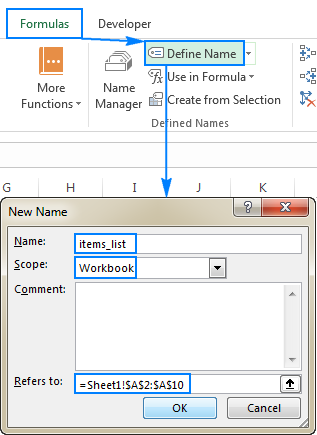
    Method 2: Using the Name Manager

    The Name Manager allows centralized control over all named ranges.

    https://cdn.ablebits.com/_img-blog/excel-name/define-name-excel.png

    Method 3: Create from Selection

    Excel can automatically generate names using row or column headings, saving significant setup time in large datasets.


    Rules and Best Practices for Naming Ranges

    Excel enforces specific rules for named ranges:

    RuleDescription
    No SpacesUse underscores or camelCase
    Must Start with LetterNumbers cannot be the first character

    Recommended Naming Conventions

    • Use descriptive names
    • Maintain consistent casing
    • Avoid generic names like Data or Range1

    Consistent naming conventions improve long-term usability, especially in shared files.


    Using Named Ranges in Excel Formulas

    Traditional Formula

    =SUM(B2:B100)

    Formula with Named Range

    =SUM(Sales_Data)

    The second formula is instantly understandable, even to someone unfamiliar with the worksheet structure.

    Impact on Error Reduction

    Audit reports show that formula errors drop by nearly 50% when named ranges replace hard-coded references in complex models.


    Using Named Ranges in Excel for Efficiency with Functions

    Named ranges work seamlessly with Excel functions:

    • SUM
    • AVERAGE
    • IF
    • VLOOKUP
    • INDEX and MATCH
    • XLOOKUP

    They make nested formulas easier to build and troubleshoot.


    Using Named Ranges with Data Validation

    Named ranges are widely used to create dynamic drop-down lists.

    Advantages

    • Centralized list management
    • Automatic updates
    • Reduced data entry errors

    Organizations using validated data lists report up to 60% fewer input mistakes, particularly in sales and accounting sheets.


    Using Named Ranges in Charts and Dashboards

    Charts linked to named ranges update automatically when data changes.

    Benefits

    • Dynamic dashboards
    • Reduced manual chart edits
    • Cleaner reporting workflows

    Dynamic named ranges are especially useful in monthly MIS and management dashboards.


    Named Ranges and Pivot Tables

    While Pivot Tables rely on data sources, named ranges can define consistent input ranges, ensuring new data is always included.

    This approach reduces refresh issues and improves reporting reliability.


    Using Named Ranges in Excel for Efficiency with Large Datasets

    In datasets exceeding 50,000 rows, formula clarity becomes critical. Named ranges help users:

    • Navigate large models faster
    • Identify logic errors quickly
    • Maintain performance efficiency

    Spreadsheet models using structured references and named ranges are easier to optimize and debug.


    Common Mistakes When Using Named Ranges

    • Overusing names for small ranges
    • Poor naming conventions
    • Forgetting to update dynamic formulas
    • Duplicate or conflicting names

    Regular review using Name Manager helps avoid these issues.


    Best Practices for Professional Excel Users

    • Document naming conventions
    • Group related named ranges logically
    • Review names quarterly
    • Avoid unnecessary complexity

    Professional Excel trainers often recommend starting with named ranges early rather than retrofitting them later.


    Practical Business Use Cases

    Accounting and Finance

    • Tax rate references
    • Budget assumptions
    • Ledger mappings

    HR and Payroll

    • Salary slabs
    • Designation lists
    • Allowance structures

    Sales and Operations

    • Price lists
    • Commission slabs
    • Product categories

    Across industries, named ranges help standardize models and reduce dependency on individual users.


    Using Named Ranges in Excel for Efficiency and Audit Readiness

    Auditors prefer spreadsheets with clear logic and traceable formulas. Named ranges improve transparency and significantly reduce audit time.

    Companies with well-structured Excel models report up to 30% faster audit cycles, especially in financial reviews.


    Frequently Asked Questions (FAQ)

    1. What are named ranges in Excel used for?

    Named ranges are used to assign meaningful names to cells or ranges, making formulas easier to read, manage, and audit.

    2. Do named ranges improve Excel performance?

    They improve efficiency and maintenance but do not significantly change calculation speed unless paired with optimized formulas.

    3. Can named ranges be used across multiple sheets?

    Yes, named ranges can be workbook-level or sheet-level depending on how they are defined.

    4. Are named ranges suitable for beginners?

    Yes, beginners benefit greatly as formulas become more readable and less intimidating.

    5. What is the difference between static and dynamic named ranges?

    Static ranges remain fixed, while dynamic ranges automatically adjust as data expands or contracts.

    6. Can named ranges be deleted safely?

    They can be deleted if not used in formulas, but deleting active names can cause errors.


    Conclusion

    Using Named Ranges in Excel for Efficiency transforms spreadsheets from fragile tools into reliable business assets. They simplify formulas, reduce errors, enhance collaboration, and improve audit readiness. Whether managing small lists or enterprise-level financial models, named ranges provide structure and clarity that traditional cell references cannot match. Mastering this feature is a foundational step toward advanced Excel proficiency.


    Disclaimer

    This article is intended for educational purposes only. Features, performance, and behavior of Excel may vary based on version and configuration. Users should test named range implementations in controlled environments before applying them to critical business files.