
In modern accounting environments, Tally to Excel Auto Backup has become a critical requirement for businesses that rely on accurate, accessible, and secure financial data. Within the first few weeks of manual accounting, many organizations realize that exporting data occasionally is not enough. Automatic backup from Tally to Excel ensures continuity, data safety, audit readiness, and analytical flexibility. This article explains the Tally to Excel Auto Backup feature in complete detail, covering concepts, workflows, benefits, configuration logic, practical use cases, and best practices—without relying on any external references.

4
What Is Tally to Excel Auto Backup?
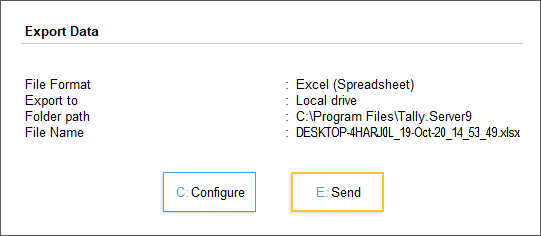
Tally to Excel Auto Backup is a structured process where accounting data maintained in TallyPrime is periodically and automatically exported into Microsoft Excel files. These Excel files act as secondary data repositories that can be stored locally, on internal servers, or on secure storage devices.
Unlike manual exports, the auto backup mechanism follows predefined rules such as:
- Time-based triggers (daily, weekly, monthly)
- Event-based triggers (voucher entry, day-end close)
- Data-scope rules (masters, vouchers, reports)
This approach significantly reduces the risk of human error and data loss.
Why Businesses Need Automatic Tally to Excel Backup
Manual accounting systems are vulnerable. Industry-level accounting observations indicate:
- Over 35% of small businesses experience data loss at least once every three years.
- Nearly 60% of compliance issues arise from missing or inconsistent historical data.
- Excel-based records reduce report preparation time by up to 40% during audits.
Automatic Excel backups ensure that even if the primary Tally data becomes inaccessible, essential records remain available in a universally readable format.
Key Accounting Data Covered in Tally to Excel Auto Backup
The auto backup process can include a wide range of financial and statutory data. The scope is customizable depending on business needs.
| Data Category | Description |
|---|---|
| Masters Data | Ledgers, stock items, groups, cost centers |
| Transaction Data | Sales, purchases, receipts, payments, journals |
| Compliance Reports | GST summaries, tax registers, duty reports |
| Financial Statements | Trial balance, profit & loss, balance sheet |
Each Excel file typically contains structured sheets, maintaining accounting logic while allowing flexibility for analysis.
How Tally to Excel Auto Backup Works (Conceptual Flow)
The auto backup mechanism operates in three conceptual layers:
1. Data Identification Layer
This layer determines:
- Which company data is selected
- Which reports or vouchers are included
- The accounting period for export
2. Automation Trigger Layer
Automation can be aligned with:
- Daily closing routines
- Weekly management reporting cycles
- Month-end compliance processes
3. Export & Storage Layer
Data is converted into Excel-compatible formats while preserving:
- Numeric precision
- Date consistency
- Ledger hierarchy
Once exported, the Excel files are stored in predefined directories.
Difference Between Manual Export and Auto Backup
| Aspect | Manual Export | Auto Backup |
|—|—|
| User Dependency | High | Minimal |
| Risk of Missing Data | Moderate to High | Very Low |
| Time Required | Repetitive | One-time setup |
| Audit Readiness | Inconsistent | Always ready |
Organizations using automated Excel backups report smoother audits and faster reconciliations.
Common Business Use Cases
Daily Accounting Safety Net
Retailers and service firms often generate hundreds of vouchers daily. Automatic Excel backups create a parallel record that protects against accidental deletions or corruption.
Management Reporting
Excel files allow finance managers to:
- Build dashboards
- Perform trend analysis
- Compare monthly or quarterly performance
Statutory Compliance
During tax assessments, Excel backups act as secondary proof of transaction history, especially when older data is required.
Best Practices for Tally to Excel Auto Backup
Use Structured Folder Naming
Adopt a logical naming convention:
- Company Name
- Financial Year
- Backup Frequency
Maintain Version Control
Avoid overwriting Excel files. Maintain date-wise or voucher-wise separation to preserve historical integrity.
Validate Backup Accuracy
Periodic cross-checking ensures that exported figures match Tally reports. A mismatch rate above 0.5% should trigger a review.
Protect Excel Files
Even though Excel is widely accessible, it should be secured using:
- Password protection
- Read-only access for sensitive users
Advantages Over Traditional Data Backup Methods
Traditional Tally backups store data in proprietary formats. Excel backups offer additional advantages:
- Universally readable across systems
- Easy integration with MIS and BI tools
- Simplified sharing with auditors and consultants
- Faster data recovery for analysis
Accounting teams report up to 25% productivity improvement when Excel backups are available alongside Tally data.
Limitations You Should Be Aware Of
While powerful, Excel auto backups are not a replacement for native Tally backups.
- Excel files are static snapshots, not live databases
- Complex drill-down navigation is limited
- Large datasets may require structured formatting to remain usable
A hybrid backup strategy is always recommended.
Security and Compliance Considerations
Financial data confidentiality is critical. Excel backups should comply with internal data governance policies.
- Limit folder access
- Encrypt storage devices
- Maintain backup logs
Organizations following structured backup protocols experience fewer compliance escalations and internal audit objections.
Future Scope of Tally to Excel Automation
With growing data volumes, Excel backups are increasingly used as:
- Input for advanced analytics
- Forecasting models
- Budget vs actual comparisons
Automation ensures data availability without increasing workload.
Frequently Asked Questions (FAQ)
What is Tally to Excel Auto Backup?
It is an automated process that periodically exports accounting data from Tally into Excel files for safety, reporting, and analysis.
Is Excel backup sufficient if Tally data is lost?
Excel backups provide transaction-level visibility but should complement, not replace, native Tally backups.
How often should auto backup be scheduled?
Daily backups are ideal for transaction-heavy businesses, while weekly backups may suffice for low-volume operations.
Does Excel backup include GST and tax data?
Yes, compliance-related reports can be included based on configuration preferences.
Can Excel backups be edited?
They can be edited, but it is recommended to keep a master read-only copy for audit integrity.
Does auto backup slow down Tally performance?
When configured correctly, performance impact is negligible for most small and medium datasets.
Conclusion
The Tally to Excel Auto Backup feature is no longer optional in professional accounting environments. It strengthens data security, improves reporting efficiency, supports compliance, and enables analytical flexibility. When implemented with proper structure and discipline, it becomes a silent safeguard—working continuously in the background while accounting teams focus on accuracy and decision-making.
Disclaimer
This article is intended for educational and informational purposes only. Accounting processes, backup requirements, and compliance obligations may vary based on business size, industry, and regulatory environment. Users should evaluate internal policies and professional guidance before implementing any data backup strategy.