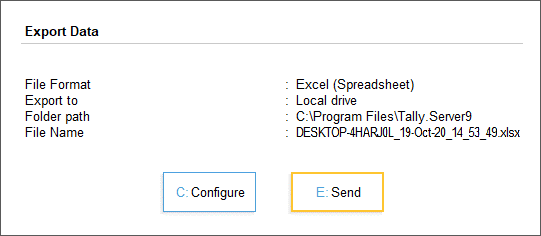
Businesses today rely heavily on both accounting software and spreadsheet tools to manage financial data. One of the most powerful productivity upgrades for accountants and MIS professionals is Real-Time Tally to Excel Sync. This setup allows financial data recorded in Tally to automatically update in Excel without manual export.
Real-time synchronization between Tally and Excel eliminates repetitive data entry, reduces errors, and enables faster reporting. Many companies maintain their accounting in Tally while performing analysis, dashboards, and MIS reporting in Excel. By implementing a real-time sync setup, organizations can instantly analyze financial data without constantly exporting reports.
In this comprehensive guide, you will learn how to set up Real-Time Tally to Excel synchronization, understand the tools required, configuration steps, advantages, and best practices for businesses.
What is Real-Time Tally to Excel Sync?
Real-Time Tally to Excel Sync is a process that automatically transfers accounting data from Tally to Excel as soon as the data is updated in the accounting system.
Instead of manually exporting reports from Tally every time you need updated figures, the system automatically refreshes the data in Excel.
This setup typically works using:
- Tally ODBC Server
- Excel ODBC connection
- XML data integration
- Custom connectors or APIs
Once configured, Excel can directly read live company data from Tally.
Example of Data That Can Be Synced
| Tally Data Type | Excel Usage |
|---|---|
| Ledger balances | Financial dashboards |
| Sales transactions | Sales analysis |
| Purchase entries | Vendor analysis |
| Stock data | Inventory reporting |
| GST transactions | Compliance reporting |
This integration is widely used by accountants, MIS executives, financial analysts, and business owners.
Why Businesses Need Real-Time Tally to Excel Integration
Organizations often face delays when generating financial reports because they export data manually from accounting systems. Real-time integration removes this delay.
Key Business Benefits
| Benefit | Explanation |
|---|---|
| Faster reporting | Data automatically updates in Excel |
| Reduced manual work | No repeated export from Tally |
| Accurate analysis | Always uses latest accounting data |
| Better MIS reporting | Real-time dashboards possible |
| Improved decision making | Updated financial information instantly available |
In medium-sized companies, finance teams may export reports from Tally 5–10 times per day. Real-time synchronization eliminates this repetitive task entirely.
How Real-Time Tally to Excel Sync Works
The synchronization works through Tally’s built-in ODBC Server functionality.
ODBC (Open Database Connectivity) allows external software like Excel to read data directly from Tally.
Basic Workflow
- Tally runs with ODBC enabled.
- Excel connects to Tally using ODBC.
- Excel queries the data.
- Excel refreshes the connection automatically.
Whenever data changes in Tally, Excel can refresh and display updated values.
This allows organizations to build live dashboards connected directly to accounting data.
Requirements for Setting Up Tally to Excel Sync
Before configuring the integration, ensure the following requirements are met.
Software Requirements
| Requirement | Details |
|---|---|
| Tally ERP / Tally Prime | Latest version recommended |
| Microsoft Excel | Excel 2016 or newer |
| Windows operating system | Required for ODBC connectivity |
| Enabled ODBC Server | Must be activated inside Tally |
System Preparation Steps
- Install Tally on the system.
- Ensure company data is loaded.
- Install Microsoft Excel.
- Enable ODBC server inside Tally settings.
After completing these prerequisites, you can begin configuring the real-time connection.
Step-by-Step Setup of Real-Time Tally to Excel Sync
This section explains the full configuration process.
Step 1: Enable ODBC Server in Tally
Open Tally and activate the ODBC server.
Steps:
- Open Tally
- Press F12 Configuration
- Go to Advanced Configuration
- Enable ODBC Server
After activation, Tally allows external tools to access its data.
Step 2: Identify Available Tally Tables
Tally exposes data tables such as:
- Ledger
- StockItem
- Voucher
- Company
- Groups
These tables can be queried directly from Excel.
Example queries include:
- List of ledgers
- Voucher transactions
- Stock summary
Step 3: Connect Excel to Tally via ODBC
Open Excel and create a data connection.
Steps:
- Open Excel
- Go to Data Tab
- Select Get Data
- Choose From Other Sources
- Select From ODBC
Excel will now detect the Tally ODBC source.
Step 4: Write Query to Extract Data
Once connected, Excel allows queries to retrieve accounting information.
Example queries may include:
- Ledger balances
- Voucher list
- Stock summary
- Sales register
The query results load directly into Excel tables.
Step 5: Enable Auto Refresh for Real-Time Sync
Excel connections can be configured to refresh automatically.
Steps:
- Go to Data Connections
- Select connection properties
- Enable Refresh every X minutes
Many companies set refresh intervals between 1–5 minutes for near real-time reporting.
Example of Real-Time Financial Dashboard
Once synchronization is active, Excel dashboards can display live business metrics.
Dashboard Metrics
| Metric | Source |
|---|---|
| Total Sales | Sales vouchers |
| Purchase Expenses | Purchase vouchers |
| Outstanding Receivables | Ledger balances |
| Inventory Value | Stock summary |
| GST Liability | Tax ledger data |
These dashboards update automatically when accounting entries are posted in Tally.
Common Use Cases of Tally to Excel Sync
Businesses across industries use this integration for several financial tasks.
1. MIS Reporting
Management Information Systems rely heavily on Excel dashboards.
Real-time Tally integration ensures reports always show current financial data.
2. GST Reporting
Finance teams use Excel models to calculate:
- GST liability
- Input tax credit
- Tax reconciliation
With automatic sync, GST reports remain updated.
3. Inventory Analysis
Excel is widely used for analyzing stock turnover, reorder levels, and slow-moving items.
Live sync helps inventory managers monitor stock levels continuously.
4. Financial Forecasting
Excel financial models use real accounting data to predict:
- Cash flow
- Revenue trends
- Expense projections
Best Practices for Real-Time Tally to Excel Sync
Implementing the setup correctly ensures reliable data flow.
Best Practice Tips
| Practice | Benefit |
|---|---|
| Use dedicated reporting Excel files | Prevents accidental edits |
| Schedule refresh intervals wisely | Avoids system overload |
| Protect Excel formulas | Prevents data corruption |
| Backup company data regularly | Ensures safety |
| Monitor connection errors | Maintains reliability |
These practices ensure smooth integration in professional environments.
Common Problems and Solutions
Even well-configured systems may face occasional issues.
Typical Issues
| Issue | Solution |
|---|---|
| Excel cannot detect Tally | Ensure ODBC server enabled |
| Data not refreshing | Check refresh settings |
| Query errors | Verify table names |
| Slow refresh | Reduce data volume |
Troubleshooting these issues usually restores the connection quickly.
Future of Tally and Excel Integration
The demand for integrated financial reporting continues to grow rapidly.
Industry estimates suggest that over 70% of finance professionals use Excel alongside accounting software for advanced reporting.
Real-time integrations are becoming standard in modern finance departments because they provide:
- Faster analytics
- Real-time business insights
- Automated reporting systems
Professionals skilled in Tally + Excel integration are increasingly valuable in accounting and MIS roles.
Learn Advanced Excel Automation for MIS and Accounting
If you want to build automated dashboards, financial reporting tools, and accounting automation systems, advanced Excel skills are essential.
You can learn these powerful techniques in this professional training program:
Learn advanced Excel automation, VBA macros, SQL data handling, and MIS reporting in this comprehensive course:
MIS Professional Excel, VBA, SQL and Automation CourseThis course helps professionals automate reporting systems used in real companies.
Frequently Asked Questions (FAQ)
What is real-time Tally to Excel synchronization?
Real-time Tally to Excel synchronization is a setup where Excel directly connects to Tally’s database using ODBC and automatically updates accounting data without manual export.
Can Excel automatically refresh Tally data?
Yes. Excel allows automatic refresh of external data connections. You can configure refresh intervals so that the spreadsheet updates regularly.
Is coding required for Tally to Excel integration?
Basic integrations can be done without coding using ODBC queries. However, advanced automation may involve Excel VBA or SQL queries.
Which version of Excel supports Tally integration?
Most modern versions of Excel including Excel 2016, Excel 2019, and Excel 365 support ODBC connections with Tally.
Can Tally sales data be automatically transferred to Excel?
Yes. Sales vouchers can be queried using ODBC and loaded into Excel tables for automatic reporting.
Is real-time synchronization safe for accounting data?
Yes, because Excel only reads data from Tally and does not modify the accounting database.
What professionals benefit from this setup?
Accountants, MIS executives, financial analysts, auditors, and business owners frequently use this integration for reporting and analysis.
Conclusion
Real-Time Tally to Excel Sync Setup is one of the most powerful productivity improvements for finance teams. By connecting Excel directly to Tally, organizations can eliminate manual exports, reduce errors, and generate real-time financial insights.
With proper configuration using ODBC connectivity, Excel becomes a powerful reporting interface for accounting data. Businesses can create automated dashboards, MIS reports, and financial models that always reflect the latest accounting entries.
As companies increasingly depend on data-driven decision-making, mastering Tally and Excel integration is becoming a highly valuable skill for modern accounting professionals.
Disclaimer
This article is intended for educational and informational purposes only. Software features, system configurations, and integration methods may vary depending on the version of Tally, Excel, and operating system used. Always test integration setups in a controlled environment before implementing them in live financial systems.