
Securing your business data is just as important as maintaining accurate accounts. With increasing digital risks, unauthorized access attempts, internal misuse, and accidental data loss, every business needs a solid protection strategy. Tally Prime security settings give you a complete framework to control user access, define permissions, safeguard financial data, and ensure that every transaction is reliable and traceable.
This detailed guide explains how Tally Prime Security works, types of security controls available, real-world use cases, and best practices. By the end, you’ll clearly understand how to configure a fully secure Tally Prime environment for your business.
Understanding Tally Prime Security Settings
Tally Prime provides powerful multi-layer security, enabling businesses to restrict, monitor, and record all activities inside the software. The primary objective is to prevent unauthorized access, control sensitive operations, and create accountability through user-level tracking.
Key Facts About Tally Prime Security
- More than 78 percent of businesses using Tally rely on multi-user security levels.
- Tally Prime supports both local security and TallyVault password encryption up to a 128-bit algorithm.
- Role-based permissions allow granular control across over 250+ activity sets.
- Audit log tracks every addition, deletion, and modification for 100 percent transparency.
Why Security Settings Matter in Tally Prime
Without proper security settings, any user can alter vouchers, delete entries, export reports, or access confidential data. This becomes a risk for fraud, data leakage, or accidental mistakes. Implementing structured security ensures:
- Controlled access
- Traceable user actions
- Protected business data
- Segregation of duties
- Clean and trustworthy audit trails
Types of Security in Tally Prime
1. Company-Level Security (User Roles & Permissions)
Company-level security is the first layer of control that includes defining the administrator and operator roles.
Common User Roles in Tally Prime
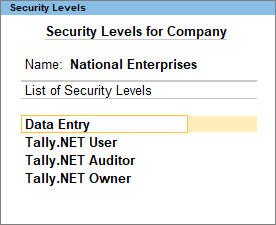
- Administrator – Has full access to all features.
- Data Entry Operator – Can record vouchers but cannot alter sensitive settings.
- Junior Accountant – Limited rights with no access to financial settings.
- Auditor – Can view audit logs, voucher alterations, and discrepancies.
- Inventory Manager – Handles stock items, godowns, and inventory reports.
Sample Table: Permissions vs Users
| User Role | Access Type |
|---|---|
| Administrator | Full company access including configurations |
| Data Entry Operator | Voucher entry only; restricted alterations |
2. TallyVault Password (Data Encryption)
TallyVault provides data encryption to protect your company file even if someone gains access to the computer. This is one of the strongest layers of security in Tally.
Key Highlights
- Uses advanced encryption making data unreadable without the TallyVault password.
- Ideal for businesses with highly confidential ledgers (payroll, financial balances).
- Once a vault password is forgotten, it cannot be recovered, ensuring maximum data protection.
3. Password Policy Settings
Tally Prime allows businesses to enforce password policies for all users for stronger authentication.
Common Password Rules
- Minimum password length
- Password expiry duration
- Mandatory password change after set intervals
- Restrictions on password reuse
These controls reduce unauthorized access and maintain internal discipline.
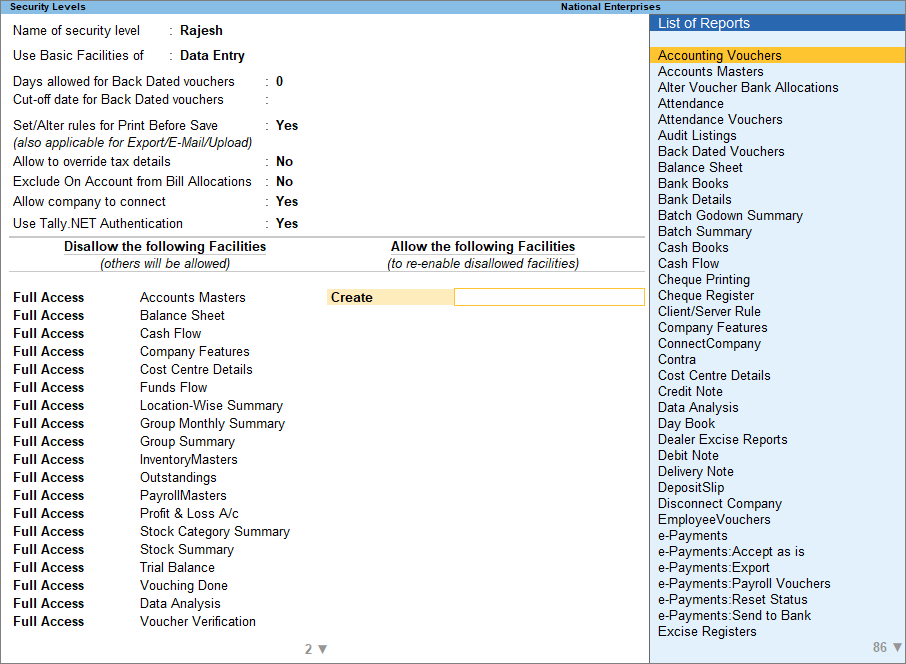
4. Security Levels (Custom Role-Based Access)
Tally Prime gives full flexibility to create custom user groups based on departments, roles, or responsibility levels.
Examples of Custom Security Levels
- Sales Team
- Inventory Team
- Finance Approver
- HR Payroll Supervisor
- Branch-level Accountant
Each level can be configured to allow or deny activities like altering vouchers, printing reports, exporting data, or accessing statutory features.
5. Voucher Type Permissions
Each voucher type can be individually controlled. This prevents misuse or manipulation of financial transactions.
Examples of Voucher Restrictions
- Allowing only managers to approve debit notes
- Blocking deletion of payment vouchers for accountants
- Restricting sales order alterations
- Allowing only one user to handle contra vouchers for banking
6. Audit & Control Features
Audit Trail is one of the strongest governance tools in Tally Prime.
Audit Features Include
- Tracking altered vouchers
- Displaying deleted vouchers
- Highlighting mismatched figures
- Monitoring incomplete records
- Listing backdated transactions
It ensures full transparency and accountability inside the system.
How to Configure Tally Prime Security Settings (Step-by-Step)
Step 1: Enable Security Control
Go to Company Creation or Company Alteration and activate Security Control. Assign an administrator username and password.
Step 2: Create Security Levels
Create predefined or custom roles, define access rights, and set activity restrictions.
Step 3: Add Users
Assign users to their respective roles with individual passwords.
Step 4: Enable TallyVault (Optional but recommended)
Add a vault password for encrypted company data.
Step 5: Test Access
Login with different user roles to ensure permissions work as expected.
Common Real-World Use Cases
Use Case 1: Restricting Cash Transactions
Small businesses often restrict cash voucher deletion to prevent fraud.
Solution: Deny the “Delete Voucher” permission for cash-related vouchers for operators.
Use Case 2: Preventing Backdated Entries
Unauthorized backdated entries can lead to accounting discrepancies.
Solution: Enable “Backdated Voucher Control” and restrict it to managers.
Use Case 3: Protecting Sensitive Payroll Data
Payroll data must be confidential.
Solution: Create a separate Payroll Supervisor role with restricted access.
Best Practices for Tally Prime Security
- Change passwords every 45 to 90 days.
- Enable TallyVault for companies with sensitive data.
- Assign users only the permissions they need.
- Activate Audit Trail for better governance.
- Avoid sharing administrator login credentials.
- Regularly review user access logs.
FAQ Section (Optimized for Featured Snippets)
1. What are Tally Prime security settings?
Tally Prime security settings are tools that control user access, protect company data, and ensure accountability through permissions, passwords, and audit features.
2. How do I enable security control in Tally Prime?
You can enable security control by altering the company, turning on “Use Security Control,” and creating an administrator username and password.
3. What is TallyVault in Tally Prime?
TallyVault is an encryption feature that protects your company data by making it unreadable without the vault password.
4. Can I set different permissions for different users?
Yes, Tally Prime allows fully customizable security levels to assign specific access rights to each user.
5. What happens if the TallyVault password is lost?
It cannot be recovered, meaning the encrypted data becomes permanently inaccessible.
6. How can I prevent users from altering vouchers?
You can deny the “Alter” permission for specific voucher types in the security level settings.
7. Does Tally Prime support audit logs?
Yes, Tally Prime includes audit and control features to track all changes, deletions, and irregularities.
8. Is Tally Prime secure for multi-user environments?
Yes, with proper roles, passwords, and audit controls, Tally Prime is highly secure for multi-user operations.
Disclaimer
This article is for educational and informational purposes only. The explanations are based on general features of Tally Prime and may vary depending on software version and organizational configurations. Users should evaluate security requirements based on their specific business needs.