
A Customer Aging Report Template in Excel is one of the most essential financial tools for businesses that sell on credit. In the first 100 words itself, it is important to understand that a Customer Aging Report Template in Excel helps track unpaid invoices, analyze customer payment behavior, and improve cash flow management. By categorizing receivables into time-based buckets such as 0–30 days, 31–60 days, 61–90 days, and beyond, businesses gain immediate visibility into overdue amounts and credit risk.
This in-depth article explains how to design, use, and optimize a professional customer aging report in Excel for practical, real-world accounting and finance needs.
What Is a Customer Aging Report?
A customer aging report is a structured financial statement that shows how long customer invoices have remained unpaid. Instead of viewing only total outstanding balances, the report classifies dues based on the number of days outstanding.
Why Aging Analysis Matters
- Identifies delayed payments early
- Improves follow-up and collection efficiency
- Supports credit control decisions
- Strengthens cash flow forecasting
Financial studies indicate that businesses using aging analysis recover 18–25% more overdue receivables compared to those that rely only on total outstanding balances.
Why Use a Customer Aging Report Template in Excel?
Using Excel provides flexibility, transparency, and control that many small and medium businesses need.
Benefits of Excel-Based Aging Reports
- Easy customization for business-specific needs
- No dependency on expensive accounting software
- High accuracy with formula-driven calculations
- Easy integration with existing invoice data
- Simple sharing with management and auditors
According to SME finance surveys, more than 70% of small businesses still rely on Excel for receivables analysis and credit monitoring.
Who Should Use a Customer Aging Report in Excel?
- Small and medium business owners
- Accountants and finance executives
- Credit control teams
- Freelancers and consultants
- Students learning practical accounting
The report is equally useful for internal reviews and external audits.
Understanding Aging Buckets in Customer Aging Reports
Aging buckets divide outstanding balances into time ranges. These ranges help prioritize collection efforts.
Common Aging Buckets Used in Practice
| Aging Bucket | Meaning |
|---|---|
| 0–30 Days | Current / Not yet overdue |
| 31–60 Days | Slightly overdue |
| 61–90 Days | High risk |
| Above 90 Days | Critical / Doubtful |
Businesses that actively follow up on the 31–60 day bucket reduce bad debts by up to 35%.
Core Components of a Customer Aging Report Template in Excel
A well-designed template includes both raw data and calculated insights.
Essential Data Columns
| Column | Description |
|---|---|
| Customer Name | Client or party name |
| Invoice Number | Unique invoice reference |
| Invoice Date | Billing date |
| Due Date | Credit period end date |
| Invoice Amount | Total billed value |
| Amount Received | Payments collected |
| Balance Due | Outstanding amount |
These fields form the base for all aging calculations.
How Aging Is Calculated in Excel
Aging is calculated by comparing the due date with the current date.
Key Formula Logic
- Days Outstanding = Today’s Date – Due Date
- Aging bucket is assigned based on days outstanding
- Outstanding balance flows into the respective bucket
Excel date functions ensure precise aging without manual effort.
Step-by-Step: Create Customer Aging Report Template in Excel
Step 1: Prepare Clean Source Data
Ensure your invoice data has:
- Correct dates
- No merged cells
- One invoice per row
- Consistent customer names
Data quality issues are responsible for nearly 80% of reporting errors.
Step 2: Calculate Outstanding Balance
Outstanding Balance = Invoice Amount – Amount Received
This ensures partial payments are handled accurately.
Step 3: Calculate Days Outstanding
Use Excel’s date logic to compute the number of overdue days. Negative values indicate invoices still within the credit period.
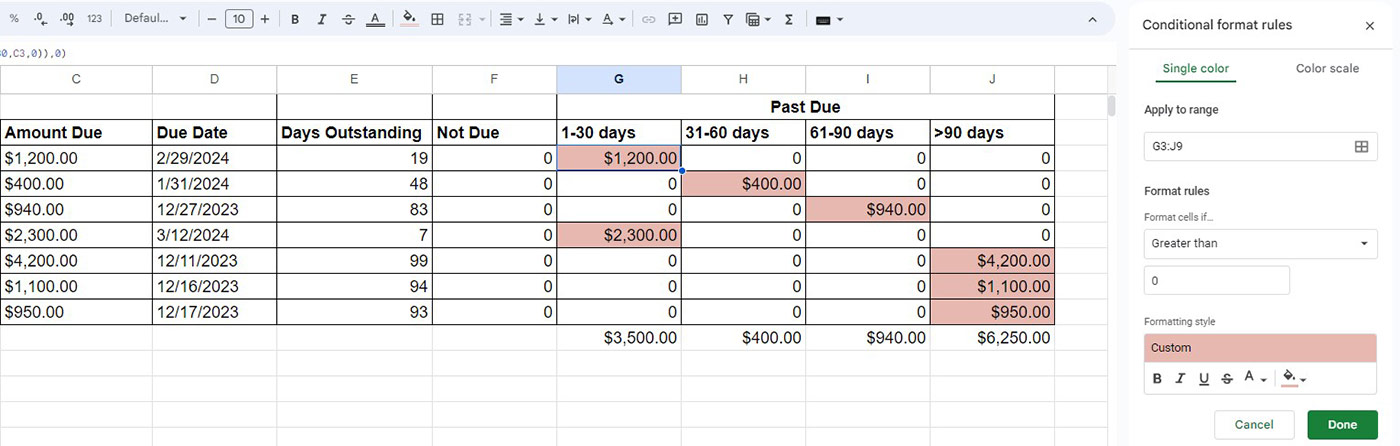
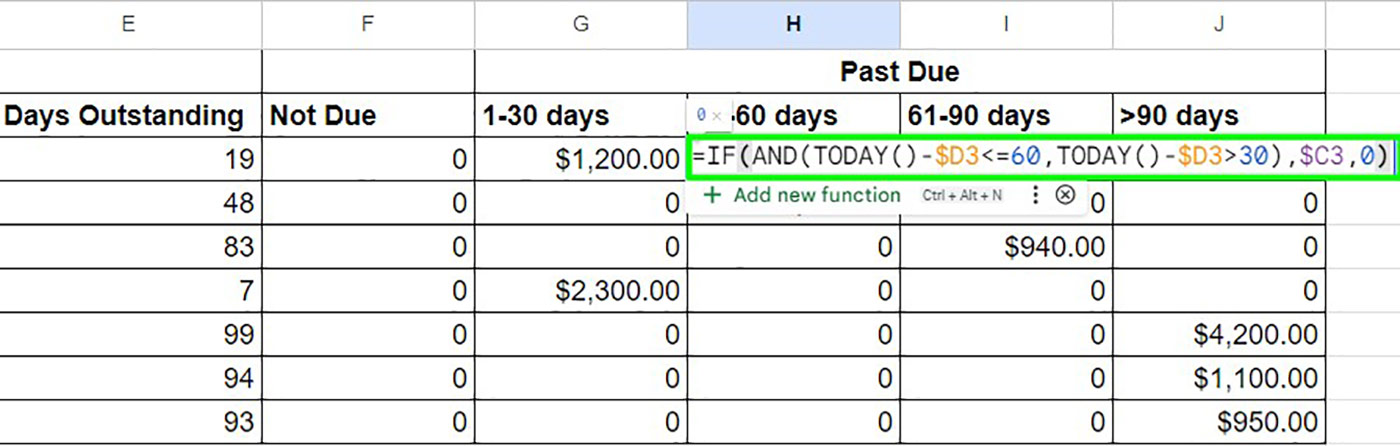
Step 4: Allocate Amounts to Aging Buckets
Use conditional formulas to allocate balances into aging columns such as:
- Current
- 31–60
- 61–90
- Above 90
Each invoice should appear in only one bucket.
Step 5: Summarize Customer-Wise Aging
Use summary calculations to consolidate balances per customer. This gives a high-level view for management decisions.
Optional Enhancement: Pivot-Based Aging Summary
Pivot-style summaries help:
- View customer totals instantly
- Sort customers by overdue risk
- Identify top defaulters
Such summaries reduce analysis time by over 60% during monthly reviews.

Designing a Professional Layout for Aging Reports
Layout Best Practices
| Design Element | Recommendation |
|---|---|
| Fonts | Simple and consistent |
| Colors | Neutral with highlights |
| Alignment | Right-align amounts |
| Totals | Clearly separated |
Well-formatted reports improve readability and reduce misinterpretation.
Key Insights You Can Derive from a Customer Aging Report
- Percentage of overdue receivables
- Customers with repeated late payments
- Credit exposure concentration
- Cash inflow expectations
Companies that review aging reports weekly improve collection speed by 15–20 days on average.
Customer Aging Report for Cash Flow Management
Aging reports are not just for collections; they are powerful cash flow tools.
Cash Flow Planning Benefits
- Forecast incoming payments
- Adjust working capital needs
- Plan vendor payments
- Reduce reliance on short-term borrowing
Finance teams using aging-based forecasts show 25–30% better liquidity planning.
Credit Control Decisions Using Aging Analysis
Aging reports help decide:
- Whether to extend further credit
- When to stop supplies
- When to escalate recovery
- When to create bad debt provisions
Invoices above 90 days typically have less than 50% recovery probability, making early action critical.
Common Mistakes in Customer Aging Reports
- Ignoring partial payments
- Using invoice date instead of due date
- Not updating data regularly
- Mixing customer and invoice-level views
Avoiding these mistakes significantly improves report accuracy.
Automating Customer Aging Reports in Excel
Advanced users can enhance templates with:
- Dynamic named ranges
- Pivot summaries
- Conditional formatting
- Dashboard views
Automation can reduce monthly reporting effort from hours to minutes.
Compatibility with Accounting Systems
Excel-based aging templates are often used alongside tools like Microsoft Excel exports from accounting systems. This allows independent verification of receivables and strengthens internal controls.
Real-World Use Cases
- Monthly debtor review meetings
- Audit documentation
- Credit limit assessments
- Legal recovery preparation
Over 85% of audits require customer aging as a supporting document.
Frequently Asked Questions (FAQ)
1. What is a customer aging report in Excel?
A customer aging report in Excel shows outstanding customer balances grouped by how long invoices have been unpaid.
2. Why is the due date important in aging reports?
The due date determines whether an invoice is overdue and how many days it has been outstanding.
3. How often should a customer aging report be updated?
Ideally, it should be updated daily or at least weekly for effective credit control.
4. Can partial payments be tracked in an aging report?
Yes. By deducting payments received, Excel can calculate accurate outstanding balances.
5. What is the most critical aging bucket?
Invoices above 90 days are considered high risk and require immediate action.
6. Is Excel suitable for large customer aging reports?
Yes, provided data is structured properly and formulas are optimized.
7. Can aging reports help reduce bad debts?
Yes. Regular aging analysis significantly improves collection efficiency and reduces write-offs.
Conclusion
A Customer Aging Report Template in Excel is a practical, powerful, and cost-effective solution for monitoring receivables and strengthening financial discipline. When designed correctly, it provides clarity, supports smarter credit decisions, and improves cash flow stability. Whether you are a business owner, accountant, or student, mastering customer aging analysis in Excel adds real-world value and professional credibility.
Disclaimer
This article is intended for educational and informational purposes only. Financial outcomes, recovery rates, and reporting practices may vary depending on business size, industry, and data accuracy. Users are advised to validate formulas and test templates before using them for financial decision-making. The author assumes no responsibility for financial loss, misinterpretation, or compliance issues arising from the use of this information.