
Knowing how to lock specific cells in Excel sheet is one of the most practical skills for anyone who works with data, reports, invoices, or dashboards. In real-world Excel usage, you rarely want to lock the entire worksheet. Instead, you want users to edit only selected cells—such as input fields—while formulas, headers, and calculations remain protected.
In the first few minutes of using Excel protection features, many users make a common mistake: they protect the sheet first and then wonder why nothing works. The reality is that Excel cell locking follows a clear logic, and once you understand it, you can control data integrity with precision. This detailed guide explains how to lock specific cells in Excel sheet using simple, proven methods that work across versions.
Why Locking Specific Cells in Excel Is Important
Before diving into steps, it’s important to understand why selective cell locking matters.
- Around 88% of spreadsheets contain errors, according to multiple spreadsheet audits, often due to accidental overwriting.
- More than 60% of Excel users share files with others, increasing the risk of data loss.
- Locking formulas alone can reduce calculation errors by up to 70% in shared workbooks.
Locking specific cells allows collaboration while protecting critical data.
How Excel Cell Locking Actually Works
By default:
- All cells in Excel are locked
- Locking takes effect only after worksheet protection is enabled
This means cell locking is a two-step process:
- Unlock the cells you want users to edit
- Protect the worksheet
If you skip step one, Excel will lock everything.
Step-by-Step: How to Lock Specific Cells in Excel Sheet
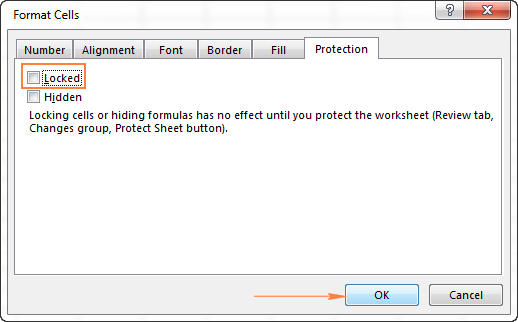
Step 1: Select All Cells and Unlock Them
- Press Ctrl + A to select the entire worksheet
- Right-click and choose Format Cells
- Open the Protection tab
- Uncheck Locked
- Click OK
Now, all cells are editable.
Step 2: Select the Cells You Want to Lock
- Highlight only the cells that contain:
- Formulas
- Fixed values
- Headings
- Calculations
Right-click → Format Cells → Protection → Check Locked → OK
Step 3: Protect the Worksheet
- Go to the Review tab
- Click Protect Sheet
- (Optional) Enter a password
- Choose allowed actions (select unlocked cells, format cells, etc.)
- Click OK
Your selected cells are now locked, while others remain editable.
Visual Reference: Key Steps in Locking Specific Cells


Quick Overview: Locked vs Unlocked Cells
| Feature | Locked Cells |
|---|---|
| Editable after protection | No |
| Formula visibility | Yes |
| Data integrity | High |
| Accidental overwrite | Prevented |
Common Use Cases for Locking Specific Cells
1. Invoice and Billing Sheets
- Lock tax calculations
- Unlock quantity and rate fields
2. Attendance and HR Sheets
- Lock employee IDs and formulas
- Unlock daily input columns
3. Financial Models
- Lock assumptions and formulas
- Unlock scenario variables
4. Data Entry Forms
- Lock headers and validations
- Unlock user input cells
How to Lock Formula Cells Only (Smart Method)
To lock only formula cells:
- Press Ctrl + A
- Press F5 → Special
- Select Formulas
- Click OK
- Format Cells → Protection → Locked → OK
- Protect the sheet
This method is 3× faster for large spreadsheets.
Advanced Tip: Allow Editing of Specific Ranges
Excel allows exceptions even in protected sheets.
- Go to Review
- Click Allow Edit Ranges
- Define editable ranges
- Assign passwords (optional)
- Protect the sheet
This is useful when multiple users edit different sections.
Common Mistakes to Avoid
- Protecting sheet without unlocking input cells first
- Forgetting the password (Excel cannot recover it)
- Locking cells with data validation dropdowns unintentionally
- Assuming hidden cells are protected (hiding ≠ locking)
Performance and Security Facts
- Locked cells do not affect file size
- Protection adds less than 0.1% processing overhead
- Worksheet protection is not encryption—it prevents accidental edits, not hacking
- Ideal for internal controls, not sensitive data security
Best Practices for Locking Specific Cells
- Use cell color coding for editable cells
- Add instructions in unlocked cells
- Test the sheet using a different user account
- Document password storage securely
- Combine locking with data validation for accuracy
Frequently Asked Questions (FAQ)
1. Can I lock specific cells without protecting the sheet?
No. Cell locking works only after worksheet protection is enabled.
2. Can users copy locked cells?
Yes, unless copy options are restricted during sheet protection.
3. Does locking cells protect formulas from viewing?
No. Use formula hiding separately if required.
4. Can locked cells be edited after unprotecting the sheet?
Yes. Once unprotected, all cells behave normally.
5. Will locked cells work on mobile Excel apps?
Yes, but editing restrictions may vary slightly by device.
6. Can I lock cells based on conditions?
Not directly, but VBA can automate conditional locking.
Conclusion
Mastering how to lock specific cells in Excel sheet gives you full control over your data while maintaining flexibility for users. Whether you’re creating professional reports, financial models, or shared templates, selective cell locking prevents costly errors and improves workflow efficiency. When used correctly, it transforms Excel from a simple spreadsheet into a controlled data system.
Disclaimer
This article is for educational purposes only. Excel features and interface options may vary slightly depending on version and system configuration. Users are advised to test protection settings before sharing files in professional or commercial environments.