Have you ever spent hours manually copying charts from Excel to PowerPoint for a client report or monthly presentation? If you’re tired of repetitive work and want a more efficient way to generate professional slide decks, this Excel VBA macro will be your new favorite tool.
In this article, we’ll walk through a simple yet powerful VBA code that automatically creates a PowerPoint presentation from charts in your Excel sheet – in just one click.
🧠 Why Automate PowerPoint from Excel?
Whether you’re working in marketing, finance, operations, or analytics, chart presentations are a routine part of reporting. Manually transferring visuals from Excel to PowerPoint is time-consuming, error-prone, and, frankly, boring.
By using Excel VBA (Visual Basic for Applications), you can:
- 📌 Save hours of manual work
- 📌 Create consistent, polished slides
- 📌 Add customized commentary dynamically
- 📌 Focus on analysis, not formatting
🛠️ The VBA Macro: What It Does
The macro you’re about to use does the following:
- Detects all charts in the active Excel sheet
- Creates a new PowerPoint presentation (or opens an existing one)
- Inserts each chart into a new slide
- Uses the chart title as the slide title
- Adds custom text comments to each slide based on chart content
- Formats everything neatly for professional results
💡 How to Use the Code
Before running the macro, ensure you’ve added a reference to Microsoft PowerPoint Object Library in Excel:
Go to Tools > References in the VBA editor and check Microsoft PowerPoint XX.0 Object Library.
Then paste the following code into your Excel VBA module:
vbaCopyEditSub CreatePowerPoint1()
    ' Ensure Microsoft PowerPoint Object Library is added (Tools > References)

    Dim newPowerPoint As PowerPoint.Application
    Dim pptPresentation As PowerPoint.Presentation
    Dim pptSlide As PowerPoint.Slide
    Dim pptShape As PowerPoint.Shape
    Dim commentBox As PowerPoint.Shape
    Dim cht As Excel.ChartObject

    On Error Resume Next
    Set newPowerPoint = GetObject(, "PowerPoint.Application")
    On Error GoTo 0

    If newPowerPoint Is Nothing Then
        Set newPowerPoint = New PowerPoint.Application
    End If

    newPowerPoint.Visible = True

    If newPowerPoint.Presentations.Count = 0 Then
        Set pptPresentation = newPowerPoint.Presentations.Add
    Else
        Set pptPresentation = newPowerPoint.Presentations(1)
    End If

    For Each cht In ActiveSheet.ChartObjects
        Set pptSlide = pptPresentation.Slides.Add(pptPresentation.Slides.Count + 1, ppLayoutText)
        cht.Chart.ChartArea.Copy
        Set pptShape = pptSlide.Shapes.PasteSpecial(DataType:=ppPasteMetafilePicture)(1)

        With pptShape
            .Left = 75
            .Top = 195
        End With

        If cht.Chart.HasTitle Then
            pptSlide.Shapes.Title.TextFrame.TextRange.Text = cht.Chart.ChartTitle.Text
        Else
            pptSlide.Shapes.Title.TextFrame.TextRange.Text = "Chart Slide"
        End If

        Set commentBox = pptSlide.Shapes.AddTextbox(Orientation:=msoTextOrientationHorizontal, _
                                                    Left:=505, Top:=195, Width:=200, Height:=100)

        Dim chartTitle As String
        chartTitle = pptSlide.Shapes.Title.TextFrame.TextRange.Text

        If InStr(chartTitle, "US") > 0 Then
            commentBox.TextFrame.TextRange.Text = Range("J7").Value & vbNewLine & Range("J8").Value
        ElseIf InStr(chartTitle, "Renewable") > 0 Then
            commentBox.TextFrame.TextRange.Text = Range("J27").Value & vbNewLine & _
                                                  Range("J28").Value & vbNewLine & _
                                                  Range("J29").Value
        Else
            commentBox.TextFrame.TextRange.Text = ""
        End If

        commentBox.TextFrame.TextRange.Font.Size = 16
    Next cht

    On Error Resume Next
    AppActivate "Microsoft PowerPoint"
    On Error GoTo 0

    Set pptSlide = Nothing
    Set pptPresentation = Nothing
    Set newPowerPoint = Nothing
End Sub
📁 Bonus: Download the Excel File
We’ve created a ready-to-use Excel file with charts and predefined comment sections so you can test this macro instantly. It’s plug-and-play for your presentations.
✅ Use Cases
- 🧾 Monthly dashboards – Create stakeholder-ready slide decks in seconds
- 📊 Sales reports – Highlight key regional or category insights
- 🏢 Executive summaries – Automate slide generation for recurring meetings
- 🎓 Student projects – Build quick, clean presentations with graphs and analysis
💼 Want to Master Excel Automation, Access, Macros & SQL?
If you’re excited by the power of automation and want to level up your career, check out our course:
🎯 Complete MIS Training: Excel, Access, Macros & SQL

Learn how to manage, analyze, and automate data using:
- Microsoft Excel (Advanced formulas, pivoting, dashboards)
- MS Access (Database creation & integration)
- Macros (Process automation)
- SQL (Data querying & reporting)
🔍 Why Join?
- 🎥 16.5 hours of expert-led video lessons
- 📂 26 downloadable practice resources
- 🏅 Certificate of Completion
- 🔄 Lifetime access
If you’re a data professional, analyst, or aspiring MIS expert, this course will give you the tools to stand out.
📣 Final Thoughts
Small automations like this one-click PowerPoint export can dramatically boost your productivity and professionalism. With just a bit of Excel VBA, you can turn repetitive reporting into a streamlined workflow.
Stay tuned for more Excel automation tricks and tools — and don’t forget to check out our Complete MIS Training to truly master data management and reporting.
Top rated products
-
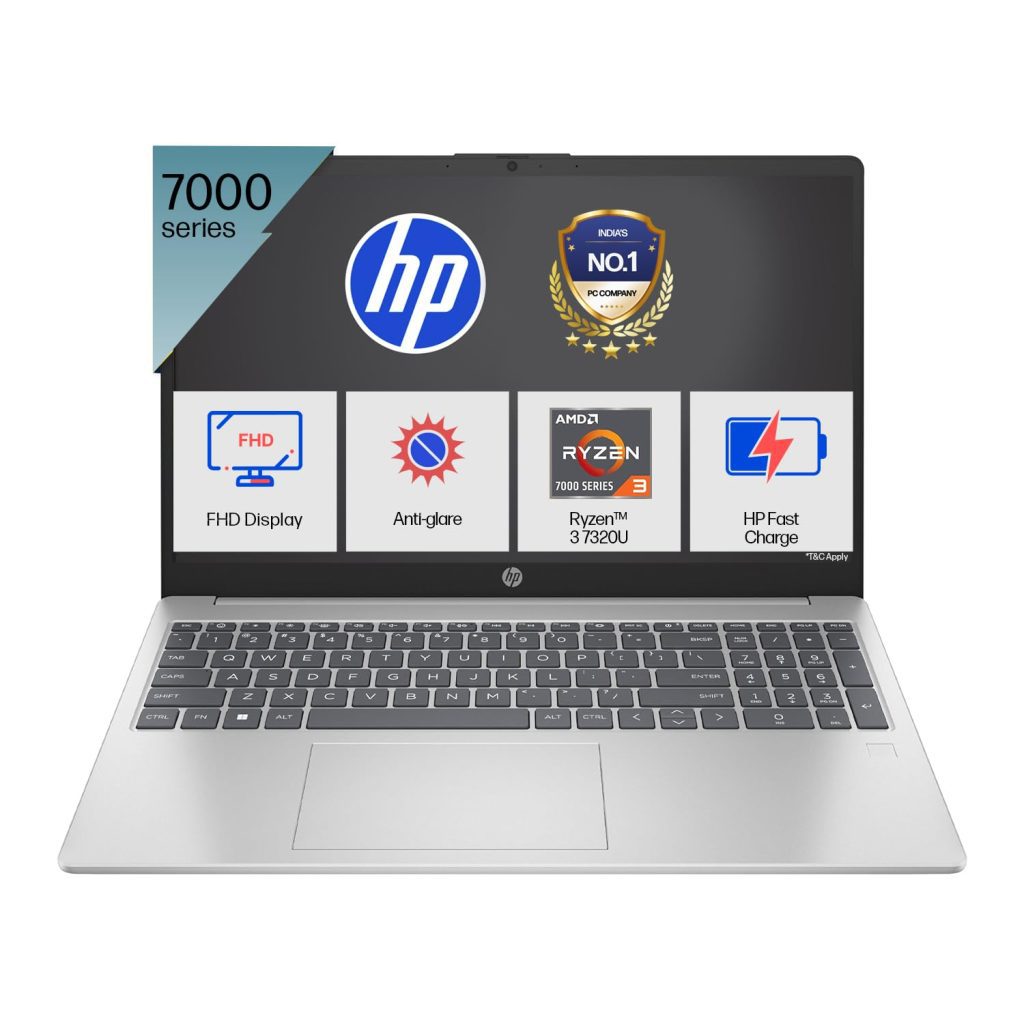
HP 15 AMD Ryzen 3 7320U Laptop – Affordable Performance with Style
-
Tally Prime Complete Online Course for Efficient Accounting and GST Management
Original price was: ₹1,999.00.₹1,949.00Current price is: ₹1,949.00. -

Atomic Habits: Tiny Changes, Remarkable Results
-
Mastering Microsoft Excel: Excel from Beginner to Advanced (Downloadable)
Original price was: ₹2,299.00.₹1,999.00Current price is: ₹1,999.00. -

Dia Free Juice – Blood Sugar Management
-

Acer Aspire Lite (AL15-41) – AMD Ryzen 3 Laptop with 16GB RAM & 512GB SSD
-
MS Office Online Course: Basic to Advance Level
Original price was: ₹2,999.00.₹2,499.00Current price is: ₹2,499.00. -
The Psychology of Money: Timeless Lessons on Wealth, Greed, and Happiness
-
Mastering Excel Automation: Excel VBA Training Course for Proficiency and Efficiency
Original price was: ₹2,299.00.₹1,999.00Current price is: ₹1,999.00. -
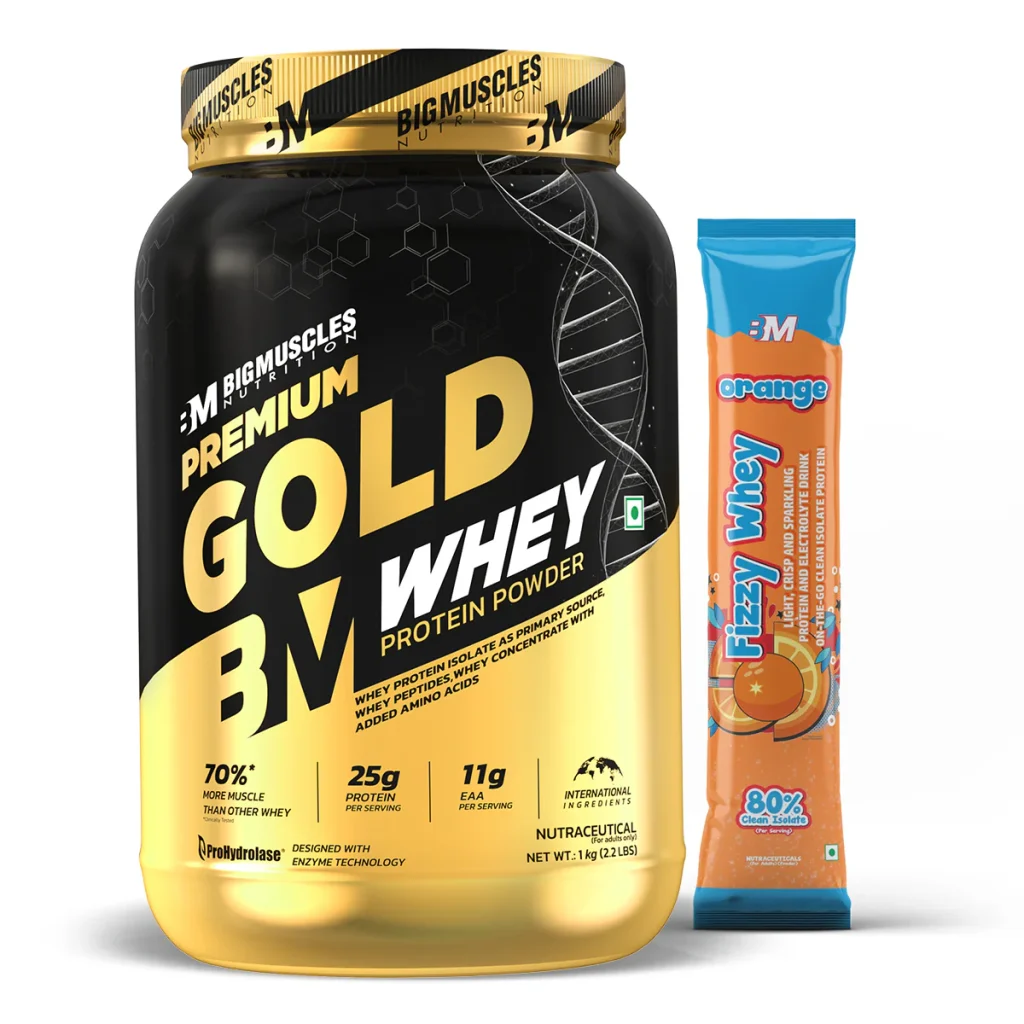
Premium Gold Whey Protein
-

Lenovo SmartChoice Chromebook (82UY0014HA) – Compact & Affordable Everyday Laptop
-
Excel Course in Hindi: Basic to Advanced Level
Original price was: ₹2,299.00.₹2,249.00Current price is: ₹2,249.00.