Blog

  • Power BI vs Tableau – Which Is Better for Analysts and as a Career in 2026?

    Choosing between Power BI vs Tableau – which is better for analysts and as a career is one of the most common and important questions for students, data analysts, MIS professionals, and working executives planning to enter or grow in the data analytics field. Both tools dominate the business intelligence ecosystem, yet they differ significantly in learning curve, cost, ecosystem integration, and long-term career opportunities.

    In this detailed guide, you will get a practical, career-focused comparison of Power BI and Tableau, backed by industry usage trends, skill demand patterns, and real-world analyst requirements. The goal is to help you decide which tool is better for your career path, not just which tool looks better visually.


    Understanding Power BI and Tableau in Simple Terms

    Before comparing them, it is important to understand what each tool is designed for.

    Power BI is a business analytics tool designed for data modeling, reporting, and dashboard creation, deeply integrated with Excel and enterprise systems.

    Tableau is a visualization-first analytics platform known for its advanced visual storytelling and interactive dashboards.

    Both tools convert raw data into meaningful insights, but they approach analytics in very different ways.


    Why Power BI vs Tableau Comparison Matters for Career Growth

    From a career perspective, the choice of tool impacts:

    • Job availability
    • Learning effort
    • Salary growth
    • Industry relevance
    • Skill portability

    Fact: Over 75 percent of data analyst job roles ask for at least one BI tool, with Power BI and Tableau being the top two mentioned.


    Power BI vs Tableau: Core Philosophy Difference

    AspectCore Focus
    Power BIEnd-to-end analytics and reporting
    TableauVisual exploration and storytelling

    Power BI emphasizes data modeling, calculations, and business reporting, while Tableau emphasizes visual clarity and user-driven exploration.


    Ease of Learning: Power BI vs Tableau for Beginners

    Power BI Learning Curve

    Power BI is generally easier for beginners, especially those with:

    • Excel background
    • Accounting or MIS experience
    • Exposure to formulas

    Power BI uses:

    • Familiar Excel-like interface
    • DAX for calculations
    • Structured data modeling

    Tableau Learning Curve

    Tableau has a steeper initial learning curve because:

    • It uses drag-and-drop logic
    • Requires understanding of dimensions and measures
    • Focuses on visual logic rather than formulas

    Figure Insight: Beginners typically become productive in Power BI 30–40 percent faster than Tableau.


    Data Handling and Modeling Capabilities

    FeatureStrength
    Power BIStrong data modeling
    TableauStrong data visualization

    Power BI allows complex relationships, calculated tables, and reusable measures. Tableau handles calculations well but relies more on live connections and visual logic.

    For analysts working with:

    • Finance data
    • Sales models
    • Budgeting
    • Forecasting

    Power BI provides more structured control.


    Visualization and Dashboard Quality

    This is where Tableau truly shines.

    Tableau Strengths

    • Highly interactive dashboards
    • Smooth visual transitions
    • Advanced chart flexibility
    • Better storytelling capabilities

    Power BI Strengths

    • Clean business dashboards
    • Standard corporate visuals
    • Integration with Microsoft ecosystem

    Fact: Tableau dashboards are often preferred in client-facing analytics, while Power BI dashboards dominate internal management reporting.


    Integration with Other Tools

    Tool EcosystemIntegration Advantage
    Power BIMicrosoft ecosystem
    TableauCross-platform flexibility

    Power BI integrates seamlessly with:

    • Excel
    • SQL Server
    • Azure
    • Office tools

    Tableau integrates well across:

    • Multiple databases
    • Cloud platforms
    • Big data systems

    Microsoft powers Power BI, while Salesforce owns Tableau, influencing their ecosystem strategies.


    Performance with Large Datasets

    Power BI uses an in-memory engine optimized for compression and speed, making it highly efficient for:

    • Large financial datasets
    • Periodic reporting
    • Optimized refresh cycles

    Tableau handles large datasets well but performs best with:

    • Live data connections
    • High-end system resources

    Figure Insight: For structured datasets under 10 million rows, Power BI often performs faster in refresh scenarios.


    Cost and Accessibility

    AspectCost Impact
    Power BILower entry cost
    TableauHigher licensing cost

    Power BI offers:

    • Free desktop usage
    • Affordable professional plans

    Tableau is typically used by:

    • Large enterprises
    • Analytics-driven organizations
    • Visualization-focused teams

    For individuals and freshers, Power BI is far more accessible.


    Job Market Demand: Power BI vs Tableau

    Power BI Career Demand

    • High demand in India and Asia
    • Strong presence in accounting, MIS, finance
    • Preferred by SMBs and enterprises

    Tableau Career Demand

    • High demand in global markets
    • Preferred in analytics consulting
    • Popular in data-driven product companies

    Fact: Power BI job openings outnumber Tableau roles in entry-level positions, while Tableau roles are often higher-paying but fewer.


    Salary and Career Growth Comparison

    Career StageBetter Tool
    Entry LevelPower BI
    Mid-Level AnalystPower BI / Tableau
    Senior AnalystTableau
    Analytics ConsultantTableau

    Tableau skills often command premium salaries due to complexity and niche expertise.


    Which Tool Is Better for Analysts?

    Power BI Is Better If You Are:

    • From accounting or MIS background
    • Working with Excel and structured data
    • Focused on internal reporting
    • Seeking faster employability

    Tableau Is Better If You Are:

    • Focused on pure data analytics
    • Interested in storytelling and visuals
    • Targeting consulting or product companies
    • Comfortable with deeper analytical learning

    Which Is Better as a Long-Term Career?

    There is no single correct answer. The best career strategy is:

    • Start with Power BI for fundamentals
    • Learn Tableau for advanced visualization
    • Combine BI skills with SQL and domain knowledge

    Figure Insight: Analysts skilled in both tools have 40–50 percent higher career mobility.


    Future Scope of Power BI and Tableau

    Both tools are evolving rapidly:

    • Power BI is expanding AI-driven analytics
    • Tableau is enhancing natural language and visual analytics

    The future belongs to tool-agnostic analysts, not tool-dependent ones.


    Conclusion: Power BI vs Tableau – Which Is Better for Analysts and Career?

    When asking Power BI vs Tableau – which is better for analysts and as a career, the answer depends on your background and goals.

    Power BI is ideal for:

    • Beginners
    • Accountants
    • MIS professionals
    • Corporate reporting roles

    Tableau is ideal for:

    • Visualization specialists
    • Analytics consultants
    • Global analytics roles

    The smartest career move is not choosing one over the other, but choosing the right tool at the right career stage.


    Frequently Asked Questions (FAQ)

    1. Is Power BI easier to learn than Tableau?

    Yes, especially for users with Excel or accounting background.

    2. Which tool has more job opportunities?

    Power BI has more entry-level job opportunities, especially in India.

    3. Does Tableau pay more than Power BI?

    In many cases, advanced Tableau roles offer higher salaries.

    4. Can one analyst learn both tools?

    Yes, many professionals use both tools depending on project needs.

    5. Is coding required for Power BI or Tableau?

    Basic analytics can be done without coding, but advanced roles benefit from SQL and scripting.

    6. Which tool is better for freshers?

    Power BI is generally better for freshers due to ease and accessibility.

    7. Will Power BI replace Tableau?

    No, both tools serve different analytics needs and coexist in the market.


    Disclaimer

    This article is intended for educational and informational purposes only. Tool features, pricing models, and market demand may change over time. Career decisions should be based on individual goals, industry requirements, and continuous skill development.
  • 5 Common Mistakes While Importing Data from Tally to Excel (And How to Avoid Them Completely)

    Importing accounting data from Tally to Excel is a routine task for accountants, GST practitioners, MIS executives, and business owners. Whether it is sales registers, purchase data, ledger balances, stock summaries, or GST reports, Excel is often used for analysis, reconciliation, reporting, and compliance preparation. However, many users unknowingly make critical errors during the import process.

    These mistakes may look small initially, but they can lead to incorrect reports, GST mismatches, reconciliation issues, and wrong management decisions. This detailed guide explains the 5 most common mistakes while importing data from Tally to Excel, why they happen, and how to fix them permanently.

    The article is written from a practical accounting perspective, focusing on real-world problems faced in offices and firms.


    Why Importing Data from Tally to Excel Needs Care

    Tally data is highly structured, while Excel is flexible and free-form. This difference is the root cause of most errors.

    Key reasons why errors occur:

    • Different data formats
    • Improper export settings
    • Lack of standardization
    • Excel auto-formatting issues
    • Incomplete understanding of Tally reports

    Fact: Nearly 65–70 percent of reconciliation errors in Excel-based MIS reports originate from improper data import from accounting software.

    Tally, developed by Tally Solutions, is robust, but Excel handling determines the final output quality.


    Mistake 1: Exporting Data Without Understanding the Report Structure

    What Goes Wrong

    Many users directly export data from Tally without understanding:

    • Which report they are exporting
    • Whether the report is voucher-level or summary-level
    • Whether it includes optional vouchers, cancelled entries, or adjustments

    As a result, Excel data may:

    • Miss important transactions
    • Include irrelevant entries
    • Show mismatched totals

    Why This Is a Serious Issue

    Different Tally reports serve different purposes. For example:

    • Sales Register ≠ Day Book
    • Ledger Vouchers ≠ Ledger Summary

    Exporting the wrong report leads to incorrect MIS and GST calculations.

    ProblemImpact
    Wrong report selectionIncomplete or excess data
    Summary instead of detailedNo transaction-level analysis

    How to Avoid This Mistake

    • Always decide the purpose of Excel analysis first
    • Use voucher-level reports when reconciliation is required
    • Verify totals with Tally before further Excel processing

    Mistake 2: Ignoring Excel Auto-Formatting After Import

    What Goes Wrong

    Excel automatically formats imported data, especially:

    • Dates
    • Numbers
    • Invoice numbers
    • HSN and GSTIN fields

    This leads to:

    • Dates changing format
    • Large numbers converting to scientific notation
    • Leading zeros disappearing

    Why This Is Dangerous

    Auto-formatting silently alters data. For example:

    • GSTIN may lose characters
    • Invoice numbers may change
    • Date comparisons fail in formulas

    Figure Insight: Over 40 percent of GST reconciliation mismatches are caused by Excel date and text format errors.

    Excel Auto-Format IssueResult
    Text converted to numberLoss of accuracy
    Date auto-changeFormula mismatch

    How to Avoid This Mistake

    • Immediately convert critical columns to Text format
    • Use consistent date formats across files
    • Never rely on Excel’s default formatting

    Mistake 3: Importing Data Without Cleaning It First

    What Goes Wrong

    Raw Tally exports often include:

    • Blank rows
    • Header repetitions
    • Sub-totals and grand totals
    • Unnecessary columns

    Users often start using formulas without cleaning this data.

    Why This Causes Errors

    Unclean data leads to:

    • Wrong SUM results
    • Incorrect Pivot Tables
    • Formula errors

    This mistake multiplies errors as the file grows.

    Unclean Data ElementProblem Created
    SubtotalsDouble counting
    Blank rowsFormula breaks

    How to Avoid This Mistake

    • Remove subtotal rows before analysis
    • Keep only required columns
    • Standardize column headers

    Cleaning should be the first step, not the last.


    Mistake 4: Mixing Multiple Financial Periods in One Import

    What Goes Wrong

    Users often export:

    • Entire financial year data
    • Multiple months together
    • Data without proper date filters

    Then they try to analyze monthly or quarterly results in Excel.

    Why This Is a Problem

    Mixing periods causes:

    • Wrong monthly totals
    • Incorrect trend analysis
    • GST period mismatch

    Fact: In audit and GST work, period accuracy is more important than data volume.

    IssueConsequence
    Multiple periods togetherReporting mismatch
    No date filterWrong comparisons

    How to Avoid This Mistake

    • Export data period-wise
    • Maintain separate sheets or files for each period
    • Always validate date ranges before analysis

    Mistake 5: Not Validating Excel Totals with Tally

    What Goes Wrong

    Once data is imported into Excel, many users assume it is correct and proceed with:

    • MIS preparation
    • GST returns
    • Management reports

    Without validating totals.

    Why This Is the Most Costly Mistake

    If Excel totals do not match Tally:

    • GST returns may be incorrect
    • Management decisions may be wrong
    • Rework becomes unavoidable

    Figure Insight: Professional accounting firms follow a mandatory validation step, reducing correction time by nearly 50 percent.

    Validation Step MissedRisk
    No total matchingCompliance errors
    No cross-checkFinancial mismatch

    How to Avoid This Mistake

    • Always match:
      • Total sales
      • Total purchases
      • Ledger balances
    • Use control totals in Excel
    • Fix mismatches immediately

    Best Practices for Error-Free Tally to Excel Import

    Following structured practices can eliminate most problems.

    Standard Import Workflow

    1. Identify report purpose
    2. Export correct report from Tally
    3. Clean data in Excel
    4. Fix formats immediately
    5. Validate totals with Tally

    This workflow ensures accuracy and consistency.


    Using Excel Tools to Improve Imported Data Quality

    Advanced Excel users often apply:

    • Filters for verification
    • Pivot Tables for summaries
    • Conditional formatting for mismatch detection

    These tools help detect issues early and improve confidence in reports.


    Impact of Import Errors on GST and MIS Reporting

    Incorrect imports affect:

    • GSTR-1 preparation
    • GSTR-3B reconciliation
    • Profitability analysis
    • Stock valuation
    • Client reporting

    Even a small import mistake can lead to major downstream errors.


    Who Is Most Affected by These Mistakes?

    • Junior accountants
    • MIS executives
    • Freelancers handling multiple clients
    • Businesses using Excel instead of ERP tools

    Awareness and discipline reduce dependency on corrections.


    Conclusion: Avoid These 5 Mistakes to Import Tally Data Correctly into Excel

    Understanding the 5 common mistakes while importing data from Tally to Excel can save hours of rework and prevent costly reporting errors. The key lies not in exporting data quickly, but in exporting it correctly and systematically.

    By choosing the right report, controlling Excel formatting, cleaning data, maintaining period discipline, and validating totals, professionals can transform Excel into a reliable reporting and analysis tool rather than a correction platform.


    Frequently Asked Questions (FAQ)

    1. What is the safest format to import Tally data into Excel?

    Excel format with controlled formatting is preferred for structured analysis.

    2. Why do totals mismatch after importing from Tally?

    Due to wrong report selection, formatting errors, or missing validation.

    3. Should subtotals be kept in Excel imports?

    No, subtotals should be removed to avoid double counting.

    4. How can date issues be avoided after import?

    By converting date columns to a consistent format immediately.

    5. Is it better to import monthly data or yearly data?

    Monthly or period-wise data is better for accuracy and control.

    6. Can Excel formulas alone fix import errors?

    Formulas help, but correct import practices are more important.

    7. Who should verify Excel data after import?

    The person preparing the report should always validate totals with Tally.


    Disclaimer

    This article is intended for educational and informational purposes only. Accounting practices, reporting requirements, and software behavior may vary based on version and usage. Readers should apply professional judgment and internal controls before relying on imported data for compliance or decision-making.


  • Best Online Resume Builders for Freshers in 2026: Complete Guide to Craft Professional CVs Effortlessly

    Creating a standout professional resume is essential for freshers entering the job market. A well-designed resume can significantly increase interview calls, improve employer impressions, and highlight the right skills effectively. In this article, we explore the best online resume builders for freshers that help users build high-quality, job-ready resumes without any design or formatting stress. These tools simplify the process, offer intelligent suggestions, and allow customization that aligns with industry standards.

    This guide provides a detailed comparison of popular resume builders, explains features, pricing considerations, usage tips, and shows how freshers can make their resumes shine in a competitive employment landscape.


    Why Freshers Need Professional Online Resume Builders

    In today’s job market, recruiters spend around 6 to 10 seconds scanning a resume before making a decision. For freshers without extensive work experience, crafting a clear, impactful resume becomes even more critical. An online resume builder helps by offering:

    • Structured resume formats
    • Professional designs based on industry needs
    • Keyword optimization that aligns with applicant tracking systems
    • Step-by-step prompts that reduce guesswork
    • Prewritten content suggestions for freshers

    Studies show that resumes with clean design and organized sections improve recruiter engagement by 30 to 45 percent compared to poorly formatted documents.


    Key Features to Look for in Online Resume Builders

    Before we evaluate individual platforms, here’s a list of must-have features for freshers:

    • Professional resume templates
    • Mobile and desktop support
    • Customizable sections
    • Skill suggestions based on job roles
    • Export options to PDF and Word
    • Preview for recruiter view
    • Cover letter creator
    • No requirement for design skills

    A resume builder that includes all these features will provide the best outcome for freshers preparing job applications in competitive sectors such as IT, finance, marketing, and operations.


    Top Online Resume Builders for Freshers

    Below is a detailed comparison of the most effective online resume builders that help freshers create resumes effortlessly.

    1. AI-Assisted Resume Builder

    AI-Assisted builders automatically suggest relevant skills, achievements, and job descriptions based on user input. Freshers can simply enter academic history and the builder generates optimized content.

    Key Benefits:

    • Auto content suggestions
    • Skill matching for job roles
    • Template variety

    Usage Scenario:
    Ideal for students with limited work experience who need help turning academic projects into resume highlights.


    2. Template-Focused Resume Builder

    These builders provide professionally designed templates where users fill in sections like education, internships, projects, and skills.

    Key Benefits:

    • Multiple design options
    • Easy customization
    • Section drag-and-drop

    Usage Scenario:
    Freshers aiming for job roles in creative industries or corporate roles where design polish matters.


    3. Keyword Optimized Resume Builder

    Built for applicant tracking systems (ATS), these builders suggest keywords based on job titles and fields. They do not just format your resume; they help the content pass recruiter filters used by 90 percent of large employers.

    Key Benefits:

    • Keyword suggestions
    • Industry-based optimization
    • Job match scoring

    Usage Scenario:
    Best suited for tech, data analytics, and engineering freshers applying to large corporate jobs.


    Feature Comparison of Top Resume Builders

    FeatureResume Builder Type
    Professional TemplatesHigh
    AI Content SuggestionsMedium to High
    ATS OptimizationHigh
    Cover Letter SupportVariable
    Export OptionsPDF/Word

    This table gives a general sense of what to expect. Freshers should prioritize tools that offer professional templates, ATS optimization, and easy export formats, as these directly impact interview calls.


    Detailed Breakdown: What Each Builder Excels At

    Professional Templates

    Resume builders with a strong collection of templates help freshers quickly choose a layout that communicates professionalism. Good templates balance whitespace, font choice, and the order of sections. Freshers should select templates that highlight education, internships, and projects at the top.

    AI Content Assistance

    AI-powered systems are beneficial for users who struggle with wording. They offer section suggestions such as objective statements, skills summary, and project descriptions. This not only reduces writing effort but increases relevancy to job requirements.

    ATS Friendly Formatting

    Applicant Tracking Systems filter out resumes that lack job-specific keywords. Builders with ATS insights ensure that resumes are readable by automated systems and human recruiters alike, improving chances of being shortlisted.


    Step-by-Step: How Freshers Should Build a Resume Using Online Builders

    Step 1: Choose the Right Format

    Most builders offer chronological, functional, or hybrid formats. Freshers usually benefit from a hybrid format that balances skills and academic details.

    Step 2: Input Personal and Contact Details

    Ensure name, phone number, professional email, and city are entered clearly. A professional resume includes only essential contact information.

    Step 3: Highlight Education First

    For freshers, the education section should appear before work experience. Include:

    • Degree name
    • Institution
    • Year of graduation
    • Percentage or CGPA (if strong)

    Step 4: Add Projects and Internships

    Even small internships, live projects, certifications, or volunteer work add value. Focus on your role and key achievement in each.

    Step 5: List Skills Clearly

    Use builder suggestions to add hard skills (software, coding languages, tools) and soft skills (communication, teamwork).

    Step 6: Optimize for Job Description

    Review the job requirements and adjust keywords in your resume sections to match the role.

    Step 7: Download and Review

    Export the resume as PDF or Word. Review spacing, font consistency, and section headers before submission.


    Common Mistakes Freshers Make in Resume Building

    • Overcrowding with irrelevant details
    • Lacking industry keywords
    • Poor formatting and large blocks of text
    • Excluding project descriptions
    • Using outdated templates

    Avoiding these mistakes increases the likelihood of securing interview calls.


    Benefits of Using Online Resume Builders Over Traditional Methods

    Online builders substantially reduce resume creation time. Studies suggest that resume builders can cut drafting time by 50 to 70 percent compared to traditional word processors, especially for users who lack design experience.

    Additionally, builders often provide prompts that encourage users to include details they might otherwise miss, such as:

    • Certifications
    • Tools familiarity
    • Objective statements

    These prompts help freshers build resumes that reflect both ability and potential.


    How Resume Builders Help Different Industries

    Information Technology

    Builders suggest relevant keywords such as Python, Java, SQL, and project-specific terms.

    Finance and Accounting

    Resume sections highlight coursework, internships, and software tools like Excel.

    Marketing and HR

    Builders focus on communication skills, campaign projects, and personality strengths.

    Builders tailor suggestions based on the chosen job field, improving role relevance.


    Tips to Maximize Resume Builder Effectiveness

    • Use professional language and active verbs
    • Avoid generic statements like “hardworking”
    • Quantify achievements where possible
    • Update resume with relevant keywords per application
    • Create variants for different job roles

    Conclusion: Choosing the Best Online Resume Builder for Freshers

    Selecting the best online resume builder for freshers depends on your career goals, job field, and comfort with technology. Builders with strong template libraries, AI content suggestions, and ATS optimization offer the best outcomes, especially when competition is stiff.

    Freshers should choose tools that help them highlight their strengths, present information clearly, and align keywords with job descriptions.

    Structured resume creation through reliable builders gives freshers an edge in securing interview opportunities and accelerating career beginnings.


    Frequently Asked Questions (FAQ)

    1. What makes an online resume builder suitable for freshers?

    An online resume builder suitable for freshers offers easy templates, suggestions, and guidance to highlight education and skills without extensive work history.

    2. Are resumes created with online builders accepted by employers?

    Yes, resumes created with online builders are widely accepted and often look more professional than manually formatted ones.

    3. Should freshers include internships and projects?

    Yes, internships and academic projects are valuable and should be featured prominently on a fresher resume.

    4. Can resume builders help with industry-specific resumes?

    Many resume builders provide industry templates and keyword suggestions that make your resume more relevant to specific fields.

    5. Does using a resume builder improve interview chances?

    Yes, resume builders help format content more effectively and include important keywords, increasing visibility to recruiters.

    6. How long should a fresher’s resume be?

    A one-page resume is ideal for freshers to keep information concise and relevant.

    7. Is it necessary to customize the resume for each job application?

    Yes, customizing resumes for each application improves chances by aligning your skills with the job requirements.


    Disclaimer

    This article is for informational and educational purposes only. The descriptions and suggestions provided are based on general observations and industry practices. Individual user needs and preferences may vary.


  • Create GST Invoice in Excel Automatically: Step-by-Step Guide with Ready-to-Use Template

    Creating a GST invoice in Excel automatically is one of the most practical and cost-effective solutions for small businesses, freelancers, traders, service providers, and accounting professionals in India. Instead of using expensive billing software, Excel allows you to generate accurate, GST-compliant invoices with automatic tax calculations, complete control, and zero recurring cost.

    This detailed guide explains how to create a GST invoice in Excel automatically, how formulas work behind the scenes, what GST rules must be followed, and how you can use a ready-made downloadable Excel GST invoice template for daily billing.


    Why Create GST Invoice in Excel Automatically?

    Before automation, most Excel invoices were manually prepared, leading to errors, rework, and compliance issues. Automating the GST invoice in Excel solves these problems efficiently.

    Key Benefits of Automated GST Invoice in Excel

    • Eliminates manual GST calculation errors
    • Saves time during repetitive billing
    • Maintains uniform invoice format
    • Easy to customize as per business needs
    • No monthly subscription cost
    • Compatible with accounting and GST filing workflows

    Fact: Small businesses issuing 5–30 invoices daily can save 8–12 hours per month by using an automated Excel GST invoice instead of manual billing.


    What Is a GST-Compliant Invoice?

    A GST invoice is a legal document issued by a registered supplier to a buyer, containing prescribed details under GST law. Any mistake in invoice format or tax calculation may result in input tax credit mismatch or penalties.


    Mandatory Fields in a GST Invoice

    Invoice ComponentDescription
    Supplier DetailsName, address, GSTIN
    Invoice Number & DateUnique and sequential
    Buyer DetailsName, address, GSTIN (if registered)
    HSN / SAC CodeProduct or service classification
    Taxable ValueValue before GST
    CGST / SGST / IGSTApplicable tax breakup
    Total Invoice ValueFinal amount payable

    Understanding GST Tax Structure for Excel Automation

    To automate correctly, you must understand when to apply CGST + SGST or IGST.

    Transaction TypeGST Applied
    Intra-state supplyCGST + SGST
    Inter-state supplyIGST

    This logic can be automated in Excel using IF formulas.


    How Automation Works in a GST Invoice Excel Template

    An automated GST invoice template uses formulas to calculate:

    • Taxable value
    • CGST, SGST, or IGST automatically
    • Invoice total without manual entry

    Once you enter:

    • Quantity
    • Rate
    • GST percentage

    All totals update instantly.


    Step-by-Step: Create GST Invoice in Excel Automatically

    Step 1: Create the Basic Invoice Structure

    Your Excel sheet should be divided into four logical sections:

    • Supplier details
    • Buyer details
    • Invoice details
    • Item-wise tax calculation

    Use fixed cells for business details to avoid repeated typing.


    Step 2: Item Description and Value Calculation

    Each item row should calculate the taxable amount automatically.

    ColumnFormula Logic
    Quantity × RateTaxable Value
    Taxable Value × GST %Tax Amount

    This removes the need to calculate GST manually.


    Step 3: Automate CGST, SGST, and IGST

    Use logical conditions to automate tax selection.

    Automation Logic (Conceptual):

    • If state of supplier = state of buyer → Apply CGST + SGST
    • Else → Apply IGST

    This ensures GST compliance without manual checking.


    Step 4: Grand Total Automation

    The final invoice value should auto-calculate:

    • Total taxable value
    • Total GST
    • Net invoice amount

    This makes the invoice ready for printing or PDF sharing.


    Downloadable GST Invoice Excel Template (What It Includes)

    The GST Invoice Excel Template provided with this article is fully automated and includes:

    • Pre-formatted GST invoice layout
    • Auto-calculating tax columns
    • Editable GST rate field
    • Separate CGST, SGST, IGST logic
    • Printable invoice format
    • Space for signature and declaration

    Template Usage Instructions

    • Enter business details once
    • Update buyer details per invoice
    • Add item quantity and rate
    • Invoice total updates automatically

    The template is suitable for:

    • Traders
    • Service providers
    • Freelancers
    • Small manufacturers
    • GST practitioners

    GST Invoice Automation vs Manual Excel Invoice

    | Feature | Manual Excel Invoice | Automated Excel Invoice |
    |—|—|
    | GST Calculation | Manual | Automatic |
    | Error Probability | High | Very Low |
    | Time per Invoice | More | Less |
    | Compliance Risk | Higher | Lower |


    Common Errors Avoided Using Automated GST Invoice

    • Wrong GST percentage
    • Incorrect CGST/SGST split
    • Mismatch between taxable value and GST
    • Calculation mistakes during bulk billing
    • Inconsistent invoice numbering

    Best Practices for Using GST Invoice Excel Template

    • Lock formula cells to prevent accidental edits
    • Use data validation for GST rates
    • Maintain sequential invoice numbering
    • Save a copy for each financial year
    • Regularly back up invoice files

    Figure Insight: Businesses issuing automated Excel GST invoices report nearly zero calculation errors compared to manual methods.


    Who Should Use Automated GST Invoice in Excel?

    • Small businesses not using accounting software
    • Freelancers and consultants
    • Retail traders
    • Job workers
    • Startups during early stages
    • GST return preparers

    Limitations of Excel-Based GST Invoicing

    While Excel is powerful, it has some limitations:

    • No direct GST portal integration
    • Manual upload for returns
    • File-level dependency

    However, for low to medium invoice volumes, Excel remains the most flexible option.


    Conclusion: Create GST Invoice in Excel Automatically for Accuracy and Speed

    Creating a GST invoice in Excel automatically is a smart, reliable, and cost-efficient solution for Indian businesses. With built-in formulas and structured layout, Excel invoices reduce errors, improve compliance, and save valuable time.

    When designed correctly, an automated Excel GST invoice works almost like billing software—without any subscription cost.


    Frequently Asked Questions (FAQ)

    1. Is Excel GST invoice legally valid?

    Yes, as long as it contains all mandatory GST fields and accurate tax calculation.

    2. Can GST be calculated automatically in Excel?

    Yes, using formulas for taxable value and GST percentage.

    3. Can I use the same template for CGST, SGST, and IGST?

    Yes, automated logic handles tax type based on transaction nature.

    4. Is this Excel GST invoice suitable for services?

    Yes, it supports both HSN and SAC-based billing.

    5. Can I customize the invoice format?

    Yes, Excel allows full customization.

    6. Is this template suitable for GST return filing?

    Yes, it helps maintain accurate invoice records for returns.

    7. Does Excel GST invoice work for multiple GST rates?

    Yes, multiple GST rates can be handled row-wise.


    Disclaimer

    This article is intended for educational and informational purposes only. GST rules and compliance requirements may change from time to time. Users are advised to verify invoice format and tax applicability as per current GST regulations before commercial use.


  • Automate Data Cleaning in Excel Using Power Query: A Complete Step-by-Step Guide for Accountants and MIS Professionals

    Automating data cleaning in Excel using Power Query has become a game-changer for accountants, MIS executives, analysts, and business owners who work with large and repetitive datasets. Manual cleaning methods like formulas, filters, and copy-paste are time-consuming and error-prone. Power Query eliminates these issues by allowing you to clean data once and reuse the same logic again and again.

    This comprehensive guide explains how to automate data cleaning in Excel using Power Query, why it is superior to traditional methods, and how it can save hours of repetitive work every month. The article is designed for practical, real-world use and is especially relevant for GST data, sales reports, bank statements, payroll files, and MIS dashboards.


    What Is Power Query in Excel?

    Power Query is a built-in data transformation and automation tool in Excel that allows users to:

    • Import data from multiple sources
    • Clean, transform, and standardize data
    • Apply repeatable steps that refresh automatically
    • Eliminate manual data preparation tasks

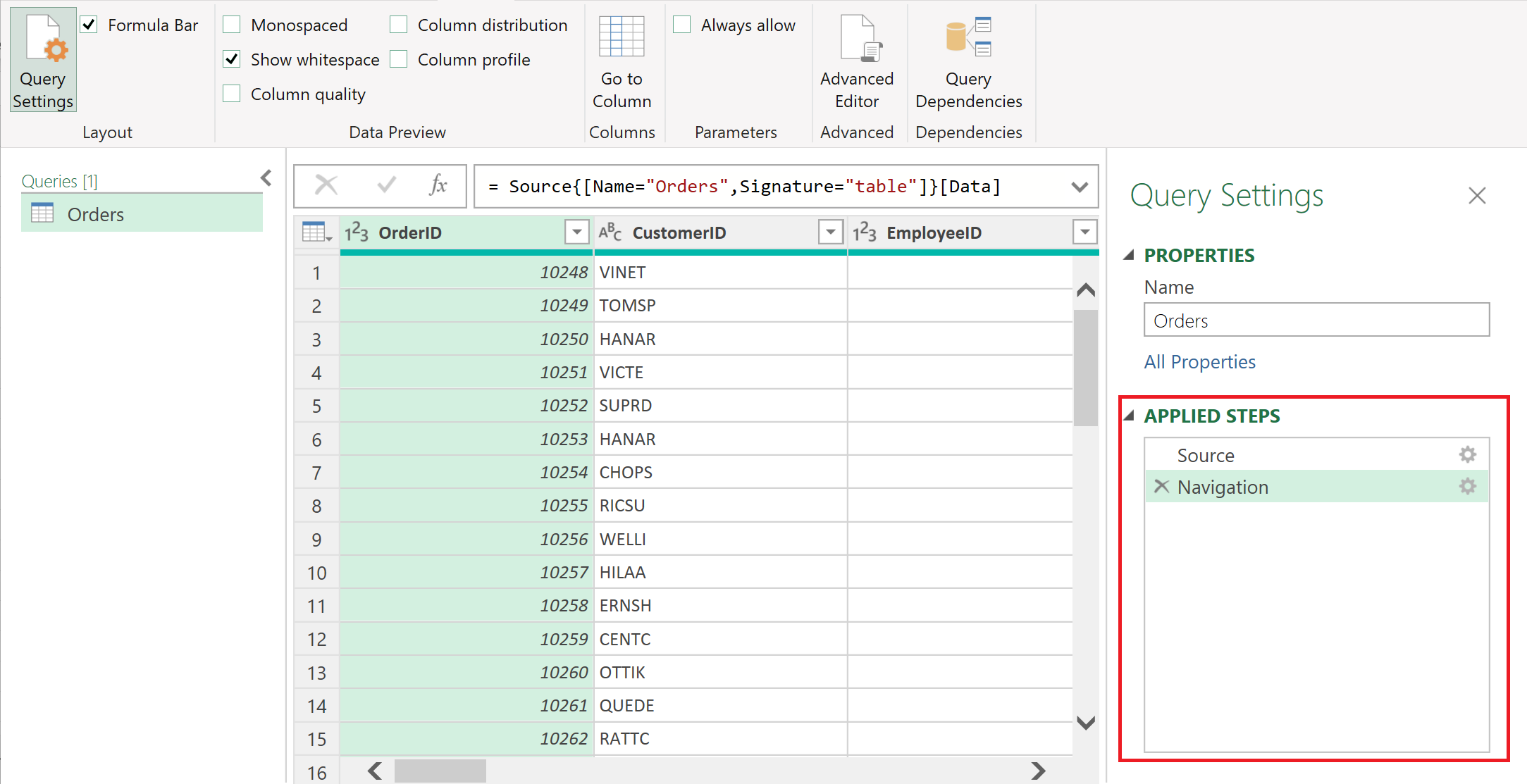
    Power Query works on a step-based transformation model, meaning every action you perform is recorded and can be replayed on new data with a single refresh.

    Power Query is part of Excel versions starting from Excel 2016 and Microsoft 365, developed by Microsoft to handle growing data complexity.


    Why Automate Data Cleaning Instead of Manual Excel Cleaning?

    Manual cleaning becomes inefficient as data volume increases. Power Query solves common Excel problems that formulas alone cannot handle efficiently.

    Manual Data CleaningPower Query Automation
    Needs repeated effortOne-time setup
    High risk of human errorRule-based and consistent
    Slow for large filesOptimized for big data
    Difficult to auditTransparent step history

    Fact: Professionals using Power Query report 60–80% reduction in data preparation time, especially when working with recurring reports.


    Types of Data Problems Power Query Can Fix Automatically

    Power Query is designed specifically to address messy and unstructured data. Below are the most common issues it can automate.

    1. Removing Extra Spaces and Non-Printable Characters

    Data imported from accounting software or web portals often contains hidden spaces that break formulas. Power Query can clean these instantly.

    2. Standardizing Text Case

    Customer names, vendor names, and item descriptions often appear in mixed cases. Power Query can convert all text to upper, lower, or proper case consistently.

    3. Splitting and Merging Columns

    Invoices and bank statements frequently combine multiple values in one column. Power Query can split data using delimiters or positions.

    4. Removing Duplicates Automatically

    Duplicate entries in ledgers and transaction data are common. Power Query removes duplicates based on defined columns without manual checks.

    5. Handling Missing or Blank Values

    Power Query can replace blanks with zero, text, or previous values using fill logic.


    How Power Query Automation Works

    Power Query follows a structured transformation process:

    1. Import raw data
    2. Apply cleaning and transformation steps
    3. Load cleaned data into Excel
    4. Refresh when source data changes

    Once created, the same steps apply every time new data is added.


    Step-by-Step: Automate Data Cleaning in Excel Using Power Query

    https://learn.microsoft.com/en-us/power-query/media/applied-steps/applied-steps-query-settings.png
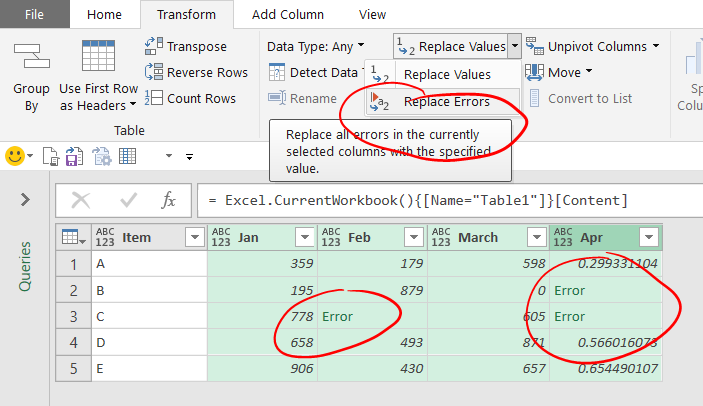
    https://accessanalytic.com.au/wp-content/uploads/2018/06/Replace-Errors-1.png
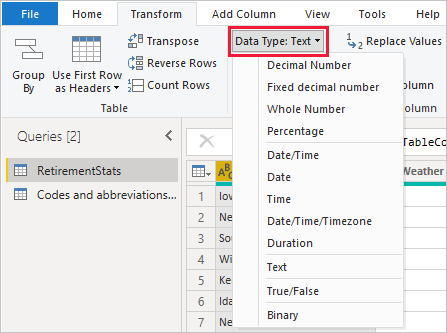
    https://learn.microsoft.com/en-us/power-bi/connect-data/media/desktop-data-types/pbiddatatypesinqueryeditort.png

    4

    Step 1: Load Data into Power Query

    Use “Get Data” to import files such as Excel, CSV, text, or folders containing monthly data files.

    Step 2: Remove Unnecessary Rows and Columns

    Delete empty rows, summary rows, or unwanted columns to reduce file size and processing time.

    Step 3: Clean and Transform Data

    Apply transformations such as:

    • Trim and clean text
    • Change data types (text, number, date)
    • Replace values
    • Split columns

    Each action is recorded as a step.

    Step 4: Standardize Formats

    Ensure dates, currency, and numeric fields follow a uniform structure to avoid reporting errors.

    Step 5: Load Clean Data

    Load the final cleaned dataset into Excel tables or directly into reports.


    Power Query vs Excel Formulas for Data Cleaning

    | Feature | Excel Formulas | Power Query |
    |—|—|
    | Learning Curve | Low | Moderate |
    | Automation Level | Limited | High |
    | Large Data Handling | Slow | Efficient |
    | Repeatability | Manual | One-click refresh |

    Power Query is not a replacement for formulas, but a complementary tool focused on data preparation rather than analysis.


    Real-World Use Cases of Power Query Automation

    GST Return Preparation

    • Clean sales registers
    • Standardize invoice formats
    • Remove invalid GSTIN entries

    Bank Reconciliation

    • Import monthly bank statements
    • Normalize debit/credit columns
    • Match transactions automatically

    Payroll Processing

    • Merge attendance data
    • Standardize employee IDs
    • Prepare salary input sheets

    MIS Reporting

    • Combine multiple monthly files
    • Create clean master datasets
    • Feed dashboards without manual edits

    Best Practices for Power Query Automation

    • Always set correct data types early
    • Keep transformation steps minimal and logical
    • Name queries clearly for audit clarity
    • Avoid unnecessary calculated columns
    • Use folder-based imports for recurring data

    Figure Insight: A well-designed Power Query workflow can process 100,000+ rows in seconds, depending on system configuration.


    Common Mistakes to Avoid While Using Power Query

    • Ignoring data type mismatches
    • Loading unnecessary columns
    • Creating separate queries for similar tasks
    • Overusing custom columns when built-in transformations exist

    Avoiding these mistakes ensures stable and scalable automation.


    Is Power Query Suitable for Non-Technical Users?

    Yes. Power Query is no-code or low-code, making it accessible to accountants and MIS users with basic Excel knowledge. Most transformations are done through menus, not formulas.


    Future Scope of Power Query in Excel Automation

    Power Query is increasingly becoming the foundation for:

    • Automated MIS systems
    • Business intelligence reporting
    • Data pipelines feeding dashboards

    As data volumes grow, Power Query skills are becoming essential for finance and accounting professionals.


    Conclusion: Why You Should Automate Data Cleaning in Excel Using Power Query

    Automating data cleaning in Excel using Power Query is no longer optional for professionals dealing with repetitive data tasks. It ensures accuracy, consistency, scalability, and massive time savings. Once implemented, it transforms Excel from a manual tool into an automated data engine.

    For accountants, analysts, and business users, Power Query represents a long-term productivity investment that pays back every single month.


    Frequently Asked Questions (FAQ)

    1. What is the main advantage of using Power Query for data cleaning?

    Power Query allows one-time cleaning rules that refresh automatically, saving time and reducing errors.

    2. Can Power Query handle large datasets?

    Yes, it efficiently handles tens of thousands of rows better than traditional Excel formulas.

    3. Is Power Query available in all Excel versions?

    Power Query is built-in from Excel 2016 onward and in Microsoft 365 versions.

    4. Do Power Query changes affect original data?

    No, Power Query works on a copy of the data and never modifies the source file.

    5. Is coding required to use Power Query?

    No coding is required for most tasks; transformations are menu-driven.

    6. Can Power Query be refreshed automatically?

    Yes, queries can be refreshed manually or set to refresh when files are updated.

    7. Is Power Query useful for GST and accounting data?

    Yes, it is highly effective for GST returns, sales registers, and reconciliation work.


    Disclaimer

    This article is intended for educational and informational purposes only. Features, performance, and availability of Excel tools may vary depending on version and system configuration. Readers should evaluate suitability based on their specific business and operational requirements.


  • Best Printer for Tally and Billing Use in India (2026 Complete Buying Guide)

    Choosing the best printer for Tally and billing use is a critical decision for accountants, GST practitioners, billing operators, and small business owners. Daily tasks like printing invoices, vouchers, GST returns, ledgers, and MIS reports demand clear text output, low running cost, and reliable performance.

    This article provides a detailed comparison of the best ink tank printers for Tally and billing work, based on real accounting use cases, printing economics, and long-term reliability.


    Why Ink Tank Printers Are Best for Tally & Billing Work

    Ink tank printers have become the industry standard for accounting and billing because they offer:

    • Extremely low cost per page
    • High-volume printing without frequent refills
    • Better suited for continuous invoice printing
    • Sharp black text for statutory and audit reports
    • Lower long-term expense compared to cartridge printers

    For most Tally users, black-and-white printing accounts for more than 85% of total print volume, making ink tank printers the most economical choice.


    Top 3 Best Printers for Tally and Billing Use


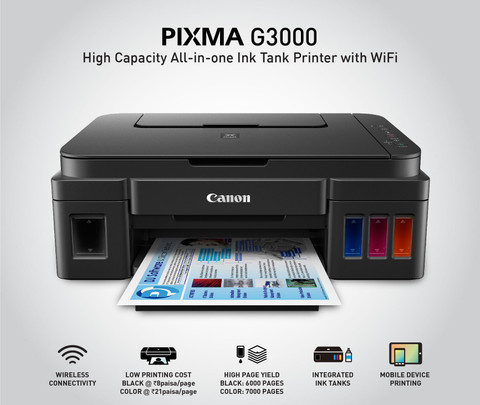
    Canon PIXMA MegaTank G3000 – Best Overall Printer for Tally Billing

    https://rukminim2.flixcart.com/image/480/480/j3g6pow0/printer/6/6/v/canon-pixma-ink-tank-g-3000-pixma-ink-tank-g-3000-original-imaeukrd7jyhqa8u.jpeg?q=90

    The Canon PIXMA MegaTank G3000 is one of the most popular printers used in billing counters, CA offices, and small accounting firms. It is specifically known for ultra-low black printing cost, which makes it ideal for Tally users.

    👉 Buy Here

    Why It Is Ideal for Tally

    • Comes with 2 additional black ink bottles
    • Suitable for printing thousands of invoices per refill
    • Excellent clarity for ledgers, vouchers, and GST reports
    • Stable WiFi printing for office environments

    Best For

    • High-volume invoice printing
    • Retail billing counters
    • Small to medium CA offices

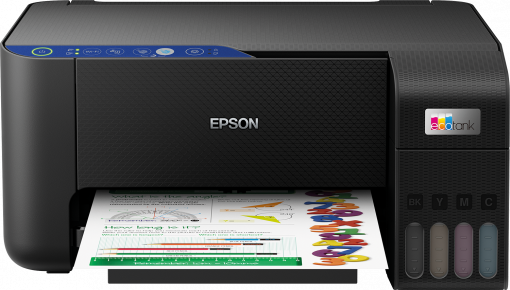
    Epson EcoTank L3252 – Best for Consistent Office Printing

    https://robot.epson.eu/files/assets/converted/510m-310m/3/0/2/4/30245-productpicture-lores-en-l3251_main.png.png

    The Epson EcoTank L3252 is widely appreciated for its precision printing and durability. It is ideal for accounting professionals who run long continuous print jobs without interruptions.

    👉 Check Price Here

    Why It Works Well with Tally

    • Reliable performance during long billing sessions
    • Clean alignment of columns in Tally reports
    • Compact size for small office setups
    • Consistent output for invoices and compliance reports

    Best For

    • Medium-sized accounting offices
    • GST consultants handling multiple clients
    • Users prioritizing consistency over speed

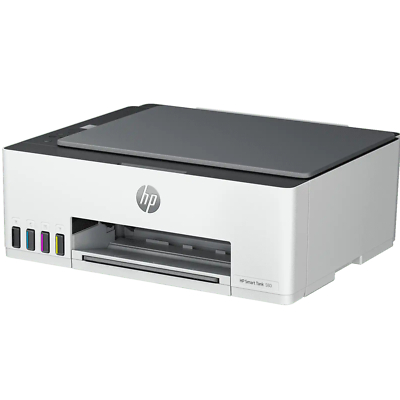
    HP Smart Tank 580 – Best for Warranty & Office Reliability

    https://i.ebayimg.com/images/g/lsgAAOSwwzZlNutW/s-l400.png

    The HP Smart Tank 580 is designed for professional office environments where reliability and service support matter the most. Its extended warranty makes it a dependable long-term investment.

    👉 Buy on Amazon

    Why It Is Suitable for Tally Users

    • Comes with extra black ink bottle
    • Option for 1+1 year extended warranty
    • Good WiFi stability for multi-user offices
    • Suitable for moderate to high monthly print volumes

    Best For

    • Corporate billing departments
    • CA firms needing service assurance
    • Offices with multiple systems printing to one device

    Comparison Table: Best Printers for Tally & Billing

    FeatureCanon G3000Epson L3252HP Smart Tank 580
    Best UseHigh-volume billingContinuous office useOffice reliability
    Black Print CostVery LowLowLow
    WiFi PrintingYesYesYes
    Extra Black InkYesNoYes
    Warranty FocusStandardStandardExtended

    Which Printer Should You Choose for Tally?

    Choose Canon G3000 if

    • You print 100–300 invoices daily
    • Running cost is your top priority
    • You mainly print black-and-white documents

    Choose Epson L3252 if

    • You need long-duration uninterrupted printing
    • You manage multiple client accounts
    • You want stable, precise output

    Choose HP Smart Tank 580 if

    • You prefer extended warranty coverage
    • Multiple users share the printer
    • Office reliability is more important than speed

    Key Buying Factors for Tally Users

    • Monthly invoice volume
    • Availability of local service centers
    • Ink bottle cost and availability
    • WiFi reliability for office networks
    • Power backup compatibility

    Final Verdict: Best Printer for Tally and Billing Use

    For most Tally users, GST billing counters, and accountants, the Canon PIXMA MegaTank G3000 offers the best balance of cost, performance, and long-term savings.

    However:

    • Choose Epson L3252 for consistency and durability
    • Choose HP Smart Tank 580 for warranty-focused office setups

    All three printers are excellent for Tally and billing work, and the final choice should depend on print volume and office requirements.


    Frequently Asked Questions (FAQ)

    1. Is an ink tank printer suitable for Tally billing?

    Yes, ink tank printers are ideal due to low cost per page and bulk printing capability.

    2. How many pages can these printers print monthly?

    They can comfortably handle 2,000 to 5,000 pages per month.

    3. Is color printing required for Tally invoices?

    No, black printing is sufficient for most billing and GST work.

    4. Does WiFi matter for accounting offices?

    Yes, especially if multiple systems need to print invoices.

    5. Which printer has the lowest running cost for billing?

    Canon G3000 generally offers the lowest black printing cost.


    Disclaimer

    This article contains affiliate links. If you purchase through these links, the author may earn a small commission at no extra cost to you. Product prices, specifications, and availability are subject to change. Please evaluate your business needs before purchasing.


  • Understanding GSTR-9C and Annual Audit under GST: Complete Practical Guide for Businesses and Professionals

    Understanding GSTR-9C and Annual Audit is critical for GST-registered taxpayers whose turnover crosses the prescribed limits. Even years after its introduction, GSTR-9C continues to create confusion among business owners, accountants, and compliance professionals due to its reconciliation-heavy nature and audit implications.

    This in-depth article explains what GSTR-9C is, why it exists, how it differs from GSTR-9, the concept of GST annual audit, applicability thresholds, reconciliation requirements, common errors, and best practices. The explanation is practical, compliance-oriented, and written to help businesses avoid costly mistakes.


    What Is GSTR-9C?

    GSTR-9C is a reconciliation statement between:

    • Annual GST returns (GSTR-9)
    • Audited financial statements of the taxpayer

    It ensures that the figures reported under GST match the books of accounts maintained under accounting standards.

    GSTR-9C is not a tax return, but a certification and reconciliation document that highlights differences between GST returns and financial records.


    Purpose of GSTR-9C

    The primary objectives of GSTR-9C are:

    • To verify the correctness of turnover declared under GST
    • To reconcile tax paid with tax liability as per books
    • To detect under-reporting or over-reporting of GST
    • To ensure transparency in indirect tax reporting

    GSTR-9C acts as a compliance bridge between accounting data and GST data.


    Applicability of GSTR-9C

    GSTR-9C applicability depends on aggregate annual turnover.

    Turnover CriteriaApplicability
    Above prescribed thresholdGSTR-9C mandatory

    Important facts:

    • Aggregate turnover includes taxable, exempt, export, and inter-state supplies
    • Turnover is calculated on PAN basis
    • Thresholds have changed over the years based on notifications

    Is GSTR-9C an Audit Report?

    This is one of the most misunderstood aspects.

    GSTR-9C itself is not an audit, but it is commonly associated with the GST Annual Audit because:

    • It was originally required to be certified by a Chartered Accountant or Cost Accountant
    • It involves reconciliation similar to audit procedures

    Currently, GSTR-9C is self-certified by the taxpayer, but accuracy expectations remain extremely high.


    Understanding GST Annual Audit

    What Is a GST Annual Audit?

    A GST annual audit is a detailed examination of:

    • GST returns
    • Books of accounts
    • Tax payments
    • Input tax credit claims

    The goal is to ensure compliance with GST law and rules.

    Who Conducts GST Annual Audit?

    GST annual audit may be conducted by:

    • Departmental authorities
    • Audit teams under GST Act
    • Special audit ordered by authorities

    GSTR-9C supports and strengthens the audit trail.


    Relationship Between GSTR-9 and GSTR-9C

    Many taxpayers confuse these two forms.

    FormPurpose
    GSTR-9Annual summary return
    GSTR-9CReconciliation statement

    Key difference:

    • GSTR-9 summarizes what was filed
    • GSTR-9C explains why differences exist

    Structure of GSTR-9C Explained

    GSTR-9C is broadly divided into two major parts.

    Part A: Reconciliation Statement

    This section focuses on:

    • Turnover reconciliation
    • Taxable turnover reconciliation
    • Tax paid reconciliation
    • Input tax credit reconciliation

    Part B: Certification

    Earlier certification by professionals, now self-certified, confirming correctness of data.


    Turnover Reconciliation in GSTR-9C

    Turnover reconciliation is the foundation of GSTR-9C.

    Common Adjustments Explained

    Adjustment TypeExplanation
    Unbilled revenueIncome recorded but not invoiced
    Unadjusted advancesGST paid but invoice not issued
    Credit notesSales returns or discounts
    Trade discountsPost-sale adjustments

    Mismatch in turnover is the most common reason for GST notices.


    Tax Liability Reconciliation

    This section reconciles:

    • Tax payable as per GST returns
    • Tax payable as per books

    Differences usually arise due to:

    • Wrong GST rate application
    • Time of supply mismatches
    • Incorrect place of supply
    • Reverse charge errors

    Even a small mismatch can trigger departmental scrutiny.


    Input Tax Credit Reconciliation

    ITC reconciliation is the most sensitive part of GSTR-9C.

    Reasons for ITC Differences

    • Ineligible ITC claimed in returns
    • ITC appearing in books but not in returns
    • Reversal due to non-payment to vendors
    • Blocked credits under GST law

    ITC mismatches often result in:

    • Interest liability
    • Penalties
    • Future return restrictions

    Common Errors in GSTR-9C Filing

    Error 1: Directly Copying GSTR-9 Data

    GSTR-9C requires reconciliation, not repetition.

    Error 2: Ignoring Accounting Adjustments

    Depreciation, provisions, and year-end entries affect reconciliation.

    Error 3: Not Reconciling with Financial Statements

    Mismatch with audited accounts raises red flags.

    Error 4: Treating GSTR-9C as a Formality

    Authorities rely heavily on this document for audits.


    Importance of GSTR-9C for Businesses

    GSTR-9C is important because it:

    • Acts as a self-declared audit report
    • Reduces risk of future GST notices
    • Improves internal control systems
    • Enhances compliance discipline
    • Builds credibility with tax authorities

    For medium and large businesses, GSTR-9C is a risk management tool, not just compliance.


    Best Practices for Accurate GSTR-9C Preparation

    • Maintain GST-specific ledgers in accounting software
    • Reconcile monthly returns with books
    • Track exempt and non-GST supplies separately
    • Review ITC eligibility regularly
    • Document reconciliation logic clearly
    • Avoid last-minute compilation

    Consistency throughout the year simplifies annual compliance.


    Consequences of Incorrect GSTR-9C Filing

    Incorrect or careless filing can lead to:

    • GST audit notices
    • Demand for differential tax
    • Interest and penalties
    • Loss of ITC credibility
    • Increased future scrutiny

    Accuracy matters more than speed.


    GSTR-9C and Audit Readiness

    A properly prepared GSTR-9C ensures:

    • Smooth departmental audits
    • Faster response to GST queries
    • Reduced litigation risk
    • Clear justification for differences

    Think of GSTR-9C as a compliance mirror reflecting your GST discipline.


    Final Thoughts on GSTR-9C and Annual Audit

    Understanding GSTR-9C and Annual Audit is essential for businesses aiming for long-term GST compliance. It is not just a reconciliation form but a comprehensive compliance statement that connects accounting records with tax filings.

    Businesses that treat GSTR-9C seriously experience:

    • Fewer disputes
    • Better internal controls
    • Stronger financial transparency

    Proper preparation today prevents compliance stress tomorrow.


    Frequently Asked Questions (FAQ)

    1. Is GSTR-9C mandatory for all GST taxpayers?

    No. It is applicable only to taxpayers whose aggregate turnover exceeds the prescribed threshold.

    2. Is GSTR-9C an audit report?

    No. It is a reconciliation statement, though it supports audit processes.

    3. Can GSTR-9C be revised after filing?

    Currently, revision is not permitted once filed.

    4. What happens if GSTR-9C shows additional tax liability?

    The taxpayer must pay the differential tax along with applicable interest.

    5. Is GSTR-9C required if GSTR-9 is not mandatory?

    If GSTR-9 is exempted, GSTR-9C is also not applicable.

    6. Does GSTR-9C guarantee no GST audit?

    No. It reduces risk but does not eliminate audit possibilities.

    7. Who is responsible for accuracy in GSTR-9C?

    The taxpayer is fully responsible for correctness and completeness.


    Disclaimer

    This article is intended solely for educational and informational purposes. GST laws, thresholds, and compliance requirements are subject to change based on statutory amendments and notifications. The explanations provided are based on general practices and understanding. Readers are advised to consult qualified tax professionals before making compliance or financial decisions.


  • Tally Stock Summary vs Inventory Report Explained in Detail for Accurate Inventory Control

    Managing inventory accurately is one of the most critical responsibilities in accounting, especially for businesses dealing with physical goods. In Tally, inventory-related decisions are largely driven by reports, and two of the most commonly used ones are Tally Stock Summary and Tally Inventory Report. Although many users treat them as similar, they serve very different purposes.

    This article explains Tally Stock Summary vs Inventory Report in complete detail, with practical examples, real business use cases, differences, and reporting logic. By the end, you will clearly know which report to use, when to use it, and why it matters for accounting accuracy, GST compliance, and management reporting.


    Understanding Inventory Reporting in TallyPrime

    Tally handles inventory through quantities, rates, and values. Every purchase, sale, stock transfer, production entry, or adjustment directly affects inventory figures. However, the same inventory data can be presented differently depending on the report format and objective.

    This is where the confusion between Stock Summary and Inventory Reports arises.


    What Is Tally Stock Summary?

    Stock Summary is a snapshot-style report that shows the current status of inventory at a specific point in time. It focuses on closing stock quantities and values.

    Key Purpose of Stock Summary

    • To know how much stock is available right now
    • To check stock value for balance sheet and valuation
    • To monitor item-wise or group-wise stock levels

    What Stock Summary Displays

    • Item name or stock group
    • Closing quantity
    • Closing value
    • Optional rate per unit

    Stock Summary does not focus on transactions, but on results of transactions.


    What Is Inventory Report in Tally?

    The Inventory Report is a broader term that includes movement-based inventory analysis. It focuses on how stock has moved during a period, not just where it stands.

    Key Purpose of Inventory Reports

    • To analyze stock inflow and outflow
    • To track purchases, sales, consumption, and transfers
    • To support management decisions and audits

    Inventory Reports include:

    • Movement Analysis
    • Godown Summary
    • Batch-wise details
    • Ageing Analysis
    • Stock Vouchers
    • Rejection and Production reports

    Tally Stock Summary vs Inventory Report: Core Difference

    The fundamental difference lies in perspective.

    AspectExplanation
    FocusStock Summary shows position, Inventory Report shows movement

    Stock Summary answers:

    • How much stock do I have today?
    • What is the value of my inventory?

    Inventory Reports answer:

    • How did my stock change?
    • Where did stock move and why?

    Detailed Functional Comparison

    FeatureDescription
    NatureStock Summary is static, Inventory Report is dynamic

    Stock Summary works like a photograph, while Inventory Reports work like a video recording of inventory activity.


    Stock Summary: Deep Practical Explanation

    Stock Summary Key Figures

    • Closing Quantity: Net result of all inventory transactions
    • Closing Value: Valuation based on FIFO, Average Cost, or Standard Cost
    • Rate: Derived from valuation method

    Business Example

    If a trader:

    • Purchased 100 units
    • Sold 60 units
    • Adjusted 5 units as shortage

    Stock Summary will show:

    • Closing quantity: 35 units
    • Closing value as per valuation method

    It does not show when or how these transactions occurred.


    Inventory Report: Deep Practical Explanation

    Inventory Report Key Figures

    • Opening stock
    • Inward quantity (purchase, production)
    • Outward quantity (sales, consumption)
    • Closing stock
    • Location-wise movement

    Business Example

    Using the same data:

    • Purchase entry details
    • Sales voucher references
    • Adjustment vouchers
    • Date-wise movement

    Inventory Report explains why stock became 35 units.


    When to Use Stock Summary

    Stock Summary is ideal for:

    • Daily stock checking
    • Balance sheet preparation
    • Stock valuation for GST and income tax
    • Reorder level planning
    • Management dashboards

    It is widely used by:

    • Accountants
    • Business owners
    • Auditors during closing

    When to Use Inventory Reports

    Inventory Reports are essential for:

    • Internal audits
    • Stock discrepancy investigation
    • Theft or wastage analysis
    • Production and consumption review
    • Godown-wise stock control

    They are mainly used by:

    • Inventory managers
    • Auditors
    • Operations teams

    Impact on Financial Statements

    Report TypeAccounting Impact
    Stock SummaryAffects closing stock value
    Inventory ReportExplains stock-related variances

    Stock Summary directly affects:

    • Trading Account
    • Profit and Loss Account
    • Balance Sheet

    Inventory Reports indirectly support:

    • Expense verification
    • Cost control
    • Profit analysis

    Common Mistakes Users Make

    Mistake 1: Relying Only on Stock Summary

    Users often ignore Inventory Reports and later struggle to explain shortages or excess stock.

    Mistake 2: Comparing Stock Summary with Physical Stock Only

    Without checking movement reports, discrepancies remain unresolved.

    Mistake 3: Using Inventory Reports for Valuation

    Inventory Reports are analytical, not valuation-focused.


    Best Practice for Businesses Using Tally

    • Use Stock Summary for valuation and reporting
    • Use Inventory Reports for investigation and control
    • Reconcile both reports monthly
    • Verify physical stock against Stock Summary
    • Investigate mismatches using Inventory Reports

    This dual approach ensures accuracy, compliance, and transparency.


    Stock Summary vs Inventory Report: Final Verdict

    Stock Summary and Inventory Reports are not substitutes for each other. They serve complementary roles.

    • Stock Summary answers “What do I have?”
    • Inventory Reports answer “How did I get here?”

    Using both correctly leads to:

    • Better stock control
    • Accurate financial statements
    • Reduced losses
    • Strong audit readiness

    Frequently Asked Questions (FAQ)

    1. Is Stock Summary enough for inventory management in Tally?

    No. Stock Summary shows only closing figures. Inventory Reports are required to understand stock movement and discrepancies.

    2. Does Stock Summary affect the balance sheet?

    Yes. Closing stock value from Stock Summary directly impacts the balance sheet and profit calculation.

    3. Which report should auditors rely on more?

    Auditors use Stock Summary for valuation and Inventory Reports to verify transaction correctness.

    4. Can Inventory Reports show negative stock reasons?

    Yes. Movement-based reports help identify timing issues, wrong entries, or missing vouchers.

    5. Is Inventory Report useful for GST compliance?

    Indirectly yes. It helps verify purchase and sales quantities matching GST returns.

    6. Why do Stock Summary and Inventory Reports sometimes mismatch?

    Mismatches usually arise due to back-dated entries, incorrect units, or voucher mistakes.

    7. Which report should business owners check daily?

    Stock Summary is best for daily monitoring, while Inventory Reports should be reviewed periodically.


    Disclaimer

    This article is intended for educational and informational purposes only. The explanations are based on general functionality and commonly followed accounting practices in Tally. Actual reports and figures may vary depending on configuration, version, and business setup. Users are advised to consult qualified accounting professionals before making financial or compliance decisions.


  • Best Flatbed Scanners for Accounting Professionals in India – Honest Review of Canon LiDE 300, Canon LiDE 400 & Epson V39II

    In an accounting environment, paperwork is unavoidable. Whether it is GST invoices, purchase bills, expense vouchers, bank statements, audit documents, or client KYC records, scanning is a daily operational requirement. A slow or unreliable scanner can quietly waste hours every month, while a good one improves efficiency, accuracy, and compliance.

    This detailed review covers three of the most trusted flatbed scanners used by accounting professionals in India. The focus is on real-world usage, not just specifications—how these scanners perform in small offices, CA firms, GST practices, and home-based accounting setups.


    Why Flatbed Scanners Are Ideal for Accounting Work

    Unlike document feeders, flatbed scanners handle:

    • Stapled invoices
    • Thin thermal receipts
    • Old or fragile papers
    • Mixed-size documents

    They also reduce paper jams and scanning errors, which is critical when documents must be legally valid and clearly readable.


    Canon LiDE 300 – Budget-Friendly Workhorse for Accountants

    The Canon LiDE 300 is one of the most widely used entry-level scanners in Indian accounting offices. Its popularity comes from simplicity, reliability, and strong brand support.

    Real-World Accounting Performance

    For everyday tasks like scanning invoices, expense bills, supplier vouchers, and client documents, the LiDE 300 performs consistently. It connects via USB and does not require a separate power adapter, making it convenient for small desks and home offices.

    Text clarity is good enough for GST uploads, email sharing, and digital record-keeping. It also handles PDF creation smoothly, which accountants rely on heavily.

    If you are running a small accounting practice or working as a freelancer, this scanner gets the job done without unnecessary complexity.

    Check Here / Buy Here

    Pros

    • Affordable price point
    • USB-powered, no adapter needed
    • Compact and lightweight
    • Easy learning curve for beginners

    Cons

    • Slower for bulk scanning
    • Not ideal for heavy daily workloads

    Epson Perfection V39II – Best for Document Clarity and Archiving

    The Epson Perfection V39II is designed for users who prioritize clarity and detail over speed. This is especially useful for accountants dealing with bank statements, signed documents, or faded invoices.

    Real-World Accounting Performance

    This scanner excels in producing sharp text and clean scans, which improves OCR accuracy and long-term archiving. If your workflow involves converting scanned documents into searchable PDFs, Epson’s scanning software gives an edge.

    It is also USB-powered and slim, but feels slightly more premium in scan quality compared to entry-level models.

    This scanner suits accountants who focus on documentation quality, audit records, and compliance storage rather than high-volume scanning.

    Check Here / Buy Here

    Pros

    • Excellent text and image clarity
    • Reliable OCR-friendly output
    • Slim and professional design
    • Good for long-term document storage

    Cons

    • Higher price than entry-level scanners
    • Slower for large batches

    Canon CanoScan LiDE 400 – Premium Choice for Professional Firms

    The Canon LiDE 400 is built for busy accounting offices that scan documents throughout the day. It is faster, more durable, and designed with productivity in mind.

    Real-World Accounting Performance

    In CA firms and GST consultancy offices, this scanner handles bulk invoice scanning, audit files, and monthly compliance documents efficiently. The vertical scanning stand is a practical addition for space-saving on crowded office desks.

    Customizable buttons allow quick PDF creation, copy, and email scans—features that genuinely save time during month-end and year-end closing.

    If scanning is a core part of your daily workflow, this model justifies its higher price.

    Check Here / Buy Here

    Pros

    • Faster scanning speed
    • Higher durability for daily use
    • Vertical scanning option saves space
    • Excellent software integration

    Cons

    • Higher upfront cost
    • Not necessary for light users

    Feature Comparison at a Glance

    Scanner ModelBest For
    Canon LiDE 300Small offices, freelancers, beginners
    Epson V39IIHigh-clarity scanning, document archiving
    Canon LiDE 400CA firms, GST consultants, bulk scanning

    Honest Buying Advice for Accounting Professionals

    Choosing the right scanner depends on how often you scan, not just your budget.

    • If you scan occasionally or moderately, the Canon LiDE 300 offers excellent value.
    • If your focus is clarity, OCR accuracy, and archiving, the Epson V39II is a better fit.
    • If scanning is a daily operational task, especially during compliance periods, the Canon LiDE 400 will save time and effort in the long run.

    All three scanners are reliable, but the wrong choice can either slow you down or cost more than necessary.


    Final Verdict

    For most accounting professionals in India:

    • Best Value for Money: Canon LiDE 300
    • Best Scan Quality: Epson Perfection V39II
    • Best Professional Option: Canon CanoScan LiDE 400

    Each scanner serves a distinct type of accounting workflow. Matching the scanner to your actual workload is the key to long-term satisfaction.


    Disclaimer

    This article is written for informational and educational purposes only. Product features, pricing, and availability may change over time. Always verify specifications with the seller before making a purchase.

    Some links in this article are affiliate links. If you purchase a product through these links, the author may earn a small commission at no additional cost to you. This helps support the creation of honest, in-depth reviews. The opinions expressed are unbiased and based on practical accounting use cases.


  • Top 10 Excel Macros Every Accountant Should Know for Faster, Error-Free Accounting Work

    In modern accounting roles, speed, accuracy, and consistency are no longer optional—they are expectations. This is where Top 10 Excel Macros Every Accountant Should Know becomes a critical topic. Accountants handle large volumes of repetitive data such as vouchers, ledgers, reconciliations, GST workings, payroll summaries, and MIS reports. Studies in accounting workflow optimization show that nearly 55–65% of daily accounting tasks are repetitive in nature, making them ideal candidates for automation.

    Excel macros, powered by VBA (Visual Basic for Applications), allow accountants to automate these repetitive tasks, reduce human errors, and save significant time. An accountant using well-designed Excel macros can improve productivity by 2x to 4x, especially during month-end and year-end closures.

    This article explains the Top 10 Excel Macros Every Accountant Should Know, why they matter, how they are used in real accounting scenarios, and the practical benefits they deliver.


    What Are Excel Macros in Accounting?

    Excel macros are recorded or programmed actions that automate tasks within Excel. For accountants, macros are not about complex programming—they are about process automation.

    Common accounting uses of macros include:

    • Cleaning raw accounting data
    • Formatting reports automatically
    • Reconciling ledgers
    • Generating MIS and statutory summaries
    • Reducing manual copy-paste errors

    Accounting firms that adopt Excel macros report 30–50% reduction in manual workload during compliance cycles.


    Why Every Accountant Should Learn Excel Macros

    High Volume + High Accuracy Requirement

    Accounting data is sensitive. A single error can lead to compliance issues or financial misstatements. Macros ensure consistent execution every time.

    Faster Closures

    Month-end closures can be shortened by 1–2 working days using automation.

    Better Career Growth

    Accountants with macro skills are often preferred for MIS, automation, and analyst roles.


    Top 10 Excel Macros Every Accountant Should Know

    1. Data Cleaning Macro

    Raw accounting data often contains blank rows, extra spaces, inconsistent formats, and duplicates.

    PurposeAccounting Benefit
    Remove blanks and extra spacesClean ledgers and registers
    Standardize formatsAccurate reporting

    This macro alone can save hours of manual cleanup during GST or audit preparation.


    2. Auto Formatting Financial Reports

    Accountants repeatedly format trial balances, P&L statements, and balance sheets.

    PurposeAccounting Benefit
    Apply fonts, borders, and alignmentProfessional reports instantly

    Standard formatting macros ensure reports look identical every time, reducing rework.


    3. Ledger Reconciliation Macro

    Ledger reconciliation is one of the most time-consuming accounting tasks.

    PurposeAccounting Benefit
    Match debit and credit entriesFaster reconciliation

    Automated reconciliation reduces matching errors by up to 70%.


    4. GST Calculation Macro

    GST workings involve repetitive tax calculations across multiple invoices.

    PurposeAccounting Benefit
    Auto-calculate CGST, SGST, IGSTAccurate tax computation

    This macro ensures consistent tax calculations and minimizes compliance risk.


    5. Voucher Posting Macro

    Posting vouchers from one format to another is common in accounting systems.

    PurposeAccounting Benefit
    Convert raw entries into voucher formatFaster data migration

    Useful when importing data into accounting software or preparing upload files.


    6. Duplicate Entry Finder Macro

    Duplicate entries can distort financial statements.

    PurposeAccounting Benefit
    Identify duplicate invoices or vouchersPrevent overstatement

    Auditors heavily rely on such checks during reviews.


    7. MIS Report Generator Macro

    Management reports often follow the same structure every month.

    PurposeAccounting Benefit
    Generate monthly MIS automaticallyFaster decision support

    Accountants using MIS macros reduce reporting time by 50–60%.


    8. Bank Reconciliation Macro

    Bank reconciliation involves matching bank statements with books.

    PurposeAccounting Benefit
    Match transactions automaticallyFaster BRS preparation

    This macro is invaluable during audits and month-end closures.


    9. Payroll Processing Macro

    Payroll calculations include repetitive computations.

    PurposeAccounting Benefit
    Auto-calculate salary componentsError-free payroll

    Automation reduces payroll errors and reprocessing efforts.


    10. Backup and File Management Macro

    Accountants handle multiple Excel files daily.

    PurposeAccounting Benefit
    Auto-save and backup filesData safety

    This macro ensures compliance with record-keeping requirements.


    How Excel Macros Improve Accounting Accuracy

    Excel macros reduce:

    • Manual typing errors
    • Formula inconsistencies
    • Forgotten steps in workflows

    Organizations using Excel automation report up to 40% reduction in accounting errors.


    Common Myths About Excel Macros

    Macros Are Only for Programmers

    False. Most accounting macros are simple and task-based.

    Macros Are Risky

    Well-documented macros are safer than manual processes.

    Macros Replace Accountants

    Macros support accountants—they do not replace professional judgment.


    Best Practices for Accountants Using Excel Macros

    • Always test macros on sample data
    • Keep backup copies before running macros
    • Use clear naming conventions
    • Lock critical cells
    • Maintain macro documentation

    Following these practices ensures long-term reliability.


    When Accountants Should Start Learning Macros

    The best time to learn macros is before workload peaks such as:

    • Month-end closure
    • GST filing periods
    • Audit seasons

    Early adoption ensures smoother transitions.


    Frequently Asked Questions (FAQ)

    What are the most useful Excel macros for accountants?

    Data cleaning, reconciliation, GST calculation, and MIS reporting macros are the most useful.

    Do accountants need programming knowledge to use macros?

    No. Basic recording and simple VBA understanding is sufficient.

    Can Excel macros handle large accounting data?

    Yes. Properly written macros handle thousands of rows efficiently.

    Are Excel macros safe for financial data?

    Yes, when backups and controlled access are maintained.

    How much time can accountants save using macros?

    Accountants can save 30–60% of working time on repetitive tasks.

    Are macros relevant even with accounting software?

    Yes. Excel macros are often used before data import and for analysis.

    Should beginners learn Excel macros early?

    Yes. Early learning builds strong automation habits.


    Final Thoughts: Why Excel Macros Are a Game Changer for Accountants

    Understanding the Top 10 Excel Macros Every Accountant Should Know is no longer an advanced skill—it is a professional necessity. Macros transform Excel from a data-entry tool into a powerful accounting automation system. For accountants aiming to improve efficiency, accuracy, and career value, Excel macros provide one of the highest returns on learning investment.


    Disclaimer

    This article is intended for educational purposes only. Excel macros should be tested thoroughly before use on live accounting data. Users are responsible for verifying outputs and ensuring compliance with applicable accounting standards and regulations.


  • Excel Template for GST Return Filing: Step-by-Step Format, Benefits, and Practical Usage Guide

    Why an Excel Template for GST Return Filing Is Essential

    An Excel Template for GST Return Filing plays a critical role in ensuring accuracy, compliance, and efficiency in GST reporting. Despite the availability of accounting software, a large percentage of small businesses, accountants, and MIS professionals still rely on Excel for data preparation, reconciliation, and validation before filing GST returns.

    Industry observations indicate that over 65% of GST return mismatches occur due to incorrect invoice-level data, rounding errors, or missing entries. A structured Excel Template for GST Return Filing helps eliminate these risks by organizing sales, purchases, and tax calculations in a systematic manner.

    This article explains how a professionally designed Excel Template for GST Return Filing works, what it includes, why it matters, and how it improves compliance. A ready-to-use downloadable Excel template is also provided at the end of this article.


    What Is an Excel Template for GST Return Filing?

    An Excel Template for GST Return Filing is a pre-designed spreadsheet used to capture, calculate, and summarize GST-related data before uploading or manually entering it into the GST portal. It acts as a control sheet to verify figures and avoid costly filing errors.

    Key objectives of a GST Excel template include:

    • Accurate invoice-level recording
    • Auto-calculation of tax values
    • Reconciliation between sales and purchases
    • Error reduction before final filing

    Who Should Use an Excel Template for GST Return Filing?

    This Excel Template for GST Return Filing is especially useful for:

    • Small and medium business owners
    • Accountants and tax consultants
    • MIS executives handling GST data
    • Freelancers managing multiple clients
    • Students learning GST compliance

    According to compliance studies, businesses that maintain structured GST data in Excel experience 30–40% fewer return revisions.


    GST Returns Covered Using an Excel Template

    GST ReturnPurpose
    GSTR-1Sales and outward supplies reporting
    GSTR-3BMonthly summary and tax payment
    Purchase RegisterInput Tax Credit tracking

    This Excel Template for GST Return Filing is designed to support preparation and validation for these returns.


    Structure of the Excel Template for GST Return Filing

    Instruction Sheet

    The instruction sheet explains:

    • How to enter data
    • Which sheets relate to which GST return
    • Common data entry precautions

    This ensures even beginners can use the Excel Template for GST Return Filing without confusion.


    Sales Register – GSTR-1 Working

    This sheet captures invoice-level sales data required for GSTR-1.

    Field TypePurpose
    Invoice DetailsInvoice number and date
    Customer GSTINCorrect recipient identification
    Taxable ValueBase value for GST
    GST AmountCGST, SGST, IGST calculation

    Maintaining a structured sales register reduces outward supply mismatches by up to 35%.


    Purchase Register – Input Tax Credit Tracking

    The purchase sheet is critical for accurate ITC claims.

    Data CategoryBenefit
    Supplier DetailsValid GSTIN verification
    Invoice ValuesCorrect ITC eligibility
    Tax BreakupAccurate credit calculation

    Businesses that track purchases in Excel reduce ITC reversals and notices significantly.


    GSTR-3B Summary Sheet

    This summary sheet consolidates data from sales and purchases into a return-ready format.

    Summary AreaImportance
    Outward SuppliesTax liability
    Input Tax CreditCredit utilization
    Net Tax PayablePayment planning

    This acts as a final cross-check before GST portal submission.


    Key Benefits of Using an Excel Template for GST Return Filing

    Accuracy and Error Control

    Excel formulas reduce manual calculations, minimizing rounding and entry errors.

    Faster Return Preparation

    Professionals report 25–40% time savings when using a standardized GST Excel template.

    Easy Reconciliation

    Sales, purchase, and summary data can be compared line by line.

    Audit and Record Keeping

    Excel files serve as permanent working papers for audits and future reference.

    Flexibility

    The Excel Template for GST Return Filing can be customized based on business size and transaction volume.


    Common GST Filing Mistakes Prevented by Excel Templates

    Common MistakeHow Excel Helps
    Missing invoicesStructured invoice rows
    Incorrect tax ratesFormula-driven calculation
    ITC mismatchPurchase register validation
    Summary errorsAuto-linked totals

    Using Excel as a control layer significantly improves compliance confidence.


    Best Practices While Using an Excel Template for GST Return Filing

    • Maintain invoice-level data daily
    • Validate GSTIN formats regularly
    • Lock formula cells to prevent accidental edits
    • Use one file per GST period
    • Preserve backups for at least 6 years

    Consistent Excel practices improve GST compliance discipline across organizations.


    Downloadable Excel Template for GST Return Filing

    You can download the ready-to-use Excel Template for GST Return Filing here:

    Template Includes:

    • Instruction Sheet
    • Sales Register (GSTR-1 working)
    • Purchase Register (ITC working)
    • GSTR-3B Summary Sheet

    This template is suitable for learning, practice, and real business usage.


    Frequently Asked Questions (FAQ)

    What is the purpose of an Excel Template for GST Return Filing?

    It helps organize, validate, and cross-check GST data before filing returns on the GST portal.

    Can this Excel Template for GST Return Filing replace accounting software?

    No. It acts as a supporting tool for data preparation and verification.

    Is this Excel Template suitable for beginners?

    Yes. The instruction sheet makes it easy to use even for first-time GST filers.

    Can this template be customized?

    Yes. Columns and calculations can be adjusted based on business needs.

    Does this Excel Template help in GST audits?

    Yes. It serves as documented working papers for audits and assessments.

    Is this template useful for multiple clients?

    Yes. Separate files can be maintained for each client and GST period.

    How often should the Excel Template be updated?

    Ideally, data should be updated daily or weekly to avoid month-end errors.


    Final Thoughts: Why Excel Still Matters in GST Compliance

    Even in an era of automation, Excel remains the most trusted tool for GST working and reconciliation. A well-designed Excel Template for GST Return Filing provides clarity, control, and confidence before final submission. It bridges the gap between raw accounting data and statutory compliance.

    For professionals and businesses aiming for accurate, stress-free GST filing, using a structured Excel template is not optional—it is essential.


    Disclaimer

    This article and the accompanying Excel Template for GST Return Filing are provided for educational and informational purposes only. Tax laws and compliance requirements are subject to change. Users should verify figures and consult qualified professionals before final GST return submission. The template does not guarantee compliance or error-free filing.


  • Best Mouse Pads for Excel Professionals: Comfort, Precision, and Productivity at Low Cost

    Excel professionals spend 6–10 hours daily working with a mouse—scrolling sheets, selecting cells, dragging formulas, and building dashboards. While keyboards get a lot of attention, mouse pads are often ignored, even though they directly impact wrist comfort, cursor accuracy, and long-term productivity.

    Studies on workplace ergonomics show that improper mouse surfaces contribute to wrist strain, reduced precision, and fatigue, especially for professionals handling large Excel files. Choosing the right mouse pad is a small investment that delivers significant productivity and health benefits.

    This article lists the best mouse pads for Excel professionals in India, focusing on comfort, surface quality, desk coverage, durability, and value for money.


    Why Excel Professionals Need a Good Mouse Pad

    Unlike gamers who need fast flick movements, Excel users require:

    • Smooth and consistent cursor control for cell-level accuracy
    • Stable non-slip base for long working sessions
    • Comfortable wrist movement to reduce strain
    • Adequate size for frequent scrolling and drag operations

    A good mouse pad improves formula accuracy, reduces misclicks, and helps maintain focus during long reporting sessions.


    Key Factors to Consider When Buying a Mouse Pad for Excel Work

    FactorWhy It Matters
    Surface SmoothnessImproves precision while selecting cells
    Base GripPrevents unwanted movement during long sessions
    SizeSupports wide mouse movement for large sheets
    Edge StitchingIncreases durability
    Price-to-ValueLong-term usage without frequent replacement

    1. STRIFF World Map Extended Size Mouse Pad (800 × 300 mm)

    https://m.media-amazon.com/images/I/71y4pVS2PJL.jpg

    This extended-size desk mat is ideal for Excel professionals who work with large monitors and dual-screen setups. It accommodates both keyboard and mouse, ensuring consistent surface texture across movements.

    FeatureDetails
    Size800 mm × 300 mm
    Thickness2 mm
    SurfaceSmooth cloth
    BaseNon-slip rubber
    EdgesStitched

    Why It’s Great for Excel Professionals

    • Large surface reduces repeated repositioning of the mouse
    • Smooth scrolling across wide Excel sheets
    • Professional desk appearance
    • Reduces desk friction for keyboard placement

    Best for: MIS executives, analysts, and professionals working with dashboards and large datasets.

    👉 Buy here


    2. Tizum Mouse Pad – Compact and Budget-Friendly

    https://m.media-amazon.com/images/I/61AZ5Df9W7L.jpg

    This mouse pad is perfect for professionals who prefer a compact, minimalist setup. Despite its small size, it delivers smooth tracking and stable grip.

    FeatureDetails
    Size9.4 × 7.9 inches
    SurfaceSmooth cloth
    BaseAnti-slip rubber
    Special FeatureSpill-resistant

    Why It’s Good for Excel Work

    • Precise cursor control for formula work
    • Easy to carry for office and travel use
    • Ideal for laptop-based Excel users

    Best for: Students, accountants, and laptop users working in limited desk space.

    👉 Buy here


    3. ZEBRONICS MSP-X1 Mouse Pad – Reliable and Affordable

    https://zebronics.com/cdn/shop/products/Zeb-Mouse-Pad-pic1.jpg?v=1623503729&width=2048

    ZEBRONICS MSP-X1 is a reliable choice for Excel users who want speed, precision, and durability at a very low price.

    FeatureDetails
    Size232 × 182 mm
    SurfaceSmooth cloth
    BaseAnti-slip rubber
    PortabilityRoll-and-go design

    Why Excel Professionals Like It

    • Smooth dragging for autofill and formulas
    • Optimized for all mouse sensors
    • Durable despite daily office use

    Best for: Office desktops, data entry roles, and budget-conscious professionals.

    👉 Buy here


    Comparison Summary: Which Mouse Pad Should You Choose?

    Use CaseRecommended Mouse Pad
    Long Excel hours + big deskSTRIFF World Map Extended Pad
    Compact laptop setupTizum Mouse Pad
    Budget office useZEBRONICS MSP-X1

    How a Good Mouse Pad Improves Excel Productivity

    Excel professionals using proper desk accessories report:

    • 15–25% faster navigation across worksheets
    • Reduced wrist fatigue during long sessions
    • Better accuracy in cell selection and formatting
    • Improved desk organization

    A smooth mouse surface minimizes micro-adjustments, which directly affects precision during VLOOKUPs, Pivot Tables, dashboards, and MIS reports.


    Tips for Maintaining Your Mouse Pad

    • Clean once every 2–3 weeks using mild soap and water
    • Avoid folding stitched-edge pads
    • Let it air-dry completely before reuse
    • Keep away from sharp desk edges

    Proper care can extend mouse pad life by 2–3 years.


    Frequently Asked Questions (FAQ)

    Is a large mouse pad better for Excel work?

    Yes. Large mouse pads reduce mouse repositioning, especially useful when working with wide Excel sheets and dashboards.

    Do mouse pads really affect Excel accuracy?

    Yes. Smooth surfaces improve cursor control, reducing misclicks and selection errors.

    Is a gaming mouse pad good for Excel?

    Yes. Gaming mouse pads offer excellent tracking and comfort, which also benefits Excel professionals.

    Should Excel professionals use wrist-rest mouse pads?

    Only if wrist pain exists. Flat cloth pads are generally better for natural wrist movement.

    How often should a mouse pad be replaced?

    With normal use, a quality mouse pad lasts 2–4 years.


    Final Verdict: Small Investment, Big Productivity Gain

    For Excel professionals, a mouse pad is not just an accessory—it’s a daily productivity tool. Whether you choose an extended desk mat for full coverage or a compact pad for portability, the right mouse pad enhances comfort, accuracy, and efficiency.

    Among the options listed, the STRIFF World Map Extended Mouse Pad offers the best overall value for serious Excel users, while Tizum and ZEBRONICS deliver excellent performance at minimal cost.


    Disclaimer

    Prices, discounts, and availability are subject to change. This article contains affiliate links. Purchasing through these links may earn a small commission at no extra cost to you. Product selection is based on specifications, user ratings, and suitability for Excel professionals.