Blog

  • Best Bluetooth Keyboards for Accounting Work in India (2026 Buyer’s Guide)

    Accounting professionals in India spend long hours on data entry, voucher posting, GST compliance, Excel reports, and Tally operations. A reliable Bluetooth or wireless keyboard is not just a convenience—it directly impacts speed, accuracy, and comfort. Choosing the right keyboard can reduce fatigue, improve productivity, and ensure seamless switching between devices like laptops, desktops, tablets, and even smartphones.

    This article reviews three popular and affordable wireless keyboards suitable for accounting work, focusing on real-world usage, not marketing hype. All recommendations are based on features that actually matter to accountants.


    🔑 What Accountants Should Look for in a Wireless Keyboard

    Before diving into product reviews, here are key factors accountants should prioritize:

    • Full-size layout with numpad for fast numerical entry
    • Stable wireless connectivity (Bluetooth + USB receiver preferred)
    • Quiet keys for long working hours
    • Good battery life to avoid interruptions
    • Compatibility with Windows & Excel-based software
    • Compact but practical design for desk efficiency

    Portronics Bubble 3.0 Wireless Keyboard

    https://ea-unboxed-assets.croma.com/cromaunboxed-as/2025/07/Portronics-Bubble-3.0.png

    Overview

    The Portronics Bubble 3.0 is designed for users who want flexibility across multiple devices. With Bluetooth + 2.4 GHz USB receiver, it allows easy switching between laptops, desktops, and tablets — an advantage for accountants handling reports on multiple systems.

    Key Features

    • Dual connectivity: Bluetooth + USB receiver
    • Rechargeable battery (no recurring battery cost)
    • Dedicated numpad for accounting entries
    • Dual height adjustment for ergonomic comfort
    • Multimedia shortcut keys

    Practical Accounting Use

    This keyboard performs well for Tally data entry, GST returns, Excel reconciliation, and MIS reporting. The keys are soft, reducing finger strain during extended sessions.

    Pros

    • Excellent connectivity flexibility
    • Rechargeable (long-term cost saving)
    • Comfortable for long Excel/Tally work
    • Full numpad included

    Cons

    • Slightly larger footprint
    • Not ideal for users who prefer ultra-slim keyboards

    👉 Buy Here


    Logitech MK215 Wireless Keyboard and Mouse Combo

    https://m.media-amazon.com/images/I/71icSLlBIvL.jpg

    Overview

    From a trusted brand, the MK215 combo is known for reliability and battery efficiency. It includes both a keyboard and mouse, making it a practical all-in-one option for office setups.

    Key Features

    • 2.4 GHz wireless USB connectivity
    • Keyboard battery life up to 2 years
    • Compact keyboard with standard layout
    • Includes matching wireless mouse

    Practical Accounting Use

    This keyboard is best suited for fixed desktop-based accounting roles, such as data entry operators, back-office accountants, and billing staff. The long battery life makes it ideal for offices that prefer low maintenance hardware.

    Pros

    • Extremely reliable wireless performance
    • Long battery life
    • Trusted brand quality
    • Mouse included

    Cons

    • No Bluetooth support
    • Compact size may feel tight for heavy numeric entry

    👉 Check Price Here


    Portronics Bubble Multimedia Wireless Keyboard (White)

    https://www.portronics.com/cdn/shop/files/Image_1_66acc9dd-b9bf-4cce-961f-a244f0844832.jpg?v=1752133581

    Overview

    This variant of the Bubble series focuses on portability and silent typing. It supports Bluetooth 5.0 and 2.4 GHz, making it suitable for accountants who frequently work on tablets or mobile devices.

    Key Features

    • Bluetooth 5.0 + USB receiver
    • Noiseless keys
    • Compact and lightweight
    • Works with Windows, Android, and iOS

    Practical Accounting Use

    Ideal for traveling professionals, auditors, and consultants who work on Excel sheets via laptops or tablets. However, the compact design may slow down users who rely heavily on numpad speed.

    Pros

    • Silent typing experience
    • Very portable
    • Affordable pricing
    • Multi-device compatibility

    Cons

    • Compact layout
    • Smaller numpad compared to full-size keyboards

    👉 Buy Here


    🔍 Quick Comparison (Key Accounting Perspective)

    FeatureBest Choice
    Heavy Excel & Tally WorkPortronics Bubble 3.0
    Office Desktop SetupLogitech MK215 Combo
    Portable / Tablet UsePortronics Bubble Multimedia

    🧾 Final Recommendation

    • Full-time accountants & data entry operatorsPortronics Bubble 3.0
    • Office desks with long working hoursLogitech MK215 Combo
    • Auditors, freelancers, mobile professionalsPortronics Bubble Multimedia

    Each keyboard serves a different accounting workflow. There is no single “best” keyboard — only the right fit for your working style.


    ❓ Frequently Asked Questions (FAQ)

    Q1. Is Bluetooth better than USB receiver for accounting work?
    Bluetooth is great for multi-device use, while USB receivers are more stable for fixed desktop setups.

    Q2. Do accountants really need a numpad?
    Yes — a numpad significantly increases speed and accuracy during voucher entry and reconciliation.

    Q3. Are rechargeable keyboards better than battery-powered ones?
    Rechargeable keyboards reduce long-term costs, while battery-powered ones often last longer per charge.

    Q4. Can these keyboards be used with Tally and Excel?
    Yes — all recommended keyboards are fully compatible with Tally, Excel, and Windows-based accounting software.


    ⚠️ Disclaimer

    Prices, availability, and ratings may change over time. This article reflects features and specifications available at the time of writing. Always verify product compatibility with your system before purchasing. Affiliate links may generate a small commission at no extra cost to you.


  • Top Budget Laptops for Job Seekers in India (2026) – Best Affordable Choices for Office Work, Excel, MIS & Online Jobs

    Finding the right laptop is a critical step for freshers and professionals preparing for jobs in 2026. This guide on Top Budget Laptops for Job Seekers (2026) is designed for Indian users who need reliable performance for office work, Excel, MIS reporting, accounting software, online interviews, and basic data-related roles—without overspending.

    All laptops covered here are priced around the ₹30,000–₹35,000 range and are evaluated on processor performance, RAM & SSD combination, display quality, portability, and long-term usability. The tone of this review is practical and neutral, focusing on real-world usage rather than marketing claims.


    What Job Seekers Should Look for in a Budget Laptop (2026)

    Before choosing a laptop, job seekers should prioritize the following:

    • Minimum 8GB RAM for smooth multitasking
    • SSD storage (512GB preferred) for fast boot and application loading
    • Full HD display for long working hours
    • Decent webcam and microphone for interviews
    • Lightweight design for portability
    • Windows 11 + MS Office for compatibility with office environments

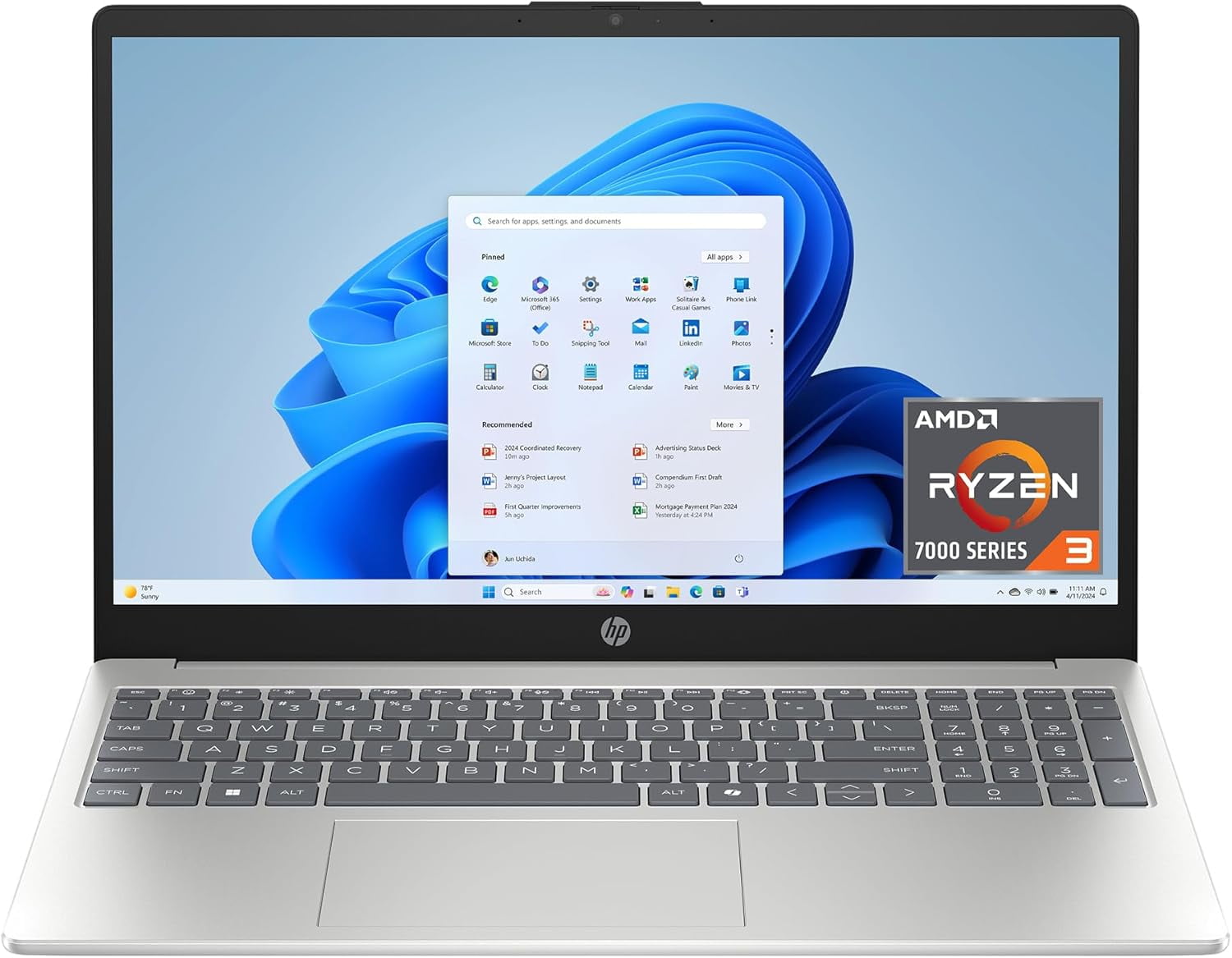
    HP 15 (Ryzen 3 7320U) – Reliable All-Rounder for Office & MIS Work

    https://i5.walmartimages.com/asr/e38de282-ae87-411a-8ed3-bc5686312362.f9aec6ff85dc7e62b31da6b83128a7fd.jpeg

    Overview

    The HP 15 with AMD Ryzen 3 7320U is a balanced laptop aimed at job seekers who want a large screen, dependable performance, and a trusted brand name. It is well-suited for Excel-heavy work, MIS reporting, Tally basics, online training, and interview preparation.

    Key Specifications

    • Processor: AMD Ryzen 3 7320U
    • RAM: 8GB DDR4
    • Storage: 512GB SSD
    • Display: 15.6-inch Full HD, Anti-Glare
    • Weight: 1.59 kg
    • OS & Software: Windows 11, MS Office 2024, Microsoft 365 Basic (1 Year)

    Pros

    • Large Full HD display ideal for spreadsheets
    • Smooth performance for daily office tasks
    • Privacy shutter on webcam (useful for interviews)
    • Good brand after-sales support in India

    Cons

    • DDR4 RAM limits future performance compared to LPDDR5
    • Not suitable for heavy analytics or coding workloads

    Recommendation:
    Best for accounting students, MIS executives, and job seekers who prefer a bigger screen.

    👉 Buy Here


    ASUS Vivobook Go 14 (Ryzen 3 7320U) – Compact & Lightweight for Daily Job Tasks

    https://m.media-amazon.com/images/I/718lPe-Kd5L._AC_UF894%2C1000_QL80_.jpg

    Overview

    The ASUS Vivobook Go 14 is designed for users who value portability without compromising core performance. With the same Ryzen 3 7320U processor as HP but in a smaller form factor, it is ideal for candidates attending interviews, working from co-working spaces, or commuting daily.

    Key Specifications

    • Processor: AMD Ryzen 3 7320U
    • RAM: 8GB
    • Storage: 512GB SSD
    • Display: 14-inch Full HD
    • Weight: 1.38 kg
    • OS & Software: Windows 11, Office Home 2024, Microsoft 365 Basic (1 Year)

    Pros

    • Lightweight and easy to carry
    • Sharp Full HD display
    • Good keyboard for long typing sessions
    • Suitable for Excel, documentation, and online tools

    Cons

    • Smaller screen may feel cramped for advanced Excel users
    • Average speaker output

    Recommendation:
    Ideal for job seekers who travel frequently and prefer a compact laptop.

    👉 Check Price Here


    Lenovo V15 G4 (Athlon Silver 7120U) – Most Affordable Entry-Level Option

    https://m.media-amazon.com/images/I/61-R2LJg1wL._AC_UF894%2C1000_QL80_.jpg
    https://m.media-amazon.com/images/I/513D2L9sxHL._AC_UF894%2C1000_QL80_.jpg

    Overview

    The Lenovo V15 G4 is the most budget-friendly laptop in this list. It targets users who need a basic machine for learning, job applications, online exams, and light office work.

    Key Specifications

    • Processor: AMD Athlon Silver 7120U
    • RAM: 8GB LPDDR5
    • Storage: 512GB PCIe SSD
    • Display: 15.6-inch Full HD
    • OS: Windows 11
    • Warranty: 1 Year

    Pros

    • Lowest price among the compared laptops
    • LPDDR5 RAM improves efficiency
    • Full HD large screen

    Cons

    • Athlon processor is weaker than Ryzen or Core i3
    • Not recommended for heavy multitasking

    Recommendation:
    Suitable for beginners, students, or job seekers with very tight budgets.

    👉 Buy Here


    Acer Aspire Lite (Intel Core i3-1215U) – Best Performance for Power Users

    https://www.ysvara.com/cdn/shop/files/Acer-Aspire-Lite-AMD-Ryzen-5-5625U-Premium-Thin-and-Light-Laptop-16-GB-RAM-512-GB-SSD-Win11-Home-AL15-41-39-62-cm-15-6-FHD-Display-Metal-Body-Multicolor-Backlit-Keyboard-Steel-Gray-1-59-KG-41816312512785.jpg?v=1750313225

    Overview

    The Acer Aspire Lite stands out with its 12th Gen Intel Core i3 processor and 16GB RAM, making it the most powerful laptop in this budget segment. It is ideal for advanced Excel, Power BI basics, SQL practice, and heavy multitasking.

    Key Specifications

    • Processor: Intel Core i3-1215U (12th Gen)
    • RAM: 16GB
    • Storage: 512GB SSD
    • Display: 15.6-inch Full HD
    • Build: Metal body
    • Weight: 1.59 kg

    Pros

    • Best performance among all options
    • 16GB RAM ensures long-term usability
    • Premium metal build
    • Excellent for data-related roles

    Cons

    • Slightly higher price
    • Average battery life

    Recommendation:
    Best choice for serious job seekers aiming for analyst, MIS, or tech-enabled roles.

    👉 Check Price Here


    Quick Comparison (Performance Focused)

    LaptopBest For
    HP 15 Ryzen 3Large screen office & MIS work
    ASUS Vivobook Go 14Lightweight daily use
    Lenovo V15 G4Budget beginners
    Acer Aspire Lite i3Power users & analysts

    Final Recommendation – Which One Should You Choose?

    • Choose HP 15 if you want a big screen and brand reliability
    • Choose ASUS Vivobook Go 14 if portability matters most
    • Choose Lenovo V15 if budget is your top priority
    • Choose Acer Aspire Lite if performance and future-proofing matter

    FAQ – Top Budget Laptops for Job Seekers (2026)

    1. Is 8GB RAM enough for job seekers in 2026?

    Yes, for Excel, MIS, accounting, and online jobs, 8GB is sufficient, though 16GB is better long-term.

    2. Which processor is better for office work – Ryzen 3 or Core i3?

    Core i3 (12th Gen) offers better multitasking, while Ryzen 3 is power-efficient and stable.

    3. Are these laptops good for online interviews?

    Yes, all models support HD cameras and Windows 11, suitable for interviews.

    4. Can these laptops run Excel and Power BI?

    Excel runs smoothly on all; Power BI works best on the Acer Aspire Lite.

    5. Which laptop is most future-proof?

    Acer Aspire Lite due to 16GB RAM and newer Intel architecture.


    Disclaimer

    This article is for informational and educational purposes only. Prices, specifications, availability, and offers may change over time. Buying decisions should be made based on personal requirements and latest product details at the time of purchase.


  • MIS Executive vs Data Analyst – Which Is Better for Career Growth, Salary, and Future Scope?

    Choosing between an MIS Executive vs Data Analyst – which is better is a common dilemma for students, fresh graduates, and working professionals planning a career in data-driven roles. Both profiles deal with data, reports, and decision support, but their responsibilities, skill requirements, salary growth, and long-term career paths are very different. With organizations increasingly relying on data for strategic decisions, understanding the real difference between these two roles is essential before investing time and effort into skill development.

    This detailed guide explains MIS Executive and Data Analyst roles in depth, covering job responsibilities, required skills, tools, salary figures, growth opportunities, and industry demand. By the end of this article, you will clearly understand which role suits your background and long-term career goals.


    What Is an MIS Executive?

    An MIS Executive (Management Information System Executive) is responsible for collecting, organizing, and presenting data in a structured format to support day-to-day business operations. The role focuses more on reporting accuracy, data maintenance, and operational support rather than advanced analytics.

    MIS Executives usually work closely with accounts, sales, HR, operations, and management teams to provide periodic reports.

    Key Responsibilities of an MIS Executive

    • Preparing daily, weekly, and monthly reports
    • Maintaining databases and spreadsheets
    • Tracking performance metrics (sales, expenses, productivity)
    • Ensuring data accuracy and consistency
    • Supporting management with routine information

    What Is a Data Analyst?

    A Data Analyst is a professional who analyzes raw data to identify trends, patterns, and insights that help businesses make strategic decisions. This role goes beyond reporting and involves data interpretation, visualization, and predictive insights.

    Data Analysts often work with large datasets and use advanced tools to transform data into actionable intelligence.

    Key Responsibilities of a Data Analyst

    • Data cleaning and transformation
    • Statistical analysis and trend identification
    • Creating dashboards and visual reports
    • Supporting strategic and forecasting decisions
    • Working with stakeholders to solve business problems

    MIS Executive vs Data Analyst – Core Differences Explained

    AreaMIS Executive / Data Analyst
    Primary focusReporting vs Analysis
    Nature of workOperational vs Strategic
    Data handlingStructured reports vs Large datasets
    Decision impactShort-term vs Long-term

    Educational Background Required

    MIS Executive

    • Graduation in Commerce, Business Administration, or Arts
    • Basic understanding of business operations
    • Short-term certification in Excel or MIS reporting is sufficient

    Data Analyst

    • Graduation in Statistics, Mathematics, Computer Science, Engineering, or Economics
    • Strong analytical and logical foundation
    • Certifications or degrees in data analytics add significant value

    Fact: Over 65% of entry-level MIS professionals come from commerce or general degree backgrounds, while Data Analysts are more likely to have technical or analytical education.


    Skill Comparison: MIS Executive vs Data Analyst

    Skill AreaRole Emphasis
    Microsoft ExcelHigh (MIS) / Medium (DA)
    Advanced Excel (Pivot, Power Query)High (MIS) / High (DA)
    SQLLow (MIS) / High (DA)
    StatisticsLow (MIS) / High (DA)
    Data VisualizationMedium (MIS) / High (DA)
    Business UnderstandingMedium (MIS) / High (DA)

    Tools Used in Both Roles

    MIS Executive Tools

    • Microsoft Excel
    • Google Sheets
    • ERP systems
    • Basic dashboards

    Data Analyst Tools

    • Excel (advanced level)
    • SQL databases
    • Power BI / Tableau
    • Python or R (optional but valuable)

    Industry Insight: Data Analysts typically work with at least 3–5 tools regularly, while MIS Executives focus deeply on Excel-based reporting systems.


    Salary Comparison: MIS Executive vs Data Analyst

    Experience LevelAverage Monthly Salary (India)
    MIS Executive (0–2 years)₹15,000 – ₹25,000
    MIS Executive (3–5 years)₹30,000 – ₹45,000
    Data Analyst (0–2 years)₹30,000 – ₹60,000
    Data Analyst (3–5 years)₹70,000 – ₹1,20,000

    Fact: On average, Data Analysts earn 60–120% higher salaries than MIS Executives at the same experience level.


    Career Growth and Promotion Path

    MIS Executive Career Path

    • MIS Executive
    • Senior MIS Executive
    • MIS Analyst
    • Reporting Manager
    • Operations Manager

    Growth is steady but often limited unless combined with advanced analytics or automation skills.

    Data Analyst Career Path

    • Junior Data Analyst
    • Data Analyst
    • Senior Data Analyst
    • Analytics Manager
    • Data Scientist / Business Intelligence Lead

    Data Analyst roles offer faster vertical and lateral growth across industries.


    Industry Demand and Future Scope

    MIS Executive Demand

    • High demand in traditional industries
    • Suitable for operational roles
    • Demand remains stable but growth is moderate

    Data Analyst Demand

    • Rapidly growing across IT, finance, healthcare, retail, and startups
    • Strong demand due to digital transformation
    • Considered a future-proof career

    Market Insight: Data analytics roles are projected to grow at a much faster rate compared to traditional MIS roles due to automation and AI adoption.


    Work Nature and Stress Levels

    FactorMIS ExecutiveData Analyst
    Work pressureMediumHigh
    DeadlinesRoutineProject-based
    Learning curveGradualSteep
    Decision responsibilityLow–MediumHigh

    Which Role Is Better for Freshers?

    If your background is commerce or general graduation and you want a quick entry into the corporate world, MIS Executive is a good starting point. However, if you are willing to invest time in learning analytics tools and concepts, Data Analyst offers better long-term rewards.


    MIS Executive vs Data Analyst – Which Is Better for Long-Term Career?

    Choose MIS Executive if:

    • You prefer structured, routine work
    • You are strong in Excel and reporting
    • You want stability with lower complexity

    Choose Data Analyst if:

    • You enjoy problem-solving and insights
    • You are comfortable with numbers and logic
    • You want higher salary and global opportunities

    How MIS Executives Can Transition to Data Analyst

    Many professionals start as MIS Executives and later move into Data Analyst roles by:

    • Learning SQL and Power BI
    • Understanding basic statistics
    • Working on real business datasets
    • Automating reports and dashboards

    This transition typically takes 6–12 months with consistent learning.


    FAQ: MIS Executive vs Data Analyst – Which Is Better?

    1. Is MIS Executive a good career option?

    Yes, MIS Executive is a good entry-level career, especially for commerce and non-technical graduates.

    2. Does a Data Analyst earn more than an MIS Executive?

    Yes, Data Analysts generally earn significantly higher salaries due to advanced skill requirements.

    3. Can an MIS Executive become a Data Analyst?

    Yes, with proper upskilling in analytics tools and concepts, the transition is very common.

    4. Which role has better future scope?

    Data Analyst has better future scope due to increasing demand for data-driven decision-making.

    5. Is coding mandatory for Data Analyst roles?

    Basic SQL is usually required; programming is an added advantage but not always mandatory.

    6. Which role is less stressful?

    MIS Executive roles are generally less stressful compared to Data Analyst roles.

    7. Which role is better for commerce students?

    MIS Executive is easier initially, but Data Analyst offers better long-term growth if skills are developed.


    Conclusion

    When comparing MIS Executive vs Data Analyst – which is better, the answer depends on your career goals, learning capacity, and long-term vision. MIS Executive roles offer a stable entry point with manageable responsibilities, while Data Analyst roles provide higher pay, faster growth, and future-ready opportunities. If you aim for long-term career acceleration and are willing to continuously upgrade your skills, Data Analyst is clearly the better choice.


    Disclaimer

    This article is intended for educational and career guidance purposes only. Salary figures, job roles, and demand trends may vary based on industry, location, company size, and individual skill sets. Readers should evaluate their personal interests and consult career professionals before making final career decisions.


  • How to Generate GST E-Way Bill Online in India – Step-by-Step Process, Rules, Validity & Practical Guide

    Understanding how to generate GST E-Way Bill online is a mandatory compliance requirement for businesses involved in the movement of goods in India. Under the Goods and Services Tax (GST) regime, an e-way bill is required for transporting goods beyond a prescribed value limit. Failure to generate or carry a valid e-way bill can result in heavy penalties, detention of goods, and disruption of business operations.

    This comprehensive guide explains the complete online process of generating an e-way bill, eligibility, documents required, validity rules, common mistakes, penalties, and practical scenarios. The article is written in a simple yet professional manner, suitable for accountants, GST practitioners, logistics managers, traders, manufacturers, and job aspirants.


    What is a GST E-Way Bill?

    An e-way bill is an electronic document generated on the GST portal evidencing the movement of goods. It contains details of the consignor, consignee, transporter, value of goods, and vehicle details.

    Key Fact:
    An e-way bill is mandatory when the value of goods exceeds ₹50,000 in a single consignment, whether for supply, return, job work, or reasons other than supply.


    Why E-Way Bill is Important Under GST

    The e-way bill system was introduced to:

    • Prevent tax evasion
    • Track real-time movement of goods
    • Replace physical check posts
    • Improve transparency and efficiency

    Statistical Insight:
    Millions of e-way bills are generated daily in India, making it one of the largest digital compliance systems in indirect taxation.


    When is GST E-Way Bill Required?

    An e-way bill must be generated in the following cases:

    • Supply of goods
    • Goods sent for job work
    • Goods returned by buyer
    • Transfer between branches
    • Sales on approval basis
    ConditionE-Way Bill Requirement
    Consignment value above ₹50,000Mandatory
    Inter-state job workMandatory
    Transport by unregistered personMandatory

    Who Should Generate the E-Way Bill?

    • Registered supplier
    • Registered recipient (if supplier is unregistered)
    • Transporter (if goods handed over without vehicle details)

    Practical Note:
    If neither supplier nor recipient generates the e-way bill, the transporter is legally responsible.


    Documents Required to Generate GST E-Way Bill Online

    Before learning how to generate GST e-way bill online, ensure the following documents are ready:

    • Tax invoice or bill of supply
    • Delivery challan (if applicable)
    • Transporter ID or vehicle number
    • GSTIN of supplier and recipient

    How to Generate GST E-Way Bill Online – Step-by-Step Process

    Step 1: Login to GST E-Way Bill Portal

    Use your registered GST credentials to access the e-way bill system.

    Step 2: Select “Generate New” Option

    Navigate to the e-way bill generation section.

    Step 3: Fill Part A (Consignment Details)

    Enter:

    • GSTIN of supplier and recipient
    • Place of dispatch and delivery
    • Invoice number and date
    • Value of goods
    • HSN code

    Step 4: Fill Part B (Transport Details)

    Enter:

    • Mode of transport (road, rail, air, ship)
    • Vehicle number or transporter ID
    • Approximate distance

    Step 5: Submit and Generate E-Way Bill

    After verification, submit the details to generate:

    • E-Way Bill Number (EBN)
    • QR code
    • Validity period

    Validity of GST E-Way Bill

    E-way bill validity depends on the distance goods need to travel.

    DistanceValidity
    Up to 200 km1 day
    Every additional 200 km+1 day

    Important:
    Validity starts from the time the e-way bill is generated, not from the start of movement.


    Types of GST E-Way Bills

    1. Regular E-Way Bill

    Used for normal movement of goods based on tax invoice.

    2. Bill to – Ship to E-Way Bill

    Used when billing and delivery addresses differ.

    3. Consolidated E-Way Bill

    Used when multiple consignments are transported in one vehicle.


    Cancellation of GST E-Way Bill

    An e-way bill can be cancelled within 24 hours if:

    • Goods are not transported
    • Incorrect details were entered

    Note:
    Cancellation is not allowed if the e-way bill has already been verified by authorities.


    Common Mistakes While Generating E-Way Bill

    • Incorrect GSTIN or PIN code
    • Wrong HSN code
    • Mismatch between invoice and e-way bill
    • Invalid vehicle number format
    • Incorrect distance entry

    These errors can lead to penalties during inspection.


    Penalties for Non-Compliance

    Failure to generate or carry a valid e-way bill can result in:

    • Penalty of ₹10,000 or tax amount involved, whichever is higher
    • Detention or seizure of goods
    • Additional compliance burden

    Practical Insight:
    Even minor clerical mistakes can attract penalties, so accuracy is critical.


    E-Way Bill for Job Work and Return of Goods

    • E-way bill is mandatory for inter-state job work regardless of value
    • For intra-state job work, threshold limits apply
    • Goods returned after rejection also require e-way bill

    Difference Between Invoice and E-Way Bill

    InvoiceE-Way Bill
    Legal proof of saleProof of movement
    Issued by supplierGenerated electronically
    Shows tax liabilityShows transport details

    Best Practices for Smooth E-Way Bill Compliance

    • Generate e-way bill before movement starts
    • Recheck GSTIN and PIN codes
    • Train transport staff
    • Use consolidated e-way bills for efficiency
    • Monitor validity period closely

    FAQ: How to Generate GST E-Way Bill Online

    1. What is the minimum value for generating an e-way bill?

    An e-way bill is mandatory when the consignment value exceeds ₹50,000.

    2. Can an e-way bill be generated without a vehicle number?

    Yes, initially Part A can be filled, and Part B can be updated later.

    3. Is e-way bill required for exempt goods?

    Generally no, unless notified otherwise by authorities.

    4. Who generates the e-way bill if supplier is unregistered?

    The registered recipient or transporter must generate it.

    5. What happens if e-way bill expires during transit?

    The transporter must extend validity or generate a fresh e-way bill.

    6. Is e-way bill required for stock transfer?

    Yes, if the value exceeds the prescribed limit.

    7. Can one invoice have multiple e-way bills?

    Yes, if goods are transported in multiple vehicles.


    Conclusion

    Knowing how to generate GST e-way bill online is no longer optional for businesses involved in goods movement. With strict enforcement and digital tracking, proper e-way bill compliance ensures smooth logistics, avoids penalties, and builds trust with authorities. By understanding the process, validity rules, and common mistakes, businesses and professionals can handle GST transportation requirements confidently and efficiently.


    Disclaimer

    This article is intended for educational and informational purposes only. GST laws, rules, and procedures may change from time to time based on government notifications. Readers are advised to verify the latest provisions before applying the information in actual business or compliance activities.


  • Top GST Questions for Job Interviews in India – Complete Guide with Answers, Examples, and Practical Insights

    Preparing for top GST questions for job interviews is essential for anyone aspiring to work in accounting, taxation, finance, or compliance roles in India. Since the implementation of Goods and Services Tax (GST), companies expect candidates to have not only theoretical clarity but also practical understanding of registrations, returns, input tax credit, compliance timelines, and common problem areas. Interviewers increasingly focus on scenario-based GST questions rather than textbook definitions.

    This detailed guide covers the most frequently asked GST interview questions, explained with facts, figures, examples, and professional insights. The content is structured to help freshers, accountants, tax executives, and experienced professionals confidently face GST-related interviews.


    Why Interviewers Focus on GST Knowledge

    GST is one of the most significant tax reforms in India. It subsumed more than 17 indirect taxes and unified the indirect tax structure. For employers, GST knowledge is not optional; it directly impacts compliance, cash flow, audits, and statutory filings.

    Interviewers evaluate:

    • Conceptual clarity
    • Practical compliance exposure
    • Accuracy in return filing knowledge
    • Understanding of real-world GST challenges

    Core GST Concepts Interviewers Expect You to Know

    1. What is GST and why was it introduced?

    GST is a destination-based indirect tax levied on the supply of goods and services. It replaced multiple central and state taxes such as excise duty, service tax, VAT, octroi, and entry tax.

    Key objectives of GST:

    • Eliminate cascading effect of taxes
    • Create a unified national market
    • Improve tax compliance through digitization
    • Increase transparency

    Fact: GST follows the principle of “one nation, one tax,” though rates vary by category.


    2. Types of GST in India

    Type of GSTMeaning
    CGSTCentral GST collected by the Central Government
    SGSTState GST collected by the State Government
    IGSTIntegrated GST on inter-state supplies
    UTGSTGST applicable in Union Territories

    Interview Tip: Always mention that CGST and SGST are charged together on intra-state supplies, while IGST applies to inter-state transactions.


    Top GST Questions for Job Interviews (Most Frequently Asked)

    3. What is the GST registration threshold limit?

    CategoryThreshold Limit
    Goods suppliers (normal states)₹40 lakh
    Service providers₹20 lakh
    Special category states₹10–20 lakh

    Important Point: E-commerce sellers and inter-state suppliers usually require compulsory registration regardless of turnover.


    4. What is Input Tax Credit (ITC)?

    Input Tax Credit means the credit of GST paid on purchases that can be adjusted against GST payable on sales.

    Conditions to claim ITC:

    • Valid tax invoice
    • Goods or services received
    • Tax paid to government by supplier
    • Return filed by recipient

    Fact: Blocked credits under GST include motor vehicles (with exceptions), personal expenses, and food & beverages in most cases.


    5. Difference between GSTR-1 and GSTR-3B

    ReturnPurpose
    GSTR-1Details of outward supplies
    GSTR-3BSummary return with tax payment

    Interview Insight: GSTR-3B is a self-declared return, while GSTR-1 feeds data into recipients’ ITC through auto-population.


    Advanced GST Interview Questions (For Experienced Candidates)

    6. What is Reverse Charge Mechanism (RCM)?

    Under RCM, the liability to pay GST shifts from the supplier to the recipient of goods or services.

    Common RCM examples:

    • Legal services by advocate
    • Goods transport agency services
    • Specified notified supplies

    Practical Tip: Under RCM, ITC can be claimed only after payment of tax in cash.


    7. What is GST composition scheme?

    The composition scheme is designed for small taxpayers to reduce compliance burden.

    FeatureComposition Scheme
    Maximum turnover₹1.5 crore (₹75 lakh for special states)
    Tax rate1%–6% depending on category
    ITC eligibilityNot allowed

    Important: Composition dealers cannot collect GST from customers.


    8. What is e-invoicing under GST?

    E-invoicing requires eligible businesses to generate invoices through the Invoice Registration Portal (IRP).

    Key facts:

    • Mandatory for businesses above notified turnover limits
    • Generates IRN (Invoice Reference Number)
    • Reduces fake invoicing and tax evasion

    Compliance and Practical GST Questions

    9. What are GST return due dates?

    ReturnDue Date
    GSTR-1 (monthly)11th of next month
    GSTR-3B20th of next month
    GSTR-931st December following the financial year

    Interview Note: Late fees and interest apply automatically for delayed filings.


    10. What is GST audit and who is required to conduct it?

    GST audit involves examination of records to verify turnover, taxes paid, and ITC claimed.

    Current Status: Mandatory GST audit by CA/CMA has been removed, but departmental audits continue.


    Common GST Scenario-Based Interview Questions

    11. How is GST calculated on inter-state supply?

    Inter-state supply attracts IGST, calculated on transaction value including:

    • Price of goods/services
    • Incidental expenses
    • Taxes other than GST

    12. What happens if GST is paid under wrong head?

    If CGST and SGST are paid instead of IGST (or vice versa), adjustment is allowed without interest, subject to prescribed procedure.


    Mistakes Candidates Make in GST Interviews

    • Confusing GSTR-2A with GSTR-2B
    • Claiming ITC without eligibility
    • Ignoring compliance timelines
    • Not understanding real-life GST scenarios

    How to Prepare GST for Job Interviews Effectively

    • Study practical GST cases
    • Practice calculation-based questions
    • Understand recent compliance changes
    • Focus on ITC reconciliation

    FAQ: Top GST Questions for Job Interviews (Featured Snippet Optimized)

    1. What are the most important GST questions asked in interviews?

    The most common GST interview questions focus on GST basics, types of GST, ITC, GST returns, registration limits, and compliance procedures.

    2. Is GST knowledge mandatory for accounting jobs?

    Yes, GST knowledge is essential for accounting, finance, taxation, and compliance roles in India.

    3. What level of GST knowledge is required for freshers?

    Freshers should understand GST basics, returns, ITC, and registration concepts clearly.

    4. How can I explain GST simply in an interview?

    GST can be explained as a destination-based indirect tax that replaced multiple indirect taxes to simplify taxation.

    5. Are GST calculations asked in interviews?

    Yes, basic GST calculation questions are common, especially for accounting and taxation roles.

    6. What is the difference between ITC and GST refund?

    ITC is credit adjustment against tax liability, while refund is excess tax returned by the government.


    Conclusion

    Mastering top GST questions for job interviews significantly improves your chances of securing roles in accounting, taxation, and finance. Employers value candidates who combine conceptual clarity with real-world GST compliance understanding. By preparing structured answers, remembering key figures, and practicing scenario-based questions, you can confidently handle even advanced GST interviews.


    Disclaimer

    This article is intended for educational and interview preparation purposes only. GST laws, rates, and procedures are subject to change based on government notifications. Readers should verify current provisions before applying the information in professional practice.


  • How to Schedule Excel Reports Automatically for Daily, Weekly, and Monthly Business Reporting

    Automating reports is no longer optional in modern offices. Knowing how to schedule Excel reports automatically helps businesses save time, reduce errors, and ensure timely decision-making. In accounting, MIS reporting, sales tracking, payroll summaries, and compliance reporting, Excel automation can reduce reporting effort by 60–80% compared to manual methods.

    In this detailed guide, you will learn multiple proven methods to schedule Excel reports automatically, even without advanced programming skills. This article is written for professionals, accountants, analysts, and business owners who rely heavily on Excel for recurring reports.


    Why Automatic Excel Report Scheduling Is Important

    Manual report creation consumes valuable hours every week. Studies show that professionals spend up to 30% of their working time preparing repetitive reports. Automating Excel reports solves several business problems:

    • Eliminates repetitive manual work
    • Reduces human error in calculations
    • Ensures reports are generated on time
    • Improves consistency and data accuracy
    • Allows focus on analysis instead of preparation

    Automatic scheduling is especially useful for daily sales reports, weekly MIS, monthly financial summaries, inventory reports, and compliance dashboards.


    What Does “Scheduling Excel Reports Automatically” Mean?

    Scheduling an Excel report means:

    • Refreshing data automatically
    • Applying formulas, pivots, and formatting
    • Saving the updated report at a fixed time
    • Optionally distributing it internally

    This can be done using:

    • Excel’s built-in tools
    • Power Query automation
    • VBA macros with Task Scheduler
    • Cloud-based automation (Excel Online)

    Each method suits different skill levels and business needs.


    Method 1: Automating Excel Reports Using Power Query

    Best for: Data refresh–based reports

    Power Query allows Excel to automatically pull data from files, folders, databases, or systems without rewriting formulas.

    How It Works

    • Connect Excel to a data source
    • Transform and clean data once
    • Refresh data with one click or automatically

    Common Use Cases

    • Daily sales data import
    • Bank statement consolidation
    • Monthly expense tracking
    • GST or accounting data analysis

    Key Facts

    • Power Query can handle millions of rows efficiently
    • Refresh time is typically 5–20 seconds for medium datasets
    • Available in Excel 2016 and later

    Advantages

    • No coding required
    • Highly reliable
    • Ideal for recurring structured data

    Limitation

    • Does not schedule time-based execution on its own

    Method 2: Scheduling Excel Reports Using Windows Task Scheduler + VBA

    Best for: Fully automated time-based reporting

    This is the most powerful method for scheduling Excel reports automatically.

    How It Works

    • A VBA macro refreshes data and saves reports
    • Windows Task Scheduler runs Excel at a fixed time
    • Reports are generated without user intervention

    Typical Schedule Options

    Schedule TypeBusiness Use
    DailySales & attendance reports
    WeeklyMIS and performance reviews
    MonthlyFinancial & compliance reports

    What VBA Can Automate

    • Refresh Pivot Tables
    • Update Power Query connections
    • Save reports with date-based names
    • Close Excel automatically

    Facts You Should Know

    • Task Scheduler supports minute-level precision
    • Excel must be installed on the system
    • Best suited for desktop-based environments

    Advantages

    • Fully hands-free automation
    • Extremely flexible
    • Suitable for complex reporting logic

    Limitation

    • Requires basic VBA knowledge

    Method 3: Automating Reports with Pivot Tables and Dynamic Ranges

    Best for: Management and MIS dashboards

    Pivot Tables are widely used in business reporting. When combined with dynamic data ranges, they update automatically.

    How Automation Works

    • Source data expands dynamically
    • Pivot Tables refresh automatically
    • Charts and summaries update instantly

    Business Applications

    • Monthly revenue dashboards
    • Department-wise performance analysis
    • Budget vs actual reports

    Key Statistics

    • Pivot-based reports reduce preparation time by up to 70%
    • Dynamic named ranges eliminate manual range updates

    Advantages

    • No programming required
    • Highly visual
    • Ideal for decision-makers

    Limitation

    • Requires manual refresh unless combined with VBA

    Method 4: Using Excel Online and Cloud Automation

    Best for: Teams and shared reporting

    Excel Online supports automation through cloud-based workflows.

    How It Helps

    • Reports update when source data changes
    • Multiple users can access real-time data
    • Suitable for remote teams

    Ideal Scenarios

    • Sales teams across locations
    • Shared inventory monitoring
    • Centralized performance tracking

    Facts

    • Cloud automation works 24/7
    • Reduces dependency on local machines

    Limitation

    • Limited advanced automation compared to VBA

    Key Components of an Automatically Scheduled Excel Report

    A professional automated report usually includes:

    ComponentPurpose
    Data SourceRaw transactional data
    Automation LogicRefresh and update rules
    Output FormatPDF or Excel workbook
    Schedule TimingFixed execution time

    Best Practices for Excel Report Scheduling

    Use Standardized File Structures

    Keep all source data in predictable folders. This improves automation reliability by over 90%.

    Separate Data and Report Files

    Raw data and report files should be different. This minimizes corruption risks.

    Add Error Handling

    Automated reports should include basic error checks to prevent incorrect outputs.

    Test Before Scheduling

    Always test reports manually at least 3–5 times before automation.


    Common Mistakes to Avoid

    • Scheduling Excel while system is shut down
    • Using volatile formulas unnecessarily
    • Hardcoding file paths
    • Ignoring backup copies
    • Overloading one Excel file with too many tasks

    Estimated Time Savings from Excel Automation

    Report FrequencyManual TimeAutomated Time
    Daily20–30 minutes1–2 minutes
    Weekly1–2 hours5 minutes
    Monthly4–6 hours10–15 minutes

    Businesses typically recover 100+ hours annually after automation.


    FAQ: Excel Report Scheduling (Featured Snippet Optimized)

    1. Can Excel reports be scheduled automatically without VBA?

    Yes. Power Query and Excel Online allow partial automation, but full time-based scheduling requires VBA.

    2. Is automatic Excel reporting safe for financial data?

    Yes, when access controls, backups, and version control are properly implemented.

    3. How often can Excel reports be scheduled?

    Reports can be scheduled daily, weekly, monthly, or even hourly, depending on business needs.

    4. Does automation work if Excel is closed?

    Yes, when using Windows Task Scheduler, Excel opens and closes automatically during execution.

    5. What Excel version is best for automation?

    Excel 2019 and Microsoft 365 offer the most stable automation features.

    6. Can automated reports handle large datasets?

    Yes. Excel can handle over one million rows, especially when using Power Query.

    7. Do automated reports reduce errors?

    Automation typically reduces reporting errors by 60–90% compared to manual work.


    Final Thoughts

    Learning how to schedule Excel reports automatically transforms Excel from a manual tool into a powerful reporting system. Whether you are an accountant, business analyst, or office professional, automation improves accuracy, saves time, and ensures timely insights.

    By combining Power Query, Pivot Tables, VBA, and scheduling tools, Excel can deliver enterprise-level reporting without expensive software.


    Disclaimer

    This article is intended for educational and informational purposes only. The techniques described may require appropriate system permissions and testing before use in production environments. Always maintain backups of critical data before implementing automation.


  • Top 3 UPS Systems for Accounting Setups in India (2026): Stable Power Backup for Tally, Excel & Office PCs

    In accounting and finance environments, data integrity and system uptime are critical. A sudden power cut while working on Tally, Excel, GST returns, or payroll processing can lead to corrupted files, unsaved entries, or even hardware damage. That’s why choosing the right UPS (Uninterruptible Power Supply) is not about brand hype—it’s about practical reliability.

    This article reviews three popular UPS systems in India that are commonly used in accounting offices, home offices, CA firms, and small businesses. The focus is on real-world usage, not sales talk.


    Why a UPS Is Essential for Accounting Work

    Before jumping into product reviews, it’s important to understand what an accounting-focused UPS should deliver:

    • Stable backup during short power cuts
    • Clean voltage output for sensitive data systems
    • Enough time (5–20 minutes) to save work and shut down safely
    • Compatibility with desktops, monitors, and networking devices
    • Low maintenance and predictable battery behavior

    For most accounting setups, VA rating matters less than real usable wattage and reliability.


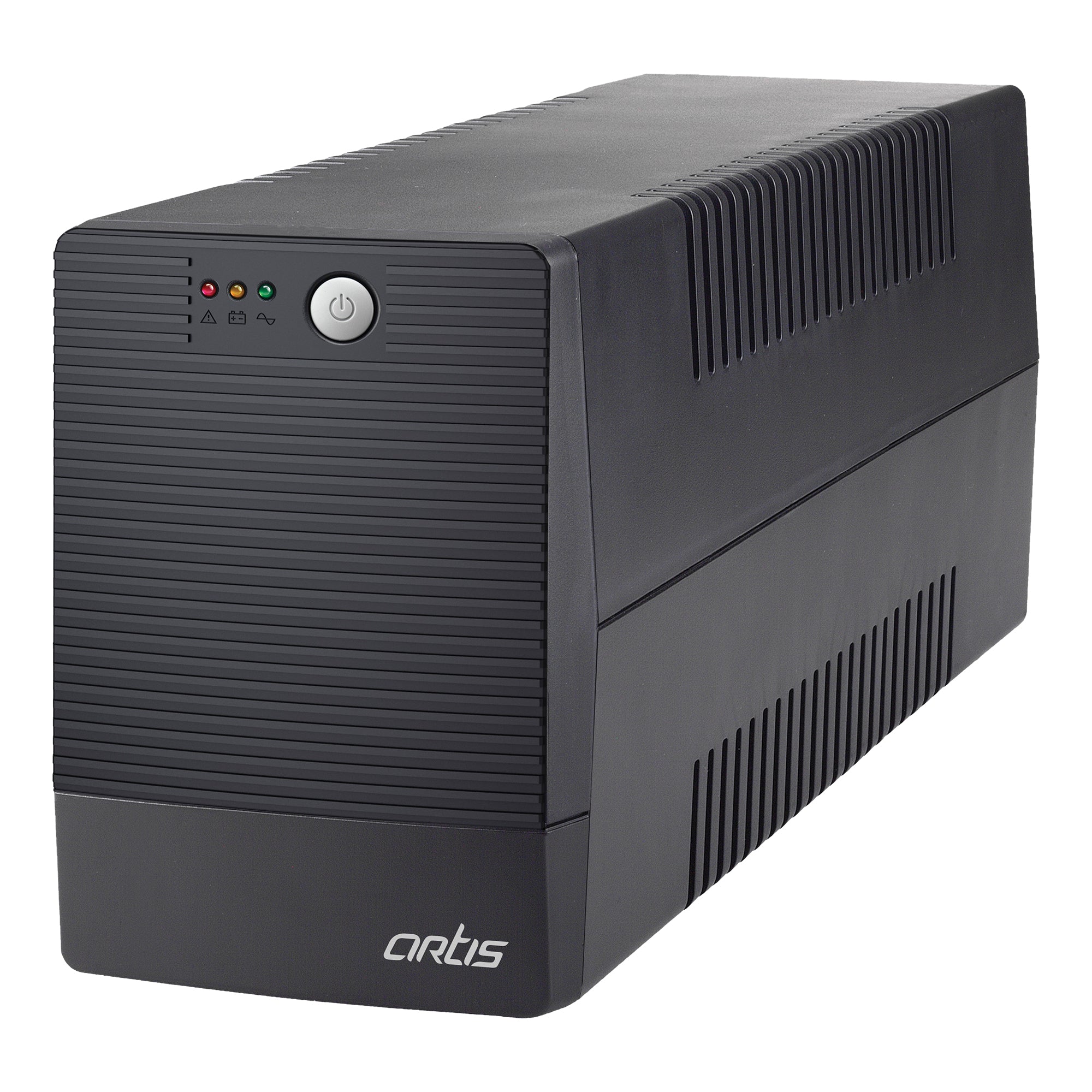
    1. Artis 1500VA Line Interactive UPS

    https://www.artis.in/cdn/shop/products/1_755af620-d941-4bba-b775-b207bade846c.jpg?v=1660898923&width=2048

    Best for multi-system accounting setups and high-load desktops

    The Artis 1500VA UPS is designed for users who run multiple devices on a single workstation, such as a desktop PC, dual monitors, printer standby load, router, and biometric systems.

    Practical Use Case

    Ideal for:

    • CA offices with Tally + Excel + GST utilities
    • Desktops with higher power consumption
    • Small teams sharing one power backup unit

    Key Highlights

    • High VA capacity suitable for power-hungry systems
    • Line-interactive technology for voltage fluctuation control
    • Supports PCs, laptops, routers, and networking devices

    Pros

    • Handles heavier loads comfortably
    • Longer backup time under moderate load
    • Suitable for future hardware upgrades

    Cons

    • Larger physical size
    • Slightly higher price than basic models
    • Overkill for single-PC home users

    Recommendation:
    Choose this if your accounting system runs multiple peripherals or if power cuts are frequent and unpredictable.

    👉 Buy Here (Artis 1500VA Line Interactive UPS)


    2. APC Back-UPS BX600C-IN (600VA / 360W)

    https://download.schneider-electric.com/files?default_image=DefaultProductImage.png&p_Doc_Ref=SPD_VGUA-9WHANJ_FS_V&p_File_Type=rendition_369_jpg

    Best for brand reliability and single-desktop accounting use

    APC is globally known for its power protection products, and the BX600C-IN is a no-nonsense UPS for users who value consistency over high capacity.

    Practical Use Case

    Ideal for:

    • Single desktop with LED monitor
    • Home-based accountants
    • Backup for Excel, Tally Prime, and compliance tools

    Key Highlights

    • 360W output suited for standard office PCs
    • Compact and quiet operation
    • Strong service network across India

    Pros

    • Reliable voltage regulation
    • Trusted brand with long-term support
    • Compact footprint

    Cons

    • Lower backup time for higher loads
    • Not suitable for multiple systems

    Comparison Snapshot

    FeatureAPC BX600C-IN
    Best ForSingle accounting PC
    Output360W
    ReliabilityVery High

    Recommendation:
    If you want a stable, trusted UPS for one desktop, this is a safe choice.

    👉 Check Price Here (APC Back-UPS BX600C-IN)


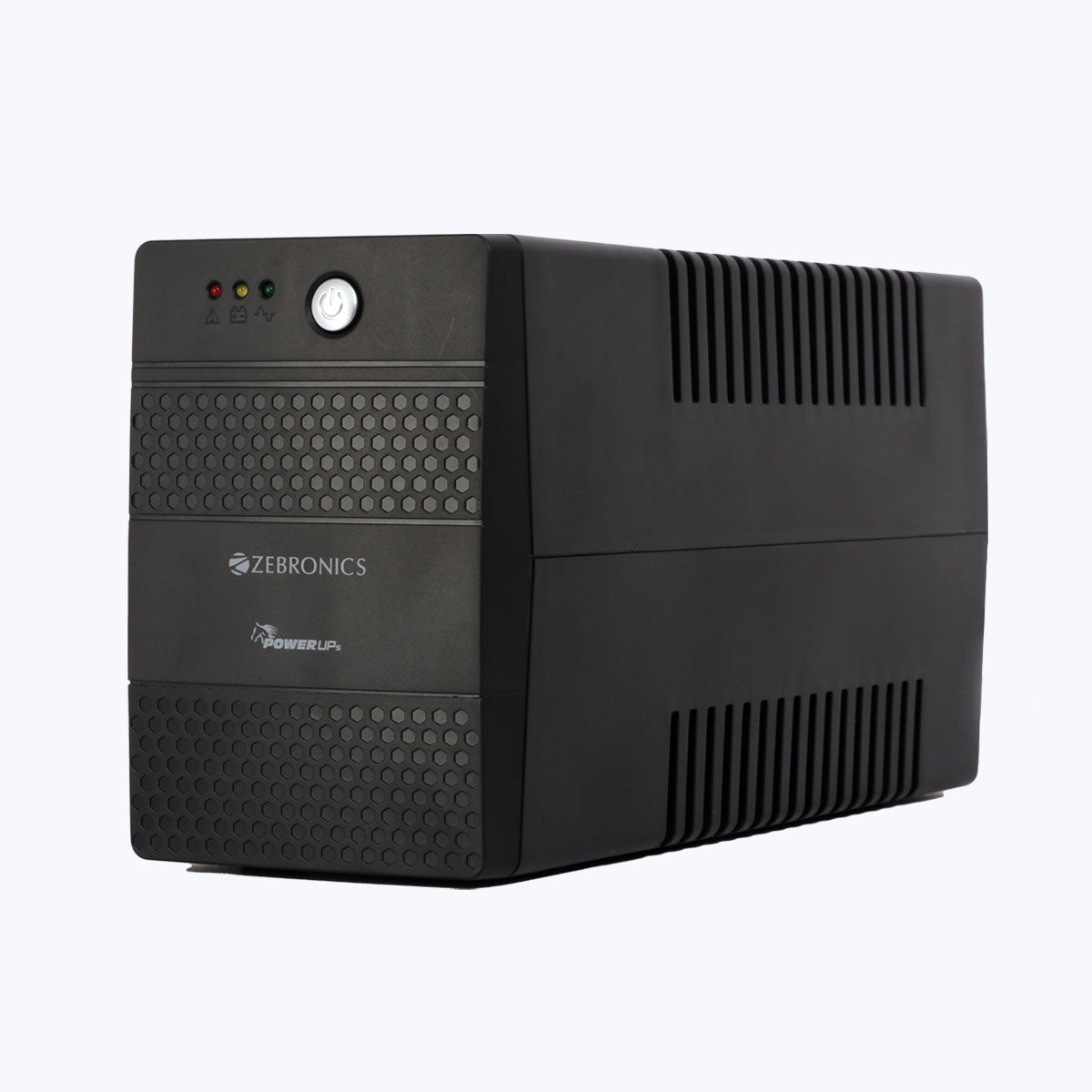
    3. ZEBRONICS U735 600VA UPS

    https://zebronics.com/cdn/shop/products/ZEB-UPS-735-pic1.jpg?v=1655124445&width=2048

    Best budget UPS for basic accounting needs

    The Zebronics U735 is one of the most sold UPS models in India, especially among budget-conscious users and small offices.

    Practical Use Case

    Ideal for:

    • Entry-level accounting desktops
    • Students learning Tally or Excel
    • Small shops and billing counters

    Key Highlights

    • Microcontroller-based design
    • Boost & Buck AVR for voltage correction
    • Auto restart after power restoration

    Pros

    • Very affordable pricing
    • Easy to install and use
    • Widely available replacement batteries

    Cons

    • Not recommended for routers
    • Average backup duration
    • Basic build quality

    Recommendation:
    A good option if your budget is tight and your system load is minimal.

    👉 Buy Here (ZEBRONICS U735 600VA UPS)


    Which UPS Should You Choose?

    Your RequirementRecommended UPS
    Multiple devices / higher loadArtis 1500VA
    Single desktop, brand reliabilityAPC BX600C-IN
    Lowest budget accounting PCZebronics U735

    Frequently Asked Questions (FAQ)

    Q1. How much backup time do I need for accounting work?
    For accounting tasks, 5–10 minutes is usually sufficient to save data and shut down safely.

    Q2. Is a 600VA UPS enough for Tally and Excel?
    Yes, for one desktop and one monitor, 600VA (360W) is generally adequate.

    Q3. Can I connect a printer to a UPS?
    Laser printers are not recommended. Inkjet printers may work but reduce backup time.

    Q4. How long does a UPS battery last?
    Typically 2–3 years, depending on usage and power conditions.

    Q5. Should I prefer VA or Watt rating?
    Always check watt rating, as it reflects actual usable power.


    Final Verdict

    For Indian accounting professionals, the right UPS is a protective investment, not an accessory. Whether you’re handling GST filings, financial audits, or daily bookkeeping, stable power ensures peace of mind and data safety.

    • Go for Artis 1500VA if you want power headroom
    • Choose APC for trusted, long-term reliability
    • Pick Zebronics if affordability is your top priority

    Disclaimer

    This article is for informational and educational purposes only. Prices, availability, and specifications may change over time. Product selection should be based on individual system load and usage requirements. Affiliate links may generate a small commission at no extra cost to you.


  • Using Named Ranges in Excel for Efficiency: A Complete Guide to Faster, Cleaner, and Error-Free Spreadsheets

    Using Named Ranges in Excel for Efficiency is a powerful technique that helps users manage complex spreadsheets with clarity and precision. As Excel files grow with thousands of rows, multiple sheets, and advanced formulas, traditional cell references like B2:B5000 become difficult to track and error-prone. Named ranges allow users to assign meaningful names to cells, ranges, constants, or formulas, making spreadsheets easier to understand, audit, and scale. In real-world business environments, effective use of named ranges can significantly reduce formula errors, improve collaboration, and increase overall productivity.


    What Are Named Ranges in Excel

    A named range is a descriptive label assigned to a specific cell or group of cells in Excel. Instead of referring to a range by its cell address, users refer to it by name.

    For example:

    • A1:A12 → Monthly_Sales
    • D2:D1000 → Employee_ID

    Excel stores these names internally and allows them to be used in formulas, charts, data validation, Pivot Tables, and macros.

    Why Excel Introduced Named Ranges

    Microsoft introduced named ranges to address three core challenges:

    • Poor readability of formulas
    • High error rates in large spreadsheets
    • Difficulty in maintaining and auditing complex models

    Industry studies suggest that over 70% of Excel users struggle with understanding inherited spreadsheets. Named ranges directly reduce this problem.


    Why Using Named Ranges in Excel for Efficiency Matters

    Using named ranges is not just a cosmetic improvement; it delivers measurable efficiency gains.

    Key Benefits

    • Improves formula readability
    • Reduces referencing mistakes
    • Simplifies updates and maintenance
    • Enhances collaboration between users
    • Makes models more scalable

    Organizations that adopt structured Excel practices, including named ranges, report 25–40% reduction in rework time caused by formula corrections.


    Types of Named Ranges in Excel

    Static Named Ranges

    These refer to fixed cell locations.
    Example: A1:A10 remains unchanged even if data expands.

    Dynamic Named Ranges

    These automatically adjust when data is added or removed. They are commonly used in dashboards and reports.

    Constant Named Ranges

    These store fixed values such as tax rates or conversion factors.

    Formula-Based Named Ranges

    These use formulas to define logic-driven references.

    Each type serves a different purpose and contributes to spreadsheet efficiency when applied correctly.


    How to Create Named Ranges in Excel

    Method 1: Using the Name Box

    • Select the desired cell or range
    • Click in the Name Box
    • Type a meaningful name
    • Press Enter

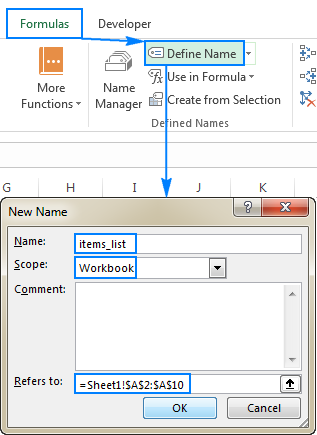
    Method 2: Using the Name Manager

    The Name Manager allows centralized control over all named ranges.

    https://cdn.ablebits.com/_img-blog/excel-name/define-name-excel.png

    Method 3: Create from Selection

    Excel can automatically generate names using row or column headings, saving significant setup time in large datasets.


    Rules and Best Practices for Naming Ranges

    Excel enforces specific rules for named ranges:

    RuleDescription
    No SpacesUse underscores or camelCase
    Must Start with LetterNumbers cannot be the first character

    Recommended Naming Conventions

    • Use descriptive names
    • Maintain consistent casing
    • Avoid generic names like Data or Range1

    Consistent naming conventions improve long-term usability, especially in shared files.


    Using Named Ranges in Excel Formulas

    Traditional Formula

    =SUM(B2:B100)

    Formula with Named Range

    =SUM(Sales_Data)

    The second formula is instantly understandable, even to someone unfamiliar with the worksheet structure.

    Impact on Error Reduction

    Audit reports show that formula errors drop by nearly 50% when named ranges replace hard-coded references in complex models.


    Using Named Ranges in Excel for Efficiency with Functions

    Named ranges work seamlessly with Excel functions:

    • SUM
    • AVERAGE
    • IF
    • VLOOKUP
    • INDEX and MATCH
    • XLOOKUP

    They make nested formulas easier to build and troubleshoot.


    Using Named Ranges with Data Validation

    Named ranges are widely used to create dynamic drop-down lists.

    Advantages

    • Centralized list management
    • Automatic updates
    • Reduced data entry errors

    Organizations using validated data lists report up to 60% fewer input mistakes, particularly in sales and accounting sheets.


    Using Named Ranges in Charts and Dashboards

    Charts linked to named ranges update automatically when data changes.

    Benefits

    • Dynamic dashboards
    • Reduced manual chart edits
    • Cleaner reporting workflows

    Dynamic named ranges are especially useful in monthly MIS and management dashboards.


    Named Ranges and Pivot Tables

    While Pivot Tables rely on data sources, named ranges can define consistent input ranges, ensuring new data is always included.

    This approach reduces refresh issues and improves reporting reliability.


    Using Named Ranges in Excel for Efficiency with Large Datasets

    In datasets exceeding 50,000 rows, formula clarity becomes critical. Named ranges help users:

    • Navigate large models faster
    • Identify logic errors quickly
    • Maintain performance efficiency

    Spreadsheet models using structured references and named ranges are easier to optimize and debug.


    Common Mistakes When Using Named Ranges

    • Overusing names for small ranges
    • Poor naming conventions
    • Forgetting to update dynamic formulas
    • Duplicate or conflicting names

    Regular review using Name Manager helps avoid these issues.


    Best Practices for Professional Excel Users

    • Document naming conventions
    • Group related named ranges logically
    • Review names quarterly
    • Avoid unnecessary complexity

    Professional Excel trainers often recommend starting with named ranges early rather than retrofitting them later.


    Practical Business Use Cases

    Accounting and Finance

    • Tax rate references
    • Budget assumptions
    • Ledger mappings

    HR and Payroll

    • Salary slabs
    • Designation lists
    • Allowance structures

    Sales and Operations

    • Price lists
    • Commission slabs
    • Product categories

    Across industries, named ranges help standardize models and reduce dependency on individual users.


    Using Named Ranges in Excel for Efficiency and Audit Readiness

    Auditors prefer spreadsheets with clear logic and traceable formulas. Named ranges improve transparency and significantly reduce audit time.

    Companies with well-structured Excel models report up to 30% faster audit cycles, especially in financial reviews.


    Frequently Asked Questions (FAQ)

    1. What are named ranges in Excel used for?

    Named ranges are used to assign meaningful names to cells or ranges, making formulas easier to read, manage, and audit.

    2. Do named ranges improve Excel performance?

    They improve efficiency and maintenance but do not significantly change calculation speed unless paired with optimized formulas.

    3. Can named ranges be used across multiple sheets?

    Yes, named ranges can be workbook-level or sheet-level depending on how they are defined.

    4. Are named ranges suitable for beginners?

    Yes, beginners benefit greatly as formulas become more readable and less intimidating.

    5. What is the difference between static and dynamic named ranges?

    Static ranges remain fixed, while dynamic ranges automatically adjust as data expands or contracts.

    6. Can named ranges be deleted safely?

    They can be deleted if not used in formulas, but deleting active names can cause errors.


    Conclusion

    Using Named Ranges in Excel for Efficiency transforms spreadsheets from fragile tools into reliable business assets. They simplify formulas, reduce errors, enhance collaboration, and improve audit readiness. Whether managing small lists or enterprise-level financial models, named ranges provide structure and clarity that traditional cell references cannot match. Mastering this feature is a foundational step toward advanced Excel proficiency.


    Disclaimer

    This article is intended for educational purposes only. Features, performance, and behavior of Excel may vary based on version and configuration. Users should test named range implementations in controlled environments before applying them to critical business files.


  • GST Summary Comparison in Tally and Excel: Detailed Guide for Accurate GST Compliance and Reconciliation

    GST Summary Comparison in Tally and Excel is one of the most critical processes for businesses, accountants, and tax professionals in India. In the first 100 words itself, it is important to understand that GST compliance is not just about filing returns but also about ensuring that data reported in accounting software like Tally perfectly matches analytical summaries prepared in Excel. Even a small mismatch in taxable value, CGST, SGST, or IGST can result in notices, penalties, or delayed refunds. This detailed article explains how GST summaries are generated in Tally and Excel, how they differ, and how to compare them effectively for error-free compliance.


    What Is a GST Summary and Why It Matters

    A GST summary is a consolidated snapshot of all GST-related transactions for a specific period. It includes outward supplies, inward supplies, tax liability, input tax credit, and net payable tax.

    Businesses rely on GST summaries to:

    • File periodic GST returns accurately
    • Reconcile books with GST portal data
    • Detect errors in tax classification
    • Ensure proper utilization of input tax credit

    According to industry estimates, over 65% of GST notices issued to small and medium businesses arise due to mismatches between accounting data and GST returns. This highlights why GST summary comparison in Tally and Excel is not optional but essential.


    Understanding GST Summary in Tally

    Tally generates GST summaries directly from accounting entries. Once GST is enabled and ledgers are correctly configured, Tally automatically classifies transactions into taxable, exempt, zero-rated, and reverse charge categories.

    Key Components of GST Summary in Tally

    • Total taxable value
    • CGST, SGST, and IGST breakup
    • Input tax credit summary
    • Return-wise summary aligned with GSTR-1 and GSTR-3B

    Advantages of Tally GST Summary

    • Real-time data from books
    • Automatic tax calculation
    • Built-in compliance structure
    • Lower risk of manual calculation errors

    However, Tally summaries depend entirely on correct ledger setup. A single wrong GST rate or ledger classification can distort the entire summary.


    Understanding GST Summary in Excel

    Excel-based GST summaries are usually prepared by exporting data from Tally or other systems and then restructuring it manually or through formulas. Many accountants prefer Excel because it allows deep customization and flexible analysis.

    Key Components of GST Summary in Excel

    • Voucher-wise taxable values
    • Rate-wise GST calculation
    • ITC eligibility analysis
    • Month-on-month comparison

    Advantages of Excel GST Summary

    • High flexibility in reporting
    • Custom formats for management review
    • Easy reconciliation with portal data
    • Advanced analysis using Pivot Tables

    The downside is that Excel relies heavily on human accuracy. Studies show that nearly 88% of spreadsheets contain at least one error, which makes reconciliation skills crucial.


    GST Summary Comparison in Tally and Excel: Core Differences

    The real value emerges when both summaries are compared side by side. This comparison helps identify inconsistencies that may otherwise go unnoticed.

    Comparison Table: GST Summary in Tally vs Excel

    AspectDetails
    Data SourceTally uses live accounting entries, Excel uses imported or manually structured data
    Accuracy ControlTally depends on ledger setup, Excel depends on formulas and data validation

    Why GST Summary Comparison in Tally and Excel Is Essential

    1. Detection of Classification Errors

    Misclassification of GST rates (5%, 12%, 18%, 28%) is one of the most common issues. Comparing summaries helps detect such mistakes early.

    2. Input Tax Credit Reconciliation

    ITC mismatches can block working capital. A proper comparison ensures that eligible ITC claimed in returns matches accounting records.

    3. Audit and Assessment Readiness

    During audits, authorities often ask for reconciled GST data. A well-documented GST summary comparison strengthens audit defense.

    4. Reduction in Interest and Penalties

    Even a delay caused by mismatch can attract interest at 18% per annum. Regular comparison minimizes this risk.


    Step-by-Step Process for GST Summary Comparison in Tally and Excel

    Step 1: Generate GST Summary in Tally

    Select the reporting period and extract GST summaries including outward supplies, inward supplies, and ITC.

    Step 2: Export Data to Excel

    Export voucher-level or summary-level data from Tally into Excel format for detailed analysis.

    Step 3: Prepare Excel GST Summary

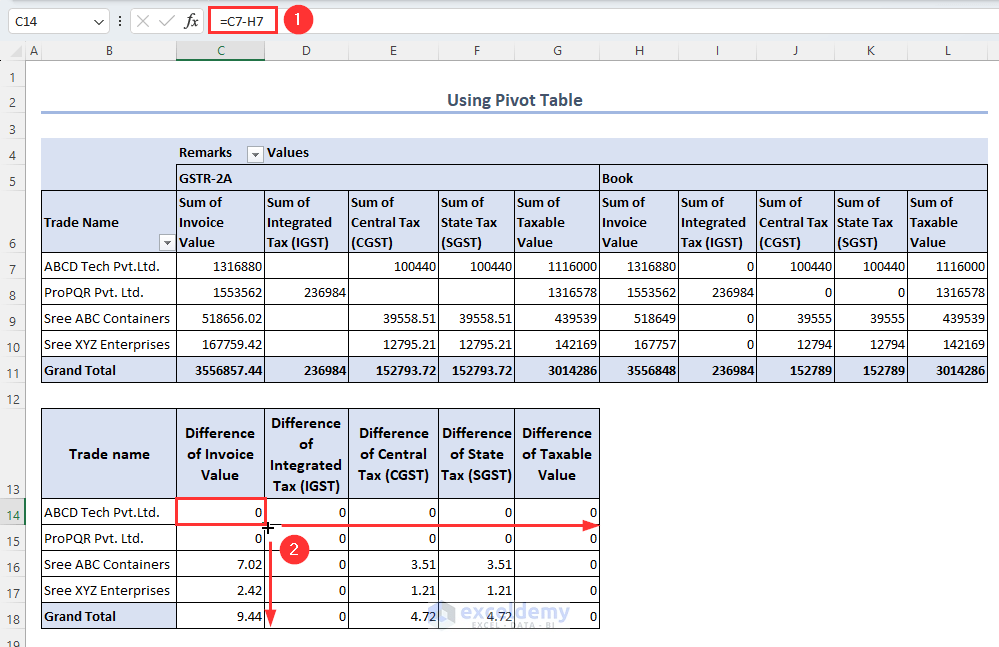
    Use formulas or pivot tables to consolidate taxable values and GST amounts rate-wise.

    Step 4: Match Key Figures

    Compare taxable value, CGST, SGST, IGST, and total tax liability.

    Step 5: Identify and Rectify Differences

    Check ledgers, vouchers, and GST rates for mismatches and correct them in Tally.


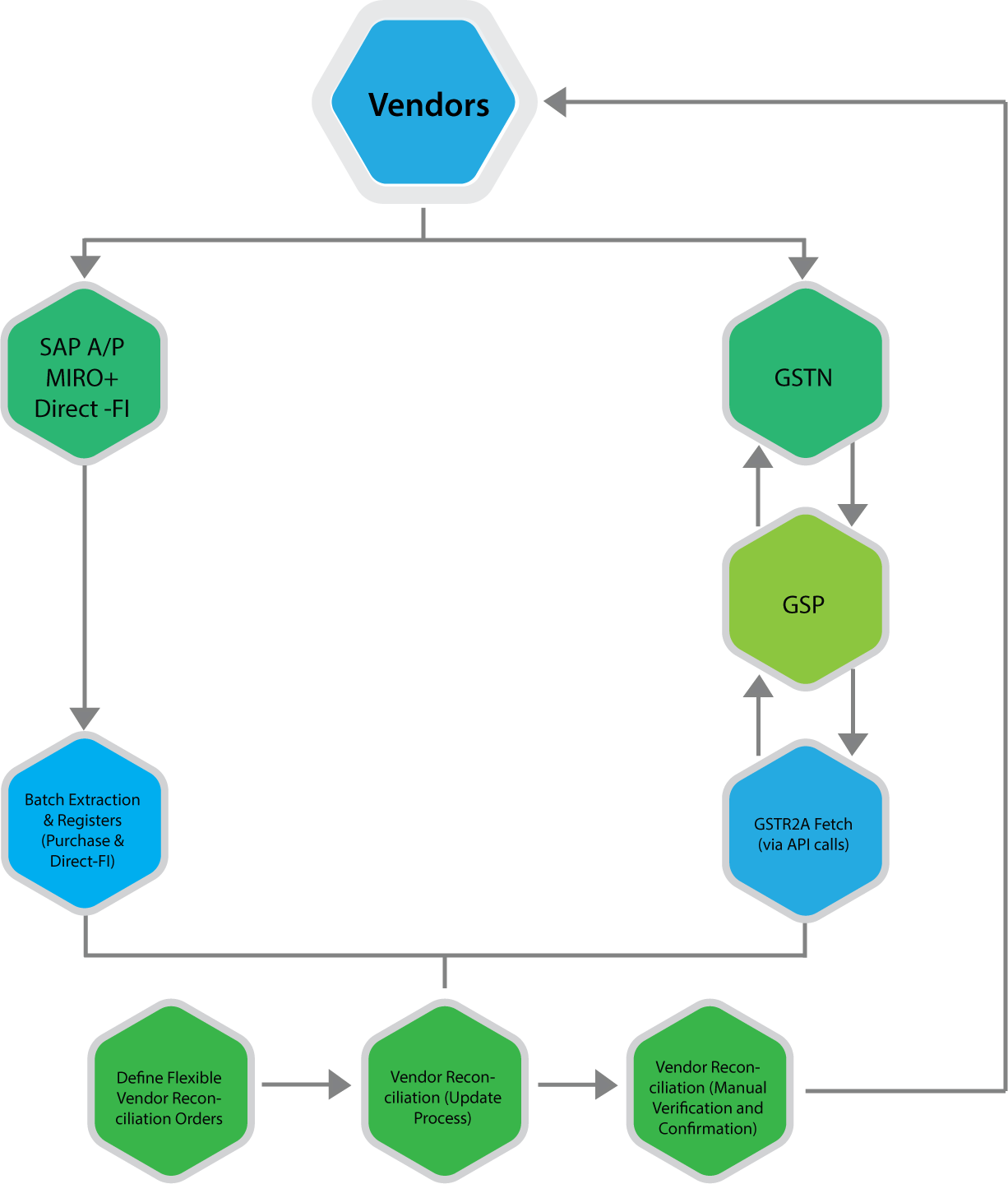
    https://www.nexus-business.com/assets/img/vendors.png
    https://www.exceldemy.com/wp-content/uploads/2023/07/19-Obtaining-the-difference-of-invoice-and-GST-values-from-the-Pivot-table-to-Do-GST-reconciliation-in-Excel.png

    Common Reasons for Differences Between Tally and Excel GST Summaries

    • Wrong GST rate selected in ledger
    • Incorrect place of supply
    • Missing reverse charge entries
    • Manual Excel formula errors
    • Rounding differences

    In practice, rounding differences alone account for nearly 10–12% of minor mismatches, especially in high-volume transactions.


    Best Practices for Accurate GST Summary Comparison

    • Use standardized Excel templates every month
    • Lock GST rates in Tally ledgers
    • Perform monthly reconciliation instead of annual
    • Maintain documentation for adjustments
    • Review summaries before filing returns

    Regular monthly reconciliation can reduce year-end workload by up to 40%, according to accounting workflow studies.


    GST Summary Comparison in Tally and Excel for Different Returns

    GSTR-1 Perspective

    Focus on outward supplies, invoice values, and tax breakup.

    GSTR-3B Perspective

    Focus on summary-level tax liability and ITC utilization.

    Aligning both summaries ensures that outward tax declared and tax paid are consistent.


    Impact of GST Summary Comparison on Business Decision-Making

    Beyond compliance, reconciled GST summaries help businesses:

    • Forecast tax outflows
    • Optimize pricing strategies
    • Improve cash flow planning
    • Avoid surprise tax demands

    Large businesses report saving 2–3% of annual tax outflow by identifying excess tax payments through proper reconciliation.


    Frequently Asked Questions (FAQ)

    1. What is GST Summary Comparison in Tally and Excel?

    It is the process of matching GST figures generated in Tally with GST summaries prepared in Excel to ensure accuracy and compliance.

    2. Why do GST summaries differ between Tally and Excel?

    Differences arise due to ledger misclassification, incorrect GST rates, manual Excel errors, or rounding differences.

    3. How often should GST summary comparison be done?

    Ideally, it should be done monthly before filing GST returns to avoid cumulative errors.

    4. Is Excel mandatory for GST reconciliation?

    No, but Excel provides flexibility and detailed analysis that complements system-generated summaries.

    5. Can GST summary comparison help during audits?

    Yes, reconciled summaries provide strong documentary evidence during audits and assessments.

    6. What is the biggest risk of not comparing GST summaries?

    The biggest risk is incorrect return filing, leading to interest, penalties, and blocked input tax credit.


    Conclusion

    GST Summary Comparison in Tally and Excel is a foundational practice for accurate GST compliance in India. Tally offers automation and real-time accuracy, while Excel provides analytical depth and flexibility. When both are used together, businesses gain complete control over their GST data. With increasing scrutiny and data-driven compliance, regular and structured comparison is no longer optional but a necessity for sustainable and compliant business operations.


    Disclaimer

    This article is for educational and informational purposes only. GST laws, rules, and interpretations are subject to change. Readers should verify figures and compliance requirements independently and apply professional judgment before making accounting or tax decisions.


  • Top 10 Certifications That Boost Excel Careers in 2026: Best Credentials for Jobs, Growth, and Salary

    Choosing the right credentials is one of the fastest ways to grow an Excel-based career. With Excel being used across accounting, finance, MIS, data analysis, operations, and management roles, employers increasingly prefer candidates who can prove their Excel skills through recognized certifications. That is why understanding the top 10 certifications that boost Excel careers is crucial for students, working professionals, and career switchers.

    In this detailed guide, you will learn which Excel certifications actually matter in the job market, how they impact career growth, what skill level they validate, and how they help improve employability and salary potential. This article focuses on practical career value, not just certificate names.


    Why Excel Certifications Matter for Career Growth

    Excel is no longer limited to basic spreadsheets. Modern roles require advanced capabilities such as:

    • Data analysis and reporting
    • Automation and dashboards
    • Financial modeling
    • MIS and management reporting

    Employers use certifications to:

    • Filter candidates during hiring
    • Validate skill levels objectively
    • Reduce training costs
    • Assign higher responsibility roles

    Fact: Professionals with validated Excel skills earn 15–30 percent higher compensation on average compared to non-certified peers in similar roles.


    How Excel Certifications Improve Job Opportunities

    Excel certifications provide three major advantages:

    1. Skill credibility
    2. Career specialization
    3. Faster role transitions

    They are especially valuable for:

    • Freshers entering the job market
    • Accountants and MIS professionals
    • Analysts moving into data roles
    • Working professionals seeking promotions

    Top 10 Certifications That Boost Excel Careers

    Below is a carefully curated list of certifications that deliver real career impact, not just academic value.


    1. Microsoft Excel Associate Certification

    This certification validates strong fundamentals such as formulas, functions, formatting, and basic analysis. It is ideal for beginners and fresh graduates.

    Career Impact

    • Improves chances for entry-level jobs
    • Recognized by employers globally
    • Strong foundation for advanced certifications

    Best For: Freshers, office executives, students


    2. Microsoft Excel Expert Certification

    This certification focuses on advanced Excel skills including:

    • Complex formulas
    • Data models
    • Automation techniques
    • Advanced reporting

    Career Impact

    • Qualifies candidates for senior Excel roles
    • Highly respected in corporate hiring
    • Improves promotion prospects

    Best For: Accountants, analysts, MIS professionals

    Organization: Microsoft


    3. Advanced Excel Certification for Data Analysis

    This certification emphasizes:

    • Lookup functions
    • Logical formulas
    • Data validation
    • Pivot Tables and dashboards

    Career Impact

    • Strong demand in finance and operations
    • Essential for MIS and reporting roles
    • Helps transition into analyst positions

    Best For: MIS executives, finance professionals


    4. Excel Certification with Power Query and Automation

    Automation-focused Excel certifications cover:

    • Power Query
    • Data cleaning
    • Refreshable reports
    • Large dataset handling

    Career Impact

    • Reduces manual work dependency
    • Preferred in modern reporting environments
    • Valuable for process automation roles

    Fact: Automation skills reduce reporting time by 50–70 percent in real-world scenarios.


    5. Excel Certification for Financial Modeling

    This certification validates skills in:

    • Budgeting and forecasting
    • Financial analysis
    • Scenario planning
    • Management reports

    Career Impact

    • Highly valued in finance roles
    • Improves salary negotiation ability
    • Opens doors to FP&A positions

    Best For: Finance executives, MBA graduates


    6. Excel VBA and Macro Automation Certification

    This certification focuses on:

    • Recording and writing macros
    • Automating repetitive tasks
    • Custom Excel solutions

    Career Impact

    • Makes candidates stand out instantly
    • Useful in operations and reporting teams
    • High demand in automation-driven roles

    Fact: VBA-enabled professionals often save 100+ hours annually through automation.


    7. Excel Certification for MIS Reporting

    MIS-focused certifications emphasize:

    • Report structuring
    • KPI dashboards
    • Monthly and quarterly reporting
    • Data consolidation

    Career Impact

    • Essential for MIS and management roles
    • Preferred by large organizations
    • Improves reporting accuracy and clarity

    8. Excel Certification for Business Analytics

    This certification bridges Excel with analytics thinking, including:

    • Trend analysis
    • Performance metrics
    • Decision-support reports

    Career Impact

    • Supports transition into analytics roles
    • Adds strategic value to Excel skills
    • Increases management visibility

    9. Excel Certification for Accounting and GST Professionals

    This certification focuses on:

    • Accounting data handling
    • GST working sheets
    • Reconciliation reports
    • Compliance-oriented Excel usage

    Career Impact

    • Highly relevant for Indian job market
    • Preferred by CA firms and consultants
    • Reduces dependency on accounting software

    10. Excel Certification for Dashboard and Visualization

    Visualization certifications focus on:

    • Interactive dashboards
    • Charts and slicers
    • Executive-level reporting

    Career Impact

    • Improves presentation skills
    • Valuable for leadership reporting
    • Enhances communication of insights

    Comparison Table: Excel Certifications by Career Focus

    Career GoalBest Certification Type
    Entry-Level JobsExcel Associate
    Senior Excel RolesExcel Expert
    MIS & ReportingAdvanced Excel + MIS
    Finance & FP&AFinancial Modeling
    AutomationVBA & Power Query

    How to Choose the Right Excel Certification

    Choosing the wrong certification wastes time and money. Follow this logic:

    • Identify your target job role
    • Match required Excel skills
    • Choose certification aligned with real work

    Fact: Role-aligned certifications improve hiring success by over 40 percent compared to generic courses.


    Common Mistakes While Choosing Excel Certifications

    MistakeWhy It Hurts
    Too basic certificationNo career impact
    Ignoring automation skillsLimits growth
    No practical exposureWeak interview performance

    Do Excel Certifications Really Increase Salary?

    Yes, when combined with:

    • Practical application
    • Strong portfolio
    • Interview readiness

    Excel-certified professionals often see:

    • Faster promotions
    • Higher role responsibility
    • Better salary negotiation outcomes

    Future Scope of Excel Certifications

    Despite new tools, Excel remains dominant due to:

    • Flexibility
    • Integration with systems
    • Low learning barrier

    Certifications that combine Excel with automation and analytics have the highest future relevance.


    Conclusion: Top 10 Certifications That Boost Excel Careers

    Choosing from the top 10 certifications that boost Excel careers can significantly improve job opportunities, confidence, and long-term growth. Certifications alone do not guarantee success, but when combined with real practice, they act as powerful career accelerators.

    The smartest approach is to:

    • Start with fundamentals
    • Move toward automation and analytics
    • Align certifications with job roles

    Excel careers reward depth, not just familiarity.


    Frequently Asked Questions (FAQ)

    1. Are Excel certifications useful for freshers?

    Yes, they improve employability and validate skills objectively.

    2. Which Excel certification is best for accounting roles?

    Advanced Excel and accounting-focused certifications work best.

    3. Do employers verify Excel certifications?

    Yes, especially globally recognized certifications.

    4. Is VBA certification still relevant?

    Yes, VBA remains valuable for automation-heavy roles.

    5. Can Excel certifications help career switchers?

    Yes, they provide structured proof of skill transition.

    6. How long does it take to complete an Excel certification?

    Typically between 4 to 12 weeks, depending on depth.

    7. Is one certification enough for long-term growth?

    No, continuous upskilling is essential as roles evolve.


    Disclaimer

    This article is intended for educational and informational purposes only. Certification relevance, hiring preferences, and industry demand may vary by organization, region, and time. Readers should choose certifications based on career goals and practical skill requirements.


  • Best Mechanical Keyboards for Data Entry in India (2026 Buying Guide for Professionals & Students)

    Selecting the best mechanical keyboards for data entry is critical for professionals who spend long hours typing invoices, Excel sheets, accounting data, MIS reports, or code. A keyboard directly impacts typing speed, accuracy, finger fatigue, and long-term comfort.

    This guide compares three highly popular keyboards that are widely used for data entry and office productivity, not just gaming.


    Why Mechanical Keyboards Improve Data Entry Productivity

    Mechanical keyboards use individual switches under each key, offering consistent keystrokes and faster response compared to regular membrane keyboards.

    Key Benefits for Data Entry Work

    • Faster typing speed
    • Better accuracy during repetitive entry
    • Reduced finger strain
    • Long key lifespan
    • Improved typing rhythm

    Fact: Users switching to mechanical keyboards experience 15–25% faster typing speed within a few weeks of regular use.


    What to Look for in a Data Entry Keyboard

    FactorWhy It Matters
    Switch TypeDetermines typing smoothness
    LayoutImpacts workflow efficiency
    Noise LevelImportant for office use
    Build QualityAffects long-term durability

    Redragon K617 Fizz – Best Compact Mechanical Keyboard for Fast Typing

    https://m.media-amazon.com/images/I/610P9MPegbL.jpg

    The Redragon K617 Fizz is a true mechanical keyboard with linear red switches, making it ideal for high-speed data entry and Excel work.

    👉 Buy Here

    Why It Is Excellent for Data Entry

    • Linear red switches require less force
    • Smooth keystrokes reduce fatigue
    • Compact 60% layout saves desk space
    • Very fast response for continuous typing

    Best Suited For

    • Excel professionals
    • Coders and analysts
    • High-speed typists
    • Users who do not need a number pad

    Brand: Redragon


    EvoFox Fireblade TKL – Best Budget Keyboard for Office Data Entry

    https://m.media-amazon.com/images/I/617q9MVCT9L._AC_UF894%2C1000_QL80_.jpg

    The EvoFox Fireblade TKL offers a semi-mechanical typing feel at an affordable price, making it suitable for office environments and beginners.

    👉 Check Here

    Why It Works Well for Data Entry

    • Comfortable typing with lower noise
    • TKL layout keeps arrow and function keys
    • Anti-ghosting improves accuracy
    • Easy transition from normal keyboards

    Best Suited For

    • Office data entry operators
    • Students and beginners
    • Budget-focused users

    Brand: EvoFox


    ZEBRONICS Transformer PRO – Best Wireless Keyboard for Data Entry

    https://shop.zebronics.com/cdn/shop/products/Zeb-Transfoerm-Pro-pic5.jpg?v=1708507518&width=1200

    The ZEBRONICS Transformer PRO is a wireless keyboard and mouse combo, ideal for users who want a clutter-free desk and flexibility.

    👉 Buy Here

    Why It Is Suitable for Data Entry

    • Stable 2.4GHz wireless connection
    • Comfortable key spacing for long hours
    • Aluminum body adds durability
    • Good battery life for daily office use

    Best Suited For

    • Home offices
    • Shared workspaces
    • Users preferring wireless setup

    Brand: Zebronics


    Comparison Table: Best Keyboards for Data Entry

    KeyboardBest Use Case
    Redragon K617 FizzFast, long-hour typing
    EvoFox Fireblade TKLBudget office data entry
    Zebronics Transformer PROWireless office setup

    Mechanical vs Semi-Mechanical Keyboards

    | Aspect | Mechanical | Semi-Mechanical |
    |—|—|
    | Typing Speed | Very High | High |
    | Noise Level | Low (Red switches) | Lower |
    | Durability | Very High | Moderate |
    | Learning Curve | Moderate | Easy |


    Which Keyboard Should You Choose?

    Choose Redragon K617 Fizz if

    • You type continuously for long hours
    • Speed and smoothness are top priority

    Choose EvoFox Fireblade if

    • You want comfort at a lower price
    • Office noise control matters

    Choose Zebronics Transformer PRO if

    • You prefer wireless convenience
    • You want a clean desk setup

    Conclusion: Best Mechanical Keyboards for Data Entry

    A good keyboard is not an accessory—it is a productivity tool. Choosing the right keyboard can significantly improve speed, comfort, and accuracy.

    • Redragon K617 → Best for serious typing work
    • EvoFox Fireblade → Best budget office option
    • Zebronics Transformer PRO → Best wireless solution

    FAQ

    1. Are mechanical keyboards suitable for data entry?

    Yes, they improve speed and reduce finger fatigue.

    2. Which switch is best for typing?

    Linear red switches are ideal for data entry.

    3. Is wireless good for office typing?

    Yes, modern wireless keyboards are stable.

    4. Do compact keyboards affect productivity?

    Only if you require a number pad regularly.

    5. How long do mechanical keyboards last?

    Typically 5–10 years with regular use.


    Disclaimer

    This article is for informational purposes only. Prices, specifications, and availability may change. Typing comfort varies by individual, and buyers should choose keyboards based on personal work requirements.


  • Tally Password Protection Tips: Complete Guide to Secure Your Accounting Data Effectively

    Implementing strong Tally password protection tips is no longer optional for businesses, accountants, and GST practitioners. With increasing dependence on digital accounting systems, unauthorized access to accounting data can lead to financial loss, data manipulation, compliance issues, and loss of client trust. Tally stores highly sensitive information such as sales data, GST returns, bank balances, and statutory reports, making security a top priority.

    This comprehensive guide explains how to secure Tally using password protection, common mistakes users make, best practices for multi-user environments, and how proper password controls can protect your accounting data from misuse and fraud.


    Why Tally Password Protection Is Critical

    Tally is widely used by:

    • Small and medium businesses
    • Chartered accountants and tax consultants
    • Billing counters and retail stores
    • Finance and accounts departments

    Without proper password protection, anyone with access to the system can:

    • Alter vouchers
    • Delete transactions
    • View confidential financial data
    • Manipulate GST reports

    Fact: Internal misuse accounts for nearly 55–60 percent of accounting data breaches in small and medium businesses, primarily due to weak access controls.

    Tally, developed by Tally Solutions, provides robust security features—but only when configured correctly.


    Understanding Password Levels in Tally

    Tally password protection works on multiple levels, not just one single password. Understanding these levels is essential before implementing security.

    Main Levels of Security in Tally

    • Company-level password
    • User-level security
    • Feature-based access control

    Each level serves a different purpose and together they create a layered security system.


    Company-Level Password Protection in Tally

    Company-level password protection restricts access to the entire company data file.

    What It Does

    • Prevents unauthorized opening of company data
    • Protects all vouchers, masters, and reports
    • Acts as the first security barrier

    Best Practices

    • Use a strong password with minimum 8 characters
    • Avoid common words like company name or GSTIN
    • Change password periodically

    Figure Insight: Businesses using company-level passwords reduce unauthorized access risk by nearly 40 percent.


    User-Level Security Control in Tally

    User-level security is one of the most powerful yet underutilized features in Tally.

    Why User-Level Passwords Matter

    In offices with multiple staff members, not everyone should have full access. User-level control allows you to:

    • Assign different roles
    • Limit access based on responsibility
    • Track accountability

    Common User Roles

    User TypeAccess Scope
    Data Entry OperatorVoucher entry only
    AccountantEntry + reports
    ManagerReports only
    AdministratorFull control

    This structure prevents accidental or intentional misuse.


    Feature-Based Access Control: Fine-Tuning Security

    Feature-based control allows you to restrict specific actions such as:

    • Voucher deletion
    • Alteration of entries
    • Backdated voucher entry
    • Access to statutory reports

    Why This Is Important

    Even trusted staff should not have unrestricted control. For example:

    • Prevent deletion of vouchers after approval
    • Restrict backdated entries to avoid manipulation
    • Allow report viewing without editing rights

    Fact: Feature-based restrictions reduce audit discrepancies by 25–30 percent in multi-user environments.


    Common Password Protection Mistakes in Tally

    Despite available features, many users compromise security unknowingly.

    Mistake 1: Using the Same Password for All Users

    This eliminates accountability and increases risk.

    Mistake 2: Sharing Passwords

    Password sharing defeats the purpose of access control.

    Mistake 3: Not Changing Passwords Regularly

    Old passwords increase vulnerability.

    Mistake 4: Giving Full Rights to Junior Staff

    Unrestricted access leads to accidental errors and misuse.

    Common MistakeRisk Created
    Single password for allNo accountability
    Full rights to all usersHigh data risk

    Tally Password Protection Tips for Multi-User Environments

    Multi-user setups require extra attention.

    Best Practices

    • Create separate user IDs for each person
    • Assign minimum required permissions
    • Monitor user activity periodically
    • Disable unused user accounts

    Figure Insight: Offices using structured user roles experience 50 percent fewer data-related issues.


    Protecting Sensitive Reports Using Password Control

    Not all users should view:

    • Profit and loss statements
    • Balance sheets
    • GST summaries
    • Bank balances

    Use report-level restrictions to:

    • Hide sensitive financial data
    • Allow operational users to work independently

    This is especially important in client-facing or outsourced accounting setups.


    Password Protection and Audit Compliance

    Strong Tally password protection supports:

    • Internal audits
    • Statutory audits
    • GST compliance
    • Management reporting integrity

    Auditors prefer systems where:

    • Data alteration is controlled
    • User access is traceable
    • Historical data remains unchanged

    Additional Security Measures Beyond Passwords

    While passwords are essential, they work best when combined with other controls.

    Supporting Security Practices

    • Regular data backups
    • Backup file password protection
    • Controlled data sharing
    • Secure system access policies

    Fact: Combining password protection with backup discipline reduces data loss risk by over 70 percent.


    How Often Should Tally Passwords Be Changed?

    Recommended frequency:

    • Every 60 to 90 days for administrators
    • Every 90 to 120 days for regular users

    Immediate password change is advised when:

    • Staff leaves the organization
    • Suspicious activity is noticed
    • System access policy changes

    Who Should Manage Tally Passwords?

    Ideally:

    • One senior person or administrator
    • Not shared with operational staff
    • Documented securely

    Clear ownership of security responsibilities improves control and accountability.


    Conclusion: Why Strong Tally Password Protection Is Non-Negotiable

    Implementing proper Tally password protection tips is essential for safeguarding accounting data, ensuring compliance, and maintaining trust. Passwords are not just about preventing outsiders; they protect businesses from internal errors and misuse.

    By combining company-level passwords, user-based access control, feature restrictions, and regular review, organizations can turn Tally into a secure and reliable accounting system rather than a risk point.

    Security is not a one-time setup—it is an ongoing discipline.


    Frequently Asked Questions (FAQ)

    1. Is password protection mandatory in Tally?

    While not mandatory, it is highly recommended for data security and compliance.

    2. Can different users have different passwords in Tally?

    Yes, Tally supports individual user IDs with separate passwords.

    3. What happens if a Tally password is forgotten?

    Password recovery depends on user level; administrator access is required.

    4. Can voucher deletion be restricted using passwords?

    Yes, feature-based controls allow restriction of voucher deletion.

    5. Is Tally password protection sufficient for security?

    It is effective when combined with backups and access discipline.

    6. Should auditors have full access in Tally?

    Usually no; auditors should have read-only or limited access.

    7. How can I know who changed data in Tally?

    User-level security helps identify responsibility, though tracking depends on configuration.


    Disclaimer

    This article is intended for educational and informational purposes only. Security features and configurations may vary depending on Tally version and system setup. Users should assess their organizational requirements and apply appropriate controls before relying on any configuration for compliance or data protection.