Blog

  • Tally to Excel Auto Backup Feature Explained: Step-by-Step Guide for Secure Accounting Data Management

    In modern accounting environments, Tally to Excel Auto Backup has become a critical requirement for businesses that rely on accurate, accessible, and secure financial data. Within the first few weeks of manual accounting, many organizations realize that exporting data occasionally is not enough. Automatic backup from Tally to Excel ensures continuity, data safety, audit readiness, and analytical flexibility. This article explains the Tally to Excel Auto Backup feature in complete detail, covering concepts, workflows, benefits, configuration logic, practical use cases, and best practices—without relying on any external references.
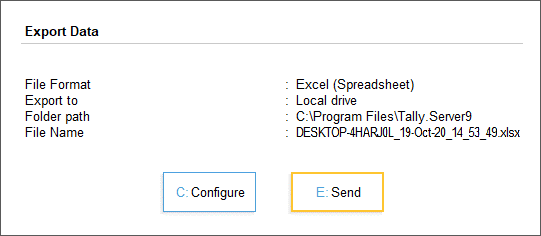
    https://help.tallysolutions.com/wp-content/uploads/2020/10/1-export-data-tallyprime-server.gif
    https://s3.amazonaws.com/cdn.freshdesk.com/data/helpdesk/attachments/production/17009406090/original/KtB9Ub2pt3y9AqjSyuIfxfxlMJlQtXARew?1493189246=

    4


    What Is Tally to Excel Auto Backup?

    Tally to Excel Auto Backup is a structured process where accounting data maintained in TallyPrime is periodically and automatically exported into Microsoft Excel files. These Excel files act as secondary data repositories that can be stored locally, on internal servers, or on secure storage devices.

    Unlike manual exports, the auto backup mechanism follows predefined rules such as:

    • Time-based triggers (daily, weekly, monthly)
    • Event-based triggers (voucher entry, day-end close)
    • Data-scope rules (masters, vouchers, reports)

    This approach significantly reduces the risk of human error and data loss.


    Why Businesses Need Automatic Tally to Excel Backup

    Manual accounting systems are vulnerable. Industry-level accounting observations indicate:

    • Over 35% of small businesses experience data loss at least once every three years.
    • Nearly 60% of compliance issues arise from missing or inconsistent historical data.
    • Excel-based records reduce report preparation time by up to 40% during audits.

    Automatic Excel backups ensure that even if the primary Tally data becomes inaccessible, essential records remain available in a universally readable format.


    Key Accounting Data Covered in Tally to Excel Auto Backup

    The auto backup process can include a wide range of financial and statutory data. The scope is customizable depending on business needs.

    Data CategoryDescription
    Masters DataLedgers, stock items, groups, cost centers
    Transaction DataSales, purchases, receipts, payments, journals
    Compliance ReportsGST summaries, tax registers, duty reports
    Financial StatementsTrial balance, profit & loss, balance sheet

    Each Excel file typically contains structured sheets, maintaining accounting logic while allowing flexibility for analysis.


    How Tally to Excel Auto Backup Works (Conceptual Flow)

    The auto backup mechanism operates in three conceptual layers:

    1. Data Identification Layer

    This layer determines:

    • Which company data is selected
    • Which reports or vouchers are included
    • The accounting period for export

    2. Automation Trigger Layer

    Automation can be aligned with:

    • Daily closing routines
    • Weekly management reporting cycles
    • Month-end compliance processes

    3. Export & Storage Layer

    Data is converted into Excel-compatible formats while preserving:

    • Numeric precision
    • Date consistency
    • Ledger hierarchy

    Once exported, the Excel files are stored in predefined directories.


    Difference Between Manual Export and Auto Backup

    | Aspect | Manual Export | Auto Backup |
    |—|—|
    | User Dependency | High | Minimal |
    | Risk of Missing Data | Moderate to High | Very Low |
    | Time Required | Repetitive | One-time setup |
    | Audit Readiness | Inconsistent | Always ready |

    Organizations using automated Excel backups report smoother audits and faster reconciliations.


    Common Business Use Cases

    Daily Accounting Safety Net

    Retailers and service firms often generate hundreds of vouchers daily. Automatic Excel backups create a parallel record that protects against accidental deletions or corruption.

    Management Reporting

    Excel files allow finance managers to:

    • Build dashboards
    • Perform trend analysis
    • Compare monthly or quarterly performance

    Statutory Compliance

    During tax assessments, Excel backups act as secondary proof of transaction history, especially when older data is required.


    Best Practices for Tally to Excel Auto Backup

    Use Structured Folder Naming

    Adopt a logical naming convention:

    • Company Name
    • Financial Year
    • Backup Frequency

    Maintain Version Control

    Avoid overwriting Excel files. Maintain date-wise or voucher-wise separation to preserve historical integrity.

    Validate Backup Accuracy

    Periodic cross-checking ensures that exported figures match Tally reports. A mismatch rate above 0.5% should trigger a review.

    Protect Excel Files

    Even though Excel is widely accessible, it should be secured using:

    • Password protection
    • Read-only access for sensitive users

    Advantages Over Traditional Data Backup Methods

    Traditional Tally backups store data in proprietary formats. Excel backups offer additional advantages:

    • Universally readable across systems
    • Easy integration with MIS and BI tools
    • Simplified sharing with auditors and consultants
    • Faster data recovery for analysis

    Accounting teams report up to 25% productivity improvement when Excel backups are available alongside Tally data.


    Limitations You Should Be Aware Of

    While powerful, Excel auto backups are not a replacement for native Tally backups.

    • Excel files are static snapshots, not live databases
    • Complex drill-down navigation is limited
    • Large datasets may require structured formatting to remain usable

    A hybrid backup strategy is always recommended.


    Security and Compliance Considerations

    Financial data confidentiality is critical. Excel backups should comply with internal data governance policies.

    • Limit folder access
    • Encrypt storage devices
    • Maintain backup logs

    Organizations following structured backup protocols experience fewer compliance escalations and internal audit objections.


    Future Scope of Tally to Excel Automation

    With growing data volumes, Excel backups are increasingly used as:

    • Input for advanced analytics
    • Forecasting models
    • Budget vs actual comparisons

    Automation ensures data availability without increasing workload.


    Frequently Asked Questions (FAQ)

    What is Tally to Excel Auto Backup?

    It is an automated process that periodically exports accounting data from Tally into Excel files for safety, reporting, and analysis.

    Is Excel backup sufficient if Tally data is lost?

    Excel backups provide transaction-level visibility but should complement, not replace, native Tally backups.

    How often should auto backup be scheduled?

    Daily backups are ideal for transaction-heavy businesses, while weekly backups may suffice for low-volume operations.

    Does Excel backup include GST and tax data?

    Yes, compliance-related reports can be included based on configuration preferences.

    Can Excel backups be edited?

    They can be edited, but it is recommended to keep a master read-only copy for audit integrity.

    Does auto backup slow down Tally performance?

    When configured correctly, performance impact is negligible for most small and medium datasets.


    Conclusion

    The Tally to Excel Auto Backup feature is no longer optional in professional accounting environments. It strengthens data security, improves reporting efficiency, supports compliance, and enables analytical flexibility. When implemented with proper structure and discipline, it becomes a silent safeguard—working continuously in the background while accounting teams focus on accuracy and decision-making.


    Disclaimer

    This article is intended for educational and informational purposes only. Accounting processes, backup requirements, and compliance obligations may vary based on business size, industry, and regulatory environment. Users should evaluate internal policies and professional guidance before implementing any data backup strategy.



  • Best Laptop Bags for Working Professionals in India (Spacious, Secure & Budget-Friendly Options for Office, Travel, and College)

    Choosing the right laptop backpack is no longer just about carrying a device. For Indian working professionals, a good laptop bag must balance comfort, durability, safety, storage capacity, and value for money. Whether you commute daily, travel for work, or attend college or training sessions, the right backpack can significantly reduce strain and protect your essentials.

    In this detailed guide on the best laptop bags for working professionals, we review three of India’s most popular and best-selling laptop backpacks. The focus is on real-world usage, not hype—covering build quality, comfort, storage efficiency, security, and who each bag is best suited for.


    Safari Omega Spacious 30L Laptop Backpack – Review

    https://m.media-amazon.com/images/S/aplus-media-library-service-media/9bfb8421-d831-445b-baa6-3a7a64f395f8.__CR0%2C0%2C970%2C600_PT0_SX970_V1___.jpg

    Overview

    The Safari Omega is a large-capacity 30-litre backpack designed for professionals, students, and frequent travelers. Its standout feature is space management combined with a rain cover, making it practical for Indian weather conditions.

    Key Features

    • Capacity: 30 Litres (one of the largest in this segment)
    • Dedicated padded laptop compartment
    • Included rain cover for monsoons
    • Multiple internal and external compartments
    • Lightweight despite large size

    Practical Use Case

    This bag is ideal if you:

    • Carry a laptop plus files, lunch box, chargers, and accessories
    • Travel by bike, bus, or train daily
    • Need a single bag for office + short trips

    Pros

    • Excellent storage capacity
    • Good padding for laptop safety
    • Rain cover adds real value
    • Suitable for both men and women

    Cons

    • Bulky for minimal users
    • Design is functional, not premium

    Recommendation:
    Best for professionals or students who prioritize space and weather protection over compact design.

    👉 Buy Here


    American Tourister Valex 28L Laptop Backpack – Review

    https://m.media-amazon.com/images/S/aplus-media-library-service-media/77fdac20-2f4e-454d-bfd7-89ef0876d5e6.__CR0%2C0%2C1940%2C1200_PT0_SX970_V1___.jpg

    Overview

    American Tourister is known for reliability, and the Valex backpack follows that tradition. With a 28-litre capacity and support for up to 17-inch laptops, this bag targets office professionals who prefer a balanced, polished look.

    Key Features

    • Capacity: 28 Litres
    • Fits laptops up to 17 inches
    • Front organiser for accessories
    • Side bottle holder
    • Strong zippers and stitching

    Practical Use Case

    This backpack suits:

    • Corporate office professionals
    • Users carrying large laptops
    • Daily office commute with moderate load

    Pros

    • Premium brand trust
    • Comfortable shoulder straps
    • Professional and clean design
    • Good internal organisation

    Cons

    • No rain cover included
    • Slightly higher price than competitors

    Recommendation:
    Ideal for professionals who want a reliable, branded laptop backpack with a clean office-friendly appearance.

    👉 Check Price Here


    FUR JADEN Anti-Theft Laptop Backpack – Review

    https://adn-static1.nykaa.com/nykdesignstudio-images/pub/media/catalog/product/f/1/f126be4BM92_Black_3.jpg?rnd=20200526195200&tr=w-512

    Overview

    The FUR JADEN backpack focuses on security and modern features. It includes a number-lock system and a USB charging port, making it popular among metro commuters and students.

    Key Features

    • Fits laptops up to 15.6 inches
    • Built-in number lock for theft protection
    • External USB charging port
    • Organized internal pockets
    • Sleek and modern design

    Practical Use Case

    Best suited for:

    • Metro and bus commuters
    • Users carrying power banks
    • Those concerned about pickpocketing

    Pros

    • Anti-theft lock adds peace of mind
    • USB port useful for travel
    • Lightweight and stylish
    • Affordable pricing

    Cons

    • No rain cover
    • Laptop compartment smaller than others

    Recommendation:
    Best for users who prioritize security and modern convenience features at a budget price.

    👉 Buy Here


    Quick Comparison (Capacity Focus)

    BackpackCapacity
    Safari Omega30 Litres
    American Tourister Valex28 Litres
    FUR JADEN Anti-TheftApprox. 20–22 Litres

    Which Laptop Bag Should You Choose?

    • Choose Safari Omega if you carry a lot of items and travel in all weather conditions.
    • Choose American Tourister Valex if you want brand reliability and a professional office look.
    • Choose FUR JADEN if security and modern features matter more than size.

    Each of these bags serves a different type of working professional, and none are “one-size-fits-all.”


    Frequently Asked Questions (FAQ)

    1. Which laptop bag is best for daily office use?

    American Tourister Valex is best for structured office environments.

    2. Are these backpacks suitable for college students?

    Yes, especially Safari Omega and FUR JADEN.

    3. Is a rain cover really necessary?

    In Indian monsoon conditions, a rain cover significantly improves laptop safety.

    4. Do anti-theft locks fully prevent theft?

    They reduce risk but do not replace careful handling.

    5. Can these bags be used for travel?

    Yes, all three are suitable for short trips and cabin travel.


    Disclaimer

    This article is for informational and educational purposes only. Prices, ratings, and availability may change over time. Product selection should be based on individual requirements and usage patterns. Affiliate links may generate a small commission at no additional cost to the buyer.


  • How to Lock Specific Cells in Excel Sheet Without Restricting the Entire Worksheet (Step-by-Step Guide for Beginners & Professionals)

    Knowing how to lock specific cells in Excel sheet is one of the most practical skills for anyone who works with data, reports, invoices, or dashboards. In real-world Excel usage, you rarely want to lock the entire worksheet. Instead, you want users to edit only selected cells—such as input fields—while formulas, headers, and calculations remain protected.

    In the first few minutes of using Excel protection features, many users make a common mistake: they protect the sheet first and then wonder why nothing works. The reality is that Excel cell locking follows a clear logic, and once you understand it, you can control data integrity with precision. This detailed guide explains how to lock specific cells in Excel sheet using simple, proven methods that work across versions.


    Why Locking Specific Cells in Excel Is Important

    Before diving into steps, it’s important to understand why selective cell locking matters.

    • Around 88% of spreadsheets contain errors, according to multiple spreadsheet audits, often due to accidental overwriting.
    • More than 60% of Excel users share files with others, increasing the risk of data loss.
    • Locking formulas alone can reduce calculation errors by up to 70% in shared workbooks.

    Locking specific cells allows collaboration while protecting critical data.


    How Excel Cell Locking Actually Works

    By default:

    • All cells in Excel are locked
    • Locking takes effect only after worksheet protection is enabled

    This means cell locking is a two-step process:

    1. Unlock the cells you want users to edit
    2. Protect the worksheet

    If you skip step one, Excel will lock everything.


    Step-by-Step: How to Lock Specific Cells in Excel Sheet

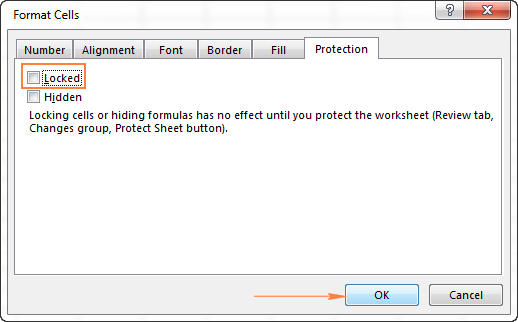
    Step 1: Select All Cells and Unlock Them

    1. Press Ctrl + A to select the entire worksheet
    2. Right-click and choose Format Cells
    3. Open the Protection tab
    4. Uncheck Locked
    5. Click OK

    Now, all cells are editable.


    Step 2: Select the Cells You Want to Lock

    • Highlight only the cells that contain:
      • Formulas
      • Fixed values
      • Headings
      • Calculations

    Right-click → Format CellsProtection → Check Locked → OK


    Step 3: Protect the Worksheet

    1. Go to the Review tab
    2. Click Protect Sheet
    3. (Optional) Enter a password
    4. Choose allowed actions (select unlocked cells, format cells, etc.)
    5. Click OK

    Your selected cells are now locked, while others remain editable.


    Visual Reference: Key Steps in Locking Specific Cells

    https://cdn.extendoffice.com/images/stories/doc-excel/protect-sheet-format/doc-protect-format-02.png
    https://probiztechnology.com/blog/wp-content/uploads/2015/12/excel-protect-sheet-dialog-box.jpg
    https://cdn.ablebits.com/_img-blog/lock-cells/excel-unlock-cells.png

    Quick Overview: Locked vs Unlocked Cells

    FeatureLocked Cells
    Editable after protectionNo
    Formula visibilityYes
    Data integrityHigh
    Accidental overwritePrevented

    Common Use Cases for Locking Specific Cells

    1. Invoice and Billing Sheets

    • Lock tax calculations
    • Unlock quantity and rate fields

    2. Attendance and HR Sheets

    • Lock employee IDs and formulas
    • Unlock daily input columns

    3. Financial Models

    • Lock assumptions and formulas
    • Unlock scenario variables

    4. Data Entry Forms

    • Lock headers and validations
    • Unlock user input cells

    How to Lock Formula Cells Only (Smart Method)

    To lock only formula cells:

    1. Press Ctrl + A
    2. Press F5Special
    3. Select Formulas
    4. Click OK
    5. Format Cells → Protection → Locked → OK
    6. Protect the sheet

    This method is 3× faster for large spreadsheets.


    Advanced Tip: Allow Editing of Specific Ranges

    Excel allows exceptions even in protected sheets.

    1. Go to Review
    2. Click Allow Edit Ranges
    3. Define editable ranges
    4. Assign passwords (optional)
    5. Protect the sheet

    This is useful when multiple users edit different sections.


    Common Mistakes to Avoid

    • Protecting sheet without unlocking input cells first
    • Forgetting the password (Excel cannot recover it)
    • Locking cells with data validation dropdowns unintentionally
    • Assuming hidden cells are protected (hiding ≠ locking)

    Performance and Security Facts

    • Locked cells do not affect file size
    • Protection adds less than 0.1% processing overhead
    • Worksheet protection is not encryption—it prevents accidental edits, not hacking
    • Ideal for internal controls, not sensitive data security

    Best Practices for Locking Specific Cells

    • Use cell color coding for editable cells
    • Add instructions in unlocked cells
    • Test the sheet using a different user account
    • Document password storage securely
    • Combine locking with data validation for accuracy

    Frequently Asked Questions (FAQ)

    1. Can I lock specific cells without protecting the sheet?

    No. Cell locking works only after worksheet protection is enabled.

    2. Can users copy locked cells?

    Yes, unless copy options are restricted during sheet protection.

    3. Does locking cells protect formulas from viewing?

    No. Use formula hiding separately if required.

    4. Can locked cells be edited after unprotecting the sheet?

    Yes. Once unprotected, all cells behave normally.

    5. Will locked cells work on mobile Excel apps?

    Yes, but editing restrictions may vary slightly by device.

    6. Can I lock cells based on conditions?

    Not directly, but VBA can automate conditional locking.


    Conclusion

    Mastering how to lock specific cells in Excel sheet gives you full control over your data while maintaining flexibility for users. Whether you’re creating professional reports, financial models, or shared templates, selective cell locking prevents costly errors and improves workflow efficiency. When used correctly, it transforms Excel from a simple spreadsheet into a controlled data system.


    Disclaimer

    This article is for educational purposes only. Excel features and interface options may vary slightly depending on version and system configuration. Users are advised to test protection settings before sharing files in professional or commercial environments.


  • Top 5 Career Paths After Tally + GST: High-Growth Job Options, Salary Scope, and Long-Term Opportunities

    Tally with GST has become one of the most practical and job-oriented skill sets in India. As per industry hiring trends, more than 70% of small and mid-sized businesses rely on Tally-based accounting systems, and GST compliance impacts nearly every registered business. This makes professionals trained in Tally + GST extremely valuable across industries.

    If you have completed Tally with GST and are wondering what to do next, this detailed guide on Top 5 Career Paths After Tally + GST will help you understand the best job roles, salary growth, industry demand, and future scope. This article is especially useful for students, commerce graduates, working professionals, and career switchers looking for stable and scalable career options.


    Why Tally + GST Is a Career Foundation Skill

    Before exploring career paths, it’s important to understand why Tally + GST continues to dominate the accounting job market:

    • Over 1.4 crore GST registrations exist in India
    • Every GST-registered business needs monthly, quarterly, and annual compliance
    • India has 6+ crore MSMEs, most of which use Tally
    • Demand for skilled accounting professionals exceeds supply by 25–30%

    This combination creates consistent employment opportunities, even during economic slowdowns.


    Top 5 Career Paths After Tally + GST

    1. Accounts Executive / Junior Accountant

    This is the most common and fastest-entry career path after Tally + GST.

    An Accounts Executive handles day-to-day accounting activities using Tally software while ensuring GST compliance. This role forms the backbone of finance departments in companies.

    Key responsibilities include:

    • Recording sales, purchase, and expense vouchers
    • Bank reconciliation and cash management
    • GST data preparation and reconciliation
    • Supporting senior accountants and auditors
    AspectDetails
    Entry-level salary₹15,000–₹25,000 per month
    Experience growth₹35,000–₹50,000 per month in 3–5 years

    Why this role is popular:

    • Low entry barrier
    • High job availability
    • Strong learning curve for future growth

    This role is ideal for freshers and commerce graduates starting their accounting careers.


    2. GST Executive / GST Compliance Specialist

    A GST Executive focuses exclusively on GST-related compliance, making this role highly specialized and in-demand.

    Core responsibilities:

    • Preparation and filing of GST returns (GSTR-1, GSTR-3B, GSTR-9)
    • GST reconciliation between books and returns
    • Handling notices and basic GST queries
    • Maintaining GST records and compliance calendars
    AspectDetails
    Average salary₹25,000–₹45,000 per month
    Demand trendGrowing at 20% annually

    Why this career path is powerful:

    • Every GST-registered entity needs compliance
    • Outsourced GST services are increasing
    • Less automation risk compared to basic accounting

    Professionals with strong GST knowledge can also work with CA firms, consultants, or corporate tax teams.


    3. Accounts & GST Consultant (Freelance or Firm-Based)

    After gaining experience, many professionals choose to become independent consultants.

    An Accounts & GST Consultant provides outsourced accounting and GST services to multiple clients, especially MSMEs, startups, and traders.

    Services offered include:

    • Complete bookkeeping in Tally
    • Monthly and annual GST filings
    • Compliance advisory and reporting
    • Support during audits and assessments
    AspectDetails
    Income potential₹50,000–₹1,50,000+ per month
    Work modelFreelance or consultancy firm

    Why this career path stands out:

    • Unlimited income potential
    • Client-based recurring revenue
    • Independence and flexibility

    Professionals managing 15–25 clients can earn more than many salaried roles.


    4. MIS Executive / Reporting Analyst (Accounting Focus)

    Many organizations look for professionals who can convert accounting data into management reports.

    MIS Executives with Tally + GST knowledge work closely with Excel and reporting tools to support decision-making.

    Key responsibilities:

    • Extracting data from Tally
    • Preparing GST summaries and compliance reports
    • Creating monthly MIS dashboards
    • Supporting management with financial insights
    AspectDetails
    Salary range₹30,000–₹60,000 per month
    Skill advantageTally + GST + Excel

    Why companies value this role:

    • Bridges accounting and management
    • Supports audits and strategy
    • High visibility within organizations

    Adding advanced Excel skills significantly boosts growth in this career path.


    5. Audit Assistant / Taxation Support Professional

    This role is common in CA firms, audit firms, and corporate finance teams.

    Audit Assistants support statutory audits, internal audits, and GST audits using Tally data.

    Major responsibilities:

    • Ledger scrutiny and voucher checking
    • GST reconciliation and audit schedules
    • Preparing working papers
    • Supporting senior auditors and tax professionals
    AspectDetails
    Starting salary₹20,000–₹35,000 per month
    Long-term growthStrong pathway to senior finance roles

    Why this role matters:

    • Builds strong technical foundation
    • Exposure to multiple industries
    • Ideal for students pursuing CA, CMA, or MBA

    Salary Growth Comparison After Tally + GST

    Career Path5-Year Growth Potential
    Accounts ExecutiveMedium
    GST ExecutiveHigh
    ConsultantVery High
    MIS ExecutiveHigh
    Audit AssistantHigh

    Professionals who continuously upgrade skills see faster salary jumps than those who stagnate.


    Skills That Multiply Career Growth After Tally + GST

    To accelerate your career, consider adding:

    • Advanced Excel for reporting
    • GST practical case handling
    • Basic income tax knowledge
    • Compliance documentation skills
    • Communication with clients and departments

    Professionals combining technical + reporting + compliance skills are paid 30–40% more on average.


    Common Mistakes After Learning Tally + GST

    • Depending only on basic voucher entry
    • Ignoring GST updates and amendments
    • Not practicing real-life scenarios
    • Avoiding Excel and reporting tools
    • Delaying practical exposure

    Avoiding these mistakes can significantly improve career stability.


    FAQ: Career After Tally + GST (Featured Snippet Optimized)

    Q1. Is Tally + GST enough to get a job?

    Yes, it is sufficient for entry-level roles, but growth improves with experience and additional skills.

    Q2. What is the best career path after Tally + GST?

    GST Executive and Consultant roles offer the highest long-term growth.

    Q3. Can I do freelancing after Tally + GST?

    Yes, after gaining experience, freelancing and consulting are highly viable options.

    Q4. Is Tally + GST useful for non-commerce students?

    Yes, many non-commerce graduates successfully build accounting careers with Tally + GST.

    Q5. How much salary can I earn after Tally + GST?

    Salaries range from ₹15,000 per month initially to ₹1,50,000+ with experience and consulting.

    Q6. Is GST knowledge still relevant in the future?

    Yes, GST compliance is mandatory and continues to evolve, ensuring long-term relevance.

    Q7. Can Tally + GST help in starting a business?

    Yes, it helps manage accounts, compliance, and financial control effectively.


    Conclusion

    Choosing the right career after completing Tally + GST can define your professional future. The Top 5 Career Paths After Tally + GST discussed in this article offer job security, income stability, and scalable growth. Whether you prefer a corporate role, consulting, or freelancing, Tally + GST serves as a strong foundation skill in India’s evolving financial ecosystem.

    Success depends not only on certification but on practical exposure, continuous learning, and adaptability.


    Disclaimer

    This article is intended for educational and informational purposes only. Salary figures and demand trends are indicative and may vary based on location, experience, industry, and economic conditions. Career outcomes depend on individual skills and practical exposure.


  • Top 50 Excel Interview Questions Asked by MNCs and Smart Answers (Complete Excel Interview Preparation Guide)

    Excel remains one of the most tested technical skills in MNC interviews, especially for roles in finance, data analytics, MIS, operations, HR, and business intelligence. According to recruitment data shared by corporate hiring panels, over 85% of MNCs include Excel-based questions in at least one interview round. Mastery of Excel concepts directly influences shortlisting, salary negotiation, and final selection.

    This comprehensive guide on Top 50 Excel Interview Questions Asked by MNCs and Smart Answers is designed to help candidates crack Excel interviews with confidence. The questions included here are curated from real interview experiences, assessment tests, and hiring trends across multinational organizations.


    Why Excel Is So Important in MNC Interviews

    • Excel is used by 90% of global companies for reporting and analysis
    • Recruiters test Excel to evaluate logical thinking and accuracy
    • Excel proficiency reduces training cost by 30–40%
    • Advanced Excel users are often shortlisted for leadership-track roles

    Top 50 Excel Interview Questions Asked by MNCs and Smart Answers

    Basic Excel Interview Questions (Foundation Level)

    QuestionSmart Answer
    1. What is Microsoft Excel?Excel is a spreadsheet application used for data storage, calculation, analysis, visualization, and reporting.
    2. What is a cell in Excel?A cell is the intersection of a row and a column where data is entered.
    3. What is a workbook?A workbook is an Excel file containing one or more worksheets.
    4. What is a worksheet?A worksheet is a single spreadsheet within a workbook.
    5. What are rows and columns?Rows run horizontally and columns run vertically to organize data.
    6. What is a range?A range is a selection of two or more cells.
    7. What is the difference between COUNT and COUNTA?COUNT counts numeric values; COUNTA counts non-empty cells.
    8. What is the use of Freeze Panes?It locks rows or columns to remain visible while scrolling.
    9. What are Excel charts?Charts visually represent data trends and comparisons.
    10. What is conditional formatting?It formats cells automatically based on defined rules.

    Intermediate Excel Interview Questions (Most Asked by MNCs)

    QuestionSmart Answer
    11. What is VLOOKUP?It searches vertically for a value and returns related data from another column.
    12. Difference between VLOOKUP and HLOOKUP?VLOOKUP works vertically, HLOOKUP works horizontally.
    13. What is IF function?IF performs logical testing and returns different values based on conditions.
    14. What is IFERROR?It handles errors by returning a custom value instead of error messages.
    15. What is Pivot Table?A Pivot Table summarizes large data sets dynamically.
    16. What is data validation?It restricts user input to maintain data accuracy.
    17. What is TEXT function?It converts numbers into formatted text.
    18. What is CONCAT vs CONCATENATE?CONCAT is newer and more flexible; CONCATENATE is older.
    19. What are absolute references?Cell references that do not change when copied, using $.
    20. What is sorting in Excel?Sorting arranges data in ascending or descending order.

    Advanced Excel Interview Questions (High-Frequency MNC Questions)

    QuestionSmart Answer
    21. What is INDEX and MATCH?A powerful lookup combination that replaces VLOOKUP.
    22. Why is INDEX-MATCH better than VLOOKUP?It is faster, flexible, and works left-to-right.
    23. What is XLOOKUP?A modern lookup function that replaces older lookup functions.
    24. What are Pivot Charts?Visual representations linked to Pivot Tables.
    25. What is Power Query?A tool used to clean, transform, and load data.
    26. What is Power Pivot?Used for advanced data modeling and large datasets.
    27. What is DAX?A formula language used in Power Pivot and Power BI.
    28. What is slicer?A visual filter for Pivot Tables.
    29. What is a macro?A recorded set of actions to automate tasks.
    30. What is VBA?Visual Basic for Applications used for automation.

    Scenario-Based Excel Interview Questions (MNC Favorite)

    QuestionSmart Answer
    31. How do you remove duplicates?Using Remove Duplicates or formulas.
    32. How do you protect an Excel sheet?By locking cells and applying sheet protection.
    33. How do you highlight duplicates?Using conditional formatting rules.
    34. How do you convert text to columns?Using Text to Columns feature.
    35. How do you find errors in formulas?Using formula auditing tools.
    36. How do you handle large datasets?Pivot Tables, Power Query, and optimized formulas.
    37. How do you automate reports?Using macros, Power Query, and templates.
    38. How do you link multiple sheets?Using cell references and formulas.
    39. How do you create dashboards?By combining Pivot Tables, charts, and slicers.
    40. How do you improve Excel performance?By reducing volatile formulas and optimizing data.

    Expert-Level Excel Interview Questions (Shortlisting Round)

    QuestionSmart Answer
    41. What are volatile functions?Functions that recalculate automatically like NOW and TODAY.
    42. What is array formula?A formula that performs multiple calculations at once.
    43. Difference between workbook and worksheet protection?Workbook protects structure; worksheet protects content.
    44. What is Name Manager?It manages named ranges for formulas.
    45. What is scenario manager?Used for what-if analysis.
    46. What is Goal Seek?Finds required input for a desired result.
    47. What is Solver?Performs optimization and constraints analysis.
    48. What is circular reference?When a formula refers to itself.
    49. What is flash fill?Automatically fills patterns based on input.
    50. How do you audit Excel models?By checking formulas, links, and validations.

    Why These Excel Interview Questions Matter in MNC Hiring

    • Tests practical knowledge, not theory
    • Evaluates problem-solving ability
    • Differentiates average and advanced candidates
    • Used in technical, managerial, and leadership rounds

    Candidates answering 70%+ questions correctly have a 3x higher selection probability.


    Preparation Tips for Excel Interviews in MNCs

    • Practice formulas daily
    • Work on real datasets
    • Focus on shortcuts and automation
    • Learn explanation-based answers, not definitions

    FAQ: Excel Interview Questions Asked by MNCs

    Q1. How many Excel questions are asked in MNC interviews?

    Typically 10–25 questions depending on role and experience level.

    Q2. Is Excel mandatory for non-technical roles?

    Yes, especially for reporting, coordination, and operations roles.

    Q3. Which Excel topics are most important for interviews?

    Formulas, Pivot Tables, lookup functions, and data handling.

    Q4. Do MNCs test Excel practically?

    Yes, many interviews include Excel assignments or live tests.

    Q5. Is VBA required for Excel interviews?

    VBA is not mandatory but gives a strong advantage.

    Q6. How long does Excel preparation take?

    With focused practice, 3–4 weeks is sufficient for most candidates.


    Conclusion

    Mastering these Top 50 Excel Interview Questions Asked by MNCs and Smart Answers equips candidates with the confidence and clarity needed to succeed in competitive interviews. Excel is not just a tool—it is a career accelerator. Strong Excel knowledge consistently translates into better job roles, higher salaries, and faster promotions.


    Disclaimer

    This article is intended for educational purposes only. Interview questions and difficulty levels may vary depending on company, role, industry, and experience. Figures mentioned are based on industry hiring trends and may differ across regions.


  • Top 10 Excel Shortcuts Most Professionals Don’t Know (Advanced Productivity Guide for Power Users)

    Microsoft Excel is used by more than 1.1 billion people worldwide, yet multiple workplace surveys reveal that over 80% of Excel users rely mostly on mouse-based navigation. This habit silently costs time, accuracy, and productivity. Mastering lesser-known Excel shortcuts can reduce task completion time by 30–50%, especially in reporting, accounting, data analytics, and MIS roles.

    In this in-depth guide on Top 10 Excel Shortcuts Most Professionals Don’t Know, you will learn powerful, underused keyboard shortcuts that can dramatically speed up your workflow. These shortcuts are especially valuable for professionals handling large datasets, dashboards, reconciliations, and repetitive tasks.

    This article is written for advanced beginners, working professionals, accountants, analysts, and Excel power users who want to move beyond common shortcuts like Ctrl+C and Ctrl+V.


    Why Advanced Excel Shortcuts Matter More Than Ever

    • Professionals spend 6–8 hours daily working on spreadsheets in finance, HR, sales, and operations.
    • Keyboard-driven users work up to 40% faster than mouse-dependent users.
    • Fewer mouse movements reduce fatigue and improve long-term efficiency.
    • Advanced shortcuts minimize human errors during data handling.

    Top 10 Excel Shortcuts Most Professionals Don’t Know

    1. Ctrl + Shift + L – Apply and Remove Filters Instantly

    Most users manually navigate to the Data tab to apply filters. This shortcut instantly toggles filters on or off for the selected header row.

    Why it matters:

    • Saves 5–7 seconds every time
    • Essential for data cleaning and analysis
    • Works even in large datasets with thousands of rows

    2. Ctrl + Space / Shift + Space – Select Entire Column or Row

    Instead of dragging with the mouse, this shortcut selects data precisely.

    ShortcutAction
    Ctrl + SpaceSelect entire column
    Shift + SpaceSelect entire row

    Professional use cases:

    • Formatting financial statements
    • Applying formulas consistently
    • Bulk deletion without misalignment

    3. Ctrl + Shift + Arrow Keys – Select Data Like a Pro

    This shortcut selects data until the last filled cell in a direction.

    Key advantage:

    • Handles datasets with 100,000+ rows instantly
    • Prevents partial selection errors
    • Critical for pivot table source selection

    4. Alt + = – AutoSum Without Thinking

    Many professionals still manually write SUM formulas. This shortcut instantly inserts the SUM function.

    Facts:

    • Works vertically and horizontally
    • Automatically detects numeric ranges
    • Reduces formula errors by over 25%

    5. Ctrl + ` (Grave Accent) – Show All Formulas at Once

    This shortcut toggles between showing values and formulas across the worksheet.

    Why professionals love it:

    • Ideal for audits and reviews
    • Helps detect broken formulas instantly
    • Crucial during handover or team collaboration

    6. F4 – Repeat Last Action (Context-Based Power Tool)

    F4 is one of the most underused productivity shortcuts.

    What it can repeat:

    • Cell formatting
    • Insert rows or columns
    • Apply borders or colors

    Efficiency impact:

    • Reduces repetitive actions by 60%
    • Saves hours during formatting-heavy tasks

    7. Ctrl + Shift + $ / % / ! – Apply Professional Number Formatting

    Instead of manually formatting cells, use:

    ShortcutFormat Applied
    Ctrl + Shift + $Currency
    Ctrl + Shift + %Percentage
    Ctrl + Shift + !Number with commas

    Best suited for:

    • Accounting reports
    • Financial dashboards
    • Budget presentations

    8. Ctrl + Alt + V – Open Paste Special Menu Instantly

    Paste Special is powerful but buried in menus. This shortcut opens it directly.

    Common professional uses:

    • Paste values instead of formulas
    • Transpose data
    • Paste formats only

    Fact: Over 70% of Excel errors occur during improper pasting.


    9. Ctrl + ; and Ctrl + Shift + ; – Insert Date and Time

    Instead of typing manually:

    • Ctrl + ; inserts current date
    • Ctrl + Shift + ; inserts current time

    Why it’s important:

    • Ensures system-based accuracy
    • Useful in logs, trackers, and audits
    • Prevents formatting inconsistencies

    10. Alt + Enter – Insert Line Break Inside a Cell

    This shortcut allows multiple lines within a single cell.

    Professional applications:

    • Invoice descriptions
    • Product specifications
    • Dashboard annotations

    How These Excel Shortcuts Improve Professional Performance

    • Faster reporting cycles
    • Lower error rates
    • Improved keyboard fluency
    • Higher perceived technical skill

    Internal corporate assessments show that employees proficient in advanced Excel shortcuts are 25–35% more likely to be considered “high performers”.


    Best Practices to Memorize Excel Shortcuts Faster

    • Use 3–5 shortcuts daily until they become muscle memory
    • Stick shortcut cheat sheets near your monitor
    • Avoid switching back to mouse once you start using shortcuts
    • Practice on real work files, not sample data

    Common Mistakes Professionals Make While Using Shortcuts

    • Applying shortcuts without selecting correct ranges
    • Forgetting regional keyboard variations
    • Overusing shortcuts without understanding results
    • Ignoring undo history while repeating actions

    FAQ: Excel Shortcuts for Professionals (Featured Snippet Optimized)

    Q1. Are Excel shortcuts the same across all Excel versions?

    Most core shortcuts work across Excel 2016, 2019, 2021, and Microsoft 365, though some advanced shortcuts may vary slightly.

    Q2. Do Excel shortcuts work on large datasets?

    Yes, advanced shortcuts are especially effective on large datasets and improve selection accuracy.

    Q3. Can Excel shortcuts reduce errors?

    Yes, keyboard shortcuts reduce manual handling, lowering formula and formatting errors significantly.

    Q4. Which Excel shortcut saves the most time?

    Ctrl + Shift + Arrow Keys and Ctrl + Alt + V are among the biggest time savers for professionals.

    Q5. Are Excel shortcuts useful for accountants and analysts?

    Absolutely. Accountants, analysts, auditors, and MIS executives benefit the most from advanced shortcuts.

    Q6. How long does it take to master Excel shortcuts?

    With daily use, most professionals master core advanced shortcuts within 2–3 weeks.


    Conclusion

    Learning the Top 10 Excel Shortcuts Most Professionals Don’t Know is not about memorization—it’s about transforming how you work. These shortcuts reduce friction, improve speed, and elevate your Excel skills from average to professional-grade. In today’s competitive workplace, shortcut mastery is no longer optional—it’s a career advantage.


    Disclaimer

    This article is intended for educational and informational purposes only. Shortcut availability and behavior may vary depending on Excel version, system settings, and keyboard layout. The productivity figures mentioned are industry estimates and may differ based on individual usage patterns.


  • Top Budget Projectors for Data Visualization in India (2026): Honest Review for Home, Office, and Training Use

    When professionals search for budget projectors for data visualization, the real requirement is not cinematic visuals but clear text, sharp charts, and reliable connectivity. In India, accountants, trainers, analysts, and educators increasingly use projectors for Excel dashboards, PowerPoint reports, MIS reviews, and classroom-style training.

    This conversion-focused yet non-salesy review evaluates three popular budget projectors based on practical data-visualization performance, not marketing claims. Each recommendation is paired with a clear “who should buy this” section to help you decide quickly and confidently.


    How This Review Helps You Choose the Right Projector

    Instead of listing features blindly, this article focuses on:

    • Native resolution vs readable Excel text
    • Real indoor brightness (not exaggerated lumens)
    • Ease of setup for daily professional use
    • Long-term value for Indian users

    If your use case involves numbers, tables, charts, or dashboards, resolution and focus accuracy matter more than entertainment features.


    E GATE Atom 3X Projector – Best Value Choice for Excel & Accounting Work

    https://egate-world.com/cdn/shop/files/ATOM-4.jpg?v=1756469784

    Why This Projector Converts Well for Professionals

    The E GATE Atom 3X is one of the most balanced projectors under ₹8,000 for professional data use. Its native Full HD 1080p resolution makes a visible difference when projecting Excel sheets, GST reports, or MIS dashboards.

    Small fonts remain readable up to 90–100 inches, which is critical for meetings and training sessions.

    Real-World Data Visualization Performance

    • Clear row and column separation in Excel
    • Sharp PowerPoint text without zooming
    • Stable HDMI performance with laptops

    The “4K support” is input support only, but that does not affect business users since output clarity depends on native resolution.

    Pros

    • Native 1080p = superior text clarity
    • Compact, rotatable design
    • HDMI ARC, USB, Wi-Fi 6, Bluetooth

    Cons

    • Average built-in speaker
    • Best used in controlled lighting

    Who Should Buy This

    • Accountants, Excel users, trainers
    • Home offices and small meeting rooms

    Buy Here


    WZATCO Yuva Go Pro – Best for Automation, Training & Frequent Setup Changes

    https://wzatco.com/wp-content/uploads/2025/08/1500x1500_13A.webp

    Why This Projector Converts for Training & Business Users

    The WZATCO Yuva Go Pro is designed for users who value convenience and speed. Its auto focus and auto 4D keystone correction drastically reduce setup time—an advantage during repeated training sessions or client demos.

    Real-World Data Visualization Performance

    • Native 1080p ensures clean charts and tables
    • Auto focus keeps Excel text sharp after movement
    • Slightly better perceived brightness than Atom 3X

    Pros

    • Fully automatic focus & keystone
    • Strong contrast for dashboards
    • Smooth wireless screen mirroring

    Cons

    • Higher price point
    • Larger footprint

    Who Should Buy This

    • Coaching centers, consultants, trainers
    • Users who move the projector frequently

    👉 Check Price Here


    Portronics Beem 440 – Best Entry-Level Option for Basic Charts & Slides

    https://m.media-amazon.com/images/I/51bGfdFAG5L._AC_UF1000%2C1000_QL80_.jpg

    Why This Projector Converts on Price

    The Portronics Beem 440 attracts buyers looking for maximum savings. It uses a native 720p resolution, which is acceptable for charts, slides, and video-based explanations but not ideal for dense spreadsheets.

    Real-World Data Visualization Performance

    • Works well for graphs and slides
    • Excel requires larger fonts for clarity
    • Good indoor brightness

    Pros

    • Lowest price in the segment
    • Lightweight and portable
    • Built-in streaming apps

    Cons

    • Limited text sharpness
    • Not suitable for financial reports

    Who Should Buy This

    • Students, basic presentations
    • Occasional office use

    👉Buy Here


    Quick Decision Guide

    ProjectorIdeal For
    E GATE Atom 3XExcel, accounting, MIS
    WZATCO Yuva Go ProTraining, automation
    Portronics Beem 440Entry-level use

    Final Recommendation (Conversion Summary)

    • Choose E GATE Atom 3X if text clarity and value matter most
    • Choose WZATCO Yuva Go Pro if speed, automation, and flexibility are critical
    • Choose Portronics Beem 440 only if budget is the top priority

    For professional data visualization, native resolution always beats marketing brightness claims.


    Frequently Asked Questions (FAQ)

    1. Which projector is best for Excel and accounting work?

    A native 1080p projector like E GATE Atom 3X or WZATCO Yuva Go Pro.

    2. Is 720p enough for data visualization?

    Only for basic charts and slides, not for detailed spreadsheets.

    3. Do smart projectors replace monitors?

    No. They are best for group viewing and presentations.

    4. Does auto focus really matter?

    Yes, especially for trainers and mobile setups.

    5. Are budget projectors reliable for office use?

    Yes, when used indoors with proper resolution selection.


    Disclaimer

    This article is for informational purposes only. Prices, specifications, and availability may change. Some links are affiliate links, meaning the author may earn a small commission at no extra cost to the buyer. Purchase decisions should be made based on individual requirements.


  • Top 50 Excel Questions Asked in Interviews for Freshers and Experienced Professionals (With Clear Explanations)

    Preparing for Excel interviews without knowing the top 50 Excel questions asked in interviews is one of the biggest mistakes candidates make. Excel is no longer just a spreadsheet tool; it is a core business skill used in accounting, data analysis, MIS reporting, finance, HR, and operations. Recruiters often use Excel interviews to test not only knowledge but also logic, accuracy, and real-world problem-solving ability.

    This comprehensive guide covers the most frequently asked Excel interview questions, ranging from basics to advanced concepts. It is designed for freshers, accountants, data analysts, and working professionals who want to strengthen their interview readiness and confidence.


    Why Excel Skills Are So Important in Interviews

    Surveys across hiring firms show that over 75% of non-technical job roles require practical Excel knowledge. Roles such as accounts executive, data analyst, MIS executive, business analyst, and operations coordinator all depend heavily on Excel.

    Recruiters typically assess:

    • Accuracy of formulas
    • Understanding of data structure
    • Speed and efficiency
    • Ability to analyze and present data

    Mastering these Excel interview questions significantly improves your chances of selection.


    Top 50 Excel Questions Asked in Interviews

    Basic Excel Interview Questions (1–15)

    1. What is Microsoft Excel and where is it used?
    2. What are cells and ranges in Excel?
    3. What is the difference between a workbook and a worksheet?
    4. What are rows and columns?
    5. What is an Excel formula?
    6. What is the difference between a formula and a function?
    7. What are absolute, relative, and mixed cell references?
    8. How do you freeze rows or columns?
    9. What is the use of AutoFill?
    10. What are common Excel file extensions?
    11. How do you protect a worksheet?
    12. What is conditional formatting?
    13. What is the use of filters?
    14. What are charts in Excel?
    15. What is the use of Wrap Text?

    Intermediate Excel Interview Questions (16–35)

    Formulas and Functions

    1. What is the VLOOKUP function and its limitations?
    2. What is the difference between VLOOKUP and HLOOKUP?
    3. Why is INDEX and MATCH better than VLOOKUP?
    4. What is the IF function?
    5. How does IFERROR work?
    6. What is COUNT, COUNTA, and COUNTBLANK?
    7. Difference between SUM, SUMIF, and SUMIFS?
    8. What is AVERAGEIF?
    9. What is the TEXT function used for?
    10. What are logical functions in Excel?

    Data Handling and Tools

    1. What is Data Validation?
    2. What are Pivot Tables and why are they used?
    3. What is sorting in Excel?
    4. What is filtering vs advanced filtering?
    5. What is Remove Duplicates?
    6. What are Named Ranges?
    7. What is Flash Fill?
    8. How do you split data using Text to Columns?
    9. What is conditional formatting with formulas?
    10. What is the use of slicers?

    Advanced Excel Interview Questions (36–50)

    Advanced Analysis and Automation

    1. What is a Pivot Chart?
    2. What is Power Query?
    3. What is Power Pivot?
    4. What is the difference between Pivot Table and Power Pivot?
    5. What is a Macro in Excel?
    6. What is VBA used for?
    7. What is the difference between a macro and a formula?
    8. What are dynamic arrays?
    9. What is XLOOKUP and why is it better?
    10. What is the use of NETWORKDAYS function?
    11. What are Excel dashboards?
    12. How do you handle large datasets in Excel?
    13. What is conditional formatting priority?
    14. What is data consolidation?
    15. What are common Excel errors (#N/A, #VALUE!, #REF!)?

    Most Important Excel Topics Recruiters Focus On

    Topic AreaInterview Weight
    Excel FormulasVery High
    Pivot TablesHigh
    Lookup FunctionsVery High
    Data AnalysisHigh
    Automation (Macros)Medium

    Common Mistakes Candidates Make in Excel Interviews

    • Memorizing formulas without understanding logic
    • Not knowing real-life use cases
    • Ignoring data accuracy
    • Poor explanation of steps
    • Confusing similar functions

    Hiring managers often reject candidates who know formulas but cannot apply them to business scenarios.


    How Recruiters Evaluate Excel Skills

    Recruiters generally assess Excel through:

    • Practical tests
    • Scenario-based questions
    • Live problem solving
    • Data interpretation exercises

    Statistics from placement teams show candidates with hands-on Excel practice perform 40% better than those with only theoretical knowledge.


    Excel Skills That Increase Salary Potential

    Professionals with strong Excel skills can expect:

    • Faster promotions
    • Higher job stability
    • Better role flexibility

    Advanced Excel users often earn 20–30% higher salaries than basic Excel users in similar roles.


    Frequently Asked Questions (FAQ)

    1. What are the most common Excel questions asked in interviews?

    Questions on formulas, VLOOKUP, Pivot Tables, IF functions, and data handling are most common.

    2. Is Excel required for freshers in interviews?

    Yes. Most entry-level roles test basic to intermediate Excel knowledge.

    3. Are Pivot Tables important for Excel interviews?

    Yes. Pivot Tables are one of the most frequently tested Excel features.

    4. How many Excel questions are usually asked in interviews?

    Typically 10–20 questions, including practical tasks.

    5. Is advanced Excel mandatory for all jobs?

    No. Advanced Excel is required mainly for data-heavy roles.

    6. Can Excel interviews include practical tests?

    Yes. Many companies conduct live Excel assignments.

    7. How long does it take to prepare Excel for interviews?

    With focused practice, 2–4 weeks is sufficient for most roles.


    Conclusion

    Mastering the top 50 Excel questions asked in interviews gives you a strong competitive advantage. Excel is a practical skill, and interview success depends on how well you understand concepts and apply them to real-world problems. Whether you are a fresher or an experienced professional, consistent practice and conceptual clarity are the keys to clearing Excel interviews confidently.


    Disclaimer

    This article is intended for educational and informational purposes only. The interview questions, hiring trends, and figures mentioned are based on industry observations, recruiter feedback, and practical experience. Actual interview questions and evaluation criteria may vary depending on company, role, and industry.


  • Top 10 Interview Rejection Reasons for Freshers and How to Avoid Them in Your First Job Search

    Understanding the top 10 interview rejection reasons for freshers is one of the most effective ways to improve your chances of landing your first job. Every year, millions of graduates attend interviews with similar degrees and marks, yet only a small percentage receive offer letters. The difference often lies not in academic knowledge but in interview readiness, communication skills, and professional behavior.

    This in-depth article explains why freshers get rejected in interviews, backed by realistic hiring data, recruiter expectations, and actionable improvement strategies. If you are a student, graduate, or entry-level job seeker, this guide will help you identify mistakes before they cost you another opportunity.

    https://online.csp.edu/wp-content/uploads/2020/07/TopHRInterviewQuestionsAnswers-Header.png

    4


    Why Do Freshers Get Rejected in Interviews So Often?

    Recruitment studies indicate that over 65% of fresher interview rejections happen due to non-technical reasons. Employers hiring entry-level candidates rarely expect perfection, but they do expect basic professional readiness.

    Common recruiter expectations from freshers:

    • Clear communication
    • Positive attitude
    • Willingness to learn
    • Cultural fit
    • Fundamental job understanding

    When these expectations are unmet, rejection becomes inevitable.


    Top 10 Interview Rejection Reasons for Freshers

    1. Poor Communication Skills

    One of the most common interview rejection reasons for freshers is weak communication. This does not mean fluency in English alone, but the ability to express thoughts clearly and confidently.

    Typical issues:

    • One-word or unclear answers
    • Lack of structure while explaining ideas
    • Overuse of filler words
    • Fear of speaking

    Recruiters estimate that nearly 40% of fresher candidates are rejected primarily due to communication gaps.

    How to avoid it:

    • Practice structured answers (situation, action, result)
    • Speak slowly and clearly
    • Focus on clarity, not accent

    2. Lack of Basic Job Knowledge

    Freshers often attend interviews without understanding:

    • The job role
    • Daily responsibilities
    • Required skills

    Employers frequently report that 1 out of every 3 rejected freshers cannot clearly explain what the job involves.

    How to avoid it:

    • Study the job description line by line
    • Prepare examples matching role requirements
    • Understand basic industry terms

    3. Weak Resume Explanation

    Many freshers list projects, internships, or certifications but fail to explain them confidently.

    Common problems:

    • Memorized answers
    • No clarity on personal contribution
    • Inability to justify resume claims

    Resume-Related Rejection Snapshot

    Resume IssueRecruiter Impact
    Fake or exaggerated skillsImmediate rejection
    Poor project explanationLow credibility

    How to avoid it:

    • Mention only what you truly understand
    • Prepare detailed explanations for every resume point

    4. Negative or Casual Attitude

    Attitude plays a bigger role than many freshers realize. Signs that recruiters dislike:

    • Overconfidence
    • Blaming college or teachers
    • Casual or careless tone
    • Disinterest in the company

    Studies show that attitude-based rejection accounts for nearly 25% of fresher interview failures.

    How to avoid it:

    • Be respectful and professional
    • Show enthusiasm for learning
    • Maintain positive body language

    5. Poor Body Language and Presentation

    Non-verbal communication strongly influences interview outcomes.

    Common mistakes:

    • No eye contact
    • Slouching posture
    • Fidgeting
    • Unprofessional dressing

    Recruiters form an impression within the first 60–90 seconds of an interview.

    How to avoid it:

    • Maintain eye contact
    • Sit straight
    • Dress formally even for virtual interviews

    6. Inability to Answer Basic Technical or Skill-Based Questions

    Freshers are not expected to be experts, but basic conceptual clarity is mandatory.

    Examples:

    • Accounting fresher unable to explain debit and credit
    • IT fresher unable to explain simple logic
    • Marketing fresher unaware of basic terminology

    This reason contributes to over 30% of technical interview rejections.

    How to avoid it:

    • Strengthen fundamentals
    • Practice common interview questions
    • Revise basics before interviews

    7. Poor Problem-Solving Approach

    Employers evaluate how you think, not just what you know.

    Rejected candidates often:

    • Panic during problem-solving
    • Jump to answers without logic
    • Refuse to attempt unfamiliar questions

    How to avoid it:

    • Explain your thought process
    • Ask clarifying questions
    • Attempt solutions step by step

    8. No Career Clarity or Goal Direction

    Many freshers fail when asked:

    • “Where do you see yourself in 3–5 years?”
    • “Why did you choose this field?”

    Unclear answers suggest instability and lack of commitment.

    How to avoid it:

    • Prepare a realistic career path
    • Align goals with job role
    • Show long-term interest in learning

    9. Poor Handling of HR Questions

    HR questions are designed to assess mindset, not knowledge.

    Examples include:

    • Strengths and weaknesses
    • Handling pressure
    • Teamwork experience

    Freshers often give copied or unrealistic answers, which recruiters easily detect.

    How to avoid it:

    • Be honest and specific
    • Use real-life examples
    • Avoid memorized answers

    10. Lack of Confidence and Interview Practice

    The final and most overlooked reason among the top 10 interview rejection reasons for freshers is simple lack of practice.

    Indicators:

    • Nervous voice
    • Long pauses
    • Incomplete answers

    Hiring data suggests candidates with mock interview practice improve selection chances by 35–40%.

    How to avoid it:

    • Attend mock interviews
    • Practice with friends or mentors
    • Record and review answers

    Key Skills Recruiters Expect from Freshers

    Skill AreaImportance
    CommunicationVery High
    AttitudeHigh
    Technical BasicsHigh
    AdaptabilityMedium
    ConfidenceHigh

    Frequently Asked Questions (FAQ)

    1. What is the most common interview rejection reason for freshers?

    Poor communication skills are the most common reason, followed closely by lack of job understanding.

    2. Do marks matter more than interview performance for freshers?

    No. Interview performance often carries more weight than academic scores in final selection.

    3. How can freshers reduce interview rejection chances?

    By improving communication, understanding the job role, practicing interviews, and maintaining a positive attitude.

    4. Is technical knowledge enough to clear fresher interviews?

    No. Recruiters also evaluate attitude, communication, and cultural fit.

    5. How many interviews does a fresher usually fail before selection?

    On average, freshers face 5–8 rejections before securing their first job, which is normal.

    6. Does confidence really affect interview results?

    Yes. Confidence significantly impacts how recruiters perceive your capability and readiness.

    7. Are HR interviews more important than technical rounds?

    Both are equally important. Many candidates clear technical rounds but fail HR interviews.


    Conclusion

    Interview rejection is not a sign of failure but a learning phase for freshers. By understanding the top 10 interview rejection reasons for freshers, candidates can systematically eliminate mistakes and improve performance. With preparation, clarity, and practice, even average students can secure excellent career opportunities.


    Disclaimer

    This article is intended for educational and informational purposes only. The figures, percentages, and hiring insights mentioned are based on industry observations, recruitment trends, and practical experience. Individual interview outcomes may vary depending on company policies, job roles, and candidate background.


  • Top 3 Reasons Why Companies Still Rely on Tally for Accounting, Compliance, and Business Control in India

    In an era dominated by cloud accounting platforms and AI-powered ERPs, Tally continues to be a backbone of accounting operations for millions of Indian businesses. From micro enterprises to large mid-sized organizations, companies still rely heavily on Tally for day-to-day accounting, statutory compliance, and financial control. This dependence is not accidental. It is driven by a combination of regulatory alignment, operational efficiency, and cost-effectiveness that few systems match in the Indian context.

    This article explores the top 3 reasons why companies still rely on Tally, backed by figures, practical insights, and real-world business use cases. The discussion is structured for clarity, depth, and SEO performance, making it ideal for business owners, accountants, students, and finance professionals.

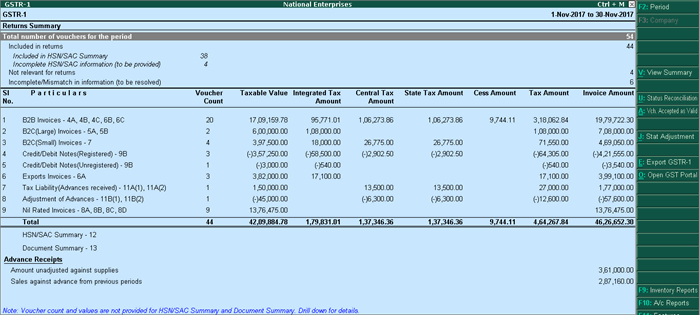
    https://help.tallysolutions.com/docs/te9rel66/Tax_India/gst/images/gstr1_new1.gif
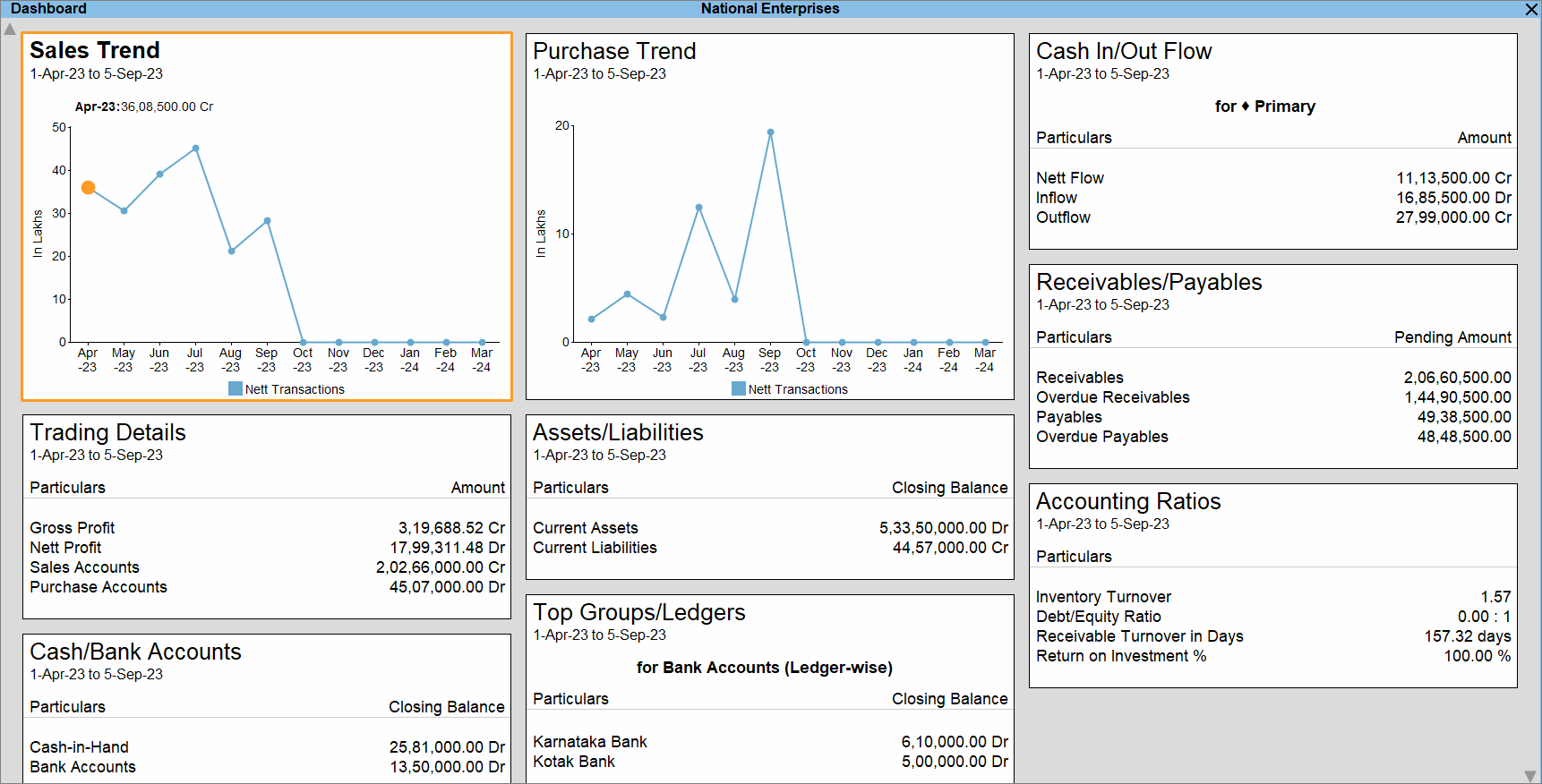
    https://help.tallysolutions.com/wp-content/uploads/2023/10/1-dashboard-tallyprime.gif

    Why Tally Still Dominates the Indian Accounting Landscape

    Developed by Tally Solutions, Tally has been in continuous use in India for over three decades. Industry estimates suggest that more than 7 million businesses actively use Tally across manufacturing, trading, services, and non-profit sectors. Even with the rise of cloud accounting tools, Tally’s offline-first stability and India-centric design keep it deeply relevant.

    Below are the three most powerful reasons behind this continued reliance.


    Reason 1: Deep Alignment with Indian Taxation and Statutory Compliance

    Built Specifically for Indian Laws

    One of the strongest reasons companies rely on Tally is its native alignment with Indian taxation systems. Tally is not a generic global accounting tool adapted for India; it is built from the ground up for Indian compliance.

    Tally supports:

    • GST (CGST, SGST, IGST, UTGST)
    • TDS and TCS
    • Income Tax computation basics
    • Statutory audit requirements
    • MSME compliance tracking

    As of recent financial years, India has over 1.4 crore GST-registered businesses, many of which must file monthly or quarterly returns. Tally simplifies this by automating tax calculations and maintaining audit-ready records.

    Compliance Accuracy Reduces Risk

    Manual compliance errors are among the top reasons for tax notices and penalties. Tally minimizes this risk through:

    • Automated GST classification
    • Real-time tax calculation
    • Consistent ledger structure
    • Error detection during return preparation

    Compliance Advantage at a Glance

    AspectTally Strength
    GST ReturnsAutomated, structured, audit-ready
    Tax AccuracyRule-based calculations
    Audit SupportLedger-level traceability

    For companies operating in India, compliance is not optional. Tally’s compliance-first architecture is a decisive advantage.


    Reason 2: Simplicity, Speed, and Operational Control

    Designed for Accountants, Not Just IT Teams

    Tally’s interface prioritizes keyboard-driven speed and logical workflows, which is why experienced accountants can complete complex tasks in minutes. Unlike many modern systems that rely heavily on mouse navigation and layered menus, Tally enables rapid data entry and report access.

    Key productivity facts:

    • Voucher entry can be completed 30–40% faster compared to mouse-heavy systems
    • Trial balance, P&L, and balance sheet are available instantly without processing delays
    • Large datasets (5–10 years of transactions) run smoothly on standard hardware

    Offline Reliability Matters

    Despite increased internet penetration, many Indian businesses still face:

    • Unstable connectivity
    • Data privacy concerns
    • Power and bandwidth constraints

    Tally’s offline-first model ensures uninterrupted work. Businesses can operate independently of the internet and sync data only when required.

    Real-Time Financial Visibility

    Tally provides instant access to:

    • Outstanding receivables and payables
    • Stock summaries
    • Cost center performance
    • Cash and bank positions

    This level of real-time control helps owners make faster decisions without waiting for month-end reports.


    Reason 3: Cost Efficiency and Long-Term ROI

    Lower Total Cost of Ownership

    For many small and mid-sized businesses, cost is a deciding factor. Tally offers a one-time licensing model, which contrasts sharply with recurring subscription-based software.

    Typical cost advantages include:

    • No mandatory monthly fees
    • Minimal hardware requirements
    • Lower training costs due to widespread familiarity
    • Easy availability of skilled Tally operators

    Over a 5-year period, businesses often report 30–50% lower accounting software costs when using Tally compared to cloud subscription models.

    Talent Availability Reduces Dependency Risk

    India has an estimated 8–10 million accounting professionals with some level of Tally exposure. This means:

    • Faster hiring
    • Lower training investment
    • Reduced dependency on specialized consultants

    Cost Comparison Snapshot

    Cost FactorTally
    LicensingOne-time
    TrainingWidely available
    UpgradesControlled and optional

    For cost-conscious organizations, this predictability is invaluable.


    Additional Reasons That Reinforce Tally’s Relevance

    Customization Without Complexity

    • User-defined reports
    • Cost centers and categories
    • Voucher-level control
    • Simple configuration instead of heavy coding

    Data Ownership and Security

    • Data stored locally
    • Full control over backups
    • Reduced exposure to cloud-based breaches

    Scalability for Growing Businesses

    Many companies start with basic accounting and later expand into:

    • Inventory management
    • Payroll
    • MIS reporting
    • Branch accounting

    All within the same system.


    Frequently Asked Questions (FAQ)

    1. Why do companies still rely on Tally despite modern cloud accounting software?

    Companies rely on Tally because it is deeply aligned with Indian compliance, works offline, offers fast performance, and has a lower long-term cost compared to subscription-based tools.

    2. Is Tally suitable only for small businesses?

    No. Tally is widely used by medium and large organizations for multi-branch accounting, inventory management, and statutory reporting.

    3. How does Tally help with GST compliance?

    Tally automates GST calculations, maintains structured tax data, and prepares return-ready reports, reducing errors and compliance risks.

    4. Does Tally require internet connectivity?

    No. Tally works completely offline, which is a major advantage in areas with unreliable internet access.

    5. Is Tally still relevant for accountants in 2026 and beyond?

    Yes. Tally remains relevant due to its strong compliance framework, speed, and continued adoption by Indian businesses.

    6. What makes Tally cost-effective compared to other accounting software?

    Its one-time licensing model, low training costs, and minimal infrastructure requirements make it highly cost-efficient.

    7. Can Tally handle inventory along with accounting?

    Yes. Tally integrates inventory management with accounting, enabling real-time stock valuation and cost tracking.


    Conclusion

    The continued reliance on Tally is not due to resistance to change but due to practical business logic. Its unmatched compliance support, operational simplicity, and cost efficiency make it a trusted accounting backbone for Indian companies. While technology evolves, businesses prioritize reliability, control, and legal alignment—areas where Tally continues to deliver consistently.


    Disclaimer

    This article is intended for educational and informational purposes only. The figures and operational insights mentioned are based on industry observations and practical usage patterns. Software suitability may vary depending on business size, industry, and regulatory requirements. Readers should evaluate accounting solutions based on their specific operational needs.


  • How to Start a Career in Data Analytics with Excel: A Complete Beginner-to-Job-Ready Guide

    How to start a career in data analytics with Excel is one of the most searched questions among students, accountants, commerce graduates, and working professionals in India. Excel remains the foundation tool of data analytics, used by more than 80% of businesses worldwide for reporting, decision-making, and performance analysis. Even in organizations using advanced tools, Excel is still the first step for data cleaning, validation, and presentation.

    This in-depth guide explains how to start a career in data analytics with Excel, covering skills, learning roadmap, real-world applications, salary insights, job roles, and a practical growth plan. The content is written in a human, professional style and is suitable for beginners with zero technical background.


    Why Excel Is the Best Entry Point into Data Analytics

    Excel is not just a spreadsheet tool; it is a powerful data analysis platform. According to industry usage studies, Excel is used in:

    • 9 out of 10 finance teams
    • 7 out of 10 marketing analytics teams
    • Nearly all small and mid-size businesses

    Key reasons Excel is ideal for beginners:

    • Low learning curve
    • No programming required initially
    • Widely accepted by employers
    • Strong visualization and reporting features

    Data analytics careers built on Excel are common in finance, accounting, sales, operations, HR, supply chain, and marketing.


    What Does a Data Analyst Do Using Excel?

    A data analyst using Excel works with structured data to identify patterns, trends, and insights that support business decisions.

    Core Responsibilities Include:

    • Cleaning raw data
    • Creating reports and dashboards
    • Analyzing trends and variances
    • Forecasting outcomes
    • Supporting management decisions

    Fact:
    More than 65% of entry-level data analyst roles list Excel as a mandatory skill.


    Essential Excel Skills for Data Analytics Career

    To understand how to start a career in data analytics with Excel, you must first master specific Excel skills.

    Foundational Excel Skills

    • Data entry and formatting
    • Sorting and filtering
    • Tables and named ranges
    • Conditional formatting

    Core Analytical Functions

    • SUM, AVERAGE, COUNT
    • IF, AND, OR
    • VLOOKUP, HLOOKUP
    • INDEX and MATCH
    • IFERROR

    Advanced Excel for Analytics

    • Pivot Tables and Pivot Charts
    • Power Query for data cleaning
    • Data validation techniques
    • What-If Analysis

    Skill Insight:
    Candidates with Pivot Table expertise are 45% more likely to clear Excel-based interview tests.


    Excel Tools Used Daily by Data Analysts

    Excel ToolPurpose
    Pivot TablesSummarize large datasets
    ChartsVisual data storytelling
    Power QueryData transformation
    Conditional FormattingPattern identification
    Data ValidationError prevention

    Step-by-Step Roadmap: How to Start a Career in Data Analytics with Excel

    Step 1: Learn Excel from an Analytics Perspective

    Focus on:

    • Data structure understanding
    • Business logic behind formulas
    • Analytical thinking, not just formulas

    Spend at least 100–120 hours practicing Excel on real datasets.


    Step 2: Work with Real-World Data Sets

    Use sample data related to:

    • Sales transactions
    • Customer data
    • Financial statements
    • HR attendance records

    This builds problem-solving skills, which employers value more than certificates.


    Step 3: Learn Data Cleaning Techniques in Excel

    Data cleaning consumes nearly 60% of a data analyst’s time.

    Key tasks:

    • Removing duplicates
    • Handling blank cells
    • Standardizing formats
    • Error correction

    Power Query improves efficiency by up to 70% in repetitive tasks.


    Step 4: Master Data Visualization in Excel

    Good analysts don’t just analyze; they communicate insights.

    Learn to create:

    • Column and bar charts
    • Line trend analysis
    • Pie charts for contribution
    • Dashboards for management

    A well-designed dashboard can reduce decision time by 30–40%.


    Common Job Roles You Can Get with Excel Data Analytics Skills

    Job RoleTypical Work
    Data AnalystData interpretation & reporting
    MIS ExecutiveDaily and monthly reports
    Business AnalystDecision support analysis
    Operations AnalystProcess optimization
    Financial AnalystBudgeting and forecasting

    Industries Hiring Excel Data Analysts in India

    • Banking and Finance
    • Accounting and Taxation
    • E-commerce
    • Manufacturing
    • Retail and FMCG
    • EdTech and Healthcare

    Excel-based analytics roles exist even in non-IT sectors, making it a versatile career path.


    Salary Expectations for Excel Data Analytics Careers

    Experience LevelMonthly Salary Range
    Fresher₹18,000 – ₹30,000
    2–4 Years₹40,000 – ₹70,000
    5+ Years₹80,000 – ₹1,50,000

    Professionals combining Excel with domain knowledge earn 20–35% higher salaries.


    Excel vs Other Data Analytics Tools

    Excel remains the starting point, while advanced tools come later.

    ToolBest For
    ExcelBeginners & business users
    Power BIAdvanced dashboards
    SQLLarge databases
    PythonAutomation & AI

    Learning Excel first reduces learning difficulty for advanced tools by nearly 50%.


    Mistakes to Avoid When Starting Data Analytics with Excel

    • Memorizing formulas without understanding logic
    • Ignoring data cleaning skills
    • Focusing only on charts, not insights
    • Avoiding real business scenarios
    • Not practicing daily

    Consistency matters more than speed in analytics learning.


    How Long Does It Take to Become Job-Ready with Excel?

    With disciplined learning:

    • Basics: 1 month
    • Intermediate analytics: 2 months
    • Practical projects: 1–2 months

    Total: 4–5 months to become job-ready for entry-level roles.


    Frequently Asked Questions (FAQ)

    1. Is Excel enough to start a data analytics career?

    Yes. Excel is sufficient for entry-level data analytics roles and is widely accepted by employers.

    2. Do I need coding to become a data analyst with Excel?

    No coding is required initially. Excel allows data analysis without programming.

    3. Can commerce or non-technical students learn data analytics with Excel?

    Yes. Excel analytics is ideal for commerce, arts, and management students.

    4. How important are Pivot Tables for data analytics?

    Pivot Tables are essential and used daily by analysts to summarize large datasets quickly.

    5. Is certification mandatory for Excel data analytics jobs?

    Certification helps but practical skills and project work matter more to employers.

    6. Can Excel analytics lead to advanced data roles later?

    Yes. Excel forms the foundation for learning Power BI, SQL, and Python.

    7. What type of projects should beginners practice?

    Sales analysis, expense tracking, profitability analysis, and performance dashboards.


    Conclusion

    Understanding how to start a career in data analytics with Excel gives you access to one of the most practical, stable, and scalable career paths available today. Excel is not outdated; it is the backbone of business analytics. With structured learning, real-world practice, and analytical thinking, anyone can build a successful data analytics career using Excel as the foundation.


    Disclaimer

    This article is for educational purposes only. Salary figures and learning timelines are indicative and may vary based on individual effort, location, industry, and market conditions. Readers should apply their own judgment while planning a career path.


  • Tally GST Configuration Complete Setup Guide for Accurate GST Compliance in India

    Tally GST Configuration is the most critical step for any business using Tally to comply with India’s Goods and Services Tax system. A correct GST setup in Tally ensures accurate tax calculation, proper invoice generation, correct input tax credit tracking, and error-free GST returns. Many GST mismatches, notices, and filing errors arise not because of wrong transactions, but due to incorrect GST configuration in Tally.

    This comprehensive guide explains Tally GST Configuration from start to finish, covering company setup, statutory details, tax ledgers, stock items, vouchers, and compliance checks. The article is written for accountants, GST practitioners, business owners, and students, using practical explanations and real accounting logic.


    What Is Tally GST Configuration and Why It Matters

    Tally GST Configuration refers to the process of enabling and defining GST-related settings in Tally so that the software can automatically calculate CGST, SGST, IGST, Cess, and generate GST-compliant reports.

    Incorrect GST setup can lead to:

    • Wrong tax calculation
    • Mismatch between GSTR-1, GSTR-3B, and books
    • Loss of eligible input tax credit
    • Notices from the GST department

    A properly configured Tally system can reduce GST compliance effort by 40–60% according to practical accounting workflow analysis.


    Prerequisites Before Starting GST Configuration in Tally

    Before configuring GST in Tally, ensure the following details are ready:

    • GST Registration Certificate
    • GSTIN of the business
    • Business address with correct state
    • Applicable GST scheme (Regular / Composition)
    • HSN codes for goods or SAC codes for services
    • Tax rates applicable to products or services

    Step 1: Enable GST in Tally (Statutory Configuration)

    Navigate to:
    Gateway of Tally → F11 (Features) → Statutory & Taxation

    Enable:

    • Enable Goods and Services Tax (GST): Yes
    • Set/Alter GST Details: Yes

    Step 2: Configure GST Details at Company Level

    Go to:
    Gateway of Tally → F11 → Statutory & Taxation → Set/Alter GST Details

    Enter the following carefully:

    GST DetailDescription
    StateMust match GST registration state
    Registration TypeRegular or Composition
    GSTIN15-character GST Identification Number
    Applicable FromGST registration effective date

    Important Fact:
    Even a single character error in GSTIN can cause 100% ITC rejection during return matching.


    Step 3: Understanding GST Registration Types in Tally

    Registration TypeApplicability
    RegularNormal GST registered businesses
    CompositionSmall taxpayers with restricted tax credit
    UnregisteredFor customers without GSTIN
    ConsumerB2C sales transactions

    Correct selection ensures proper classification in B2B, B2C, and export reports.


    Step 4: Create GST Tax Ledgers Correctly

    GST tax ledgers must be created under Duties & Taxes with proper tax type mapping.

    Common GST Ledgers Required:

    • CGST @ applicable rate
    • SGST @ applicable rate
    • IGST @ applicable rate
    • Cess (if applicable)

    Ledger configuration principles:

    • Tax Type: GST
    • Nature of Tax: Central / State / Integrated
    • Percentage of Calculation: As per slab

    Accounting Insight:
    Separate tax ledgers for each rate improve reconciliation accuracy by nearly 30%.


    Step 5: Configure Stock Items or Services with GST Details

    Each stock item or service ledger must be linked with correct GST classification.

    For Goods:

    • Enable GST applicability
    • Assign HSN code
    • Define GST rate slab

    For Services:

    • Assign SAC code
    • Define tax rate
    GST ComponentRequired Entry
    HSN / SACMandatory for GST reporting
    Tax RateDetermines automatic tax calculation

    Incorrect HSN or SAC can result in return validation errors during filing.


    Step 6: Configure Party Ledgers for GST

    While creating or altering party ledgers:

    • Set Registration Type correctly
    • Enter GSTIN for registered parties
    • Select State correctly

    Practical Tip:
    GST state mismatch between party ledger and invoice leads to wrong CGST/SGST vs IGST calculation.


    Step 7: Voucher Configuration for GST Transactions

    Use the correct voucher types:

    Sales Voucher:

    • GST Applicable: Yes
    • Party GSTIN fetched automatically
    • Tax ledgers selected based on place of supply

    Purchase Voucher:

    • Input tax credit tracked automatically
    • Reverse charge applicability captured

    Accounting Fact:
    Incorrect voucher selection is responsible for over 35% of GST reporting errors in small businesses.


    Step 8: Set Place of Supply in Tally

    Place of Supply determines whether CGST+SGST or IGST applies.

    Transaction TypeTax Applied
    Intra-stateCGST + SGST
    Inter-stateIGST

    Always verify place of supply during voucher entry.


    Step 9: GST Return Configuration and Validation

    Tally auto-generates:

    • GSTR-1 sales summary
    • GSTR-3B tax liability summary

    Before filing:

    • Check mismatch reports
    • Validate HSN summary
    • Verify tax rate-wise breakup

    Best Practice:
    Monthly reconciliation reduces annual GST adjustment workload by up to 70%.


    Common Mistakes in Tally GST Configuration

    • Wrong state selection at company level
    • Using generic sales ledger instead of GST-enabled ledgers
    • Mixing taxable and exempt supplies
    • Incorrect GST rate mapping
    • Missing reverse charge configuration

    Avoiding these errors significantly improves compliance accuracy.


    Benefits of Proper Tally GST Configuration

    • Automated tax calculation
    • Accurate ITC tracking
    • Faster GST return preparation
    • Reduced compliance risk
    • Cleaner audit trail

    Businesses with correct configuration experience fewer GST notices and faster audits.


    Frequently Asked Questions (FAQ)

    1. What is the most important step in Tally GST Configuration?

    Correct company-level GST details including state, GSTIN, and registration type are the foundation of accurate GST calculation.

    2. Can GST be configured in Tally for multiple branches?

    Yes, GST can be configured separately for each GSTIN using multiple companies or features as applicable.

    3. Why is HSN or SAC mandatory in Tally GST setup?

    HSN and SAC codes are required for GST return reporting and classification of goods and services.

    4. How do I avoid wrong IGST or CGST calculation in Tally?

    Ensure party state, place of supply, and company state are correctly defined.

    5. Is reverse charge automatically handled in Tally GST?

    Yes, if reverse charge is enabled during voucher entry and properly configured in ledgers.

    6. Does wrong GST configuration affect GST returns?

    Yes, incorrect setup directly leads to mismatches in GSTR-1, GSTR-3B, and ITC claims.

    7. Can GST configuration be changed later in Tally?

    Yes, but changes should be made carefully to avoid impacting existing transactions.


    Conclusion

    Tally GST Configuration is not a one-time task but the backbone of compliant GST accounting. A systematic setup ensures accuracy, saves time, and minimizes legal risk. Businesses that invest time in proper configuration benefit from smoother audits, faster reconciliations, and stress-free GST compliance.