Blog

  • Excel Mastery Course for MIS Professionals: What You’ll Learn, Career Benefits, and Why It Truly Matters

    Why an Excel Mastery Course Is No Longer Optional

    In today’s data-driven workplace, an Excel Mastery Course is no longer a “good-to-have” skill—it has become a professional necessity. From MIS executives and accountants to analysts and operations teams, Excel remains the most widely used business tool worldwide. Industry research consistently shows that over 80% of corporate data analysis and internal reporting is still performed using Excel.

    This Excel Mastery Course is designed to take learners beyond basic spreadsheets and into real-world professional usage—covering formulas, dashboards, MIS reports, automation, and macros. If you want to work faster, reduce errors, and become indispensable at your workplace, this structured Excel program offers a clear, practical path.
    You can explore the complete course structure and curriculum here:
    Excel Mastery Course


    What Is an Excel Mastery Course?

    An Excel Mastery Course is a comprehensive learning program that focuses on how Excel is actually used in corporate environments. Unlike beginner tutorials that stop at basic formulas, this course emphasizes:

    • Business-oriented Excel workflows
    • Practical MIS and management reporting
    • Automation using VBA macros
    • Handling large and complex datasets
    • Accuracy, speed, and professional presentation

    The objective is not just learning Excel features but developing job-ready Excel expertise.


    Who Should Enroll in This Excel Mastery Course?

    This Excel Mastery Course is suitable for a wide range of learners:

    • MIS Executives and Reporting Professionals
    • Accountants and Finance Executives
    • Data Entry Operators aiming for career growth
    • Students preparing for corporate roles
    • Business owners managing internal reports
    • Working professionals seeking automation skills

    Surveys across job portals indicate that professionals with advanced Excel skills earn 20%–35% higher compensation than those limited to basic Excel usage.


    What You’ll Learn in This Excel Mastery Course

    Strong Excel Fundamentals for Long-Term Mastery

    Every advanced Excel professional relies on a strong foundation. This Excel Mastery Course ensures that fundamentals are clear and practical.

    Focus AreaProfessional Outcome
    Excel NavigationFaster workflow and efficiency
    Data Entry Best PracticesReduced manual errors
    Formatting StandardsCorporate-ready reports

    Advanced Excel Formulas and Logical Functions

    Formulas are at the core of productivity. This Excel Mastery Course trains learners to think logically, not just memorize formulas.

    Formula CategoryBusiness Application
    Lookup FunctionsFast data retrieval
    Logical FunctionsAutomated decisions
    Date & Time FunctionsAccurate timelines
    Text FunctionsClean, standardized data

    Professionals using advanced Excel formulas report up to 60% time savings in recurring reports.


    MIS Reporting and Data Analysis

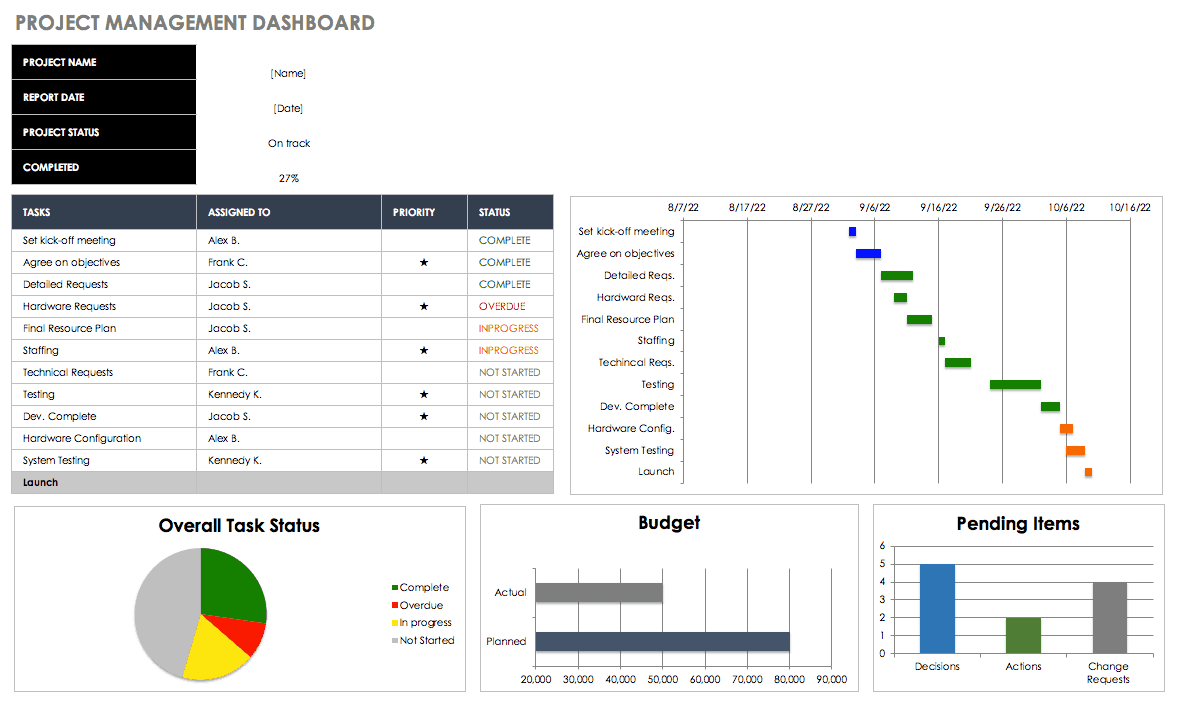
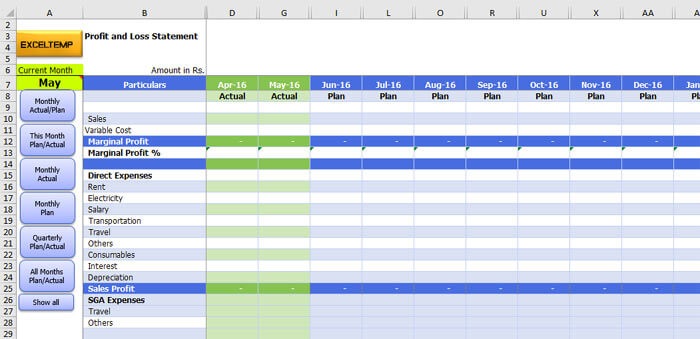
    MIS reporting skills are among the most in-demand Excel capabilities. This Excel Mastery Course focuses heavily on converting raw data into meaningful management information.
    https://www.finereport.com/en/wp-content/uploads/2020/04/2020042901I.jpg
    https://www.goskills.com/blobs/blogs/165/1.gif
    https://www.smartsheet.com/sites/default/files/styles/1300px/public/IC-Project-Management-Dashboard.png?itok=WmxgwjZi

    4

    MIS SkillBusiness Value
    Pivot TablesQuick data summaries
    Dynamic ReportsAutomated monthly MIS
    Data ValidationError-free reporting

    Organizations using structured MIS reports improve decision-making speed by nearly 40%.


    Charts, Graphs, and Interactive Dashboards

    One of the strongest components of this Excel Mastery Course is dashboard creation. Dashboards allow management to understand performance at a glance.

    Dashboard ElementPurpose
    Interactive ChartsTrend analysis
    KPI TrackersPerformance monitoring
    Linked Data ModelsAuto-updating visuals

    Well-designed Excel dashboards often replace costly business intelligence tools in small and medium organizations.


    VBA Macros and Excel Automation

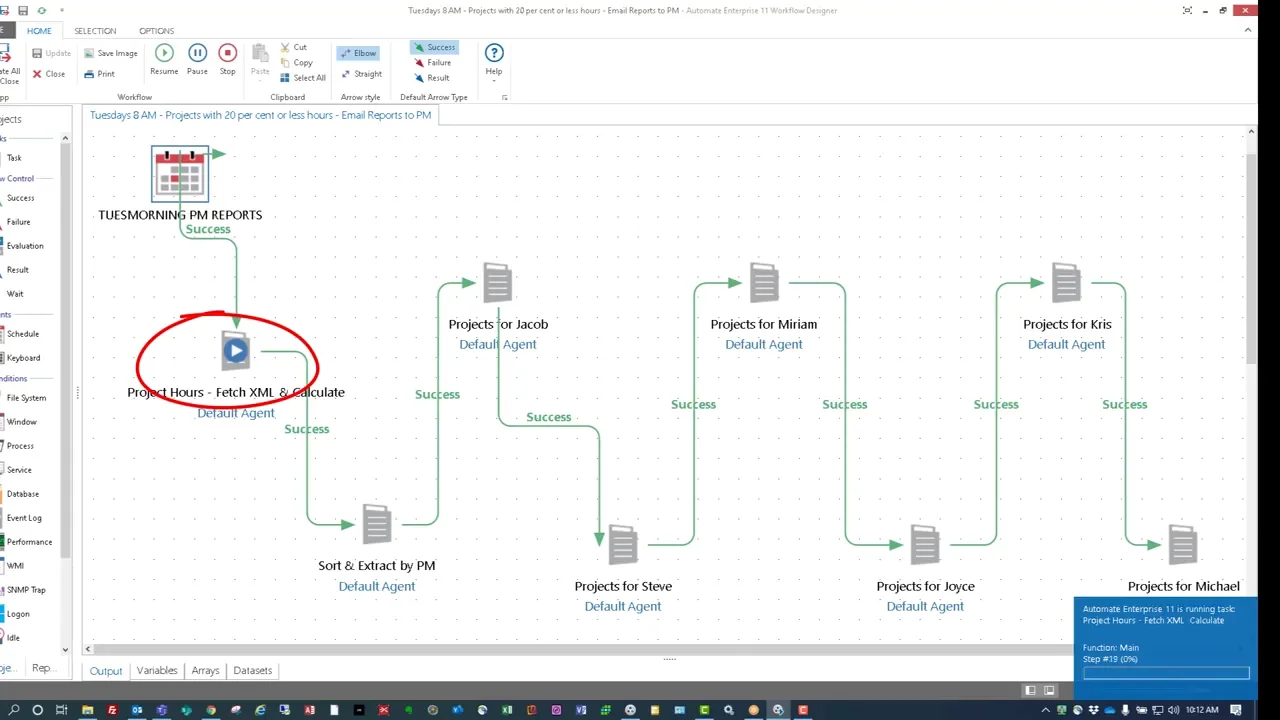
    Automation separates average Excel users from professionals. This Excel Mastery Course introduces VBA macros in a simple, business-focused way.

    https://media.licdn.com/dms/image/v2/C4E12AQGLW3mwNbrlLg/article-cover_image-shrink_600_2000/article-cover_image-shrink_600_2000/0/1546088818884?e=2147483647&t=DIzoaSN0hxDHxRXjHPP6hJlqRBouuBhz5Vbucd7seQg&v=beta
    https://embed-ssl.wistia.com/deliveries/a17b301260d7da2b75e194f4fafa387b.webp?image_crop_resized=1280x720

    4

    Automation AreaProductivity Gain
    Repetitive TasksUp to 90% time reduction
    Report GenerationMinutes instead of hours
    Data CleaningFully automated processes

    Even basic automation can save 100+ working hours per year for a single professional.
    To understand how automation and MIS reporting are structured in detail, you can review the full course outline here:
    Excel Mastery Course


    Handling Large and Complex Data Sets

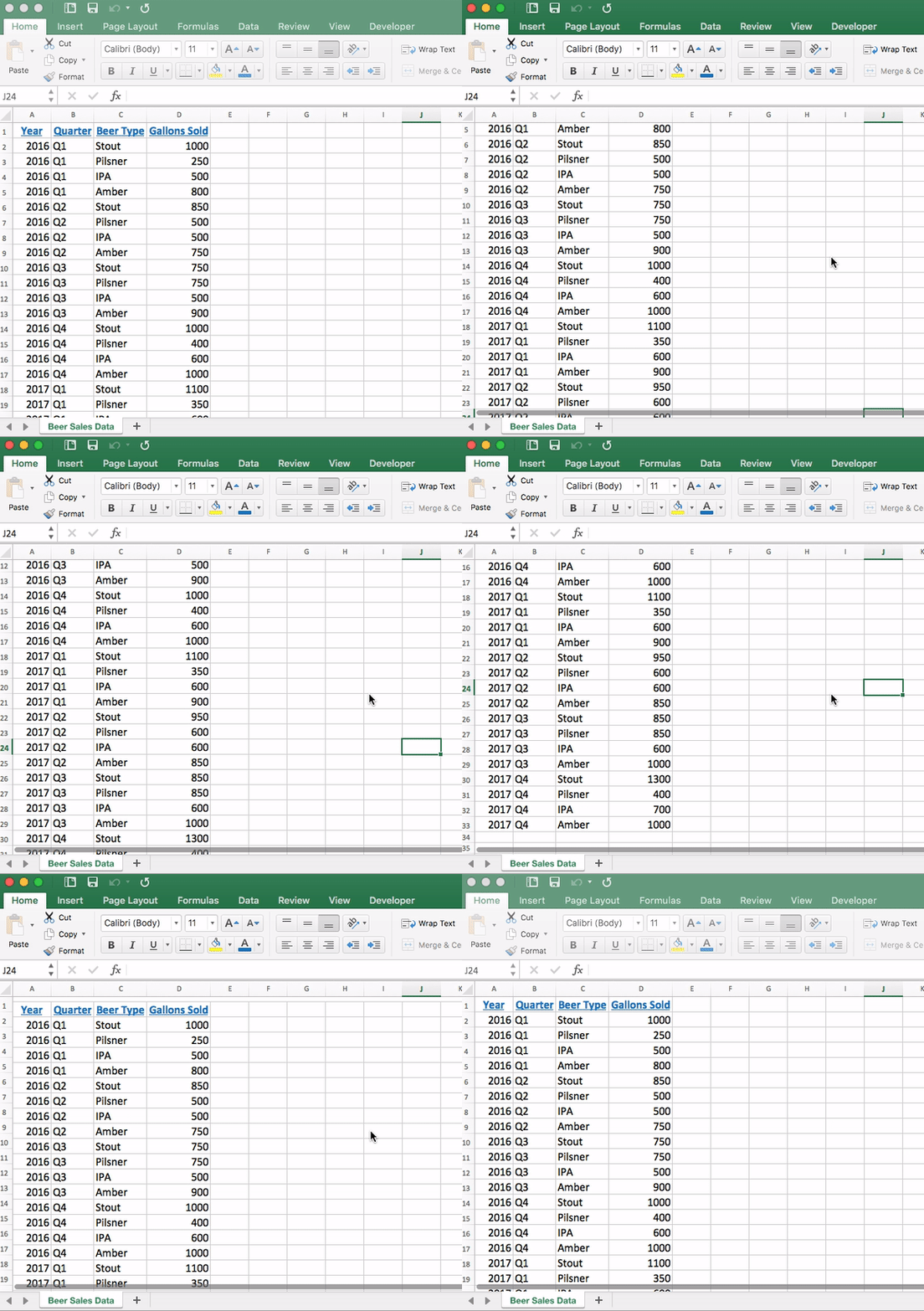
    Many professionals struggle with large Excel files. This Excel Mastery Course teaches efficient methods to manage and analyze heavy datasets without slowing down.

    SkillReal-World Impact
    Advanced FilteringFaster insights
    Data Cleaning TechniquesReliable reports
    Error HandlingMinimal rework

    Companies lose significant productivity due to poor data handling. Structured Excel workflows dramatically reduce this loss.


    Why This Excel Mastery Course Matters for Your Career

    Excel Skills Are Tested in Interviews

    Recruitment studies show that 7 out of 10 employers test Excel skills during interviews for MIS, finance, and analyst roles.

    Faster Career Growth

    Professionals who can independently manage reports, dashboards, and automation are often promoted faster due to their reliability and efficiency.

    Reduced Dependency

    Excel mastery reduces dependence on IT teams and external tools for routine data tasks.

    Freelancing and Side Income

    Advanced Excel professionals often earn additional income by creating dashboards, automating reports, or offering MIS consulting services.

    If you are serious about upgrading your Excel skills for long-term career growth, this complete Excel Mastery Course can be accessed here:
    Check Here


    What Makes This Excel Mastery Course Different?

    This Excel Mastery Course stands out because it focuses on:

    • Real corporate use cases
    • Practical assignments
    • Professional MIS formats
    • Automation-driven efficiency
    • Step-by-step progression from basics to advanced

    The learning approach ensures that skills are immediately applicable in real job environments.


    Learning Outcomes You Can Expect

    After completing this Excel Mastery Course, learners typically experience:

    • Faster report preparation
    • Improved data accuracy
    • Confidence in management reporting
    • Ability to automate daily tasks
    • Strong professional recognition

    Many learners report productivity improvements of 2x to 3x within weeks of applying these skills.


    Frequently Asked Questions (FAQ)

    What makes this an Excel Mastery Course instead of a basic Excel course?

    This Excel Mastery Course focuses on MIS reporting, automation, dashboards, and VBA rather than only basic spreadsheet features.

    Is this Excel Mastery Course suitable for beginners?

    Yes. The course starts from core fundamentals and gradually moves to advanced professional concepts.

    Will this Excel Mastery Course help with MIS and reporting jobs?

    Yes. MIS reporting is one of the main focuses of this Excel Mastery Course.

    Does the course include practical exercises?

    Yes. Real-world datasets and business-style assignments are used throughout.

    Is VBA difficult for non-technical learners?

    No. VBA is taught in a simple, step-by-step manner focused on business automation.

    Can this Excel Mastery Course help in salary growth?

    Professionals with advanced Excel skills often experience faster promotions and better salary increments.

    Is this Excel Mastery Course useful outside accounting and MIS roles?

    Yes. Excel mastery is valuable across finance, operations, sales, HR, and analytics roles.


    Conclusion: Why Excel Mastery Is a Smart Investment

    Excel is more than software—it is a career accelerator. A well-structured Excel Mastery Course equips you with skills that improve accuracy, efficiency, and professional value. In a competitive job market, strong Excel capabilities often become the deciding factor between average performance and career growth.


    Disclaimer

    This article is intended for educational and informational purposes only. Individual results may vary depending on effort, practice, and professional background. This content does not guarantee employment or salary increases but aims to enhance practical Excel proficiency.



  • Best SSDs for Fast Accounting Workstations: Seagate Expansion HDD vs SanDisk Portable SSD vs Samsung T7 SSD

    For accountants, MIS executives, GST practitioners, and finance professionals, system speed is not a luxury—it is a necessity. Daily work involves large Excel files, Tally data, GST backups, PDFs, bank statements, and year-wise records that must open quickly and safely. Storage plays a major role in overall workstation performance, especially when handling frequent backups and heavy files.

    Choosing the best SSDs for fast accounting workstations depends on speed, reliability, data safety, portability, and long-term value. In this detailed comparison, we evaluate three highly popular storage options in India:

    • Seagate Expansion 1TB External HDD
    • SanDisk 1TB Portable SSD
    • Samsung T7 1TB Portable SSD

    This review focuses on real accounting and office usage, not just technical specifications.


    Why Storage Speed Matters in Accounting Workstations

    Accounting professionals deal with thousands of small files and large master data sets. A slow drive can cause:

    • Delays while opening Excel or Tally backup files
    • Sluggish system response during data copy or restore
    • Higher risk of data corruption during backups
    • Productivity loss during peak compliance periods

    Modern SSDs can reduce file access time by 5–10 times compared to traditional hard drives. However, HDDs still remain useful for cost-effective long-term storage.


    Seagate Expansion 1TB External HDD – Best Budget Backup Drive

    https://www.seagate.com/content/dam/seagate/migrated-assets/www-content/products/external-hard-drives/expansion-external-drives/_shared/images/seagate-expansion-5tb-lifestyle-desk-lo-res-640x640.jpg

    The Seagate Expansion 1TB External HDD is one of the most popular storage devices for professionals who need reliable and affordable backup storage.

    Performance and Use Case

    Being a traditional hard disk drive, it operates at lower speeds compared to SSDs. However, for daily backups, archived accounting data, year-wise GST records, and document storage, it performs reliably.

    This drive is ideal if your primary goal is data safety and storage capacity, not speed.

    Data Safety Advantage

    A major benefit of this model is 3-year data recovery services, which is extremely valuable for accounting professionals. In case of accidental data loss, recovery support provides peace of mind.

    Compatibility and Ease of Use

    It supports USB 3.0 and works seamlessly with Windows and Mac systems without any configuration.

    If you want a dependable backup drive at a lower cost, you can Check Here / Buy Here to view the latest price.

    Pros and Cons

    Pros

    • Affordable 1TB storage
    • Reliable for backups and archiving
    • 3-year data recovery support
    • Simple plug-and-play usage

    Cons

    • Slower file access compared to SSDs
    • Not ideal for running live accounting data

    SanDisk 1TB Portable SSD – Best Value SSD for Accountants

    https://i5.walmartimages.com/asr/9a474ee0-6d0b-4ad4-b3f7-1cfd07f491d5.ca15bfb90f0ea6a1e0a72bc4d571983d.jpeg?odnBg=FFFFFF&odnHeight=768&odnWidth=768

    The SanDisk 1TB Portable SSD offers a strong balance between speed, durability, and price, making it a popular choice for professionals upgrading from HDDs.

    Speed and Performance

    With read speeds of up to 800MB/s, this SSD significantly reduces file opening and backup times. Large Excel files, Tally backups, and PDFs load almost instantly compared to HDDs.

    For accountants handling multiple clients or frequent data transfers, this speed upgrade directly improves productivity.

    Durability and Portability

    The rugged design supports up to 2-meter drop protection, which is useful for professionals who travel with data or work from multiple locations.

    Compatibility

    It works with both Windows and Mac systems and includes a Type-C to Type-A cable, making it compatible with older desktops and modern laptops.

    If you want fast performance without paying a premium price, you can Check Here / Buy Here to explore current offers.

    Pros and Cons

    Pros

    • Very fast compared to HDDs
    • Rugged and portable design
    • Excellent value for money
    • Suitable for live accounting work

    Cons

    • Slower than premium SSDs
    • No hardware encryption

    Samsung T7 1TB Portable SSD – Best Premium SSD for Accounting Workstations

    https://image.semiconductor.samsung.com/image/samsung/p6/semiconductor/consumer-storage/portable-ssd/new-t7/memory-t7-feature4-c-pc.png?%24ORIGIN_PNG%24=

    The Samsung T7 is designed for professionals who demand maximum speed and reliability from their storage devices.

    High-Speed Performance

    With read speeds of up to 1,050MB/s, this SSD is ideal for real-time accounting data, large Excel models, and frequent file transfers. It dramatically reduces waiting time during backups and restores.

    Security and Reliability

    Samsung T7 includes hardware-based password protection, adding an extra security layer for sensitive financial and client data. This is a major advantage for CA firms and consultants.

    Build and Professional Use

    The metal body ensures durability, and thermal management prevents overheating during heavy use.

    For professionals building a high-performance accounting workstation, you can Check Here / Buy Here to see the latest pricing.

    Pros and Cons

    Pros

    • Extremely fast data transfer speeds
    • Strong build quality
    • Hardware-level data security
    • Ideal for professional workstations

    Cons

    • Higher price compared to other options
    • Overkill for simple backup-only usage

    Quick Comparison Table

    Storage DeviceBest Suited For
    Seagate Expansion HDDBudget backups and data archiving
    SanDisk Portable SSDFast daily accounting work at good value
    Samsung T7 SSDHigh-speed professional accounting workstations

    Final Recommendation: Which Storage Is Best for You?

    The right storage choice depends on how you use your accounting workstation:

    • Choose Seagate Expansion 1TB HDD if you want affordable and safe backups.
    • Choose SanDisk 1TB Portable SSD if you need speed for daily accounting tasks without spending too much.
    • Choose Samsung T7 1TB SSD if you want maximum speed, security, and long-term reliability.

    For most accountants and MIS professionals, upgrading from HDD to SSD can improve workflow speed by 30–50%, especially during peak filing seasons.


    Disclaimer

    This article is for informational purposes only. Prices, specifications, and availability may change over time. Always verify product details before purchasing.

    Some links in this article are affiliate links. If you purchase through these links, we may earn a small commission at no additional cost to you. This helps support our work while keeping the review honest and unbiased.


  • Best Keyboard for Data Entry Professionals in India (2026 Review): Dell KB216 vs Logitech K120 vs Portronics Bubble

    For anyone working in data entry, accounting, MIS reporting, billing, or GST-related roles, the keyboard is the most-used work tool. A data entry professional easily types 40,000–60,000 keystrokes per day, and even small design flaws in a keyboard can reduce speed, increase errors, and cause finger or wrist fatigue over time.

    Choosing the best keyboard for data entry professionals is therefore not about looks or brand hype. It is about typing comfort, layout efficiency, durability, and long-hour reliability. In this detailed and honest review, we compare three popular keyboards widely used in India:

    • Dell KB216 Wired Multimedia Keyboard
    • Logitech K120 Wired Keyboard
    • Portronics Bubble Wireless Keyboard

    This article is written purely for practical use cases, focusing on real-world data entry requirements rather than marketing claims.


    What Makes a Keyboard Ideal for Data Entry Work?

    Before reviewing the products, it is important to understand what actually matters for data entry professionals:

    • Full-size layout with numeric keypad for fast number input
    • Comfortable key travel to reduce finger fatigue
    • Low typing noise for long sessions
    • Spill resistance for office safety
    • Stable connectivity with zero input lag

    Keeping these factors in mind, let us evaluate each keyboard in detail.


    Dell KB216 Wired Multimedia Keyboard – Best Overall for Office Data Entry

    https://m.media-amazon.com/images/I/61mwM6q4smL._AC_UF1000%2C1000_QL80_.jpg

    The Dell KB216 is one of the most commonly used keyboards in corporate offices, banks, and training centers. It is built specifically for professional environments where reliability and consistency matter more than design.

    Typing Experience

    The keyboard uses chiclet-style keys with balanced key travel. This allows smooth typing without pressing too hard, which is extremely important for professionals typing continuously for 7–8 hours a day. The keys feel consistent, helping maintain typing rhythm and accuracy.

    The dedicated numeric keypad is well-spaced and highly responsive, making it ideal for accounting entries, invoice preparation, and Excel-based data entry.

    Build Quality and Practicality

    Dell KB216 comes with spill resistance, offering protection against accidental water or tea spills—a common risk in office environments. It also includes three indicator lights (Caps Lock, Num Lock, Scroll Lock), which help avoid numeric input errors.

    Multimedia Productivity

    Dedicated multimedia hotkeys for volume control and playback allow quick adjustments without interrupting work flow.

    If you are looking for a reliable office-grade keyboard, you can Check Here / Buy Here to see current pricing and availability.

    Pros and Cons

    Pros

    • Excellent for full-day data entry work
    • Full-size layout with numeric keypad
    • Spill-resistant design
    • Very affordable for a professional keyboard

    Cons

    • No wrist rest
    • Wired connection only

    Logitech K120 Wired Keyboard – Best for Long Typing Comfort

    https://m.media-amazon.com/images/I/61j3wQheLXL.jpg

    The Logitech K120 is known for its comfort-focused design and is widely preferred by users who spend long uninterrupted hours typing.

    Ergonomic Typing Feel

    The keys are soft yet responsive, requiring less force per keystroke. The curved space bar supports natural thumb placement, which reduces strain during long sessions. This makes a noticeable difference for professionals working extended shifts.

    For data entry professionals who value comfort over extra features, this keyboard performs exceptionally well.

    Layout and Ease of Use

    It features a traditional full-size layout with a numeric keypad, making it easy to switch from older keyboards without any learning curve. This is particularly useful in offices where multiple users may use the same workstation.

    Durability

    The keyboard is spill-resistant and built for daily wear and tear. Logitech’s reputation for long-lasting peripherals is clearly reflected in this model.

    If long-hour comfort is your top priority, you can Check Here / Buy Here to explore this keyboard further.

    Pros and Cons

    Pros

    • Very comfortable for long typing hours
    • Durable and reliable build quality
    • Spill-resistant design
    • Quiet and smooth keystrokes

    Cons

    • No multimedia shortcut keys
    • Simple, no-frills design

    Portronics Bubble Wireless Keyboard – Best for Flexible & Multi-Device Users

    https://m.media-amazon.com/images/I/61OvOg39n6L.jpg

    The Portronics Bubble targets users who prefer wireless convenience and work across multiple devices such as laptops, tablets, and smartphones.

    Connectivity and Flexibility

    This keyboard supports 2.4 GHz wireless and Bluetooth 5.0, allowing easy switching between devices. For freelancers, trainers, or professionals working in hybrid setups, this flexibility is a major advantage.

    Typing Experience

    The keys are soft and noiseless, making the keyboard suitable for quiet environments. However, it has a compact layout without a dedicated numeric keypad, which limits its efficiency for heavy numeric data entry.

    Best Use Case

    This keyboard is ideal for light data entry, content typing, and portable work setups. It is not designed for full-time accounting or billing work that involves extensive number input.

    If wireless portability is important to you, you can Check Here / Buy Here to view current offers.

    Pros and Cons

    Pros

    • Dual connectivity (Wireless + Bluetooth)
    • Compact and portable design
    • Silent typing experience
    • Works with multiple devices

    Cons

    • No numeric keypad
    • Not suitable for heavy data entry work

    Quick Comparison Table

    KeyboardBest Suited For
    Dell KB216Full-time office and accounting data entry
    Logitech K120Long-hour comfort-focused typing
    Portronics BubbleWireless and multi-device usage

    Final Verdict: Which Keyboard Should Data Entry Professionals Choose?

    For professionals involved in daily, high-volume data entry, a wired full-size keyboard remains the most efficient and error-free option.

    • Dell KB216 is the best overall choice for office-based data entry and accounting work.
    • Logitech K120 is ideal for users who type for long hours and prioritize comfort.
    • Portronics Bubble is suitable only for light data entry or flexible wireless setups.

    Choosing the right keyboard can improve typing speed by 15–20% and significantly reduce fatigue over time.


    Disclaimer

    This article is for informational purposes only. Product prices, features, and availability may change over time. Always verify details before making a purchase.

    Some links in this article are affiliate links. If you purchase through these links, we may earn a small commission at no additional cost to you. This helps support our work while keeping the review honest and unbiased.


  • Excel Template for Invoice and Billing – Free Editable Excel Invoice Format with Automatic Calculations

    An Excel Template for Invoice and Billing is a practical and professional solution for businesses that want to generate accurate invoices without investing in expensive accounting software. From freelancers and startups to small businesses and accounting professionals, Excel-based invoicing remains one of the most widely adopted billing methods.

    In this comprehensive guide, you will understand how an Excel Template for Invoice and Billing works, its structure, essential fields, calculation logic, and best practices. You will also get a ready-to-use downloadable Excel invoice and billing template that you can customize instantly.


    What Is an Invoice in Accounting?

    An invoice is a commercial document issued by a seller to a buyer, specifying goods or services provided, quantities, agreed prices, taxes, and total payable amount. It serves as a legal demand for payment and a vital record for accounting, taxation, and compliance.

    Businesses that use structured invoices experience:

    • Faster payment cycles
    • Reduced disputes
    • Better revenue tracking
    • Strong audit documentation

    An Excel Template for Invoice and Billing simplifies this entire process.


    Why Use an Excel Template for Invoice and Billing?

    Despite the availability of advanced billing software, Excel remains dominant. Studies indicate that nearly 70% of small businesses still rely on spreadsheets for invoicing and billing.

    Key advantages include:

    • No recurring cost
    • Easy customization
    • Automatic calculations
    • Printable and shareable format
    • Works offline

    Structure of an Excel Invoice and Billing Template

    A professional Excel Template for Invoice and Billing is divided into well-defined sections to ensure clarity and compliance.


    1. Invoice Header Section

    This section identifies the document and the seller.

    FieldPurpose
    Invoice NumberUnique invoice reference
    Invoice DateDate of issue
    Due DatePayment deadline
    Company Name & AddressSeller identification

    2. Customer Billing Details

    Correct customer details are essential for legal and payment purposes.

    FieldPurpose
    Customer NameBuyer identification
    Billing AddressOfficial billing location

    3. Itemized Billing Table

    This is the core of the Excel Template for Invoice and Billing, where charges are detailed.

    ColumnDescription
    Item NumberSerial reference
    DescriptionGoods or services
    QuantityUnits supplied
    RatePrice per unit
    Tax PercentageApplicable tax
    AmountAuto-calculated

    Using Excel formulas ensures calculation accuracy and billing transparency.


    4. Invoice Totals and Summary

    This section calculates the payable amount.

    FieldCalculation
    SubtotalSum of item amounts
    Tax AmountTax based on rates
    Grand TotalFinal invoice value

    Automation in billing reduces manual errors by up to 35%, according to accounting process studies.


    Automatic Calculations in Excel Invoice Template

    The real strength of an Excel Template for Invoice and Billing lies in automation.

    Typical calculation logic:

    • Line Amount = Quantity × Rate
    • Tax Amount = Line Amount × Tax %
    • Grand Total = Subtotal + Total Tax

    This reduces dependency on manual checks and speeds up invoice generation.


    Benefits of Using Excel Template for Invoice and Billing

    Business Benefits

    • Faster invoice preparation
    • Consistent invoice format
    • Easy record maintenance

    Financial Benefits

    • Accurate billing
    • Improved cash flow tracking
    • Reduced payment disputes

    Compliance Benefits

    • Clear tax breakup
    • Audit-ready documentation
    • Simple reconciliation with receipts

    Businesses using standardized invoice formats report 20–30% faster collections.


    Who Should Use This Excel Invoice and Billing Template?

    This template is ideal for:

    • Freelancers and consultants
    • Small and medium enterprises
    • Accounts executives
    • MIS professionals
    • Startups and service providers

    Best Practices for Using Excel Invoice and Billing Template

    • Use a sequential invoice numbering system
    • Lock formula cells to avoid errors
    • Mention payment due dates clearly
    • Maintain customer master data
    • Save final invoices as PDF for records

    These practices improve professionalism and payment discipline.


    Common Invoicing Mistakes to Avoid

    • Missing invoice numbers
    • Incorrect tax calculation
    • No due date mentioned
    • Incomplete customer details
    • Manual total calculation

    A structured Excel Template for Invoice and Billing helps eliminate these mistakes.


    Download Free Excel Template for Invoice and Billing

    You can download the fully editable and ready-to-use Excel file here:

    This template includes:

    • Clean professional layout
    • Itemized billing section
    • Space for taxes and totals
    • Editable and printable format

    You can customize it for GST, VAT, or service-based billing easily.


    Frequently Asked Questions (FAQ)

    What is an Excel template for invoice and billing?

    It is a spreadsheet-based format used to create professional invoices with automatic calculations.

    Can Excel invoices be used for business billing?

    Yes, Excel invoices are widely accepted for billing, accounting, and audit purposes.

    Is Excel invoice legally valid?

    An invoice created in Excel is legally valid if it contains mandatory details as per applicable laws.

    Can I add GST or tax columns in Excel invoice?

    Yes, tax columns can be added or modified easily in Excel templates.

    How many invoices can I create in Excel?

    There is no limit. You can create unlimited invoices using Excel.

    Is Excel invoice suitable for small businesses?

    Yes, it is one of the most cost-effective invoicing solutions for small businesses.


    Disclaimer

    This Excel Template for Invoice and Billing is provided for general educational and business use only. Users must verify tax rates, legal requirements, and calculation accuracy before using it for official billing purposes. The author assumes no responsibility for financial or legal outcomes arising from its use.


  • Excel Template for Purchase Order – Free Editable Purchase Order Format with Automatic Calculations

    An Excel Template for Purchase Order is one of the most essential tools for businesses that want to control procurement, manage vendor communication, and maintain accurate records. Whether you are a small business owner, accounts executive, or MIS professional, a well-structured purchase order template in Excel helps standardize purchasing, reduce errors, and improve audit readiness.

    In this detailed guide, you will learn everything about using an Excel Template for Purchase Order, including its structure, key fields, calculation logic, best practices, and real-world usage. You will also get a ready-to-use downloadable Excel purchase order template that can be customized as per your business needs.


    What Is a Purchase Order in Accounting?

    A purchase order (PO) is a formal document issued by a buyer to a supplier, confirming the details of goods or services to be purchased. It acts as a legally binding agreement once accepted by the seller and plays a critical role in internal control and expense tracking.

    In accounting and operations, purchase orders help:

    • Control unauthorized purchases
    • Track outstanding orders
    • Match invoices with goods received
    • Maintain audit trails

    An Excel Template for Purchase Order digitizes this process without the cost of expensive ERP software.


    Why Use an Excel Template for Purchase Order?

    Excel remains the most widely used business tool globally. Surveys show that over 80% of small and medium businesses rely on spreadsheets for procurement documentation.

    Key reasons to use an Excel purchase order template:

    • Zero software cost
    • Fully customizable format
    • Easy calculations and totals
    • Printable and shareable
    • Compatible with accounting systems

    Structure of an Excel Purchase Order Template

    A professionally designed Excel Template for Purchase Order is divided into logical sections for clarity and compliance.

    1. Purchase Order Header Section

    This section identifies the document and the buyer.

    FieldPurpose
    Purchase Order NumberUnique reference for tracking
    Purchase Order DateDate of issue
    Company Name & AddressBuyer identification
    GST / Tax IDStatutory compliance

    2. Vendor Details Section

    Accurate vendor information avoids disputes and delivery issues.

    FieldPurpose
    Vendor NameSupplier identification
    Vendor AddressDelivery & billing reference
    Delivery DateExpected receipt timeline

    3. Item Details Table

    This is the core of the Excel Template for Purchase Order.

    ColumnDescription
    Item NumberSerial tracking
    DescriptionGoods or services
    QuantityUnits ordered
    RatePrice per unit
    Tax PercentageApplicable tax
    AmountAuto-calculated value

    Using Excel formulas ensures accuracy and consistency.


    4. Total & Summary Section

    This section calculates financial impact automatically.

    FieldCalculation Logic
    SubtotalSum of item amounts
    Tax AmountTax based on percentage
    Grand TotalFinal payable amount

    Businesses using Excel-based POs report up to 30% fewer calculation errors compared to manual methods.


    Automatic Calculations in Excel Purchase Order Template

    One of the biggest advantages of an Excel Template for Purchase Order is automation.

    Common formulas used:

    • Line Amount = Quantity × Rate
    • Tax Amount = Line Amount × Tax %
    • Grand Total = Subtotal + Total Tax

    Automation reduces dependency on manual checks and improves processing speed.


    Benefits of Using Excel Purchase Order Template for Businesses

    Operational Benefits

    • Faster PO creation
    • Reduced paperwork
    • Standardized format

    Financial Benefits

    • Better expense control
    • Accurate vendor payments
    • Improved cash flow planning

    Compliance Benefits

    • Audit-friendly documentation
    • Easy invoice matching
    • Transparent approval workflow

    Companies that use structured purchase orders experience up to 25% improvement in procurement efficiency.


    Who Should Use This Excel Template for Purchase Order?

    This template is ideal for:

    • Small and medium enterprises
    • Freelancers and service providers
    • Accounts & MIS professionals
    • Purchase and procurement teams
    • Startups without ERP systems

    Best Practices While Using Excel Purchase Order Template

    • Maintain a unique PO numbering system
    • Lock formula cells to avoid accidental changes
    • Save approved POs as PDF for records
    • Keep vendor master data consistent
    • Review tax rates periodically

    Following these practices improves internal control and financial accuracy.


    Common Mistakes to Avoid in Purchase Orders

    • Missing PO numbers
    • Incorrect tax calculation
    • No delivery timelines
    • Incomplete vendor details
    • Manual total calculations

    An Excel Template for Purchase Order helps eliminate most of these errors when designed correctly.


    Download Free Excel Template for Purchase Order

    You can download the ready-to-use and fully editable Excel file here:

    This template includes:

    • Clean professional layout
    • Predefined sections
    • Editable item rows
    • Summary and total fields

    You can customize it further based on GST, VAT, or internal approval needs.


    Frequently Asked Questions (FAQ)

    What is the best Excel template for purchase order?

    The best Excel template for purchase order is one that includes vendor details, item-wise breakup, automatic calculations, and a clear total summary.

    Can Excel be used as a purchase order system?

    Yes, Excel can act as a basic purchase order system for small and medium businesses with proper templates and controls.

    Is a purchase order mandatory?

    In many businesses, purchase orders are mandatory for internal control, audit compliance, and vendor confirmation.

    Can I customize the Excel purchase order template?

    Yes, Excel templates are fully customizable for columns, tax rates, and formatting.

    How many items can be added in one purchase order?

    There is no fixed limit. You can insert additional rows as required.

    Is Excel purchase order legally valid?

    A purchase order issued in Excel is legally valid once accepted by the vendor, subject to applicable laws.


    Disclaimer

    This Excel Template for Purchase Order is provided for general educational and business use only. Users should verify calculations, tax applicability, and compliance requirements before using it for official or statutory purposes. The author is not responsible for any financial or legal consequences arising from its use.


  • GST Ledger Types Explained in TallyPrime : Complete Practical Guide for Accurate GST Accounting

    Understanding GST Ledger Types Explained in TallyPrime is the foundation of correct GST accounting and compliance. Every GST return, tax calculation, input tax credit claim, and reconciliation in TallyPrime depends on how accurately GST-related ledgers are created and maintained. Even a small mistake in ledger classification can lead to incorrect tax liability, ITC mismatch, or GST notices.

    In this comprehensive guide, you will learn GST Ledger Types Explained in TallyPrime in a structured and practical manner. This article covers all GST-related ledger categories, their purpose, configuration logic, accounting impact, reporting flow, and common mistakes—making it ideal for business owners, accountants, GST practitioners, and students.


    What Is a GST Ledger in TallyPrime?

    A GST ledger in TallyPrime is a specialized ledger created to record:

    • GST tax liability
    • Input Tax Credit (ITC)
    • GST payable and receivable
    • GST adjustments and reversals

    In Tally Prime, GST ledgers work in coordination with:

    • Party ledgers
    • Sales and purchase ledgers
    • Expense and income ledgers

    Without correct GST ledger setup, GST returns like GSTR-1 and GSTR-3B cannot be generated accurately.


    Why Understanding GST Ledger Types Is Critical

    Correct GST ledger classification ensures:

    • Accurate tax calculation
    • Proper ITC flow
    • Error-free GST returns
    • Smooth reconciliation
    • Audit-ready financial data

    Incorrect GST ledgers are among the top reasons for GST return mismatches in practical accounting.


    Broad Classification of GST Ledger Types in TallyPrime

    GST ledgers in TallyPrime are broadly divided into:

    1. Output GST Ledgers
    2. Input GST Ledgers
    3. Reverse Charge GST Ledgers
    4. GST Expense Ledgers
    5. GST Adjustment and Rounding Ledgers

    Each category serves a unique compliance purpose.


    1. Output GST Ledger Types in TallyPrime

    Output GST ledgers are used to record GST collected on sales.

    Common Output GST Ledger Types

    • Output CGST
    • Output SGST
    • Output IGST
    • Output Cess (if applicable)

    These ledgers represent GST liability payable to the government.

    Key Characteristics

    • Nature of ledger: Duties & Taxes
    • Type of duty: GST
    • Used in sales vouchers
    • Reflected in GSTR-1 and GSTR-3B
    Output GST LedgerUsage
    Output CGSTIntra-state sales
    Output SGSTIntra-state sales
    Output IGSTInter-state sales

    2. Input GST Ledger Types in TallyPrime

    Input GST ledgers are used to record GST paid on purchases and expenses, eligible for ITC.

    Common Input GST Ledger Types

    • Input CGST
    • Input SGST
    • Input IGST
    • Input Cess

    These ledgers represent GST recoverable from the government.

    Key Characteristics

    • Nature of ledger: Duties & Taxes
    • Type of duty: GST
    • Used in purchase vouchers
    • Reflected in GSTR-3B ITC section
    Input GST LedgerPurpose
    Input CGSTIntra-state purchases
    Input SGSTIntra-state purchases
    Input IGSTInter-state purchases

    3. Reverse Charge GST Ledger Types in TallyPrime

    Reverse Charge Mechanism (RCM) requires separate GST ledgers because GST is paid by the recipient.

    RCM GST Ledger Types

    • CGST Payable under RCM
    • SGST Payable under RCM
    • IGST Payable under RCM
    • Input CGST under RCM
    • Input SGST under RCM
    • Input IGST under RCM

    RCM ledgers track:

    • GST liability paid in cash
    • ITC claimed after payment
    RCM Ledger TypeFunction
    RCM GST PayableTax liability
    RCM Input GSTITC after payment

    4. GST Expense Ledger Types in TallyPrime

    GST expense ledgers are created for expenses where GST is part of cost or ITC is blocked.

    Examples

    • Business promotion expenses
    • Personal-use expenses
    • Blocked ITC categories

    Key Features

    • Nature: Indirect Expense
    • GST applicability: Yes
    • ITC marked as ineligible

    These ledgers ensure GST is not wrongly claimed as ITC.


    5. GST Sales Ledger Types in TallyPrime

    Sales ledgers determine:

    • Taxability
    • GST rate
    • Nature of supply

    Types of Sales GST Ledgers

    • Taxable Sales
    • Exempt Sales
    • Nil-rated Sales
    • Export Sales
    • Zero-rated Sales
    Sales Ledger TypeGST Impact
    Taxable SalesGST applicable
    Exempt SalesNo GST
    Zero-rated SalesGST at 0%

    6. GST Purchase Ledger Types in TallyPrime

    Purchase ledgers decide ITC eligibility and tax calculation.

    Types of Purchase GST Ledgers

    • Taxable Purchases
    • Exempt Purchases
    • Import Purchases
    • RCM Purchases

    Correct purchase ledger setup is essential for:

    • Accurate ITC
    • Reverse charge applicability
    • GST return reporting

    7. GST Adjustment Ledger Types

    These ledgers handle:

    • Rounding off
    • Rate differences
    • Manual GST adjustments

    They help maintain clean trial balance and correct tax totals.


    How GST Ledgers Affect GST Returns

    Impact on GSTR-1

    • Output GST ledgers
    • Sales ledgers
    • Credit note adjustments

    Impact on GSTR-3B

    • Output GST liability
    • Input GST credit
    • RCM tax payment
    • Net tax payable

    Improper ledger mapping directly impacts GST return accuracy.


    Common Mistakes in GST Ledger Creation

    • Mixing Input and Output GST ledgers
    • Using one GST ledger for all tax types
    • Incorrect GST rate assignment
    • Wrong nature of ledger selection
    • Claiming ITC through expense ledger

    Best Practices for GST Ledger Management in TallyPrime

    • Maintain separate ledgers for each GST type
    • Use standard naming conventions
    • Reconcile ledgers monthly
    • Review ITC eligibility periodically
    • Lock completed periods

    Practical Example of GST Ledger Flow

    Assume:

    • Sales: ₹1,00,000
    • GST @18%

    Ledger Impact

    • Sales Ledger: ₹1,00,000
    • Output CGST: ₹9,000
    • Output SGST: ₹9,000

    This structure ensures:

    • Correct tax calculation
    • Accurate return reporting
    • Easy reconciliation

    FAQ: GST Ledger Types Explained in TallyPrime

    1. How many GST ledgers are required in TallyPrime?

    At minimum, separate ledgers are required for Output CGST, SGST, IGST, and Input CGST, SGST, IGST.

    2. Can one GST ledger be used for multiple tax types?

    No, each GST type must have a separate ledger.

    3. Are GST ledgers mandatory for GST returns?

    Yes, GST returns rely entirely on GST ledger data.

    4. What happens if GST ledger is wrongly classified?

    It may cause incorrect tax liability, ITC mismatch, and GST notices.

    5. Are RCM ledgers different from normal GST ledgers?

    Yes, RCM requires separate payable and input ledgers.

    6. Can GST ledgers be edited later?

    Yes, but changes affect past returns and should be done cautiously.

    7. Do exempt sales require GST ledgers?

    No tax ledger is required, but a separate sales ledger is recommended.


    Conclusion

    Understanding GST Ledger Types Explained in TallyPrime is not optional—it is essential for accurate GST compliance. Proper ledger classification ensures correct tax calculation, seamless ITC flow, error-free GST returns, and smooth audits. Businesses that invest time in correct GST ledger setup significantly reduce compliance risks and improve financial clarity.


    Disclaimer

    This article is intended for educational and informational purposes only. GST rules and TallyPrime features are subject to change. Readers are advised to verify current provisions and consult a qualified accounting or GST professional before implementing any accounting or compliance decisions.


  • Reverse Charge Mechanism in Tally Explained: Complete Practical Guide for GST Compliance

    The Reverse Charge Mechanism in Tally is one of the most important yet commonly misunderstood GST concepts for businesses in India. Under normal GST rules, the supplier collects tax and pays it to the government. However, under the Reverse Charge Mechanism (RCM), the responsibility of paying GST shifts from the supplier to the recipient of goods or services.

    Understanding Reverse Charge Mechanism in Tally is critical for accurate GST compliance, correct ledger setup, proper tax payment, and seamless Input Tax Credit (ITC) reporting. Incorrect handling of RCM entries in Tally often results in GST notices, ITC mismatches, and audit issues.

    This detailed article explains the Reverse Charge Mechanism in Tally step by step, covering legal provisions, applicability, accounting treatment, GST payment, ITC eligibility, and common mistakes—written in simple language and practical format.


    What Is Reverse Charge Mechanism (RCM)?

    Reverse Charge Mechanism is a GST system where:

    • GST is paid by the recipient
    • Supplier does not charge GST
    • Tax liability arises on the buyer

    RCM ensures tax collection even when suppliers are unregistered or notified categories are involved.


    Legal Meaning of Reverse Charge Mechanism in GST

    Under GST law, RCM applies in two major situations:

    1. Notified goods or services
    2. Purchases from unregistered suppliers (URD)

    In both cases, the recipient becomes liable to pay GST directly to the government.


    Why Reverse Charge Mechanism Is Important in Tally

    Businesses using Tally Prime must configure RCM properly to:

    • Calculate GST liability correctly
    • Pay GST through GSTR-3B
    • Claim eligible ITC
    • Maintain audit-ready records

    Incorrect RCM configuration can distort GST returns and financial statements.


    Types of Reverse Charge Mechanism

    1. Reverse Charge on Notified Services

    Certain services are always covered under RCM, such as:

    • Legal services by advocate
    • GTA services
    • Sponsorship services
    • Director’s remuneration (specific cases)

    2. Reverse Charge on Unregistered Dealer (URD)

    When a registered business purchases goods or services from an unregistered supplier, RCM may apply subject to GST provisions.


    Key Features of Reverse Charge Mechanism

    • Supplier does not collect GST
    • GST is paid in cash, not via ITC
    • ITC can be claimed after payment
    • Separate accounting treatment required
    • RCM shows in GSTR-3B but not in GSTR-1

    Reverse Charge Mechanism in Tally: Configuration Overview

    Before accounting entries, RCM must be enabled in Tally.

    Basic Requirements

    • GST enabled company
    • Correct GST registration type
    • Separate ledgers for RCM tax

    Ledger Creation for Reverse Charge Mechanism in Tally

    Expense Ledger Under RCM

    • Nature: Expense
    • GST applicability: Applicable
    • Set “Is reverse charge applicable?” to Yes

    Supplier Ledger

    • Registration type: Unregistered or Registered (as applicable)
    • GST applicability: Not applicable or exempt

    RCM Tax Ledgers

    Separate ledgers are required for:

    • CGST under RCM
    • SGST under RCM
    • IGST under RCM

    Accounting Treatment of Reverse Charge Mechanism in Tally

    Step 1: Purchase Entry Without GST

    • Record purchase value only
    • No GST charged by supplier

    Step 2: Self-GST Liability Creation

    • GST calculated internally by Tally
    • Tax liability posted to RCM tax ledgers

    Step 3: GST Payment

    • GST paid through challan
    • Payment made in cash

    Step 4: ITC Claim

    • ITC claimed after tax payment
    • Adjusted against future GST liability

    Reverse Charge Mechanism Accounting Flow

    StageAccounting Impact
    PurchaseExpense booked
    GST LiabilityRCM tax payable
    Tax PaymentCash outflow
    ITC ClaimInput credit created

    GST Payment Under Reverse Charge Mechanism

    GST under RCM:

    • Cannot be paid using ITC
    • Must be paid via cash ledger
    • Reflects avoidable interest if delayed

    RCM tax is paid while filing GSTR-3B.


    Input Tax Credit Under Reverse Charge Mechanism

    ITC under RCM is:

    • Available only after GST payment
    • Claimed in same or subsequent month
    • Allowed if expense used for business

    In Tally, ITC appears automatically once RCM tax payment is recorded.


    Reporting of Reverse Charge Mechanism in GST Returns

    GSTR-3B

    • RCM liability shown separately
    • Tax paid in cash
    • ITC claimed under eligible credit

    GSTR-1

    • RCM purchases not reported
    • No outward supply involved

    Common Mistakes in Reverse Charge Mechanism in Tally

    • Forgetting to enable RCM in expense ledger
    • Paying RCM tax using ITC
    • Claiming ITC before tax payment
    • Incorrect supplier registration type
    • Missing RCM reporting in GSTR-3B

    Practical Example of Reverse Charge Mechanism in Tally

    Assume:

    • Legal service received: ₹50,000
    • GST rate: 18%

    RCM Calculation

    • GST payable: ₹9,000
    • CGST: ₹4,500
    • SGST: ₹4,500

    Accounting Impact

    • Expense: ₹50,000
    • GST paid in cash: ₹9,000
    • ITC available: ₹9,000

    Advantages of Reverse Charge Mechanism

    • Improves tax compliance
    • Expands GST coverage
    • Reduces tax evasion
    • Transparent tax collection

    Challenges of Reverse Charge Mechanism

    • Increased compliance burden
    • Cash flow impact
    • Complex accounting entries
    • Higher risk of errors

    Best Practices for Handling RCM in Tally

    • Maintain separate RCM ledgers
    • Reconcile monthly RCM liability
    • Track ITC eligibility
    • Review expense nature carefully
    • Audit RCM transactions quarterly

    FAQ: Reverse Charge Mechanism in Tally

    1. What is Reverse Charge Mechanism in Tally?

    It is a GST process where the buyer pays GST instead of the supplier, and Tally records this liability internally.

    2. Is GST paid under RCM eligible for ITC?

    Yes, ITC can be claimed after paying GST in cash.

    3. Can RCM tax be paid using ITC?

    No, RCM tax must be paid through cash only.

    4. Does RCM appear in GSTR-1?

    No, RCM transactions are not reported in GSTR-1.

    5. Which return reflects RCM liability?

    RCM liability is reported in GSTR-3B.

    6. Is RCM applicable to all unregistered purchases?

    Only notified categories are covered under RCM.

    7. Is RCM mandatory configuration in Tally?

    Yes, incorrect configuration leads to GST mismatch and notices.


    Conclusion

    The Reverse Charge Mechanism in Tally plays a crucial role in GST compliance for Indian businesses. While it increases responsibility on the buyer, proper understanding and accurate accounting ensure seamless compliance, correct ITC claims, and audit-ready records. Businesses that configure RCM correctly in Tally avoid penalties, interest, and GST disputes.


    Disclaimer

    This article is for educational and informational purposes only. GST laws and Reverse Charge provisions are subject to amendments. Readers should verify current applicability and consult a qualified professional before implementing accounting or compliance decisions.


  • Difference Between GSTR-1 and GSTR-3B: Complete Comparison for GST Compliance in India

    Understanding the difference between GSTR-1 and GSTR-3B is one of the most critical requirements for GST-registered taxpayers in India. These two GST returns serve completely different purposes, yet both are mandatory and interlinked. Incorrect understanding or mismatched reporting between GSTR-1 and GSTR-3B often leads to notices, interest, penalties, and blockage of Input Tax Credit (ITC).

    This detailed guide explains GSTR-1 vs GSTR-3B in the simplest possible language, covering structure, due dates, applicability, reconciliation, common mistakes, compliance impact, and practical examples. If you are a business owner, accountant, GST practitioner, or student, this article will help you master the difference between GSTR-1 and GSTR-3B with clarity and confidence.


    What Is GSTR-1?

    GSTR-1 is a statement of outward supplies. It captures complete invoice-level details of sales made during a tax period.

    Purpose of GSTR-1

    The primary purpose of GSTR-1 is to:

    • Report sales invoices
    • Enable buyers to claim Input Tax Credit
    • Populate buyer returns automatically
    • Create transparency in GST reporting

    Key Information Reported in GSTR-1

    • B2B sales invoices
    • B2C large invoices
    • Export invoices
    • Credit notes and debit notes
    • Nil-rated, exempt, and non-GST supplies
    • HSN-wise summary of outward supplies

    GSTR-1 focuses only on sales data, not tax payment.


    What Is GSTR-3B?

    GSTR-3B is a summary return used for tax payment and ITC declaration. It does not require invoice-level reporting.

    Purpose of GSTR-3B

    The objective of GSTR-3B is to:

    • Declare total tax liability
    • Claim eligible ITC
    • Pay GST to the government
    • Provide a self-assessed tax summary

    Key Information Reported in GSTR-3B

    • Total taxable outward supplies
    • Tax liability under CGST, SGST, IGST
    • Eligible and ineligible ITC
    • Reverse charge liability
    • Net tax payable and paid

    GSTR-3B is the actual tax payment return.


    Difference Between GSTR-1 and GSTR-3B (At a Glance)

    BasisGSTR-1
    NatureStatement of outward supplies
    PurposeInvoice-level sales reporting
    Invoice DetailsMandatory
    Tax PaymentNot paid
    Impact on Buyer ITCDirect
    Filing FrequencyMonthly or Quarterly
    RectificationAllowed in future periods
    BasisGSTR-3B
    NatureSummary return
    PurposeTax payment and ITC claim
    Invoice DetailsNot required
    Tax PaymentMandatory
    Impact on Buyer ITCIndirect
    Filing FrequencyMonthly
    RectificationThrough amendments

    Why Both GSTR-1 and GSTR-3B Are Mandatory

    Many taxpayers mistakenly believe that filing only one return is sufficient. In reality:

    • GSTR-1 ensures correct sales disclosure
    • GSTR-3B ensures correct tax payment

    Mismatch between these two returns is one of the top reasons for GST notices in India.


    Detailed Comparison: GSTR-1 vs GSTR-3B

    1. Nature of Return

    • GSTR-1 is a transaction-level return
    • GSTR-3B is a summary-level return

    2. Data Reporting

    • GSTR-1 reports invoice-wise sales
    • GSTR-3B reports aggregate figures

    3. ITC Impact

    • GSTR-1 enables buyer ITC
    • GSTR-3B allows self-claimed ITC for the seller

    4. Legal Importance

    • GSTR-3B determines tax payment liability
    • GSTR-1 determines ITC eligibility of buyers

    Due Dates for GSTR-1 and GSTR-3B

    GSTR-1 Due Dates

    • Monthly filers: 11th of next month
    • Quarterly filers: 13th of the month following the quarter

    GSTR-3B Due Dates

    • Monthly filers: 20th of next month
    • QRMP taxpayers: 22nd or 24th depending on state

    Late filing attracts late fees and interest, especially in GSTR-3B.


    Reconciliation Between GSTR-1 and GSTR-3B

    Reconciliation is mandatory to ensure:

    • No excess tax payment
    • No under-reporting of sales
    • No ITC mismatch

    Common Mismatch Reasons

    • Sales reported in GSTR-1 but missed in GSTR-3B
    • Advances adjusted incorrectly
    • Credit notes not considered
    • Wrong tax rate application

    Regular reconciliation avoids GST notices and audits.


    Impact of Mismatch Between GSTR-1 and GSTR-3B

    Mismatch consequences include:

    • GST notices under scrutiny
    • Interest on tax shortfall
    • Penalty up to prescribed limits
    • Blocking of e-way bill generation
    • Buyer ITC reversal

    From a compliance perspective, GSTR-3B must always match or exceed GSTR-1 tax liability.


    Which Return Is More Important: GSTR-1 or GSTR-3B?

    Legally, GSTR-3B holds higher importance because:

    • Tax payment is made through GSTR-3B
    • Interest calculation is based on GSTR-3B
    • Non-filing blocks further compliance

    However, ignoring GSTR-1 leads to:

    • Customer dissatisfaction
    • ITC denial to buyers
    • Business reputation loss

    Both returns are equally critical.


    Practical Example: GSTR-1 vs GSTR-3B

    Suppose:

    • Total sales: ₹10,00,000
    • GST @18%: ₹1,80,000

    In GSTR-1:

    • Invoice-wise sales of ₹10,00,000 reported
    • GST amount ₹1,80,000 disclosed

    In GSTR-3B:

    • Tax liability ₹1,80,000 declared
    • ITC adjusted
    • Net GST paid

    If ₹9,50,000 is reported in GSTR-3B instead of ₹10,00,000, a mismatch notice is likely.


    Common Mistakes to Avoid

    • Filing GSTR-3B without finalizing GSTR-1
    • Claiming ITC without supplier GSTR-1 filing
    • Ignoring credit note adjustments
    • Late filing of GSTR-1 affecting buyer ITC
    • Not reconciling monthly data

    Best Practices for Accurate Filing

    • Always prepare sales register first
    • File GSTR-1 before GSTR-3B
    • Maintain invoice consistency
    • Use monthly reconciliation
    • Track amendments carefully

    FAQ: Difference Between GSTR-1 and GSTR-3B

    1. What is the main difference between GSTR-1 and GSTR-3B?

    GSTR-1 reports invoice-wise sales, while GSTR-3B is a summary return used for tax payment and ITC claim.

    2. Is GSTR-3B mandatory if GSTR-1 is filed?

    Yes, both returns are mandatory and serve different compliance purposes.

    3. Can GSTR-1 and GSTR-3B figures differ?

    Minor timing differences may occur, but tax liability should always reconcile.

    4. Which return affects ITC of buyers?

    GSTR-1 directly affects buyer ITC eligibility.

    5. Can errors in GSTR-1 be corrected?

    Yes, errors can be amended in subsequent returns.

    6. What happens if GSTR-3B is not filed?

    Late fees, interest, return blockage, and legal consequences may arise.

    7. Is invoice-level data required in GSTR-3B?

    No, only summary figures are required.


    Conclusion

    Understanding the difference between GSTR-1 and GSTR-3B is essential for error-free GST compliance. While GSTR-1 ensures transparency and ITC flow, GSTR-3B ensures tax payment and legal compliance. Filing both accurately, timely, and in reconciliation with each other protects businesses from penalties, notices, and operational disruptions.


    Disclaimer

    This article is intended for educational and informational purposes only. GST laws and procedures are subject to change. Readers are advised to verify details as per the latest GST provisions and consult a qualified professional before taking any compliance-related decisions.


  • What Is Double Entry System of Accounting? Complete Explanation with Rules, Examples, and Benefits

    What is double entry system of accounting is one of the most fundamental questions every commerce student, accountant, business owner, and finance professional must clearly understand. The entire modern accounting framework—financial statements, audits, taxation, and compliance—is built on the double entry system. Without this system, accurate profit measurement and financial position analysis would be impossible.

    In this detailed guide, you will learn what the double entry system of accounting is, how it works, its principles, rules, advantages, limitations, and real-life examples. The explanation is structured in a simple yet professional manner so that both beginners and experienced learners can grasp the concept thoroughly.


    What Is Double Entry System of Accounting?

    The double entry system of accounting is a method of recording financial transactions in which every transaction affects at least two accounts. For each transaction, one account is debited and another account is credited with an equal amount.

    This system is based on the principle that every business transaction has two aspects:

    • Receiving a benefit
    • Giving a benefit

    Because of this dual effect, total debits are always equal to total credits.


    Origin and Importance of the Double Entry System

    The double entry system has been in use for over 500 years and forms the foundation of modern accounting. Its structured approach ensures accuracy, completeness, and reliability of financial records.

    Why it is important:

    • Prevents one-sided recording
    • Enables preparation of financial statements
    • Helps in error detection
    • Ensures systematic record-keeping
    • Required for audits and statutory compliance

    Today, almost 100% of registered businesses follow the double entry system for accounting and reporting purposes.


    Core Principle Behind the Double Entry System

    The system is built on the Accounting Equation:

    Assets = Liabilities + Capital

    Every transaction keeps this equation balanced. If one side increases, the other side must also increase or decrease accordingly.

    This balance is the backbone of financial accuracy.


    Types of Accounts in Double Entry System

    To apply the double entry system correctly, it is important to understand account classification.

    Main Types of Accounts

    Type of AccountMeaning
    Personal AccountAccounts of persons or entities
    Real AccountAccounts of assets and properties
    Nominal AccountAccounts of expenses, incomes, gains, and losses

    Each type of account follows specific debit and credit rules.


    Golden Rules of Double Entry System of Accounting

    The golden rules help decide which account to debit and which to credit.

    1. Personal Account Rule

    • Debit the receiver
    • Credit the giver

    2. Real Account Rule

    • Debit what comes in
    • Credit what goes out

    3. Nominal Account Rule

    • Debit all expenses and losses
    • Credit all incomes and gains

    These rules ensure consistent and accurate recording.


    How Double Entry System Works: Step-by-Step

    Every accounting entry follows a logical process:

    1. Identify the transaction
    2. Identify the accounts involved
    3. Determine the type of accounts
    4. Apply the golden rules
    5. Record debit and credit entries

    This systematic approach reduces ambiguity and errors.


    Practical Examples of Double Entry System

    Example 1: Started Business with Cash

    Transaction: Owner invested ₹1,00,000 cash into business

    • Cash account increases (asset)
    • Capital account increases (liability to owner)

    Debit: Cash
    Credit: Capital


    Example 2: Purchased Furniture for Cash

    Transaction: Bought furniture for ₹20,000 cash

    • Furniture comes in (asset)
    • Cash goes out (asset)

    Debit: Furniture
    Credit: Cash


    Example 3: Paid Rent

    Transaction: Paid rent ₹10,000

    • Rent is an expense
    • Cash goes out

    Debit: Rent Expense
    Credit: Cash

    Each example shows how two accounts are always affected.


    Journal Entries in Double Entry System

    A journal entry is the first formal record of a transaction.

    Basic structure:

    • Date
    • Accounts affected
    • Debit amount
    • Credit amount
    • Narration

    Journal entries act as the base for ledger posting and reporting.


    Role of Ledger in Double Entry Accounting

    After journal entries, transactions are posted to ledger accounts.

    Ledger benefits:

    • Shows account-wise balances
    • Helps in preparing trial balance
    • Tracks individual account movement
    • Supports financial statement preparation

    Without double entry, ledger balancing would not be possible.


    Trial Balance and Error Detection

    One of the biggest advantages of the double entry system is the trial balance.

    Why Trial Balance Is Important

    • Confirms debit and credit equality
    • Helps locate clerical errors
    • Forms the base for final accounts

    Studies show that the double entry system helps detect over 70% of common accounting errors through trial balance checks.


    Financial Statements Based on Double Entry System

    The following statements rely entirely on double entry accounting:

    • Trading Account
    • Profit and Loss Account
    • Balance Sheet
    • Cash Flow Statement

    Single entry systems cannot generate reliable financial statements.


    Advantages of Double Entry System of Accounting

    Key Benefits

    • Complete and systematic records
    • Accurate profit or loss calculation
    • True financial position assessment
    • Easy error detection
    • Legal and audit acceptance
    • Better financial control

    Because of these benefits, the double entry system is considered the most scientific method of accounting.


    Limitations of Double Entry System

    Despite its strengths, it has some limitations:

    • Requires accounting knowledge
    • Slightly complex for very small businesses
    • More time-consuming than single entry
    • Needs proper documentation

    However, these limitations are minor compared to the benefits.


    Double Entry System vs Single Entry System

    BasisDouble Entry System
    AccuracyHigh
    Error DetectionEasy
    Financial StatementsComplete
    Legal AcceptanceAccepted

    This comparison highlights why double entry is preferred worldwide.


    Importance of Double Entry System for Students and Professionals

    For students:

    • Foundation for advanced accounting
    • Required for exams and certifications

    For professionals:

    • Essential for audits and compliance
    • Improves analytical ability
    • Builds accounting credibility

    Understanding this system is mandatory for careers in accounting, finance, and taxation.


    Double Entry System in Modern Accounting Software

    Even though accounting software automates entries, the logic remains the same.

    Software:

    • Automatically applies debit and credit
    • Maintains accounting equation
    • Generates instant reports

    Without understanding the double entry system, software usage becomes mechanical and error-prone.


    Common Mistakes While Applying Double Entry System

    • Recording only one aspect of transaction
    • Incorrect account classification
    • Ignoring narration
    • Confusing expense and asset
    • Wrong application of golden rules

    Avoiding these mistakes ensures accuracy and reliability.


    Conclusion

    Understanding what is double entry system of accounting is essential for anyone dealing with financial records. It is the backbone of modern accounting, ensuring accuracy, transparency, and completeness. By recording every transaction with dual impact, this system provides reliable financial information for decision-making, compliance, and growth. Whether you are a student, accountant, or business owner, mastering the double entry system is a critical step toward professional competence in accounting.


    Frequently Asked Questions (FAQ)

    1. What is the double entry system of accounting in simple words?

    It is a system where every transaction is recorded in two accounts—one debit and one credit.

    2. Why is double entry system important?

    It ensures accuracy, detects errors, and helps prepare financial statements.

    3. Who uses the double entry system?

    Businesses, accountants, auditors, and financial institutions use it.

    4. Is double entry system compulsory?

    For registered businesses and audits, yes, it is mandatory.

    5. Can profit be calculated without double entry?

    Accurate profit calculation is not possible without double entry.

    6. What is the base of double entry system?

    The accounting equation: Assets = Liabilities + Capital.

    7. Is double entry system difficult to learn?

    No. With basic practice and understanding of rules, it becomes easy.


    Disclaimer

    This article is intended for educational purposes only. The explanations and examples provided are based on standard accounting principles and general business practices. Actual accounting treatment may vary depending on applicable laws, accounting standards, and organizational policies. Readers are advised to apply professional judgment or consult qualified professionals where necessary.


  • How to Create a LinkedIn Profile for Accounting Jobs That Attracts Recruiters in 2026

    How to create a LinkedIn profile for accounting jobs is one of the most important career questions for students, freshers, and working accountants today. Recruiters increasingly rely on LinkedIn as their primary hiring platform for accounting, finance, MIS, audit, and taxation roles. A well-optimized LinkedIn profile is no longer optional—it works as your digital resume, professional brand, and job-search engine combined.

    This comprehensive guide explains how to create a LinkedIn profile for accounting jobs step by step, focusing on keywords, structure, visibility, and credibility. By following this framework, you can significantly improve profile views, recruiter messages, and interview calls—without paid promotions or external tools.


    Why LinkedIn Matters for Accounting Jobs

    LinkedIn has evolved from a networking site into a full-scale recruitment ecosystem. Recent hiring trends indicate that over 75% of recruiters use LinkedIn to shortlist candidates before posting jobs publicly. For accounting roles, recruiters often filter profiles based on skills, titles, keywords, and experience descriptions.

    Key reasons LinkedIn is critical for accountants:

    • Recruiters search profiles before reviewing resumes
    • Accounting roles rely heavily on skill validation
    • LinkedIn supports keyword-based hiring
    • Profiles rank in internal search results
    • Continuous visibility without active applications

    A strong LinkedIn profile can generate job opportunities even when you are not actively applying.


    Understanding Recruiter Search Behavior on LinkedIn

    Before building your profile, you must understand how recruiters search.

    What Recruiters Look For

    • Job titles (Accounts Executive, Accountant, MIS Executive)
    • Core skills (Excel, GST, Tally, MIS Reporting)
    • Industry experience
    • Certifications and tools
    • Clear, structured profiles

    LinkedIn’s algorithm favors complete, keyword-rich profiles. Profiles with full sections receive up to 40% more profile views than incomplete ones.


    Step 1: Choose the Right Profile Photo for Accounting Jobs

    Your profile photo is the first impression.

    Best Practices for Accountants

    • Professional attire
    • Neutral background
    • Clear face visibility
    • Natural lighting
    • Recent photo

    Profiles with professional photos receive up to 21 times more views than profiles without photos.


    Step 2: Write a Strong Headline for Accounting Jobs

    Your headline is the most important keyword area.

    What a Good Accounting Headline Includes

    • Current role or target role
    • Key accounting skills
    • Industry focus (if any)

    Example Headline Structure

    Accountant | GST & Income Tax | Excel & MIS Reporting | Financial Reconciliation
    

    Avoid generic headlines like “Looking for Opportunities.” Headlines should clearly communicate your professional value.


    Step 3: Craft an SEO-Optimized Summary for Accounting Jobs

    The summary section plays a major role in how to create a LinkedIn profile for accounting jobs effectively.

    How to Structure Your Summary

    • First 3 lines: role + experience + key skills
    • Middle section: responsibilities and achievements
    • Last section: career focus and availability

    Key Summary Tips

    • Use accounting-related keywords naturally
    • Write in first person
    • Keep language professional and simple
    • Avoid copied or generic content

    Profiles with optimized summaries appear more frequently in recruiter searches.


    Step 4: Highlight Accounting Experience Effectively

    The experience section should focus on impact, not just duties.

    Best Practices for Accountants

    • Use clear job titles
    • Mention tools used (Excel, Tally, ERP)
    • Quantify results where possible
    • Focus on accuracy and compliance

    Example Experience Description

    • Prepared monthly MIS reports using Excel
    • Managed GST data reconciliation for 300+ invoices
    • Reduced reporting errors through formula-based validation
    

    This approach shows skill application, not just role description.


    Step 5: Skills Section Optimization for Accounting Jobs

    The skills section directly affects recruiter search results.

    Essential Accounting Skills to Add

    • Financial Accounting
    • GST Compliance
    • Excel Reporting
    • MIS Preparation
    • Reconciliation
    • Accounts Payable/Receivable

    LinkedIn allows up to 50 skills. Profiles with 15+ relevant skills receive significantly higher visibility.


    Skills Priority Table for Accountants

    Skill TypeImportance
    Excel & ToolsHigh
    Accounting ConceptsHigh
    Compliance KnowledgeMedium
    Soft SkillsMedium

    Step 6: Education and Certifications Section

    Accounting recruiters value structured education.

    What to Include

    • Degree or diploma
    • Accounting certifications
    • Professional courses
    • Ongoing learning

    Always mention year of completion and specialization if applicable.


    Step 7: Location and Job Preferences

    LinkedIn shows profiles based on location relevance.

    Best Practices

    • Set accurate city/location
    • Enable job-seeking status
    • Specify job type preference

    This improves profile matching in recruiter searches.


    Step 8: Custom LinkedIn Profile URL

    A clean profile URL improves professionalism.

    Why It Matters

    • Easier to share
    • Looks professional on resumes
    • Helps personal branding

    Custom URLs also improve profile discoverability.


    Step 9: Activity and Engagement for Visibility

    LinkedIn rewards active profiles.

    Recommended Activities for Accountants

    • Like accounting-related posts
    • Comment on finance discussions
    • Share basic accounting insights
    • Post learning updates

    Active profiles receive 2–3 times more impressions than inactive ones.


    Step 10: Keywords That Boost Accounting Profile Visibility

    Keyword placement matters.

    Important Areas

    • Headline
    • Summary
    • Experience
    • Skills section

    Use role-specific terms such as:

    • Accounts Executive
    • MIS Reporting
    • GST Filing
    • Financial Reconciliation

    Avoid keyword stuffing; use natural language.


    Common Mistakes Accountants Make on LinkedIn

    • Copy-pasting resume content
    • Leaving summary blank
    • Using vague job titles
    • Not updating skills
    • Ignoring profile photo quality

    Avoiding these mistakes significantly improves profile performance.


    Freshers vs Experienced Accountants: Profile Strategy

    For Freshers

    • Focus on skills and training
    • Highlight internships and projects
    • Emphasize learning mindset

    For Experienced Accountants

    • Highlight achievements
    • Show progression
    • Quantify responsibilities

    Both approaches work when structured correctly.


    How Long Does It Take to Build a Strong LinkedIn Profile?

    • Initial setup: 2–3 hours
    • Optimization and refinement: 1 week
    • Visibility improvement: 2–4 weeks

    Consistency matters more than perfection.


    Long-Term Benefits of a Strong LinkedIn Profile

    • Passive job opportunities
    • Professional credibility
    • Industry visibility
    • Better salary negotiations
    • Strong personal brand

    A well-built profile continues to generate value for years.


    Conclusion

    Understanding how to create a LinkedIn profile for accounting jobs is a career-defining skill in today’s digital hiring landscape. A keyword-optimized, professionally written LinkedIn profile helps accountants stand out in a competitive job market. By focusing on clarity, relevance, and authenticity, you can transform LinkedIn from a passive profile into an active career growth tool.


    Frequently Asked Questions (FAQ)

    1. Is LinkedIn mandatory for accounting jobs?

    While not mandatory, LinkedIn significantly improves job visibility and recruiter reach.

    2. How many skills should an accountant add on LinkedIn?

    Ideally, 15–25 relevant accounting and tool-based skills.

    3. Should freshers use LinkedIn for accounting jobs?

    Yes. LinkedIn is especially useful for freshers to showcase skills and training.

    4. How often should I update my LinkedIn profile?

    Update your profile every 3–6 months or after learning new skills.

    5. Does LinkedIn help in getting accounting interviews?

    Yes. Many recruiters directly message candidates based on profile relevance.

    6. Can LinkedIn replace a resume for accounting jobs?

    LinkedIn complements a resume but does not fully replace it.

    7. What is the most important section of LinkedIn for accountants?

    The headline and summary are the most critical for search visibility.


    Disclaimer

    This article is intended for educational and informational purposes only. Results from LinkedIn profile optimization may vary based on individual experience, industry demand, and market conditions. No employment guarantee is implied. Readers should adapt strategies based on personal career goals and professional background.


  • Essential Excel Skills Every Accountant Must Learn for Accuracy, Speed, and Career Growth

    Essential Excel skills every accountant must learn have become non-negotiable in today’s finance and accounting environment. Accounting is no longer limited to manual entries and ledger balancing. Modern accountants are expected to analyze large datasets, prepare MIS reports, reconcile transactions, generate financial summaries, and support management decisions—all within strict deadlines. Excel remains the most widely used tool to perform these tasks efficiently and accurately.

    In this detailed guide, you will learn the essential Excel skills every accountant must learn, explained with real-world accounting relevance, practical usage, and professional best practices. Whether you are a student, junior accountant, MIS executive, or finance professional, mastering these skills will significantly improve productivity, accuracy, and long-term career prospects.


    Why Excel Is Still the Backbone of Accounting Work

    Despite the availability of accounting software, Excel continues to dominate daily accounting operations. Surveys across finance teams indicate that over 85% of accountants use Excel daily for tasks ranging from reconciliations to reporting. The reason is simple: Excel offers flexibility, control, and analytical power that fixed accounting software cannot always provide.

    Key reasons accountants rely on Excel:

    • Custom calculations and adjustments
    • Data cleaning and validation
    • Reconciliation between multiple systems
    • Financial analysis and forecasting
    • Audit support and documentation

    Core Excel Skills Every Accountant Must Learn

    Accounting-focused Excel skills can be divided into functional categories. Each category supports a critical accounting activity.


    Mastering Basic Excel Foundations for Accounting

    Before advanced techniques, accountants must be comfortable with Excel fundamentals.

    Cell Referencing and Data Structure

    Accountants must understand:

    • Relative and absolute references
    • Structured data layout
    • Consistent column formats

    These basics ensure formulas work correctly across financial models and reports.

    Formatting for Financial Clarity

    Proper formatting improves readability and reduces errors:

    • Currency and accounting formats
    • Decimal control
    • Negative number presentation
    • Date consistency

    Poor formatting is one of the most common causes of misinterpretation in financial reports.


    Essential Excel Formulas for Accountants

    Formulas form the core of Excel-based accounting work.

    Arithmetic and Logical Functions

    Accountants use these daily:

    • SUM for totals
    • AVERAGE for trend analysis
    • IF for conditional logic
    • ROUND for financial accuracy

    More than 70% of accounting errors originate from manual calculations that Excel formulas can prevent.


    Lookup and Reference Skills for Accounting Accuracy

    Lookup functions help accountants retrieve correct data quickly.

    Why Lookup Skills Matter

    • Ledger mapping
    • Account head validation
    • GST and tax code identification
    • Vendor and customer matching

    Mastery of lookup logic dramatically reduces reconciliation time.


    Pivot Tables: The Most Powerful Tool for Accountants

    Pivot Tables are among the essential Excel skills every accountant must learn.

    What Pivot Tables Enable

    • Instant summaries of large datasets
    • Monthly, quarterly, and yearly financial views
    • Expense and revenue analysis
    • Ledger-wise or department-wise reporting

    Accountants using Pivot Tables complete reports 3–4 times faster than those using manual summaries.


    Excel for Reconciliation and Error Detection

    Reconciliation is a core accounting responsibility.

    Common Reconciliation Tasks in Excel

    • Bank reconciliation
    • GST reconciliation
    • Vendor statement matching
    • Payroll verification

    Excel’s sorting, filtering, and conditional formatting tools make mismatches visible instantly.


    Using Conditional Formatting for Audit Readiness

    Conditional formatting helps accountants identify issues visually.

    Practical Accounting Uses

    • Highlight negative balances
    • Flag overdue receivables
    • Detect duplicate entries
    • Identify unusually high expenses

    Visual alerts reduce dependency on manual checking and improve audit confidence.


    Data Cleaning Skills Every Accountant Needs

    Accounting data often comes from multiple sources and formats.

    Key Data Cleaning Techniques

    • Removing extra spaces
    • Standardizing date formats
    • Eliminating duplicates
    • Fixing inconsistent text entries

    Studies show that nearly 30% of accounting time is spent cleaning data. Excel automation significantly reduces this effort.


    Excel Skills for GST, Tax, and Compliance Work

    Accountants handling compliance rely heavily on Excel.

    Excel in Taxation

    • GST summary preparation
    • Input tax credit matching
    • Tax calculation validation
    • Return-ready data formatting

    Excel acts as a bridge between raw data and statutory compliance.


    Financial Reporting and MIS Preparation in Excel

    Management Information System reports are critical outputs for accountants.

    Excel Skills for MIS

    • Monthly P&L summaries
    • Cash flow analysis
    • Budget vs actual comparison
    • Trend and variance analysis

    Well-structured Excel reports improve management decision-making and professional credibility.


    Essential Excel Skills Comparison for Accountants

    Skill AreaAccounting Benefit
    FormulasAccurate calculations
    Pivot TablesFast reporting
    Conditional FormattingError detection
    Data CleaningReliable data
    ChartsFinancial insights

    Excel Charts for Financial Interpretation

    While accountants focus on numbers, visuals help communicate results.

    Useful Charts for Accountants

    • Column charts for comparisons
    • Line charts for trends
    • Pie charts for expense distribution

    Charts support management discussions and strategic planning.


    Excel Skills for Audit and Documentation Support

    Auditors often request Excel-based workings.

    Excel Helps in Audits By:

    • Providing transparent calculations
    • Maintaining working papers
    • Supporting reconciliation logic
    • Ensuring traceability of numbers

    Strong Excel skills reduce audit queries and revisions.


    Automation Skills That Save Accountants Time

    Automation is becoming increasingly important.

    Time-Saving Excel Features

    • AutoFill and templates
    • Reusable report structures
    • Formula-driven dashboards

    Accountants who automate routine work save up to 40% of reporting time monthly.


    Career Impact of Strong Excel Skills for Accountants

    Accountants with advanced Excel skills:

    • Handle higher responsibilities
    • Deliver faster and error-free reports
    • Receive better appraisals
    • Access better job opportunities

    Employers consistently rank Excel proficiency as a top hiring criterion for accounting roles.


    How to Prioritize Excel Skills as an Accountant

    Start with:

    1. Basic formulas and formatting
    2. Lookup and logical functions
    3. Pivot Tables and reporting
    4. Data cleaning and reconciliation
    5. MIS and automation techniques

    This progression ensures steady skill growth without overload.


    Common Excel Mistakes Accountants Must Avoid

    • Hardcoding numbers instead of formulas
    • Ignoring data validation
    • Poor file structure
    • Mixing raw data and reports
    • Not documenting assumptions

    Avoiding these mistakes improves reliability and professionalism.


    The Future of Excel Skills in Accounting

    Even as analytics tools grow, Excel remains essential because:

    • Accounting relies on accuracy and control
    • Regulatory work needs flexibility
    • Excel integrates easily with other systems

    Future-ready accountants will combine accounting knowledge with strong Excel skills.


    Conclusion

    Mastering the essential Excel skills every accountant must learn is no longer optional—it is a professional necessity. From daily bookkeeping to complex financial reporting, Excel supports every stage of accounting work. Accountants who invest time in strengthening Excel skills gain efficiency, accuracy, and long-term career stability. In a competitive job market, Excel expertise continues to differentiate average accountants from high-performing professionals.


    Frequently Asked Questions (FAQ)

    1. Are Excel skills mandatory for accountants?

    Yes. Excel is considered a core skill for almost all accounting roles.

    2. Which Excel skill is most important for accountants?

    Pivot Tables and formulas are the most impactful skills.

    3. Can accountants work without Excel?

    In practice, no. Even accounting software outputs data that must be analyzed in Excel.

    4. How long does it take to learn Excel for accounting?

    Basic skills can be learned in 3–4 weeks, while advanced skills take 2–3 months.

    5. Is Excel enough for accounting jobs?

    Excel is essential but works best alongside accounting software.

    6. Do Excel skills help in audits?

    Yes. Excel improves audit clarity, accuracy, and documentation.

    7. Is Excel still relevant for accountants in the future?

    Yes. Excel remains central to accounting and financial reporting.


    Disclaimer

    This article is intended for educational and informational purposes only. The Excel skills discussed are based on common accounting practices and may vary depending on organization size, industry, and job role. Readers should evaluate their specific requirements and apply skills accordingly. No professional or financial advice is implied.


  • Excel vs Power BI: Which Tool to Learn in 2026 for Data Analysis, Reporting, and Career Growth?

    Excel vs Power BI: which tool to learn in 2026 is one of the most common and practical questions for students, MIS professionals, accountants, analysts, and business users. As organizations become increasingly data-driven, the demand for accurate reporting, faster insights, and visual storytelling has grown sharply. While Excel has been the backbone of business analysis for decades, Power BI has emerged as a modern business intelligence platform designed for large-scale and real-time analytics.

    In this in-depth guide, you will understand the real differences between Excel and Power BI, their strengths, limitations, career impact, learning curve, and future relevance. By the end, you will be able to decide which tool to learn in 2026 based on your career goals, industry requirements, and data complexity.


    Understanding the Core Purpose of Excel and Power BI

    Before comparing, it is essential to understand why these tools exist and what problems they solve.

    What Excel Is Best Known For

    Excel is a spreadsheet-based tool designed for:

    • Data entry and storage
    • Calculations and formulas
    • Financial modeling
    • MIS and operational reports
    • Small to medium datasets

    Excel is flexible, user-controlled, and widely used across industries such as accounting, education, HR, operations, and small businesses.

    What Power BI Is Designed For

    Power BI is a business intelligence and data visualization tool built for:

    • Connecting multiple data sources
    • Handling large datasets
    • Creating interactive dashboards
    • Automated data refresh
    • Decision-level reporting for management

    Power BI focuses more on insights, visuals, and storytelling rather than manual calculations.


    Excel vs Power BI: Learning Objective Comparison

    Focus AreaPrimary Strength
    ExcelCalculations, formulas, and data control
    Power BIVisualization, dashboards, and automation

    This basic difference defines which tool is more suitable for different users.


    Data Handling Capacity: A Critical Difference

    One of the biggest deciding factors in Excel vs Power BI which tool to learn in 2026 is data volume.

    Excel Data Capacity

    • Excel supports approximately 10.48 lakh rows per sheet
    • Performance slows with heavy formulas and multiple sheets
    • Large files become difficult to share and maintain

    Power BI Data Capacity

    • Can handle millions of rows efficiently
    • Uses compressed data models
    • Performance remains stable even with complex visuals

    For organizations dealing with high-frequency or multi-year data, Power BI is far more scalable.


    Ease of Learning and Skill Entry Barrier

    Learning Excel

    • Beginner-friendly
    • Easy to start with basic formulas
    • Advanced skills include Pivot Tables, Power Query, and VBA
    • Most users become productive within 2–4 weeks

    Learning Power BI

    • Requires understanding of data modeling
    • Introduces DAX formulas
    • Needs analytical thinking
    • Typically takes 4–8 weeks for basic proficiency

    For absolute beginners, Excel offers a smoother learning curve.


    Excel vs Power BI in Real-World Job Roles

    Where Excel Is Still Dominant

    • Accounting and finance operations
    • Data entry and reconciliation
    • GST, payroll, and MIS reports
    • Small business reporting
    • One-time or ad-hoc analysis

    Where Power BI Is Rapidly Growing

    • Business intelligence teams
    • Data analyst roles
    • Management dashboards
    • Sales and marketing analytics
    • Automated reporting environments

    Industry surveys indicate that over 65% of mid-sized companies now use Power BI for management dashboards, while Excel remains universal for operational work.


    Visualization and Dashboard Capabilities

    Excel Visualization

    • Static charts
    • Limited interactivity
    • Manual refresh required
    • Suitable for printable reports

    Power BI Visualization

    • Interactive dashboards
    • Drill-down and filters
    • Real-time data refresh
    • Ideal for decision-making

    If your goal is storytelling with data, Power BI clearly outperforms Excel.


    Automation and Data Refresh Comparison

    FeatureCapability
    ExcelManual refresh or limited automation
    Power BIScheduled and automatic refresh

    Power BI significantly reduces repetitive reporting work by automating data updates.


    Excel vs Power BI: Career and Salary Impact

    Learning the right tool directly impacts career growth.

    Excel Career Impact

    • Required skill for almost all office jobs
    • Essential for MIS, accounts, and operations
    • Improves productivity and accuracy
    • Acts as a foundation for advanced tools

    Power BI Career Impact

    • Opens roles in data analytics
    • Higher demand in corporate environments
    • Often associated with higher salary bands
    • Valuable for long-term analytical careers

    Professionals with both Excel and Power BI skills earn 25–40% higher compensation compared to those with only basic Excel knowledge.


    Cost and Accessibility

    Excel

    • Comes bundled with office productivity suites
    • Offline usage supported
    • Low hardware requirement

    Power BI

    • Desktop version available without cost
    • Advanced sharing requires organizational setup
    • Needs better system performance

    For individual learners, both tools are accessible, but Excel remains more universally available.


    Which Tool Should You Learn First in 2026?

    The answer depends on your background and goals.

    Learn Excel First If:

    • You are a student or beginner
    • You work in accounting, MIS, or operations
    • You deal with daily transactional data
    • You want immediate job applicability

    Learn Power BI First If:

    • You aim to become a data analyst
    • You work with large datasets
    • You want dashboard-driven reporting
    • You are targeting corporate or analytics roles

    Best Strategy: Excel and Power BI Together

    Instead of choosing one, the smartest approach in 2026 is to learn Excel first, then Power BI.

    Why this works:

    • Excel builds data logic and formula understanding
    • Power BI builds visualization and insight skills
    • Both tools complement each other
    • Most organizations use both simultaneously

    This combined skillset future-proofs your career.


    Common Myths About Excel vs Power BI

    • Excel is outdated – incorrect, it is still evolving
    • Power BI replaces Excel – incorrect, they serve different purposes
    • Power BI is only for IT professionals – incorrect, business users can learn it
    • Excel cannot handle analytics – incorrect, advanced Excel is powerful

    Understanding these myths helps make an informed decision.


    Future Outlook: Excel and Power BI in 2026 and Beyond

    • Excel will remain essential for operational and financial work
    • Power BI adoption will continue growing in analytics roles
    • Integration between the two tools is increasing
    • Employers prefer professionals skilled in both

    Industry trends suggest Excel is not disappearing, but Power BI is becoming mandatory for advanced reporting roles.


    Conclusion

    When asking Excel vs Power BI: which tool to learn in 2026, the correct answer is not a competition but alignment with your career goals. Excel remains the foundation of business data handling, while Power BI represents the future of analytics and visualization. Learning Excel gives you control over data, while Power BI gives you insights from data. Together, they create a powerful professional skillset that is highly relevant, future-ready, and in strong demand.


    Frequently Asked Questions (FAQ)

    1. Is Excel enough for a data analyst career in 2026?

    Excel alone is not enough for advanced data analyst roles. It is essential but should be complemented with Power BI.

    2. Can Power BI completely replace Excel?

    No. Power BI depends on structured data preparation, which is often done in Excel.

    3. Which is easier to learn, Excel or Power BI?

    Excel is easier for beginners. Power BI requires analytical thinking and data modeling concepts.

    4. Should commerce students learn Excel or Power BI first?

    Commerce students should learn Excel first, then Power BI for analytics roles.

    5. Does Power BI require coding knowledge?

    Basic Power BI does not require coding, but DAX formulas are needed for advanced analysis.

    6. Is Excel still relevant for MIS jobs?

    Yes. Excel remains the most important tool for MIS and reporting roles.

    7. How long does it take to learn Power BI?

    Basic proficiency can be achieved in 4–8 weeks with regular practice.


    Disclaimer

    This article is intended for educational and informational purposes only. Tool relevance, job demand, and career outcomes may vary based on industry, organization size, and individual skill level. Readers are advised to evaluate their personal goals and current job requirements before choosing a learning path.