Tag: Inventory Management

  • Vyapar GST Software vs Tally: Full Comparison, Features, Pricing & Benefits for Small Businesses

    I am presenting a detailed explanation and comparison of Vyapar GST Software as an alternative to Tally, covering everything from features, usability, training needs, support, and a full side-by-side comparison to help you understand if it’s the right choice for your business or students.


    📌 What is Vyapar GST Software?

    Vyapar is a GST-ready billing and accounting software designed primarily for small businesses, retailers, traders, and service providers in India. It’s known for its simplicity, mobile-first approach, and cost-effective pricing.

    Unlike Tally, which is desktop-heavy and accounting-centric, Vyapar is designed for ease of billing, inventory tracking, and GST compliance with minimal accounting complexity.


    ✅ Key Features of Vyapar GST Software

    FeatureDescription
    GST Billing & InvoicingCreate professional GST invoices with HSN/SAC, taxes, e-invoice format
    Inventory ManagementTrack stock levels, batches, expiry dates, and reordering alerts
    Mobile + Desktop AccessUse on Android and Windows (iOS is in progress)
    Offline CapabilityWorks without the internet; syncs data once reconnected
    ReportsProfit & loss, GST reports, GSTR-1, GSTR-3B, stock reports, customer ledgers
    Payments & RemindersTrack receivables, send payment reminders via WhatsApp/SMS
    Barcode & Thermal Printer SupportQuick billing via barcode scanners and small printers
    WhatsApp IntegrationShare invoices and reports with clients instantly
    Multi-user & Data BackupCloud sync option for teams and auto data backup to Google Drive
    App Lock & SecurityProtect app with PIN/password

    🎯 Why Vyapar is a Good Alternative to Tally

    CriteriaVyaparTally Prime
    Target UserSmall businesses, shopkeepers, freelancersSMEs, traders, accountants
    Ease of UseVery easy, no accounting knowledge neededModerate, requires accounting basics
    PlatformMobile & DesktopMostly Desktop
    Cloud SupportAvailable (optional add-on)Very limited
    GST ComplianceFully GST-compliant (GSTR1/3B reports)GST-compliant
    Inventory TrackingStrong for retail, with barcodes, expiry trackingAdvanced inventory with BOM, etc.
    Invoicing & BillingMobile-based quick billingDesktop-based billing
    CustomizationInvoice templates, app settingsMore depth but more complex
    SupportChat, call, in-app supportEmail/call support (strong offline partner network)
    Training RequirementMinimal to noneModerate to high (needs knowledge of ledgers, vouchers)
    Multi-User AccessYes (in cloud plan)Yes (in Gold version)
    Pricing₹399/year (basic), ₹1,999/year (advanced)₹18,000/year (single-user)

    💡 Ideal Use-Cases for Vyapar

    • Kirana stores
    • Mobile and electronics shops
    • Freelancers and consultants
    • Traders and local wholesalers
    • Businesses that want quick GST billing and stock tracking without deep accounting setups

    🎓 Training Requirement

    • Minimal learning curve – Designed for non-accountants
    • Most users can start billing within 30 minutes
    • Free resources and help articles inside the app
    • No need to understand vouchers, ledgers, or journal entries (unlike Tally)

    🛎 Support & Help

    • In-app chat and email support
    • Phone support available during working hours
    • Regular software updates
    • Help center with tutorials and videos
    • Cloud backup and restore for data protection

    🔐 Security & Data Backup

    • PIN lock and app lock for mobile users
    • Google Drive backup for cloud sync users
    • Offline mode protects from data loss due to internet issues

    💰 Pricing Comparison

    PlanVyaparTally Prime
    Basic₹399/year (mobile)N/A
    Advanced₹1,999/year (mobile + desktop)₹18,000/year (single-user)
    Multi-userAvailable with cloud version₹54,000/year (Gold)

    🏁 Final Verdict

    ✅ Choose Vyapar if:

    • You’re a small business or a retail shop
    • You prefer mobile billing with GST
    • You want low-cost software with minimal training needs
    • You need quick setup and no deep accounting skills

    ✅ Choose Tally if:

    • You’re an accounting professional or medium-sized business
    • You need detailed financial reports, payroll, or manufacturing modules
    • You are comfortable working on a desktop and dealing with ledgers/vouchers

    📎 Summary Chart: Vyapar vs Tally

    FeatureVyaparTally
    GST Billing✅✅
    Inventory Tracking✅ (simple)✅ (advanced)
    Desktop App✅✅
    Mobile App✅❌ (basic viewer)
    Cloud Sync✅ (optional)❌ (manual workaround)
    Multi-user Access✅✅ (only in Gold)
    Ease of Use⭐⭐⭐⭐⭐⭐⭐
    Suitable for Non-Accountants✅❌
    Training Needed❌✅
    Pricing (Annual)₹399–₹1,999₹18,000–₹54,000


    Vyapar GST Software for Billing, Inventory & Accounting| 3 year Combo plan (Desktop + Mobile) | Email delivery


  • Comprehensive Guide to Sales Order Management in Tally ERP 9

    Let’s walk through the stages and voucher entries in the sales order process in Tally ERP 9:

    1. Sales Order:

    Definition: A sales order is a document issued by a seller to a buyer, confirming the details of the products or services the buyer intends to purchase.

    Steps to Create a Sales Order in Tally ERP 9:

    1. Navigate to Gateway of Tally > Inventory Vouchers > F5: Sales Order.
    2. Enter the sales order number, date, and other relevant details.
    3. Select the customer from the list.
    4. Enter details of the items to be sold including quantity, rate, and any applicable taxes.
    5. Save the sales order.

    Example: ABC Company receives a sales order from Customer XYZ for 50 units of Product A at a rate of $20 per unit. They create a sales order with these details.

    2. Delivery Note:

    Definition: A delivery note is prepared by the seller to confirm the delivery of goods to the buyer. It serves as an acknowledgment of the transfer of goods.

    Steps to Create a Delivery Note in Tally ERP 9:

    1. Go to Gateway of Tally > Inventory Vouchers > F8: Delivery Note.
    2. Select the sales order against which goods are to be delivered.
    3. Enter the delivery note number, date, and other relevant details.
    4. Specify the quantity and condition of goods being delivered.
    5. Save the delivery note.

    Example: ABC Company prepares a delivery note to confirm the delivery of 50 units of Product A to Customer XYZ as per the sales order.

    3. Rejection In:

    Definition: If the goods delivered are not as per the buyer’s specifications or are damaged, a rejection in voucher is prepared to return the goods to the seller.

    Steps to Create a Rejection In Voucher in Tally ERP 9:

    1. Navigate to Gateway of Tally > Inventory Vouchers > F7: Rejection In.
    2. Select the delivery note against which goods are to be rejected.
    3. Specify the quantity and condition of goods being returned.
    4. Save the rejection in voucher.

    Example: Customer XYZ rejects 5 units of Product A delivered by ABC Company due to damage. They create a rejection in voucher to return these 5 units.

    4. Sales Bill:

    Definition: A sales bill is issued by the seller to the buyer, requesting payment for the goods or services supplied.

    Steps to Create a Sales Bill in Tally ERP 9:

    1. Go to Gateway of Tally > Accounting Vouchers > F8: Sales.
    2. Select the customer from the list.
    3. Enter the sales bill number, date, and other relevant details.
    4. Specify the details of the items sold including quantity, rate, and taxes.
    5. Save the sales bill.

    Example: ABC Company sends a sales bill to Customer XYZ for the 45 units of Product A that were accepted.

    5. Credit Note:

    Definition: If there are discrepancies in the sales bill, such as over-delivery or damaged goods, the seller may issue a credit note to the buyer for adjustments in the amount owed.

    Steps to Create a Credit Note in Tally ERP 9:

    1. Navigate to Gateway of Tally > Accounting Vouchers > F7: Journal.
    2. Select Credit Note as the voucher type.
    3. Enter the credit note number, date, and other relevant details.
    4. Specify the reason for issuing the credit note and the amount to be adjusted.
    5. Save the credit note.

    Example: If ABC Company over-delivered 5 units of Product A, they issue a credit note to Customer XYZ to adjust the sales bill accordingly.

    These are the stages and voucher entries involved in the sales order process in Tally ERP 9. Each step ensures proper documentation and tracking of transactions between the seller and the buyer.

    Reports

    After completing the stages and voucher entries for sales orders in Tally ERP 9, you can view various reports related to sales transactions and inventory management. Here’s where you can find relevant reports:

    1. Sales Register:

    • Location: Gateway of Tally > Display > Account Books > Sales Register.
    • Description: The Sales Register provides a comprehensive view of all sales transactions, including sales bills and credit notes, within a specified period.

    2. Sales Summary:

    • Location: Gateway of Tally > Display > Account Books > Sales Summary.
    • Description: The Sales Summary report gives an overview of sales transactions summarized by customer, product, or sales group.

    3. Outstanding Receivables:

    • Location: Gateway of Tally > Display > Statements of Accounts > Outstandings > Receivables.
    • Description: The Outstanding Receivables report helps track pending payments from customers based on sales invoices and credit notes issued.

    4. Stock Summary:

    • Location: Gateway of Tally > Display > Inventory Books > Stock Summary.
    • Description: The Stock Summary report provides an overview of all stock items, including opening balance, inward and outward movements, and closing balance.

    5. Delivery Note Register:

    • Location: Gateway of Tally > Display > Inventory Books > Delivery Note Register.
    • Description: The Delivery Note Register displays details of all delivery notes issued, including quantities delivered and pending deliveries.

    6. Rejection In Register:

    • Location: Gateway of Tally > Display > Inventory Books > Rejection In Register.
    • Description: The Rejection In Register shows details of all goods returned by customers, helping to track rejected items and reasons for rejection.

    7. Credit Note Register:

    • Location: Gateway of Tally > Display > Accounts Books > Credit Note Register.
    • Description: The Credit Note Register provides a summary of all credit notes issued to customers, including reasons for issuing the credit notes.

    8. Inventory Ageing Analysis:

    • Location: Gateway of Tally > Display > Inventory Books > Inventory Ageing Analysis.
    • Description: The Inventory Ageing Analysis report helps identify slow-moving or obsolete inventory items based on their age.

    These reports in Tally ERP 9 enable you to monitor sales transactions, track inventory movements, analyze receivables, and manage customer accounts effectively. They provide valuable insights into your business operations and help in making informed decisions for business growth and optimization.


  • Understanding Sales and Purchase Orders: Key Components and Significance

    Sales and purchase orders are essential documents in the process of buying and selling goods and services. They serve as formal agreements between a buyer and a seller, outlining the details of the transaction. Here’s an explanation of sales and purchase orders in detail:

    Purchase Order:

    Definition: A purchase order (PO) is a commercial document issued by a buyer to a seller, indicating the types, quantities, and agreed prices for products or services the buyer wishes to purchase. It serves as an official offer to buy goods or services from a seller.

    Key Components of a Purchase Order:

    1. PO Number: A unique identifier assigned to each purchase order for tracking and reference purposes.
    2. Date: The date when the purchase order is issued.
    3. Vendor Information: Details about the seller including name, address, contact information, and any specific terms of the agreement.
    4. Shipping Information: Information regarding the shipping address, delivery instructions, and preferred shipping method.
    5. Product or Service Details: Description, quantity, unit price, and total cost of each item or service being purchased.
    6. Terms and Conditions: Any special terms or conditions agreed upon by the buyer and seller, such as payment terms, delivery dates, warranties, etc.
    7. Authorized Signature: The signature of the authorized person within the buyer’s organization, indicating approval and commitment to the terms of the purchase order.

    Purpose of a Purchase Order:

    • Formalize the Agreement: It formalizes the agreement between the buyer and seller regarding the purchase of goods or services.
    • Record Keeping: It serves as a record of the transaction, providing documentation for accounting and auditing purposes.
    • Prevent Disputes: By detailing the terms and conditions of the purchase, it helps prevent misunderstandings or disputes between the buyer and seller.

    Sales Order:

    Definition: A sales order (SO) is a document issued by a seller to confirm the details of a transaction with a buyer. It outlines the products or services the buyer has requested along with the agreed-upon terms and conditions.

    Key Components of a Sales Order:

    1. SO Number: A unique identifier assigned to each sales order for tracking and reference purposes.
    2. Date: The date when the sales order is issued by the seller.
    3. Customer Information: Details about the buyer including name, address, contact information, and any specific terms of the agreement.
    4. Billing and Shipping Information: Information regarding the billing address, shipping address, delivery instructions, and preferred shipping method.
    5. Product or Service Details: Description, quantity, unit price, and total cost of each item or service being sold.
    6. Terms and Conditions: Any special terms or conditions agreed upon by the buyer and seller, such as payment terms, delivery dates, warranties, etc.
    7. Authorized Signature: The signature of the authorized person within the seller’s organization, indicating approval and commitment to the terms of the sales order.

    Purpose of a Sales Order:

    • Confirmation of Order: It serves as confirmation to the buyer that their order has been received and accepted by the seller.
    • Internal Reference: It provides a reference point for the seller’s internal processes such as inventory management, production planning, and order fulfillment.
    • Legal Document: In some cases, a sales order can serve as a legally binding contract between the buyer and seller, especially when it contains terms and conditions agreed upon by both parties.

    In summary, both purchase orders and sales orders play crucial roles in facilitating transactions between buyers and sellers, ensuring clarity, and formalizing agreements regarding the purchase and sale of goods and services.

  • Inventory Management Tasks and Solutions in Tally ERP 9

    Task 1: Inventory Setup

    • Create a new company in Tally ERP 9.
    • Set up inventory features such as units of measure, stock categories, and stock groups.
    • Add a few sample inventory items with different units of measure.

    Task 2: Purchase Entry

    • Record the purchase of inventory items from a supplier.
    • Enter the purchase invoice details including item name, quantity, rate, and taxes.
    • Ensure that the inventory stock is updated after the purchase transaction.

    Task 3: Sales Entry

    • Record the sales of inventory items to customers.
    • Enter the sales invoice details including item name, quantity sold, rate, and taxes.
    • Ensure that the inventory stock is updated after the sales transaction.

    Task 4: Inventory Reorder Level

    • Set up reorder levels for inventory items to maintain optimum stock levels.
    • Generate a report that shows inventory items falling below the reorder level.
    • Analyze the report and understand the importance of maintaining reorder levels.

    Task 5: Inventory Valuation

    • Explore different methods of inventory valuation such as FIFO, LIFO, and Weighted Average.
    • Calculate the valuation of inventory using each method for a set of sample transactions.
    • Compare the results and understand how inventory valuation affects financial statements.

    Task 6: Inventory Aging Analysis

    • Generate an inventory aging report to analyze the age of inventory items in stock.
    • Classify inventory items based on their age (e.g., 0-30 days, 31-60 days, 61-90 days, etc.).
    • Interpret the aging report to identify slow-moving or obsolete inventory items.

    Task 7: Inventory Adjustment

    • Perform inventory adjustments for damaged, lost, or stolen items.
    • Record the adjustments in Tally ERP 9 by increasing or decreasing the quantity of affected inventory items.
    • Analyze the impact of inventory adjustments on inventory valuation and financial statements.

    These tasks cover various aspects of inventory management in Tally ERP 9 and provide students with hands-on experience in using the software for inventory-related transactions and analysis.

    Solutions

    Solution 1: Inventory Setup

    • Open Tally ERP 9 and create a new company.
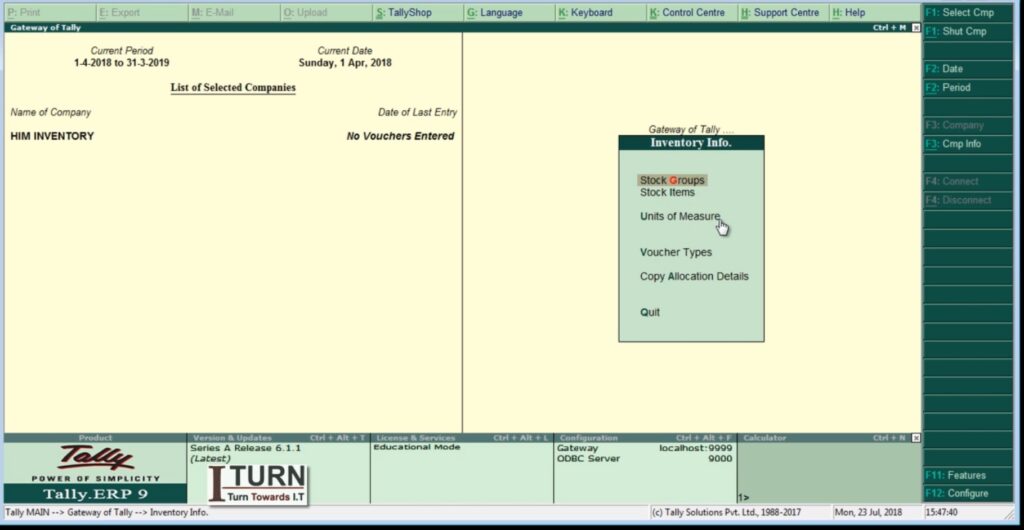
    • Go to Gateway of Tally > Inventory Info > Units of Measure to set up units of measure.
    • Next, navigate to Inventory Info > Stock Categories to define stock categories.
    • Then, go to Inventory Info > Stock Groups to create stock groups.
    • Finally, under Inventory Info > Stock Items, add sample inventory items with their respective units of measure, stock categories, and stock groups.

    Solution 2: Purchase Entry

    • Go to Gateway of Tally > Accounting Vouchers > F9: Purchase.
    • Enter the supplier’s invoice number, date, and other relevant details.
    • Select the inventory items purchased along with their quantities, rates, and applicable taxes.
    • Save the voucher to record the purchase transaction and update the inventory stock.

    Solution 3: Sales Entry

    • Navigate to Gateway of Tally > Accounting Vouchers > F8: Sales.
    • Enter the customer’s invoice number, date, and other necessary details.
    • Choose the inventory items sold with their quantities, rates, and applicable taxes.
    • Save the voucher to record the sales transaction and update the inventory stock.

    Solution 4: Inventory Reorder Level

    • Go to Gateway of Tally > Inventory Info > Reorder Levels.
    • Set up reorder levels for each inventory item by specifying the minimum quantity to maintain.
    • Generate the Reorder Level report from Inventory Info to view items falling below the reorder level.

    Solution 5: Inventory Valuation

    • Explore different methods of inventory valuation such as FIFO, LIFO, and Weighted Average.
    • Use the appropriate features in Tally ERP 9 to calculate inventory valuation based on each method.
    • Compare the valuation results to understand the impact on financial statements.

    Solution 6: Inventory Aging Analysis

    • Generate an Inventory Aging report from Inventory Info to analyze the age of inventory items.
    • Classify inventory items based on their age ranges (e.g., 0-30 days, 31-60 days, etc.).
    • Interpret the report to identify slow-moving or obsolete inventory items that may need attention.

    Solution 7: Inventory Adjustment

    • Go to Gateway of Tally > Inventory Vouchers > F7: Stock Journal.
    • Record inventory adjustments by increasing or decreasing the quantity of affected items.
    • Provide reasons for adjustments such as damages, losses, or thefts.
    • Analyze the impact of adjustments on inventory valuation and financial statements.

    These solutions provide step-by-step guidance on how to perform each task in Tally ERP 9 related to inventory management.

    Professional Online Course

  • Mastering Inventory Management in Tally ERP 9

    Managing inventory information in Tally ERP 9 involves creating and organizing stock groups, stock categories, stock items, units of measurement, godowns, batch numbers, and recording stock transactions. Here are detailed steps along with five practical examples:

    Steps for Managing Inventory Information:

    Step 1: Creating Stock Groups
    1. Go to Gateway of Tally > Inventory Info > Stock Groups.
    2. Select “Create” (Alt + C) to create a new stock group.
    3. Enter the Name of the stock group (e.g., Electronics) and Subgroup if needed.
    4. Save the details (Ctrl + A).
    Step 2: Creating Stock Categories
    1. Go to Gateway of Tally > Inventory Info > Stock Categories.
    2. Select “Create” (Alt + C) to create a new stock category.
    3. Enter the Name of the stock category (e.g., Mobile Phones) and select the parent stock group (Electronics).
    4. Save the details (Ctrl + A).
    Step 3: Creating Stock Items
    1. Go to Gateway of Tally > Inventory Info > Stock Items.
    2. Select “Create” (Alt + C) to create a new stock item.
    3. Enter the Name of the stock item (e.g., iPhone 12 Pro) and select the parent stock category (Mobile Phones).
    4. Specify details like Units of Measurement, Standard Rate, etc.
    5. Save the details (Ctrl + A).
    Step 4: Creating Units of Measurement (UOM)
    1. Go to Gateway of Tally > Inventory Info > Units of Measurement.
    2. Select “Create” (Alt + C) to create a new unit of measurement (e.g., Dozen).
    3. Enter the Symbol and Full Form for the unit (Dozen).
    4. Save the details (Ctrl + A).
    Step 5: Creating Godowns
    1. Go to Gateway of Tally > Inventory Info > Godowns.
    2. Select “Create” (Alt + C) to create a new godown (e.g., Main Warehouse).
    3. Enter the Name and Address of the godown.
    4. Save the details (Ctrl + A).
    Step 6: Enabling Batch Numbers
    1. Go to Gateway of Tally > F11: Features > F2: Inventory Features.
    2. Enable the option “Maintain Batch-wise Details.”
    3. Save the settings (Ctrl + A).

    Practical Examples:

    Example 1: Stock Transfer Between Godowns
    1. Go to Gateway of Tally > Inventory Vouchers > F7: Stock Journal.
    2. Select the source and destination godowns.
    3. Enter the stock item details and quantity.
    4. Save the voucher (Ctrl + A).
    Example 2: Stock Receipt (Purchase) with Batch Number
    1. Go to Gateway of Tally > Inventory Vouchers > F9: Purchase.
    2. Select the supplier, stock item, and enter quantity and rate.
    3. Enable batch details, enter batch numbers, and save the voucher (Ctrl + A).
    Example 3: Stock Issuance (Sales) with Batch Number
    1. Go to Gateway of Tally > Inventory Vouchers > F8: Sales.
    2. Select the customer, stock item, and enter quantity and rate.
    3. Enable batch details, select the appropriate batch, and save the voucher (Ctrl + A).
    Example 4: Stock Adjustment for Damaged Goods
    1. Go to Gateway of Tally > Inventory Vouchers > F7: Stock Journal.
    2. Select the stock item and adjust quantity for damaged goods.
    3. Save the voucher (Ctrl + A).
    Example 5: Stock Opening Balances Entry
    1. Go to Gateway of Tally > Inventory Info > Opening Balances.
    2. Select the stock item, enter opening quantity, and rate.
    3. Specify godown details if applicable and save (Ctrl + A).

    These steps and examples provide a comprehensive guide for managing inventory information in Tally ERP 9, covering stock groups, stock categories, stock items, units of measurement, godowns, batch numbers, and various stock transactions.

  • Inventory Management in Tally ERP 9

    Inventory information in Tally ERP 9 encompasses a range of data related to the management of goods, products, and materials within a business. It allows businesses to track stock levels, monitor inventory movements, and manage purchase and sales orders efficiently. Here’s a detailed explanation of inventory information in Tally ERP 9:

    Components of Inventory Information:

    1. Stock Groups:
    • Stock groups are categories used to classify similar types of products or items.
    • For example, you might have stock groups like “Electronics,” “Clothing,” “Stationery,” etc.
    2. Stock Categories:
    • Stock categories are further subdivisions within stock groups.
    • They help in organizing inventory hierarchically.
    • For example, within the “Electronics” stock group, you might have categories like “Mobile Phones,” “Laptops,” “Televisions,” etc.
    3. Stock Items:
    • Stock items are individual products or items that the business buys, sells, or manufactures.
    • Each stock item has a unique name, code, and other attributes.
    • For example, within the “Mobile Phones” category, specific stock items might include “iPhone 12 Pro,” “Samsung Galaxy S21,” etc.
    4. Units of Measurement:
    • Units of measurement define how quantities of stock items are measured and represented.
    • Tally ERP 9 supports various units of measurement such as pieces, kilograms, meters, liters, etc.
    • For example, a stock item like “Pencil” might have units of measurement like “Dozen” or “Each.”
    5. Godowns:
    • Godowns are physical locations where inventory is stored or managed.
    • They can represent warehouses, storage facilities, or any other designated storage areas.
    • For example, you might have godowns named “Main Warehouse,” “Retail Store,” “Backroom,” etc.
    6. Batch Numbers:
    • Batch numbers are used to track and manage groups of identical items that were produced or received together.
    • They are particularly useful for products with expiration dates or manufacturing dates.
    • For example, pharmaceuticals, food items, and cosmetics often use batch numbers for tracking purposes.
    7. Stock Vouchers:
    • Stock vouchers are used to record inventory-related transactions such as stock transfers, stock receipts, stock issuances, and stock adjustments.
    • These vouchers ensure accurate recording of inventory movements within the business.

    Features of Inventory Information in Tally ERP 9:

    • Stock Valuation: Tally ERP 9 supports various methods of stock valuation including FIFO (First In First Out), LIFO (Last In First Out), Weighted Average, and Standard Cost.
    • Stock Aging Analysis: Businesses can analyze the age of their inventory to identify slow-moving or obsolete stock items.
    • Inventory Reports: Tally ERP 9 provides a range of inventory reports such as stock summary, stock item-wise reports, godown-wise reports, and batch-wise reports for effective inventory management.
    • Inventory Control: Businesses can set reorder levels, minimum stock levels, and maximum stock levels to ensure optimal inventory levels and prevent stockouts or overstock situations.

    Overall, inventory information in Tally ERP 9 plays a critical role in managing and controlling the flow of goods and materials within a business, ultimately contributing to efficient operations and improved financial performance.