The Quick Access Toolbar (QAT) is a small, customizable toolbar located above or below the Ribbon in Microsoft Excel. It allows you to add your most-used commands so they’re always easily accessible, no matter which tab you’re on.
📍 Where to Find It
By default, you’ll find it at the top-left corner of the Excel window, right above the File tab and Ribbon.
You can move it below the Ribbon if you prefer.
🛠️ Why Use the Quick Access Toolbar?
- Saves time by giving 1-click access to commonly used actions
- Works in all Excel tabs (you don’t need to switch tabs to find a command)
- Fully customizable — you can add, remove, or reorder commands
✅ How to Customize the Quick Access Toolbar
🔹 Step 1: Open the Customization Menu
- Click the downward arrow icon at the right end of the Quick Access Toolbar
- Or right-click on any command in the Ribbon and choose “Add to Quick Access Toolbar”
🔹 Step 2: Choose Built-in Commands
From the dropdown list, you can quickly add:
- Save
- Undo
- Redo
- Quick Print
- Sort Ascending/Descending
- More Commands…
🔹 Step 3: Add More Commands (Advanced)
- Click on “More Commands…”
- In the Excel Options window that opens:
- On the left side: Choose commands to add
- On the right side: See your current toolbar items
- You can choose from:
- Popular Commands
- Commands Not in the Ribbon
- All Commands
- Macros (if you have any)
- Select a command and click Add >>
- Click OK to apply
🔄 Move or Reset the Toolbar
🔁 Move Below the Ribbon:
- Click the dropdown arrow → Show Below the Ribbon
🔁 Reset to Default:
- Right-click on the toolbar → Reset Quick Access Toolbar
🎯 Practical Examples
Example 1: Add “Sort A to Z” Button
- Go to the Data tab → Right-click “Sort A to Z” → Choose “Add to Quick Access Toolbar”
Example 2: Add a Macro Button
- Customize → Choose “Macros” from dropdown → Select your macro → Add it
- Optionally, change the icon or name for clarity
🔐 Tip: Use Keyboard Shortcuts with QAT
Each Quick Access Toolbar command gets a keyboard shortcut like:
Alt + 1,Alt + 2, etc.
(depending on the position of the item in the toolbar)
So if “Save” is the first item, you can press Alt + 1 to save instantly.
📝 Summary
| Feature | Benefit |
|---|---|
| Add Custom Commands | 1-click access to frequent tools |
| Always Visible | No need to switch Ribbon tabs |
| Keyboard Friendly | Use Alt + Number shortcuts |
| Supports Macros | Add your own automated tasks |
💡 Pro Tip
You can export your Quick Access Toolbar settings and import them on another PC. This is useful if you use Excel across devices or in teams.
Top rated products
-
MS Office Online Course: Basic to Advance Level
Original price was: ₹2,999.00.₹2,499.00Current price is: ₹2,499.00. -

The Psychology of Money: Timeless Lessons on Wealth, Greed, and Happiness
-
Mastering Excel Automation: Excel VBA Training Course for Proficiency and Efficiency
Original price was: ₹2,299.00.₹1,999.00Current price is: ₹1,999.00. -
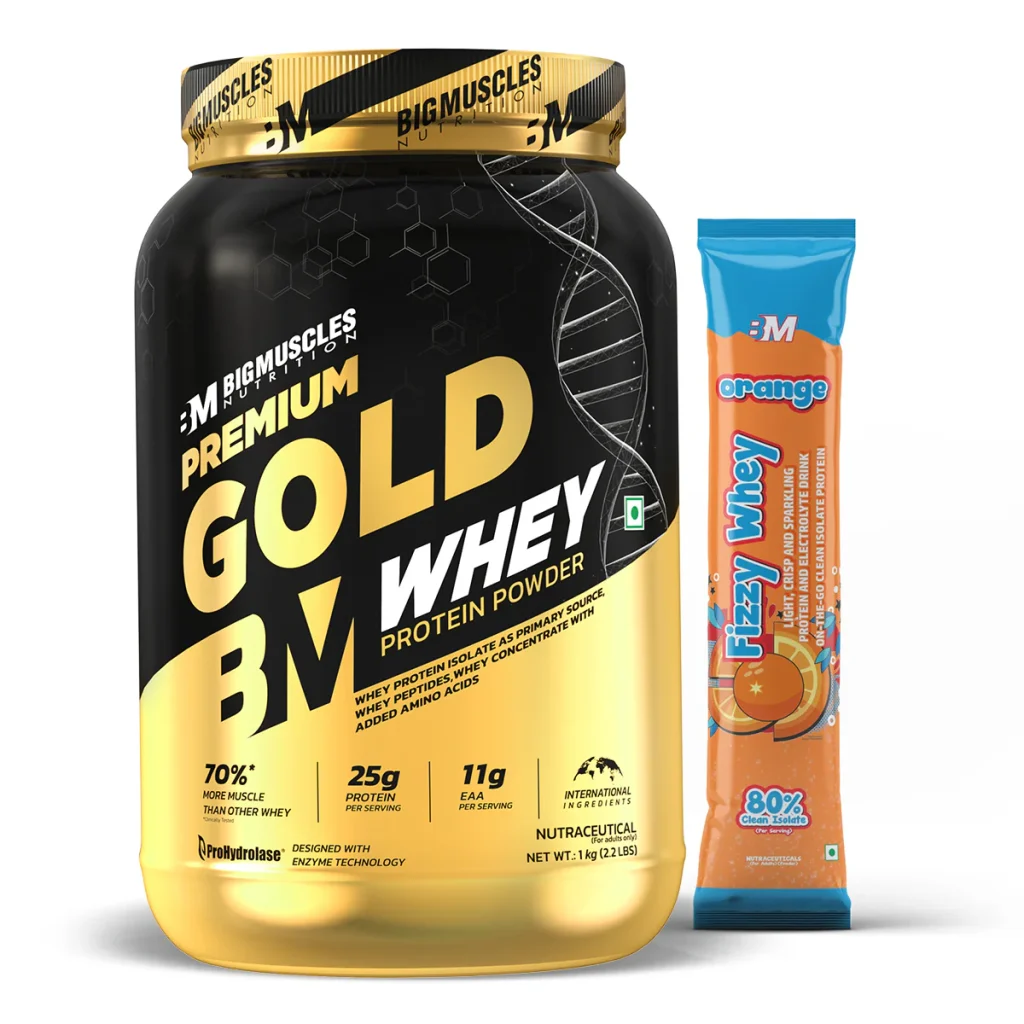
Premium Gold Whey Protein
-

Lenovo SmartChoice Chromebook (82UY0014HA) – Compact & Affordable Everyday Laptop