Tag: Accounting Software India

  • 100 Essential Ledger Accounts for a Logistics Company with Tally Prime Groups & Setup Guide

    ✅ What Are Ledgers?

    Ledgers in accounting are books or digital records where all financial transactions related to a particular account (e.g., fuel expense, customer, vendor) are recorded.


    🧾 100 Ledger Names for a Logistics Company (Categorized)

    🔹 Assets (Group: Assets)

    Ledger NameGroup
    1. Cash in Hand | Cash-in-Hand
    2. Cash at Bank – ICICI | Bank Accounts
    3. Cash at Bank – HDFC | Bank Accounts
    4. Accounts Receivable – ABC Pvt Ltd | Sundry Debtors
    5. Accounts Receivable – XYZ Logistics | Sundry Debtors
    6. Fixed Assets – Office Equipment | Fixed Assets
    7. Fixed Assets – Vehicles | Fixed Assets
    8. Fixed Assets – Computers | Fixed Assets
    9. Fuel Inventory | Stock-in-Hand
    10. Tyres Inventory | Stock-in-Hand
    11. Prepaid Insurance | Current Assets
    12. Prepaid Maintenance | Current Assets
    13. Input GST | Duties & Taxes
    14. TDS Receivable | Current Assets
    15. Advances to Staff | Loans & Advances (Asset)

    🔹 Liabilities (Group: Liabilities)

    Ledger NameGroup
    1. Accounts Payable – DEF Transporters | Sundry Creditors
    2. Accounts Payable – LMN Fuel Suppliers | Sundry Creditors
    3. TDS Payable | Duties & Taxes
    4. GST Payable | Duties & Taxes
    5. Loan – HDFC | Secured Loans
    6. Loan – ICICI | Secured Loans
    7. Provident Fund Payable | Current Liabilities
    8. ESI Payable | Current Liabilities
    9. Salary Payable | Current Liabilities
    10. Bonus Payable | Current Liabilities

    🔹 Income (Group: Indirect Incomes)

    Ledger NameGroup
    1. Freight Income – Domestic | Sales Accounts
    2. Freight Income – International | Sales Accounts
    3. Loading Charges Income | Indirect Incomes
    4. Warehousing Income | Indirect Incomes
    5. Handling Charges Income | Indirect Incomes
    6. Demurrage Income | Indirect Incomes
    7. Detention Charges Received | Indirect Incomes
    8. Packaging Income | Indirect Incomes
    9. Customs Clearance Income | Indirect Incomes
    10. Other Miscellaneous Income | Indirect Incomes

    🔹 Expenses (Group: Indirect Expenses)

    Ledger NameGroup
    1. Fuel Expense | Indirect Expenses
    2. Vehicle Maintenance | Indirect Expenses
    3. Toll Charges | Indirect Expenses
    4. Insurance – Vehicle | Indirect Expenses
    5. Insurance – Office | Indirect Expenses
    6. Driver Salary | Indirect Expenses
    7. Cleaner Salary | Indirect Expenses
    8. Staff Salary | Indirect Expenses
    9. Bonus Expense | Indirect Expenses
    10. Conveyance | Indirect Expenses
    11. Office Rent | Indirect Expenses
    12. Godown Rent | Indirect Expenses
    13. Electricity Charges | Indirect Expenses
    14. Water Charges | Indirect Expenses
    15. Telephone Expenses | Indirect Expenses
    16. Mobile Expenses | Indirect Expenses
    17. Internet Expenses | Indirect Expenses
    18. Postage & Courier | Indirect Expenses
    19. Printing & Stationery | Indirect Expenses
    20. Legal & Professional Fees | Indirect Expenses
    21. Audit Fees | Indirect Expenses
    22. Bank Charges | Indirect Expenses
    23. Loading & Unloading Expense | Indirect Expenses
    24. Packaging Expense | Indirect Expenses
    25. Demurrage Charges Paid | Indirect Expenses
    26. Detention Charges Paid | Indirect Expenses
    27. Security Charges | Indirect Expenses
    28. Repairs – Building | Indirect Expenses
    29. Repairs – Equipment | Indirect Expenses
    30. Repairs – Vehicles | Indirect Expenses
    31. Training Expenses | Indirect Expenses
    32. Marketing & Advertisement | Indirect Expenses
    33. Business Promotion | Indirect Expenses
    34. Licenses & Permits | Indirect Expenses
    35. IT Support Charges | Indirect Expenses
    36. Software Subscription | Indirect Expenses
    37. ERP Charges | Indirect Expenses
    38. Interest on Loan – HDFC | Indirect Expenses
    39. Interest on Loan – ICICI | Indirect Expenses
    40. Penalty Charges | Indirect Expenses
    41. Miscellaneous Expenses | Indirect Expenses

    🔹 Customers (Group: Sundry Debtors)

    Ledger NameGroup
    1. ABC Pvt Ltd | Sundry Debtors
    2. XYZ Logistics | Sundry Debtors
    3. JKL Exporters | Sundry Debtors
    4. MNO Traders | Sundry Debtors
    5. PQR Enterprises | Sundry Debtors
    6. STU Distributors | Sundry Debtors
    7. VWX Manufacturers | Sundry Debtors
    8. BCD Retailers | Sundry Debtors
    9. HIJ Warehousing | Sundry Debtors
    10. LMN Shipping | Sundry Debtors

    🔹 Vendors (Group: Sundry Creditors)

    Ledger NameGroup
    1. Diesel Supplier – Reliance | Sundry Creditors
    2. Diesel Supplier – HP | Sundry Creditors
    3. Spare Parts Supplier – ABC Auto | Sundry Creditors
    4. Tyre Supplier – MRF | Sundry Creditors
    5. Insurance – ICICI Lombard | Sundry Creditors
    6. Mechanic – Local Garage | Sundry Creditors
    7. Transport Union Fees | Sundry Creditors
    8. Toll Vendor – FASTag | Sundry Creditors
    9. Loading Labor Contractor | Sundry Creditors
    10. Internet Provider – Airtel | Sundry Creditors
    11. Security Contractor | Sundry Creditors
    12. Advertising Agency | Sundry Creditors
    13. Accounting Consultant | Sundry Creditors
    14. Legal Advisor | Sundry Creditors

    📌 How to Create a Ledger in Tally Prime

    Steps:

    1. Gateway of Tally → Create → Ledger
    2. Enter:
      • Name of the ledger (e.g., “Fuel Expense”)
      • Group (e.g., “Indirect Expenses”)
      • Enable GST/TDS/Bank details if required
    3. If there’s any opening balance, enter it (positive for assets, negative for liabilities)
    4. Press Ctrl + A to save

    💼 When to Enter Opening Balances?

    • For Sundry Debtors/Creditors → Opening balance is the amount pending to be received/paid at the start of books.
    • For Cash/Bank → Enter the actual balance on the start date.
    • For Loans or Liabilities → Enter the outstanding amount as a negative balance.
    • For Assets like vehicles → Enter the book value at the time of starting Tally.

    ✅ Maintaining ledgers with proper groups ensures accurate reporting, correct GST calculations, and easy audit trail.


  • Vyapar GST Software vs Tally: Full Comparison, Features, Pricing & Benefits for Small Businesses

    I am presenting a detailed explanation and comparison of Vyapar GST Software as an alternative to Tally, covering everything from features, usability, training needs, support, and a full side-by-side comparison to help you understand if it’s the right choice for your business or students.


    📌 What is Vyapar GST Software?

    Vyapar is a GST-ready billing and accounting software designed primarily for small businesses, retailers, traders, and service providers in India. It’s known for its simplicity, mobile-first approach, and cost-effective pricing.

    Unlike Tally, which is desktop-heavy and accounting-centric, Vyapar is designed for ease of billing, inventory tracking, and GST compliance with minimal accounting complexity.


    ✅ Key Features of Vyapar GST Software

    FeatureDescription
    GST Billing & InvoicingCreate professional GST invoices with HSN/SAC, taxes, e-invoice format
    Inventory ManagementTrack stock levels, batches, expiry dates, and reordering alerts
    Mobile + Desktop AccessUse on Android and Windows (iOS is in progress)
    Offline CapabilityWorks without the internet; syncs data once reconnected
    ReportsProfit & loss, GST reports, GSTR-1, GSTR-3B, stock reports, customer ledgers
    Payments & RemindersTrack receivables, send payment reminders via WhatsApp/SMS
    Barcode & Thermal Printer SupportQuick billing via barcode scanners and small printers
    WhatsApp IntegrationShare invoices and reports with clients instantly
    Multi-user & Data BackupCloud sync option for teams and auto data backup to Google Drive
    App Lock & SecurityProtect app with PIN/password

    🎯 Why Vyapar is a Good Alternative to Tally

    CriteriaVyaparTally Prime
    Target UserSmall businesses, shopkeepers, freelancersSMEs, traders, accountants
    Ease of UseVery easy, no accounting knowledge neededModerate, requires accounting basics
    PlatformMobile & DesktopMostly Desktop
    Cloud SupportAvailable (optional add-on)Very limited
    GST ComplianceFully GST-compliant (GSTR1/3B reports)GST-compliant
    Inventory TrackingStrong for retail, with barcodes, expiry trackingAdvanced inventory with BOM, etc.
    Invoicing & BillingMobile-based quick billingDesktop-based billing
    CustomizationInvoice templates, app settingsMore depth but more complex
    SupportChat, call, in-app supportEmail/call support (strong offline partner network)
    Training RequirementMinimal to noneModerate to high (needs knowledge of ledgers, vouchers)
    Multi-User AccessYes (in cloud plan)Yes (in Gold version)
    Pricing₹399/year (basic), ₹1,999/year (advanced)₹18,000/year (single-user)

    💡 Ideal Use-Cases for Vyapar

    • Kirana stores
    • Mobile and electronics shops
    • Freelancers and consultants
    • Traders and local wholesalers
    • Businesses that want quick GST billing and stock tracking without deep accounting setups

    🎓 Training Requirement

    • Minimal learning curve – Designed for non-accountants
    • Most users can start billing within 30 minutes
    • Free resources and help articles inside the app
    • No need to understand vouchers, ledgers, or journal entries (unlike Tally)

    🛎 Support & Help

    • In-app chat and email support
    • Phone support available during working hours
    • Regular software updates
    • Help center with tutorials and videos
    • Cloud backup and restore for data protection

    🔐 Security & Data Backup

    • PIN lock and app lock for mobile users
    • Google Drive backup for cloud sync users
    • Offline mode protects from data loss due to internet issues

    💰 Pricing Comparison

    PlanVyaparTally Prime
    Basic₹399/year (mobile)N/A
    Advanced₹1,999/year (mobile + desktop)₹18,000/year (single-user)
    Multi-userAvailable with cloud version₹54,000/year (Gold)

    🏁 Final Verdict

    ✅ Choose Vyapar if:

    • You’re a small business or a retail shop
    • You prefer mobile billing with GST
    • You want low-cost software with minimal training needs
    • You need quick setup and no deep accounting skills

    ✅ Choose Tally if:

    • You’re an accounting professional or medium-sized business
    • You need detailed financial reports, payroll, or manufacturing modules
    • You are comfortable working on a desktop and dealing with ledgers/vouchers

    📎 Summary Chart: Vyapar vs Tally

    FeatureVyaparTally
    GST Billing✅✅
    Inventory Tracking✅ (simple)✅ (advanced)
    Desktop App✅✅
    Mobile App✅❌ (basic viewer)
    Cloud Sync✅ (optional)❌ (manual workaround)
    Multi-user Access✅✅ (only in Gold)
    Ease of Use⭐⭐⭐⭐⭐⭐⭐
    Suitable for Non-Accountants✅❌
    Training Needed❌✅
    Pricing (Annual)₹399–₹1,999₹18,000–₹54,000


    Vyapar GST Software for Billing, Inventory & Accounting| 3 year Combo plan (Desktop + Mobile) | Email delivery


    Top rated products

  • Top Tally Alternatives in India (2025): Pricing, Features, Pros & Market Share Comparison


    🇮🇳 Accounting Software Alternatives to Tally in India


    ✅ 1. TallyPrime (Tally Solutions)

    ➤ Overview:

    The dominant accounting software in India, especially in the SME and retail sector. Popular for GST compliance, offline functionality, and wide acceptance by accountants.

    ➤ Market Share:

    • Estimated to hold 70–90% of India’s accounting software market in the MSME sector.

    ➤ Pros:

    • Offline-first and reliable
    • Strong inventory and taxation features
    • Industry-standard format
    • Works well in low-connectivity environments

    ➤ Cons:

    • Desktop-based (limited cloud features)
    • Outdated UI compared to modern apps
    • Lacks real-time collaboration

    ➤ Pricing:

    • ₹18,000/year for single-user Silver license
    • ₹54,000/year for multi-user Gold license

    ✅ 2. Zoho Books

    ➤ Overview:

    A modern, cloud-based accounting platform developed by an Indian company. Designed for startups, freelancers, and small businesses.

    ➤ Market Share:

    • Single-digit percentage, but growing fast especially in urban and tech-savvy businesses.

    ➤ Pros:

    • Fully cloud-based and mobile-friendly
    • GST, e-invoice, e-waybill ready
    • Integrated with other Zoho tools (CRM, Inventory, Payroll)
    • Great UI and user experience

    ➤ Cons:

    • No offline access
    • Might not suit complex manufacturing needs

    ➤ Pricing:

    • Free for businesses under ₹25 lakh turnover
    • Paid plans from ₹899/month to ₹3,599/month

    ✅ 3. Marg ERP

    ➤ Overview:

    Focused on distributors, retailers, and pharma industries. Desktop-first but offers some cloud accessibility.

    ➤ Market Share:

    • Small, estimated under 5% nationally, but strong presence in pharma and FMCG sectors.

    ➤ Pros:

    • Industry-specific modules
    • Strong billing, inventory, and GST features
    • Customizable for business types

    ➤ Cons:

    • UI is dated
    • Requires local installation and support

    ➤ Pricing:

    • Starts from ₹7,200/year (desktop version)
    • Cloud starts from ₹12,000/year and varies by configuration

    ✅ 4. BUSY Accounting Software

    ➤ Overview:

    Desktop-based accounting tool popular among small manufacturers and traders.

    ➤ Market Share:

    • Low single-digit, mostly in Tier 2 & Tier 3 cities.

    ➤ Pros:

    • Strong reporting and inventory handling
    • Multi-branch and multi-location support
    • GST-compliant

    ➤ Cons:

    • Limited cloud access
    • Steep learning curve for new users

    ➤ Pricing:

    • ₹9,000 – ₹12,000 (one-time license)
    • Cloud version costs extra (~₹2,000/month)

    ✅ 5. Vyapar

    ➤ Overview:

    A mobile-first billing and accounting app aimed at small shops, freelancers, and micro-businesses.

    ➤ Market Share:

    • Fast-growing with wide adoption in small retail — estimated user base over 1 crore, though market share remains under 5%.

    ➤ Pros:

    • Simple, intuitive interface
    • Mobile and desktop support
    • Works offline
    • Affordable pricing

    ➤ Cons:

    • Lacks features for medium/large businesses
    • Not ideal for complex accounting needs

    ➤ Pricing:

    • Mobile version starts from ₹599/year
    • Desktop version ~₹2,399/year

    ✅ 6. myBillBook

    ➤ Overview:

    Designed for micro and small businesses for invoicing, billing, and basic accounting.

    ➤ Market Share:

    • Small but increasing rapidly in small business space, especially due to ease of use.

    ➤ Pros:

    • Easy invoice creation and sharing via WhatsApp
    • Barcode, inventory, and GST billing
    • Mobile-first solution

    ➤ Cons:

    • Not a full accounting suite
    • Limited financial reporting

    ➤ Pricing:

    • Basic: ₹399/year
    • Premium: ₹1,999/year

    ✅ 7. AlignBooks

    ➤ Overview:

    Indian-developed, cloud-first accounting and billing software with competitive pricing.

    ➤ Market Share:

    • Very small, but slowly expanding among startups and service professionals.

    ➤ Pros:

    • Web-based access from anywhere
    • Affordable
    • Payroll and POS options included
    • Multiple integrations

    ➤ Cons:

    • Still growing; fewer users
    • Limited offline support

    ➤ Pricing:

    • Free basic version
    • Paid plans: ₹250/month to ₹500/month

    ✅ 8. SAP Business One (India Localized)

    ➤ Overview:

    An enterprise-grade ERP with robust accounting, CRM, and inventory management features.

    ➤ Market Share:

    • Minimal in MSME; more in large organizations and corporates.

    ➤ Pros:

    • Highly scalable and secure
    • Extensive automation and reporting
    • Ideal for businesses with multiple verticals

    ➤ Cons:

    • Very expensive
    • Requires IT infrastructure and trained personnel

    ➤ Pricing:

    • Starts from ₹3–5 lakh/year (implementation + license)
    • Cloud options with monthly enterprise pricing also available

    🔢 Market Share Summary Table

    SoftwareEstimated Market ShareTarget Segment
    Tally70–90%SMEs, Traders, Accountants
    Zoho Books5–8% (growing)Startups, Freelancers, Online Biz
    Marg ERP~3–5%Pharma, FMCG, Retail
    BUSY~2–4%Manufacturers, Traders
    Vyapar<5% (high users)Kirana stores, Small shops
    myBillBook<3%Micro-business, Billing focused
    AlignBooks<2%Service providers, Startups
    SAP B1NicheEnterprises, Corporates

    🧾 Final Verdict

    • Tally is still the king but slowly being challenged by modern, cloud-based, or mobile-first tools.
    • Zoho Books and Vyapar are emerging stars for tech-savvy and mobile-first users.
    • Marg and BUSY serve niche needs well, especially in retail and manufacturing.
    • AlignBooks and myBillBook are worth watching for smaller setups needing value for money.


    TallyPrime Silver – Lifetime license for Single user/PC – Accounting, GST, Invoice, Inventory, MIS & more (No CD. E-mail delivery in 2 hours)


  • The Fall of QuickBooks in India: What Went Wrong and How Tally Benefited


    🧾 Why QuickBooks Shut Down in India

    1. Lack of Market Fit

    QuickBooks, though globally popular, couldn’t align with the unique business environment of India. Indian small and medium businesses (SMEs) have different needs—many still prefer offline tools, handwritten bills, and one-time licenses over monthly subscriptions. QuickBooks offered a cloud-based, subscription-only model that didn’t match the comfort zone of Indian users.


    2. Low User Base and Profitability

    QuickBooks never gained significant traction in India. Despite years of presence, its user base remained quite limited. The cost of maintaining operations, support, and compliance updates far outweighed the revenue generated from this small segment. It simply wasn’t profitable to continue investing in a market where growth was stagnant.


    3. Challenges with Indian Tax Compliance

    India’s tax environment—especially after GST—became more complex. Businesses had to deal with TDS, GST returns, e-invoicing, and regular changes in tax formats. QuickBooks, being a product originally built for Western markets, often lagged in adapting to Indian regulations on time. Indian businesses couldn’t afford this delay, and many migrated to tools that were always up-to-date with local compliance.


    4. Limited Local Support

    Indian users often expect quick, regional-language support—especially when it comes to financial software. QuickBooks’ support system was largely centralized, with limited availability for regional needs. Local businesses found it difficult to get hands-on assistance, which affected trust.


    5. Competition from Indian Players

    Tally, Zoho, and other Indian accounting solutions were already well-established and deeply embedded in the local business ecosystem. These tools offered offline functionality, flexible pricing, localized tax settings, and wider CA adoption. In contrast, QuickBooks felt like an “imported” solution with limited cultural and functional alignment.


    6. Resistance from Chartered Accountants

    In India, Chartered Accountants (CAs) play a huge role in business decision-making. Most CAs are trained in Tally and recommend it by default. Even when companies tried to switch to QuickBooks, they found friction with their accountants who insisted on using Tally. This indirect influence made it even harder for QuickBooks to gain market depth.


    7. Technical Hurdles

    There were other background issues too—compliance with Indian payment gateways, two-factor authentication norms, and bank integrations, which created friction for QuickBooks’ global infrastructure. Local tools already had these sorted, putting QuickBooks at a disadvantage.


    📈 How Tally Benefited from QuickBooks’ Exit

    1. Immediate Market Advantage

    The moment QuickBooks announced its closure in India, Tally became the first choice for migration. Businesses wanted a stable and trusted alternative. Since Tally already had the trust of Indian professionals, it naturally absorbed much of QuickBooks’ displaced user base.


    2. Migration Assistance

    Tally offered detailed guides, tools, and partner-led services to help businesses shift from QuickBooks with minimal disruption. This proactive move made businesses feel supported during the transition and further solidified Tally’s reputation.


    3. Built-In Compliance and Localization

    Tally had long been known for its built-in support for GST, TDS, TCS, audit-ready reports, e-invoicing, and MCA formats. These features gave Tally an edge, especially as Indian compliance needs kept changing frequently. Businesses no longer needed third-party plugins or custom setups—they got everything in one platform.


    4. One-Time License Model

    Unlike subscription-based tools, Tally allows users to buy the software outright—a big win for Indian SMEs. Many businesses prefer upfront costs over ongoing monthly charges, making Tally more financially convenient.


    5. Strong CA and Dealer Network

    Tally’s widespread presence among accountants, trainers, resellers, and institutes meant that anyone needing help could easily find it—either online or through a local expert. This deep network gave it unmatched grassroots support across urban and rural India.


    6. Trust Built Over Two Decades

    Tally is not just software—it’s a name synonymous with accounting in India. For many businesses, moving back to Tally wasn’t a new experience—it was like returning home. That brand trust made it the natural winner after QuickBooks’ departure.


    🧩 Final Thoughts

    QuickBooks entered India with promise, but misaligned pricing, regulatory delays, limited support, and cultural mismatches led to its exit. Tally, on the other hand, continued to serve Indian businesses with a local-first mindset, practical features, and deep ecosystem support. The exit of QuickBooks gave Tally the chance to reinforce its dominance—and it made the most of it.


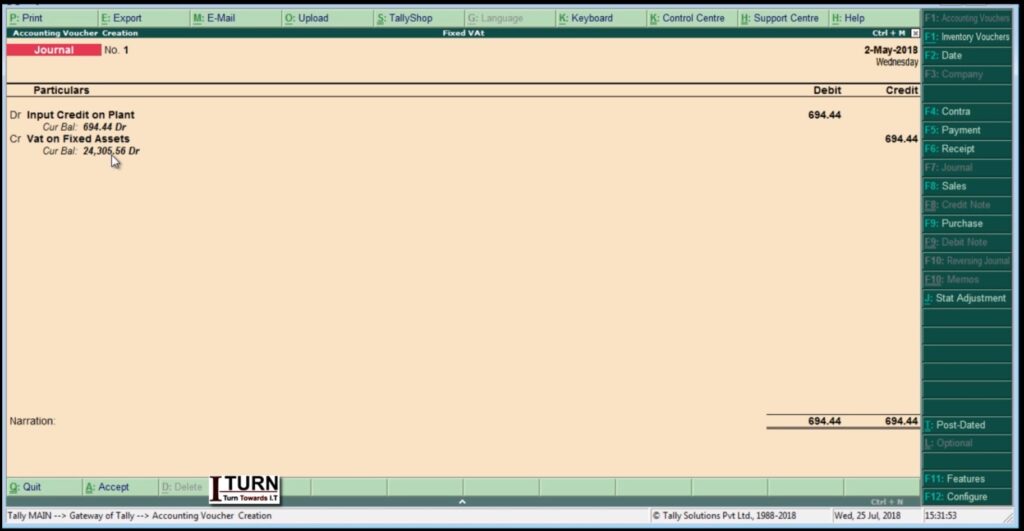
  • Applying VAT on Fixed Assets in Tally.ERP 9 – Step-by-Step Tutorial with Examples

    In Tally.ERP 9, applying VAT (Value Added Tax) on fixed assets involves a few steps. Here’s a comprehensive guide on how to apply VAT on fixed assets in Tally.ERP 9:

    Step 1: Creating Fixed Assets Ledger:

    1. Go to Gateway of Tally > Accounts Info > Ledger > Create.
    2. Create a ledger named “Fixed Assets” under the group “Fixed Assets”.

    Step 2: Enabling VAT in Tally.ERP 9:

    1. Go to Gateway of Tally > F11: Features > F3: Statutory & Taxation.
    2. Enable VAT by selecting “Yes” in the option “Enable Value Added Tax (VAT)?”

    Step 3: Creating VAT Ledger:

    1. Go to Gateway of Tally > Accounts Info > Ledger > Create.
    2. Create a ledger named “VAT @ X%” (replace X with your applicable VAT rate) under the group “Duties & Taxes”.

    Step 4: Recording Purchase of Fixed Asset with VAT:

    1. Go to Gateway of Tally > Accounting Vouchers > F9: Purchase.
    2. Enter the date of purchase, supplier invoice number, and other details.
    3. Debit the “Fixed Assets” ledger with the total amount (excluding VAT).
    4. Debit the “VAT @ X%” ledger with the VAT amount.
    5. Credit the supplier’s ledger with the total amount (including VAT).

    Step 5: Calculating Input VAT Credit:

    1. Go to Gateway of Tally > Display > Statutory Reports > VAT > VAT Computation.
    2. Check the Input VAT credit available against the VAT ledger.

    Step 6: Adjusting Input VAT Credit:

    1. Go to Gateway of Tally > Accounting Vouchers > F7: Journal.
    2. Debit the Input VAT ledger and credit the VAT Payable ledger to adjust the input VAT credit against the VAT liability.

    Step 7: Calculating Depreciation:

    1. Go to Gateway of Tally > Accounts Info > Ledger > Create.
    2. Create a ledger named “Depreciation” under the group “Indirect Expenses”.
    3. Record depreciation entries as per the applicable rates and methods.

    Step 8: Recording Sale of Fixed Asset:

    1. Go to Gateway of Tally > Accounting Vouchers > F8: Sales.
    2. Enter the date of sale, buyer details, and other necessary information.
    3. Debit the buyer’s ledger with the sales amount (excluding VAT).
    4. Credit the “Fixed Assets” ledger with the original purchase cost.
    5. Credit the “VAT @ X%” ledger with the VAT amount charged on the sale.

    Step 9: Paying VAT Liability:

    1. Go to Gateway of Tally > Display > Statutory Reports > VAT > VAT Challan Reconciliation.
    2. Check the VAT payable amount.
    3. Go to Gateway of Tally > Accounting Vouchers > F5: Payment.
    4. Debit the VAT Payable ledger and credit the bank ledger for paying the VAT liability.

    Step 10: Updating VAT Returns:

    1. Go to Gateway of Tally > Display > Statutory Reports > VAT > VAT Returns.
    2. Generate VAT returns and file them as per legal requirements.

    Throughout these steps, ensure compliance with VAT regulations and consult with a tax advisor if needed.


    Professional Courses

  • Setting Up and Executing Purchase Order Processes in Tally ERP 9

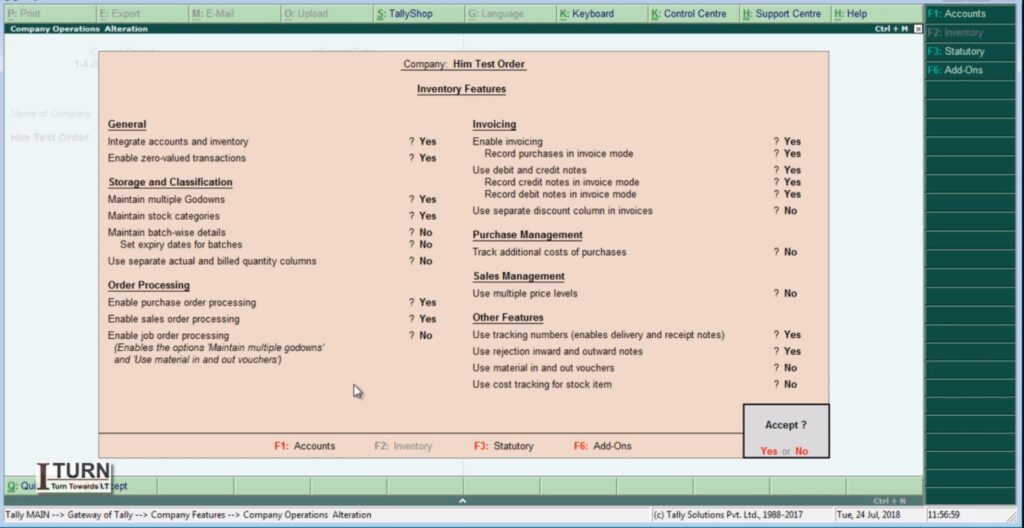
    Before performing the entries related to purchase orders, receipt notes, rejection outs, purchase bills, and debit notes in Tally ERP 9, it’s important to ensure that relevant features are activated. Here’s how you can activate these features:

    1. Enable Inventory Management:

    1. Go to Gateway of Tally.
    2. Select ‘F11: Features’ or press F11.
    3. Under ‘F1: Accounting Features’, ensure that ‘Maintain Accounts only’ is set to ‘No’.
    4. Set ‘Maintain Inventory’ to ‘Yes’.

    2. Set Up Inventory Features:

    1. Go to Gateway of Tally.
    2. Select ‘F11: Features’ or press F11.
    3. Under ‘F2: Inventory Features’, ensure that the required options such as ‘Maintain Multiple Godowns’, ‘Use Tracking Numbers (Batch Numbers)’, ‘Use Expiry Dates for Batches’, etc., are set according to your business needs.

    3. Configure Purchase and Sales Vouchers:

    1. Go to Gateway of Tally.
    2. Select ‘F12: Configure’ or press F12.
    3. Under ‘Accounting Features’, ensure that ‘Allow Purchase Orders’ and ‘Allow Sales Orders’ are set to ‘Yes’.

    4. Activate Rejection In and Out Vouchers:

    1. Go to Gateway of Tally.
    2. Select ‘F11: Features’ or press F11.
    3. Under ‘Inventory Features’, ensure that ‘Enable Rejection In/Out Voucher’ is set to ‘Yes’.

    5. Enable Debit and Credit Notes:

    1. Go to Gateway of Tally.
    2. Select ‘F11: Features’ or press F11.
    3. Under ‘Accounting Features’, ensure that ‘Enable Invoicing’ is set to ‘Yes’.
    4. Additionally, check if ‘Use Rejection In/Out for Purchase Returns’ and ‘Use Debit/Credit Notes’ are set to ‘Yes’ as required.

    6. Set Up Stock Groups, Stock Categories, and Units of Measure:

    1. Go to Gateway of Tally.
    2. Under ‘Inventory Info’, set up stock groups, stock categories, and units of measure as per your business requirements.

    7. Configure Godowns (if applicable):

    1. Go to Gateway of Tally.
    2. Under ‘Inventory Info’, set up multiple godowns if your business involves maintaining inventory at different locations.

    By activating these features and configuring settings in Tally ERP 9, you ensure that the software is ready to handle inventory management, purchase orders, sales orders, rejection vouchers, purchase bills, and debit notes efficiently. This setup enables seamless recording and tracking of transactions related to inventory and purchase/sales operations.

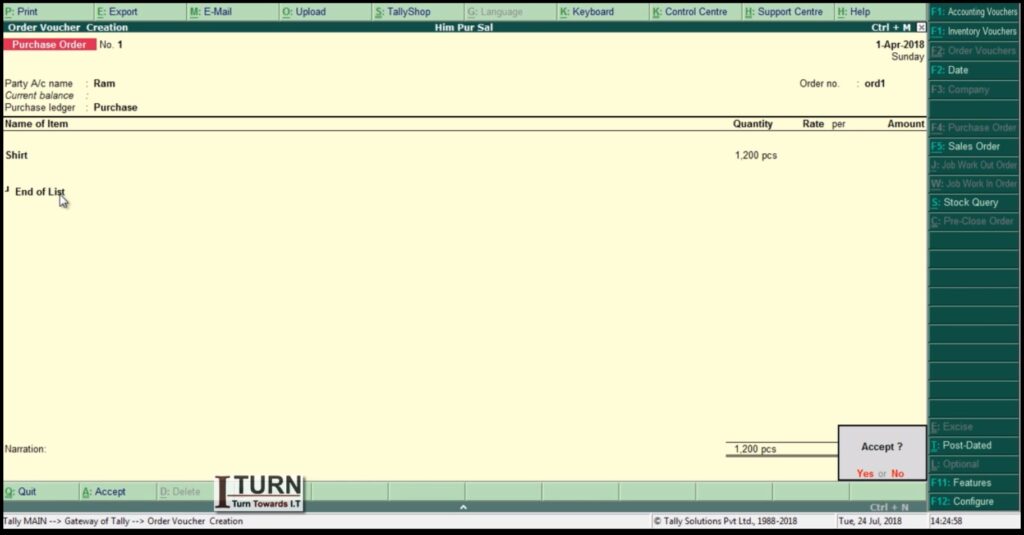
    1. Purchase Order (PO):

    Definition: A purchase order is a document issued by a buyer to a seller, specifying the details of the goods or services the buyer intends to purchase.

    Steps to Create a Purchase Order in Tally ERP 9:

    1. Navigate to Gateway of Tally > Inventory Vouchers > F4: Purchase Order.
    2. Enter the purchase order number, date, and other relevant details.
    3. Select the supplier/vendor from the list.
    4. Enter details of the items to be purchased including quantity, rate, and any applicable taxes.
    5. Save the purchase order.

    Example: Let’s say your company, XYZ Enterprises, needs to purchase 100 units of Product A from Supplier ABC at a rate of $10 per unit. The purchase order would specify these details along with other terms such as delivery date and payment terms.

    2. Receipt Note:

    Definition: A receipt note is prepared by the buyer upon receiving goods from the seller. It serves as acknowledgment of receipt of goods.

    Steps to Create a Receipt Note in Tally ERP 9:

    1. Go to Gateway of Tally > Inventory Vouchers > F9: Purchase Order.
    2. Select the purchase order for which goods have been received.
    3. Enter the receipt note number, date, and other relevant details.
    4. Specify the quantity and condition of goods received.
    5. Save the receipt note.

    Example: Using the previous example, if Supplier ABC delivers 100 units of Product A, XYZ Enterprises creates a receipt note to acknowledge the receipt of these goods.

    3. Rejection Out:

    Definition: If the goods received are damaged or do not meet the buyer’s specifications, a rejection out voucher is prepared to return the goods to the seller.

    Steps to Create a Rejection Out Voucher in Tally ERP 9:

    1. Navigate to Gateway of Tally > Inventory Vouchers > F6: Rejection Out.
    2. Select the receipt note against which goods are to be rejected.
    3. Specify the quantity and condition of goods being returned.
    4. Save the rejection out voucher.

    Example: If XYZ Enterprises finds that 10 units of Product A received from Supplier ABC are damaged, they create a rejection out voucher to return these 10 units to the supplier.

    4. Purchase Bill:

    Definition: A purchase bill is issued by the seller to the buyer, requesting payment for the goods or services supplied.

    Steps to Create a Purchase Bill in Tally ERP 9:

    1. Go to Gateway of Tally > Accounting Vouchers > F9: Purchase.
    2. Select the supplier/vendor from the list.
    3. Enter the purchase bill number, date, and other relevant details.
    4. Specify the details of the items purchased including quantity, rate, and taxes.
    5. Save the purchase bill.

    Example: Supplier ABC sends a purchase bill to XYZ Enterprises for the 90 units of Product A that were accepted.

    5. Debit Note:

    Definition: If there are discrepancies in the purchase bill, such as overcharging or damaged goods, the buyer may issue a debit note to the seller requesting adjustments to the amount owed.

    Steps to Create a Debit Note in Tally ERP 9:

    1. Navigate to Gateway of Tally > Accounting Vouchers > F7: Journal.
    2. Select Debit Note as the voucher type.
    3. Enter the debit note number, date, and other relevant details.
    4. Specify the reason for issuing the debit note and the amount to be adjusted.
    5. Save the debit note.

    Example: If XYZ Enterprises finds that Supplier ABC has overcharged for 5 units of Product A, they issue a debit note requesting a reduction in the purchase amount accordingly.

    These are the stages and voucher entries involved in the purchase order process in Tally ERP 9. Each step ensures proper documentation and tracking of transactions between the buyer and the seller.

    Check Reports

    After completing the entries for purchase orders, receipt notes, rejection out, purchase bills, and debit notes in Tally ERP 9, you can check various stock-related aspects including reports to ensure accurate inventory management. Here’s where you can find relevant information and reports:

    Stock Summary:
    • Go to Gateway of Tally > Display > Inventory Books > Stock Summary.
    • This report provides a summary of all stock items, including their opening balance, inward and outward movements, and closing balance.
    Stock Item Vouchers:
    • Navigate to Gateway of Tally > Display > Inventory Books > Stock Item Vouchers.
    • Here, you can view all transactions related to a specific stock item including purchase orders, receipts, sales, rejection outs, etc.
    Inventory Reports:
    • Under Gateway of Tally > Display > Inventory Books, you can access various reports such as Stock Item Vouchers, Movement Analysis, and Inventory Ageing Analysis.
    • These reports provide insights into the movement and status of inventory items over time.
    Stock Query:
    • You can use the Stock Query feature in Tally ERP 9 to check the availability, location, and other details of specific stock items.
    • Go to Gateway of Tally > Display > Inventory Books > Stock Query.
    Stock Valuation Reports:
    • To analyze the valuation of your inventory, you can access reports such as Stock Valuation Summary and Stock Valuation Tally.
    • These reports help you understand the total value of your inventory based on different valuation methods (FIFO, LIFO, Weighted Average, etc.).
    Movement Analysis:
    • This report provides insights into the movement of goods in and out of the organization over a specified period.
    • Go to Gateway of Tally > Display > Inventory Books > Movement Analysis.
    Sales and Purchase Register:
    • You can review the sales and purchase registers to track transactions, invoices, and payments.
    • Go to Gateway of Tally > Display > Account Books > Journal Register / Purchase Register / Sales Register.

    By utilizing these reports and features in Tally ERP 9, you can effectively monitor your inventory, track stock movements, analyze valuation, and ensure accurate financial reporting. It helps in making informed decisions related to inventory management and optimizing stock levels to meet business requirements.