Blog

  • Top 5 Barcode Printers for Billing in India (2026) – Best Thermal Label Printers for Small Businesses, Retail & E-commerce

    Choosing the right barcode printer for billing can directly impact your business efficiency, speed, and accuracy. Whether you run a retail store, manage an e-commerce business, or handle inventory, a reliable thermal printer helps eliminate manual errors and reduces long-term costs.

    In this detailed guide, we review the top 5 barcode printers available in India, focusing on performance, pricing, real-world usability, and honest pros and cons—so you can make an informed decision.


    1. SEZNIK Josh Bluetooth Thermal Label Printer

    https://m.media-amazon.com/images/I/61XY2lXWzQL._AC_UF1000%2C1000_QL80_.jpg

    Best for: Small shops, jewellery labels, portable billing

    The SEZNIK Josh is a compact and budget-friendly thermal label printer designed for small-scale businesses. Its Bluetooth capability makes it ideal for mobile-based billing setups.

    Key Features:

    • Inkless thermal printing (low maintenance)
    • Supports barcode, MRP, and Excel printing
    • Compatible with mobile, desktop, and cloud
    • Compact and rechargeable design
    • Prints up to 2-inch labels

    Pros:

    • Affordable entry-level option
    • Portable and easy to use
    • Good for small label formats (jewellery, pricing)

    Cons:

    • Not suitable for large shipping labels
    • Limited print width

    Recommendation:
    A great starting point for small retailers or those who want a low-cost billing solution with mobility.

    Buy Here


    2. TSC TE244 Desktop Thermal Transfer Barcode Printer

    https://packaging.shiprocket.in/cdn/shop/files/TE244.jpg?v=1682586996&width=1400

    Best for: Heavy-duty billing, warehouses, industrial usage

    The TSC TE244 is a professional-grade thermal transfer printer, widely used in warehouses and large retail operations.

    Key Features:

    • Thermal transfer + direct thermal support
    • 203 DPI high-resolution printing
    • Durable and long-lasting performance
    • USB connectivity for stable operation

    Pros:

    • Industrial-level reliability
    • Supports high-volume printing
    • Better print durability (thermal transfer)

    Cons:

    • Expensive for small businesses
    • Requires ribbon for thermal transfer mode

    Recommendation:
    Ideal for businesses with high printing volumes and long-term durability needs.

    Check Price Here


    3. Helett H30C Lite USB Direct Thermal Printer

    https://m.media-amazon.com/images/I/71-E84CzmOL._AC_UF1000%2C1000_QL80_.jpg

    Best for: E-commerce sellers (Amazon, Flipkart shipping)

    The Helett H30C Lite is a popular choice among online sellers who need to print 4×6 shipping labels quickly.

    Key Features:

    • 4×6 shipping label support
    • 152 mm/s fast printing speed
    • Works with Windows, Mac, Linux
    • Adjustable label size

    Pros:

    • Perfect for logistics and courier labels
    • High-speed printing saves time
    • Reliable and widely used

    Cons:

    • No Bluetooth support
    • Requires desktop/laptop connection

    Recommendation:
    A solid option for e-commerce businesses handling daily shipments.

    Buy Here


    4. HIROBOT Adjustable Thermal Label Printer

    https://m.media-amazon.com/images/I/81CmOvKDIeL._AC_UF1000%2C1000_QL80_.jpg

    Best for: Multi-purpose printing (billing + shipping)

    HIROBOT offers flexibility with multiple label sizes, making it suitable for both retail and logistics.

    Key Features:

    • Supports 4×6, 3×5, 2×1, and round labels
    • High-speed 152 mm/s printing
    • Compatible with major courier platforms
    • Clear and sharp barcode output

    Pros:

    • Versatile label support
    • Good print clarity
    • Strong value for money

    Cons:

    • Limited brand recognition
    • No wireless option

    Recommendation:
    Best suited for users needing one printer for multiple business purposes.

    Check Price Here


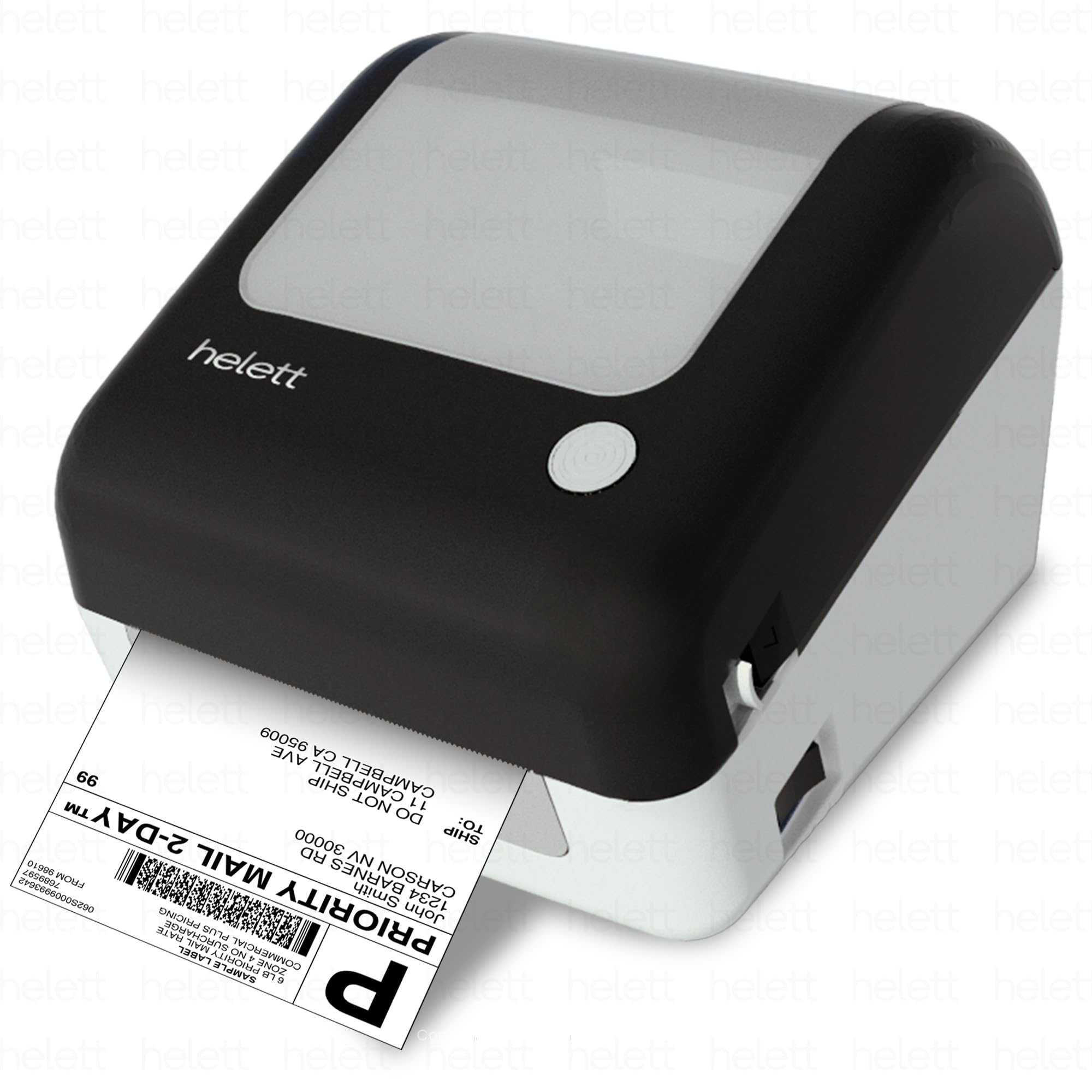
    5. Helett H30C Pro Wireless Thermal Printer
    https://m.media-amazon.com/images/I/71poBxjw88L.jpg

    Best for: Wireless billing and shipping operations

    The upgraded Pro version adds Bluetooth connectivity and a built-in paper holder, making it more convenient.

    Key Features:

    • Bluetooth + USB connectivity
    • Built-in paper holder compartment
    • 4×6 shipping label support
    • 203 DPI resolution

    Pros:

    • Wireless flexibility
    • Cleaner setup with paper holder
    • Suitable for both billing and shipping

    Cons:

    • Slightly higher price
    • Setup may require initial configuration

    Recommendation:
    A balanced choice for those who want wireless convenience without compromising performance.

    Buy Here


    Comparison Table (Quick Overview)

    Printer ModelBest Use Case
    SEZNIK JoshSmall retail, jewellery labels
    TSC TE244Industrial, bulk printing
    Helett H30C LiteE-commerce shipping
    HIROBOT PrinterMulti-purpose usage
    Helett H30C ProWireless business setup

    How to Choose the Right Barcode Printer

    Before buying, consider these practical factors:

    • Print Volume: High volume requires industrial models like TSC
    • Label Size: 2-inch for retail vs 4×6 for shipping
    • Connectivity: Bluetooth for mobility, USB for stability
    • Budget: Entry-level starts around ₹3,000; advanced models go above ₹10,000
    • Usage Type: Billing, inventory, or shipping

    Frequently Asked Questions (FAQ)

    Q1. Which barcode printer is best for small shops in India?
    SEZNIK Josh is ideal due to its affordability and compact design.

    Q2. Can I print Amazon shipping labels with these printers?
    Yes, printers like Helett H30C Lite and HIROBOT fully support 4×6 shipping labels.

    Q3. Do thermal printers require ink?
    No, they use heat-based printing, making them cost-effective long-term.

    Q4. Is Bluetooth necessary?
    Not mandatory, but useful for mobile billing setups.

    Q5. What is the difference between thermal and thermal transfer?
    Direct thermal doesn’t need ribbon, while thermal transfer provides more durable prints.


    Final Verdict

    • Best Budget Option: SEZNIK Josh
    • Best for Heavy Use: TSC TE244
    • Best for E-commerce: Helett H30C Lite
    • Best Value for Money: HIROBOT
    • Best Wireless Option: Helett H30C Pro

    Choosing the right printer depends on your business scale and usage. For most Indian users, a 4×6 thermal printer offers the best flexibility.


    Disclaimer

    This article is for informational purposes only. Product specifications, pricing, and availability may change over time. Always verify details on the official product page before making a purchase. Affiliate links may generate a small commission at no extra cost to you.



  • Top 10 Excel Interview Questions with Practical Answers for Freshers and Professionals (2026 Guide)

    Top 10 Excel Interview Questions with Practical Answers is one of the most searched topics among job seekers preparing for roles in MIS, accounting, data analysis, and operations. Excel is a core skill in over 85% of entry-level and mid-level job roles in India, making it essential to prepare thoroughly for Excel-related interview questions.

    In this detailed guide, you will learn the most commonly asked Excel interview questions along with practical answers, examples, and tips to help you confidently clear interviews.


    Why Excel Interview Questions Matter

    Employers test Excel skills because:

    • It is used daily in business operations
    • Helps in data analysis and reporting
    • Improves productivity
    • Reduces manual work

    Key Areas Tested in Interviews

    AreaFocus
    FormulasIF, VLOOKUP, SUMIFS
    Data HandlingSorting, filtering
    AnalysisPivot Tables
    AutomationBasic VBA knowledge

    1. What is VLOOKUP and How Does It Work?

    Practical Answer

    VLOOKUP is used to search for a value in the first column of a table and return a corresponding value from another column.

    Example

    If you have employee data:

    • Search Employee ID
    • Return Employee Name

    Formula Structure

    VLOOKUP(lookup_value, table_array, col_index, FALSE)

    Tip

    Mention that VLOOKUP works left to right only.


    2. Difference Between VLOOKUP and INDEX MATCH

    Practical Answer

    INDEX MATCH is more flexible than VLOOKUP.

    Comparison

    VLOOKUPINDEX MATCH
    Searches left to rightCan search in any direction
    Breaks if column changesMore stable
    Slower on large dataFaster performance

    3. What is Pivot Table?

    Practical Answer

    A Pivot Table is used to summarize large datasets quickly.

    Example

    You can:

    • Calculate total sales
    • Group data by region

    Key Benefit

    Reduces analysis time from hours to minutes.


    4. What is IF Function?

    Practical Answer

    IF function performs logical tests and returns values based on conditions.

    Example

    =IF(A1>50,”Pass”,”Fail”)

    Use Case

    Used in performance evaluation and decision-making.


    5. What is Conditional Formatting?

    Practical Answer

    It highlights cells based on conditions.

    Example

    • Highlight sales above target
    • Mark low scores

    Benefit

    Makes data easy to understand visually.


    6. What are Absolute and Relative References?

    Practical Answer

    • Relative reference changes when copied
    • Absolute reference remains fixed

    Example

    TypeExample
    RelativeA1
    Absolute$A$1

    7. What is Pivot Chart?

    Practical Answer

    A Pivot Chart is a visual representation of Pivot Table data.

    Use Case

    • Sales trends
    • Performance comparison

    8. What is Data Validation?

    Practical Answer

    It restricts input values in a cell.

    Example

    • Dropdown lists
    • Number limits

    Benefit

    Prevents data entry errors.


    9. What is Excel Table?

    Practical Answer

    Excel Table is a structured data format that automatically expands.

    Benefits

    • Auto formatting
    • Dynamic formulas
    • Easy filtering

    10. What is Flash Fill?

    Practical Answer

    Flash Fill automatically fills data based on patterns.

    Example

    Extract first name from full name using Ctrl + E.

    Benefit

    Saves significant time in data cleaning.


    Practical Tips to Answer Excel Questions

    1. Explain with Examples

    Always give real-life examples.

    2. Mention Use Cases

    Explain where you used the function.

    3. Be Clear and Simple

    Avoid complex explanations.


    Common Interview Mistakes

    • Memorizing answers without understanding
    • Not practicing formulas
    • Ignoring practical examples
    • Lack of confidence

    How to Prepare for Excel Interviews

    1. Practice Daily

    Work on real datasets.

    2. Learn Shortcuts

    Improves speed and efficiency.

    3. Build Projects

    Create dashboards and reports.

    4. Revise Basics

    Strong fundamentals are essential.


    Real Interview Scenario

    An interviewer may ask:
    “Create a report showing total sales by region.”

    Expected approach:

    • Use Pivot Table
    • Apply filters
    • Present summary

    This tests practical knowledge, not just theory.


    Skills Employers Look For

    SkillImportance
    Data AnalysisHigh
    Formula KnowledgeHigh
    AccuracyCritical
    SpeedImportant

    Career Opportunities with Excel Skills

    • MIS Executive
    • Data Analyst
    • Accountant
    • Operations Executive

    Excel proficiency can increase salary potential by 20–40%.


    Frequently Asked Questions (FAQ)

    1. What are the most common Excel interview questions?

    VLOOKUP, Pivot Tables, IF function, and data validation.

    2. Is Excel important for jobs?

    Yes, it is required in most business roles.

    3. How can I prepare for Excel interviews?

    Practice formulas, create projects, and revise concepts.

    4. What level of Excel is required?

    Basic to intermediate for most roles.

    5. Are practical questions asked in interviews?

    Yes, many interviews include real-time tasks.

    6. Which Excel function is most important?

    VLOOKUP and Pivot Tables are widely used.

    7. Can beginners crack Excel interviews?

    Yes, with proper practice and understanding.


    Conclusion

    Preparing for Top 10 Excel Interview Questions with Practical Answers can significantly improve your chances of getting hired. Excel is a fundamental skill that employers value across industries.

    By understanding concepts, practicing regularly, and applying real-world examples, you can confidently handle any Excel-related interview question.


    Learn Excel with Practical Training

    If you want to master Excel, dashboards, automation, and real-world projects, you can explore a complete job-oriented training program here:

    Join Excel MIS Reporting Course

    This course helps you become job-ready with practical skills used in real companies.


    Disclaimer

    This article is for educational purposes only. Interview questions may vary depending on company and role.


  • Top 5 Excel Tricks That Save 1 Hour Daily for Professionals, Students & MIS Executives (2026 Guide)

    Top 5 Excel Tricks That Save 1 Hour Daily is a must-know topic for anyone working with data, whether you are a student, accountant, MIS executive, or business professional. In today’s fast-paced work environment, efficiency is everything. Many Excel users spend hours doing repetitive tasks that can actually be completed in minutes using smart techniques.

    This detailed guide will walk you through five powerful Excel tricks that can significantly reduce your daily workload, improve productivity, and help you work smarter, not harder.


    Why Learning Excel Tricks is Important

    Excel is used in almost every industry, including:

    • Finance
    • Accounting
    • Sales and Marketing
    • HR and Operations

    Studies suggest that professionals spend 30–40% of their work time on Excel-related tasks. By using the right tricks, you can save at least 1 hour daily, which translates to over 250 hours annually.


    Overview of Top Time-Saving Excel Tricks

    TrickBenefit
    Flash FillAutomates data extraction
    Pivot TablesInstant data analysis
    Keyboard ShortcutsFaster navigation
    IF + VLOOKUPSmart calculations
    Conditional FormattingQuick insights

    Trick 1: Flash Fill – Automate Data Entry Instantly

    What is Flash Fill?

    Flash Fill automatically detects patterns and fills data accordingly.

    Example Use Case

    You have:

    • Full Name → Want First Name

    Instead of using formulas, just type one example and press:
    Ctrl + E

    Benefits

    • Saves up to 80% time in data cleaning
    • No formula required
    • Works instantly

    Trick 2: Pivot Tables – Analyze Data in Seconds

    Why Pivot Tables?

    Pivot Tables allow you to summarize large datasets quickly.

    Example Use Case

    You want:

    • Total sales by region
    • Monthly performance

    Instead of manual calculations, Pivot Table does it in seconds.

    Key Advantages

    FeatureBenefit
    Drag & DropEasy to use
    DynamicUpdates instantly
    FlexibleMultiple reports

    Pivot Tables can reduce analysis time from 30 minutes to 2 minutes.


    Trick 3: Keyboard Shortcuts – Work 2x Faster

    Using keyboard shortcuts is one of the easiest ways to save time.

    Must-Know Shortcuts

    ShortcutFunction
    Ctrl + C / VCopy/Paste
    Ctrl + ArrowJump across data
    Ctrl + Shift + LApply filter
    Alt + =Auto sum
    Ctrl + TConvert to table

    Impact

    Using shortcuts can improve speed by 40–60% compared to mouse usage.


    Trick 4: IF + VLOOKUP – Smart Data Handling

    Why Combine IF and VLOOKUP?

    It allows conditional data retrieval.

    Example

    Check if a value exists before applying lookup.

    Benefits

    • Reduces errors
    • Improves accuracy
    • Automates decision-making

    Trick 5: Conditional Formatting – Visual Insights

    What is Conditional Formatting?

    It highlights data based on conditions.

    Example Use Case

    • Highlight sales above target
    • Mark low-performing areas

    Benefits

    FeatureBenefit
    Visual AlertsEasy identification
    AutomationNo manual checking
    Custom RulesFlexible usage

    This helps in quick decision-making without scanning large datasets.


    Real-Life Impact of These Excel Tricks

    Professionals using these tricks report:

    • 50% faster reporting
    • Reduced manual errors
    • Improved productivity
    • Better data accuracy

    For MIS executives, these tricks are essential for daily reporting tasks.


    Common Mistakes to Avoid

    • Ignoring shortcuts
    • Using manual calculations
    • Not using Pivot Tables
    • Overcomplicating formulas
    • Not formatting data properly

    Avoiding these mistakes can significantly improve efficiency.


    Best Practices for Maximum Productivity

    1. Use Tables Instead of Ranges

    Tables auto-expand and simplify formulas.

    2. Keep Data Clean

    Avoid blank rows and inconsistent formats.

    3. Use Named Ranges

    Makes formulas easier to understand.

    4. Practice Regularly

    Consistency improves speed.


    Who Should Learn These Excel Tricks?

    • Students preparing for jobs
    • Accountants and finance professionals
    • MIS executives
    • Data analysts
    • Business owners

    These tricks are useful for anyone working with data.


    How These Tricks Help in Career Growth

    Learning advanced Excel techniques can:

    • Increase job opportunities
    • Improve salary potential
    • Make you more efficient
    • Help in promotions

    Many companies prefer candidates with strong Excel skills.


    Frequently Asked Questions (FAQ)

    1. What are the best Excel tricks to save time?

    Flash Fill, Pivot Tables, shortcuts, IF formulas, and conditional formatting.

    2. Can Excel really save 1 hour daily?

    Yes, with proper techniques, repetitive tasks can be automated.

    3. Is Excel still relevant in 2026?

    Yes, it is widely used across industries.

    4. Do I need advanced skills to use these tricks?

    No, most tricks are beginner-friendly.

    5. Which Excel feature saves the most time?

    Pivot Tables and Flash Fill are the most powerful.

    6. How can I improve Excel speed?

    Use shortcuts and avoid manual work.

    7. Are these tricks useful for jobs?

    Yes, they are highly valued in professional roles.


    Conclusion

    The Top 5 Excel Tricks That Save 1 Hour Daily can completely transform the way you work with data. By using these techniques, you can automate tasks, reduce errors, and improve productivity significantly.

    In today’s competitive job market, Excel efficiency is not just an advantage—it is a necessity. Mastering these tricks will help you work faster, smarter, and more professionally.


    Learn Excel with Practical Projects

    If you want to master Excel, automation, dashboards, and real-world projects, you can explore a complete job-oriented training program here:

    Join Excel MIS Reporting Course

    This course is designed to help you become job-ready with practical skills used in real companies.


    Disclaimer

    This article is for educational purposes only. Results may vary depending on individual practice and usage of Excel features.


  • How to Update HSN Codes in Tally: Step-by-Step Guide for GST Compliance, Accuracy & Error-Free Billing (2026)

    How to Update HSN Codes in Tally is a critical skill for accountants, GST practitioners, and business owners in India. With GST regulations becoming stricter and return filing requiring accurate HSN reporting, maintaining correct HSN codes in Tally is essential for compliance and smooth business operations. Incorrect or outdated HSN codes can lead to return mismatches, penalties, and audit issues.

    In this comprehensive guide, you will learn how to update HSN codes in Tally, why it matters, common mistakes, and best practices to ensure error-free GST reporting.


    What is HSN Code in GST?

    HSN (Harmonized System of Nomenclature) is a standardized coding system used to classify goods under GST.

    Purpose of HSN Code

    PurposeExplanation
    ClassificationCategorizes goods systematically
    Tax RateDetermines applicable GST rate
    ReportingRequired for GST returns
    ComplianceEnsures uniformity across businesses

    HSN codes typically range from 4-digit to 8-digit formats, depending on turnover and compliance requirements.


    Why Updating HSN Codes in Tally is Important

    Accurate HSN codes ensure:

    • Correct GST calculation
    • Proper invoice generation
    • Smooth GST return filing
    • Avoidance of penalties

    Impact of Incorrect HSN Codes

    IssueResult
    Wrong GST rateTax mismatch
    Incorrect reportingReturn rejection
    Compliance failurePenalties
    Audit issuesLegal complications

    According to GST norms, businesses with turnover above a specified threshold must use detailed HSN codes in invoices and returns.


    Where HSN Codes are Used in Tally

    HSN codes are used in:

    • Stock Items
    • Sales Invoices
    • Purchase Entries
    • GST Reports

    Every stock item should have a correct HSN code assigned.


    Step-by-Step: How to Update HSN Codes in Tally

    Step 1: Open Stock Item Master

    Go to:
    Gateway of Tally → Inventory Info → Stock Items → Alter


    Step 2: Select Stock Item

    Choose the item for which you want to update the HSN code.


    Step 3: Enter GST Details

    Enable GST details if not already enabled.


    Step 4: Update HSN Code

    Enter the correct HSN code in the GST details section.


    Step 5: Save Changes

    Press Ctrl + A to save.


    Updating HSN Codes for Multiple Items

    If you have many items, updating one by one can be time-consuming.

    Bulk Update Approach

    MethodDescription
    Excel ImportUpdate data using Excel
    Group AlterModify items in bulk
    Data Export/ImportUse XML or Excel tools

    Bulk updates save time and reduce manual errors.


    How to Verify HSN Codes in Tally

    After updating, verification is important.

    Steps

    1. Open GST Reports
    2. Check item-wise details
    3. Validate HSN codes
    4. Cross-check with GST portal

    Common Mistakes While Updating HSN Codes

    1. Using Incorrect HSN Code

    Always verify from official GST classification.

    2. Leaving HSN Field Blank

    This can cause issues in GST returns.

    3. Wrong Code Length

    Using 4-digit instead of 6 or 8-digit codes.

    4. Not Updating Existing Items

    Old items may still have outdated codes.


    Best Practices for Managing HSN Codes

    1. Maintain Updated Master Data

    Regularly review stock items.

    2. Use Standardized Codes

    Avoid custom or incorrect classifications.

    3. Train Staff

    Ensure users understand HSN importance.

    4. Periodic Review

    Check HSN codes before filing GST returns.


    Real-World Example

    A trading company faced GST return mismatches due to incorrect HSN codes in Tally. After updating and standardizing codes:

    • Errors reduced by 70%
    • Return filing became faster
    • Audit compliance improved

    HSN Code Structure Explained

    DigitsMeaning
    First 2Chapter
    Next 2Heading
    Next 2Sub-heading
    Last 2Product-specific code

    Understanding structure helps in accurate classification.


    Benefits of Correct HSN Code Usage

    • Accurate GST calculation
    • Faster invoice processing
    • Reduced audit risks
    • Better reporting
    • Improved compliance

    Role of HSN Codes in GST Returns

    HSN codes are required in:

    • GSTR-1
    • GSTR-3B
    • E-Way Bill

    Incorrect codes can lead to mismatches and notices.


    Advanced Tips for Professionals

    1. Use Excel Integration

    Manage item lists efficiently.

    2. Create Templates

    Standardize item creation process.

    3. Automate Updates

    Use tools or scripts for bulk updates.


    Future of HSN Compliance

    With digital taxation:

    • HSN reporting will become more detailed
    • Automation will increase
    • Errors will be flagged instantly

    Professionals must stay updated.


    Frequently Asked Questions (FAQ)

    1. What is HSN code in Tally?

    It is a code used to classify goods for GST purposes.

    2. Where do I update HSN code in Tally?

    In Stock Item master under GST details.

    3. Is HSN code mandatory?

    Yes, for most businesses under GST.

    4. Can I update HSN code later?

    Yes, but it should be done before filing returns.

    5. What happens if HSN code is wrong?

    It can cause GST mismatch and penalties.

    6. How many digits should HSN code have?

    Depends on turnover—4, 6, or 8 digits.

    7. Can I update HSN codes in bulk?

    Yes, using Excel or import tools.


    Conclusion

    Understanding how to update HSN codes in Tally is essential for GST compliance and accurate accounting. With increasing scrutiny from tax authorities, maintaining correct HSN codes is no longer optional.

    By following the steps, avoiding common mistakes, and adopting best practices, you can ensure smooth GST reporting and avoid unnecessary penalties. Mastering this skill will also enhance your professional value in accounting and finance roles.


    Disclaimer

    This article is for educational purposes only. GST rules and Tally features may change over time. Users should verify details with official guidelines before implementation.


  • E-Way Bill Generation Common Errors Explained: Complete Guide to Fix Mistakes, Avoid Penalties & Ensure GST Compliance (2026)

    E-Way Bill Generation Common Errors are one of the most frequent challenges faced by businesses, accountants, and transporters in India. With GST compliance becoming stricter, even small mistakes during E-Way Bill generation can lead to penalties, shipment delays, or legal complications. Understanding these common errors and how to fix them is essential for smooth business operations.

    In this detailed guide, we will explain the most common E-Way Bill errors, their causes, solutions, and best practices to avoid them.


    What is an E-Way Bill?

    An E-Way Bill is an electronic document required for the movement of goods exceeding a specified value under GST law. It contains details of:

    • Consignor (supplier)
    • Consignee (recipient)
    • Goods description
    • Transport details

    Key Requirement

    ConditionRequirement
    Value exceeds ₹50,000E-Way Bill mandatory
    Movement of goodsRequired for transport
    Interstate/IntrastateApplicable in both cases

    Why E-Way Bill Errors Occur

    Errors usually happen due to:

    • Manual data entry mistakes
    • Lack of understanding of GST rules
    • Incorrect invoice details
    • System or validation issues

    Even a small mismatch can lead to rejection or penalties.


    Most Common E-Way Bill Generation Errors

    1. Invalid GSTIN Error

    This occurs when:

    • GSTIN entered is incorrect
    • GST number is inactive

    Solution

    IssueFix
    Incorrect GSTINVerify from GST portal
    Inactive GSTINCheck registration status

    2. Incorrect Invoice Number

    Mismatch between invoice and E-Way Bill details is a common issue.

    Solution

    IssueFix
    Typing errorRecheck invoice details
    Duplicate numberEnsure unique invoice

    3. Distance Mismatch Error

    Entering incorrect distance between source and destination can trigger validation errors.

    Solution

    IssueFix
    Wrong distanceUse accurate map-based distance
    Excess distanceStay within system limits

    4. Vehicle Number Invalid

    Incorrect vehicle number format can cause rejection.

    Solution

    IssueFix
    Wrong formatFollow standard format
    Temporary numberUse correct transporter ID

    5. HSN Code Error

    HSN code must match the product description.

    Solution

    IssueFix
    Incorrect HSNVerify from GST guidelines
    Missing digitsUse correct code length

    6. Duplicate E-Way Bill Generation

    Sometimes users generate multiple E-Way Bills for the same invoice.

    Solution

    IssueFix
    Duplicate entryCheck existing E-Way Bill
    System confusionMaintain proper records

    7. Invalid Transporter ID

    Entering wrong transporter details leads to errors.

    Solution

    IssueFix
    Incorrect IDVerify transporter GSTIN
    Missing detailsFill all required fields

    8. Expired E-Way Bill

    E-Way Bills have validity based on distance.

    Solution

    IssueFix
    Expired billExtend validity
    Delay in transportGenerate new bill if needed

    Impact of E-Way Bill Errors

    Errors in E-Way Bill generation can lead to serious consequences.

    Key Risks

    RiskImpact
    Penalty₹10,000 or tax amount
    Goods detentionDelay in delivery
    Legal issuesCompliance violations
    Business lossCustomer dissatisfaction

    How to Avoid E-Way Bill Errors

    1. Verify Data Before Submission

    Always double-check:

    • GSTIN
    • Invoice number
    • Product details

    2. Use Automated Systems

    Using accounting software reduces manual errors.

    3. Maintain Proper Documentation

    Keep records of:

    • Invoices
    • Transport details
    • Previous E-Way Bills

    4. Train Staff

    Ensure employees understand GST and E-Way Bill rules.


    Best Practices for E-Way Bill Generation

    1. Standardize Data Entry

    Use consistent formats for:

    • Invoice numbers
    • Vehicle numbers

    2. Regular Updates

    Stay updated with GST rules and changes.

    3. Use Correct HSN Codes

    Always match product with correct classification.

    4. Monitor Validity

    Track expiry to avoid delays.


    Real-World Example

    A logistics company faced delays due to incorrect vehicle numbers entered in E-Way Bills. After implementing validation checks, errors reduced by over 60%, improving delivery timelines and compliance.


    Role of Technology in Reducing Errors

    Modern tools help in:

    • Auto-filling data
    • Validating entries
    • Integrating with GST systems

    This reduces dependency on manual processes.


    Who Should Learn E-Way Bill Management?

    • Accountants
    • GST practitioners
    • Business owners
    • Transporters
    • Finance professionals

    Understanding E-Way Bills is essential for compliance and efficiency.


    Frequently Asked Questions (FAQ)

    1. What is the most common E-Way Bill error?

    Incorrect GSTIN or invoice mismatch is the most common issue.

    2. What happens if E-Way Bill is wrong?

    It can lead to penalties and shipment delays.

    3. Can E-Way Bill be corrected?

    Certain fields can be updated; otherwise, a new bill must be generated.

    4. What is the penalty for E-Way Bill mistakes?

    Penalty can be ₹10,000 or tax amount, whichever is higher.

    5. How long is E-Way Bill valid?

    Validity depends on distance, typically 1 day per 200 km.

    6. Is E-Way Bill required for all goods?

    It is required when value exceeds ₹50,000.

    7. Can E-Way Bill be extended?

    Yes, validity can be extended under certain conditions.


    Conclusion

    E-Way Bill Generation Common Errors can significantly impact business operations if not handled properly. From incorrect GSTIN to expired validity, even small mistakes can lead to penalties and delays.

    By understanding these errors, applying best practices, and using proper tools, businesses can ensure smooth compliance and efficient logistics management.

    Mastering E-Way Bill processes is not just about compliance—it is about improving operational efficiency and avoiding costly mistakes.


    Learn Practical GST, Tally & Excel Skills

    If you want to master GST compliance, E-Way Bills, Tally, and Excel with practical training, you can explore this complete course:

    Join Tally, GST & Excel Course

    This course is designed to make you job-ready with real-world accounting and GST skills.


    Disclaimer

    This article is for educational purposes only. GST rules and E-Way Bill regulations may change over time. Users should verify with official guidelines before implementation.


  • Top 5 Best Mouse Options for Accountants in India (2026) – Comfortable, Silent & High-Precision Picks for Long Excel Work

    For accountants and finance professionals, choosing the right mouse is not just about convenience—it directly impacts productivity, accuracy, and comfort. Whether you are working on Excel, Tally, GST returns, or MIS reports, a reliable mouse can reduce fatigue and improve efficiency during long working hours.

    In this guide, we review the top 5 mouse options for accountants in India, focusing on comfort, precision, silent clicks, and value for money. Each product is evaluated with real-world use cases, pros, cons, and recommendations.


    Lenovo 600 Bluetooth Silent Mouse

    https://p1-ofp.static.pub/ShareResource/560x450/SSNP/GY50X88832/GY50X88832-560x450-01.4c3b93c4ce6b7b6e.png

    The Lenovo 600 Bluetooth mouse is designed for professionals who prefer a clean, wireless, and silent working environment.

    Key Features

    FeatureDetails
    ConnectivityBluetooth (No Dongle)
    DPIUp to 2400
    BatteryUp to 1 Year
    Special FeatureSilent Click

    Practical Use Case

    Ideal for accountants working in:

    • Office environments where noise matters
    • Meetings and shared workspaces
    • Laptop users who want clutter-free desks

    Pros

    • Completely silent clicks
    • No USB dongle required
    • Long battery life
    • Supports multiple devices

    Cons

    • Slightly premium pricing
    • No rechargeable battery

    👉 Buy Here


    Portronics Toad One Bluetooth + 2.4GHz Mouse

    https://www.portronics.com/cdn/shop/files/Image1_5067bdd1-4473-4933-a66d-edcb4d49409a.png?v=1720258592

    This is one of the most versatile and budget-friendly options with dual connectivity and RGB lighting.

    Key Features

    FeatureDetails
    ConnectivityBluetooth + USB Dongle
    DevicesConnect up to 3 devices
    Buttons6 Buttons
    BatteryRechargeable

    Practical Use Case

    Best suited for:

    • Accountants using multiple devices (laptop + tablet)
    • Users who prefer rechargeable devices
    • Budget-conscious professionals

    Pros

    • Excellent value for money
    • Multi-device switching
    • Rechargeable battery
    • Extra buttons for productivity

    Cons

    • RGB may not appeal to all professionals
    • Build quality is average

    👉 Check Price Here


    Portronics Toad 23 Wireless Mouse

    https://www.portronics.com/cdn/shop/products/1_afb1dad0-dbf2-4dab-8c4f-a64d73cd6446.jpg?v=1653546618

    A simple, no-nonsense mouse for basic accounting work.

    Key Features

    FeatureDetails
    Connectivity2.4GHz USB Dongle
    DPIAdjustable
    DesignCompact
    UsageBasic Tasks

    Practical Use Case

    Ideal for:

    • Entry-level accountants
    • Basic Excel and Tally work
    • Backup or secondary mouse

    Pros

    • Very affordable
    • Easy to use
    • Lightweight

    Cons

    • Limited features
    • No Bluetooth
    • Basic build

    👉 Buy Here


    Dell MS116 Wired Mouse

    https://m.media-amazon.com/images/I/51jWFCvTLAL._AC_UF894%2C1000_QL80_.jpg

    A highly reliable wired mouse preferred by many offices.

    Key Features

    FeatureDetails
    ConnectivityWired USB
    DPI1000 DPI
    DesignErgonomic
    ReliabilityHigh

    Practical Use Case

    Best for:

    • Office desktops
    • Continuous long-hour usage
    • Users who prefer zero latency

    Pros

    • Highly durable
    • No battery required
    • Plug-and-play simplicity
    • Consistent performance

    Cons

    • Wired limitation
    • No advanced features

    👉 Check Price Here


    Acer Bubble Wireless Mouse AMR100

    https://m.media-amazon.com/images/I/71RaUC00idL.jpg

    A stylish and ergonomic mouse with silent clicks and good performance.

    Key Features

    FeatureDetails
    Connectivity2.4GHz Wireless
    DPI1600 DPI
    DesignErgonomic
    NoiseSilent Click

    Practical Use Case

    Suitable for:

    • Professionals working long hours
    • Users needing comfort and portability
    • Home office setups

    Pros

    • Silent operation
    • Comfortable grip
    • Lightweight design
    • Good balance of price and features

    Cons

    • Uses AA battery
    • Limited advanced controls

    👉 Buy Here


    Which Mouse is Best for Accountants?

    RequirementBest Choice
    Silent & PremiumLenovo 600
    Budget + FeaturesPortronics Toad One
    Basic UsePortronics Toad 23
    Office ReliabilityDell MS116
    Comfort & StyleAcer Bubble

    How to Choose the Right Mouse for Accounting Work

    1. Silent Clicks

    Important for long working hours and office environments.

    2. DPI Sensitivity

    Higher DPI helps in faster navigation across large Excel sheets.

    3. Ergonomics

    Reduces wrist strain during long usage.

    4. Connectivity

    • Bluetooth for portability
    • Wired for stability

    5. Battery Type

    • Rechargeable for convenience
    • Replaceable for longer life

    Final Recommendation

    If you work extensively on Excel, MIS reports, or accounting software:

    • Choose Lenovo 600 for premium silent performance
    • Choose Portronics Toad One for value and flexibility
    • Choose Dell MS116 for reliability in office setups

    Your choice should depend on your work style, budget, and comfort preference.


    Frequently Asked Questions (FAQ)

    1. Which mouse is best for Excel work?

    A mouse with high DPI and silent clicks like Lenovo 600 is ideal.

    2. Is wireless mouse better for accountants?

    Yes, it offers flexibility and cleaner workspace.

    3. What DPI is good for office work?

    1000–2400 DPI is sufficient for most accounting tasks.

    4. Are silent mice worth it?

    Yes, especially for long working hours.

    5. Wired vs wireless mouse – which is better?

    Wired for reliability, wireless for convenience.


    Disclaimer

    This article is for informational purposes only. Product prices, availability, and features may change over time. Please verify details before purchasing.


  • Daily Sales Report in Excel with Auto Updates – Complete Step-by-Step Guide for Businesses and MIS Professionals

    A Daily Sales Report in Excel with Auto Updates is one of the most powerful tools for tracking business performance in real time. In today’s data-driven environment, companies rely heavily on daily reporting to monitor sales trends, identify issues quickly, and make informed decisions. Whether you are a student, MIS executive, or business owner, learning how to create an automated daily sales report in Excel can significantly improve your efficiency and career prospects.

    This detailed guide will walk you through everything you need to know—from structure and formulas to automation techniques—so you can build a professional and dynamic sales reporting system.


    What is a Daily Sales Report in Excel?

    A daily sales report is a structured Excel sheet that records and analyzes sales transactions on a day-to-day basis. It helps organizations track performance, compare targets, and monitor growth.

    Key Components of a Daily Sales Report

    ComponentDescription
    DateSales transaction date
    Product/CategoryItems sold
    QuantityNumber of units sold
    Sales AmountTotal revenue generated
    Region/SalespersonSource of sales
    Target vs ActualPerformance comparison

    This report is typically updated daily and used by management for quick decision-making.


    Why Use Excel for Daily Sales Reporting?

    Excel remains one of the most widely used tools for MIS reporting due to its flexibility and powerful features.

    Key Advantages

    • Easy to use and widely available
    • Supports formulas and automation
    • Can handle large datasets
    • Allows dashboard creation
    • No coding required

    In India, over 75% of small and medium businesses use Excel for daily reporting, making it a critical skill for job seekers.


    Importance of Auto Updates in Sales Reports

    Manual reporting is time-consuming and error-prone. Auto-updating reports solve this problem.

    Benefits of Automation

    BenefitImpact
    Time SavingReduces manual work by up to 80%
    AccuracyMinimizes human errors
    Real-Time DataInstant updates when data changes
    Better DecisionsFaster insights for management

    Auto updates ensure your report is always current without repeated manual effort.


    Step-by-Step: Creating Daily Sales Report in Excel

    Step 1: Prepare Raw Data Sheet

    Create a sheet named Raw Data and include:

    • Date
    • Product
    • Quantity
    • Price
    • Salesperson

    Use structured format and avoid blank rows.


    Step 2: Convert Data into Table

    Select your data and press Ctrl + T to create a table.

    Benefits:

    • Auto-expansion when new data is added
    • Easier formula management
    • Better integration with Pivot Tables

    Step 3: Add Calculated Columns

    Create a Sales Amount column:

    Formula:
    Sales = Quantity × Price

    This helps in calculating total revenue automatically.


    Step 4: Create Pivot Table

    Go to:
    Insert → Pivot Table

    Use Pivot Table to:

    • Summarize daily sales
    • Analyze by product or region
    • Compare performance

    Step 5: Build Dashboard

    Create a new sheet called Dashboard and include:

    • Total Sales
    • Daily Trends
    • Top Products
    • Salesperson Performance

    Use charts like:

    • Column Chart
    • Line Chart
    • Pie Chart

    How to Enable Auto Updates in Excel

    Method 1: Using Tables

    Excel tables automatically update when new data is added.

    Method 2: Refresh Pivot Table

    • Right-click Pivot Table → Refresh
    • Or use shortcut Alt + F5

    Method 3: Use Dynamic Formulas

    Use formulas like:

    • SUMIFS
    • COUNTIFS
    • INDEX + MATCH

    These update automatically when data changes.


    Advanced Automation Techniques

    1. Using Excel VBA (Macros)

    Automate:

    • Data refresh
    • Report generation
    • File saving

    2. Power Query

    Import and clean data automatically from:

    • Excel files
    • CSV files
    • Databases

    3. Named Ranges

    Create dynamic ranges that expand automatically.


    Real-World Example of Daily Sales Report

    Imagine a retail company tracking sales:

    ScenarioInsight
    Daily sales dropIdentify low-performing products
    High-performing regionFocus marketing efforts
    Target not achievedAdjust strategy immediately

    Companies using automated reports can improve decision speed by up to 40%.


    Common Mistakes to Avoid

    • Not converting data into tables
    • Using manual calculations instead of formulas
    • Ignoring data validation
    • Not updating Pivot Tables
    • Poor formatting and structure

    Avoiding these mistakes ensures accuracy and professionalism.


    Best Practices for Professional Reports

    1. Use Clean Formatting

    • Consistent fonts
    • Proper alignment
    • Highlight key metrics

    2. Keep It Simple

    Avoid unnecessary complexity.

    3. Use Conditional Formatting

    Highlight:

    • High sales
    • Low performance

    4. Add Summary Section

    Include:

    • Total sales
    • Growth percentage

    Skills You Gain from This Project

    By creating a daily sales report, you learn:

    • Data organization
    • Excel formulas
    • Dashboard creation
    • Data analysis
    • Automation techniques

    These are core skills required for MIS and data analyst roles.


    Career Relevance of Daily Sales Reporting

    Daily sales reporting is widely used in:

    • Retail
    • E-commerce
    • Banking
    • FMCG companies
    • Startups

    Professionals with these skills are in high demand.


    Frequently Asked Questions (FAQ)

    1. What is a Daily Sales Report in Excel?

    It is a structured report that tracks daily sales data and performance using Excel.

    2. How can I automate sales reports in Excel?

    By using tables, formulas, Pivot Tables, and VBA macros.

    3. Which formulas are used in sales reports?

    Common formulas include SUMIFS, COUNTIFS, VLOOKUP, and INDEX MATCH.

    4. Is Excel enough for MIS reporting?

    Yes, Excel is widely used for MIS reporting in most companies.

    5. How often should sales reports be updated?

    Ideally, daily or in real-time for better decision-making.

    6. Can beginners create sales reports?

    Yes, with basic Excel knowledge and practice.

    7. What is the benefit of auto-updating reports?

    They save time, reduce errors, and provide real-time insights.


    Conclusion

    A Daily Sales Report in Excel with Auto Updates is not just a reporting tool—it is a powerful system that helps businesses make faster and smarter decisions. By learning how to build automated reports, you gain practical skills that are directly applicable in real jobs.

    With increasing demand for data-driven roles, mastering Excel reporting can open multiple career opportunities. The ability to automate reports and analyze data effectively makes you a valuable asset in any organization.


    Learn Complete MIS Reporting with Practical Training

    If you want to master Excel reporting, dashboards, automation, and real-world projects, you can explore a complete job-oriented training program here:

    Join Excel MIS Reporting Course

    This course covers Excel, VBA, Access, and SQL with practical projects designed to make you job-ready.


    Disclaimer

    This article is for educational purposes only. Actual business results and reporting methods may vary depending on industry, data quality, and implementation practices.


  • Excel MIS Reporting Course – Learn Practical Projects for Job-Ready Skills in 2026

    The demand for Excel MIS Reporting Course training has increased rapidly in recent years as companies rely heavily on data-driven decision-making. Whether it is sales tracking, employee performance, financial reporting, or dashboard creation, MIS (Management Information System) professionals play a crucial role in every organization.

    If you are looking to build a strong career in data handling, reporting, and analytics, enrolling in a structured Excel MIS Reporting Course with practical projects can be a game-changer. You can explore full course details here: Join Excel MIS Reporting Course


    What is MIS Reporting in Excel?

    MIS reporting refers to the process of collecting, analyzing, and presenting data in a structured format to support business decisions. Excel is the most widely used tool for MIS reporting due to its flexibility, formulas, and automation capabilities.

    Key Purpose of MIS Reporting

    FunctionDescription
    Data AnalysisUnderstanding trends and performance
    ReportingCreating daily, weekly, monthly reports
    Decision SupportHelping management take informed decisions
    AutomationReducing manual work using formulas and macros

    In India, more than 80% of entry-level data and operations roles require Excel MIS skills, making it one of the most practical career-oriented skills.


    Why Learn Excel MIS Reporting in 2026?

    The job market is shifting towards data-based roles, and Excel remains the foundation of this transformation.

    Key Reasons

    • Excel is used in almost every industry
    • MIS roles are available in finance, HR, sales, operations
    • No coding background required
    • High demand for dashboard and reporting skills
    • Entry-level salary range: ₹2.5 LPA to ₹6 LPA
    • Experienced MIS professionals can earn ₹8–12 LPA

    What You Will Learn in Excel MIS Reporting Course

    A complete MIS course focuses on both basic and advanced Excel skills, along with practical implementation.

    Core Topics Covered

    ModuleSkills You Learn
    Excel BasicsFormatting, shortcuts, data entry
    Advanced FormulasVLOOKUP, INDEX, MATCH, IF, SUMIFS
    Data ToolsSorting, filtering, data validation
    Pivot TablesData summarization and analysis
    Dashboard CreationInteractive reports using charts
    Excel VBAAutomation using macros
    MS Access & SQLData management and querying

    This structured learning ensures you become job-ready, not just theory-ready.


    Practical Projects You Will Work On

    One of the biggest advantages of this Excel MIS Reporting Course is its focus on real-world projects.

    Project-Based Learning

    Project TypeDescription
    Sales DashboardMonthly and region-wise sales tracking
    HR MIS ReportAttendance, performance, attrition tracking
    Inventory ReportStock management and alerts
    Financial ReportProfit & loss summary
    Automation ProjectAuto-report generation using VBA

    These projects simulate real office tasks, helping you gain hands-on experience.


    Who Should Join This Course?

    This course is designed for a wide range of learners:

    • Students (B.Com, BBA, MBA, BA, BSc)
    • Freshers looking for job-ready skills
    • Working professionals wanting promotion
    • Data entry operators and back-office staff
    • Anyone interested in Excel and data analysis

    You can check full syllabus and enrollment options here: Check Course Details


    Key Benefits of This Course

    1. Job-Oriented Training

    You learn exactly what companies expect in MIS roles.

    2. Practical Approach

    Focus on real projects instead of theory.

    3. Multiple Tools in One Course

    • Excel
    • VBA (Macros)
    • MS Access
    • SQL

    4. Career Growth

    MIS skills open doors to:

    • Data Analyst roles
    • Operations Executive roles

    Why This Excel MIS Course Stands Out

    This course is designed to provide complete MIS training with Excel, Access, VBA, and SQL, making it more comprehensive than basic Excel courses.

    Unique Features

    FeatureBenefit
    End-to-End TrainingCovers beginner to advanced level
    Real ProjectsPractical job-ready experience
    Automation SkillsLearn macros and reduce manual work
    Multi-Tool LearningExcel + Access + SQL in one course

    To start learning immediately, visit: Enroll in MIS Course


    Career Opportunities After Completing MIS Course

    After completing this course, you can apply for roles such as:

    • MIS Executive
    • Data Analyst (Entry Level)
    • Reporting Analyst
    • Operations Executive

    Industry Demand

    MIS professionals are required in:

    • Banking and Finance
    • E-commerce
    • IT Companies
    • Startups

    Skills You Will Master

    By the end of this course, you will be able to:

    • Create professional dashboards
    • Analyze large datasets
    • Automate repetitive tasks
    • Generate reports efficiently

    How This Course Helps You Get a Job

    Companies prefer candidates who:

    • Can handle Excel efficiently
    • Understand reporting formats
    • Can automate tasks

    You can explore how this course prepares you for real jobs here: View Full Training Program


    Frequently Asked Questions (FAQ)

    1. What is Excel MIS Reporting Course?

    It is a training program that teaches reporting, data analysis, and dashboard creation using Excel.

    2. Is this course suitable for beginners?

    Yes, it starts from basics and moves to advanced level.

    3. Do I need coding knowledge?

    No, VBA is taught from scratch.

    4. What jobs can I get after this course?

    MIS Executive, Data Analyst, and Reporting roles.

    5. How long does it take to learn MIS?

    Usually 1–3 months.

    6. Is Excel still relevant in 2026?

    Yes, it is widely used across industries.


    Conclusion

    The Excel MIS Reporting Course is one of the most practical and career-focused programs available today. With increasing demand for data skills, learning MIS reporting can significantly boost your career opportunities.

    By combining practical projects, automation, and real-world applications, this course ensures you become job-ready and confident in handling data.


    Disclaimer

    This article is for educational and informational purposes only. Results may vary depending on individual effort, practice, and market conditions.


  • Best 2-in-1 Laptops for Students and Professionals in India (2026): Detailed Comparison, Pros & Buying Guide

    Choosing the right 2-in-1 laptop in 2026 is more important than ever, especially when students and professionals need flexibility for work, study, and entertainment. Whether you are attending online classes, working on Excel dashboards, or multitasking between meetings and presentations, a convertible laptop can significantly improve productivity.

    In this article, we review three popular 2-in-1 laptops available in India, compare their real-world performance, and help you decide which one suits your needs best.


    Lenovo Smartchoice Ideapad 5 2-in-1 (Core i5-13420H)

    https://p2-ofp.static.pub//fes/cms/2025/09/24/6l3zuh832ykkh2o00usibteakd7i4v813090.png

    The Lenovo Ideapad 5 2-in-1 is a powerful and balanced machine designed for users who need performance along with flexibility.

    Key Specifications

    FeatureDetails
    ProcessorIntel Core i5-13420H
    RAM & Storage16GB RAM, 512GB SSD
    Display14-inch WUXGA IPS Touch
    Weight1.6 kg

    Performance & Use Case

    This laptop stands out because of the H-series processor, which is significantly more powerful than standard U-series chips. It is ideal for:

    • Excel, Power BI, and data analysis
    • Light video editing
    • Multitasking with multiple apps

    Pros

    • Strong performance (best in this list)
    • Smooth multitasking with 16GB RAM
    • Premium display quality
    • Comes with Office 2024

    Cons

    • Slightly heavier than competitors
    • Battery life is decent but not exceptional

    👉 Buy Here


    HP Pavilion x360 (Core i5-1335U)

    https://m.media-amazon.com/images/I/81LaRDm7leL.jpg

    The HP Pavilion x360 is a stylish and versatile laptop aimed at students and office users who want reliability and features.

    Key Specifications

    FeatureDetails
    ProcessorIntel Core i5-1335U
    RAM & Storage16GB RAM, 1TB SSD
    Display14-inch FHD Touch
    Weight1.51 kg

    Performance & Use Case

    The U-series processor focuses on efficiency and battery life, making it suitable for:

    • Online classes and office work
    • Browsing and content consumption
    • Light productivity tasks

    Pros

    • Large 1TB SSD storage
    • Good battery efficiency
    • Premium design and build
    • Better webcam (5MP)

    Cons

    • Slightly weaker performance than Lenovo
    • Average display brightness

    👉 Check Price Here


    HP Chromebook x360 (Celeron N4020)

    https://m.media-amazon.com/images/I/71NTBf1B56L.jpg

    The HP Chromebook x360 is a budget-friendly option designed for basic users and students.

    Key Specifications

    FeatureDetails
    ProcessorIntel Celeron N4020
    RAM & Storage4GB RAM, 64GB eMMC
    OSChrome OS
    Weight1.49 kg

    Performance & Use Case

    This device is best suited for:

    • Online classes
    • Web browsing
    • Google Docs and basic tasks

    Pros

    • Very affordable
    • Lightweight and portable
    • Fast boot with Chrome OS

    Cons

    • Limited performance
    • Not suitable for heavy software (Excel advanced, coding, editing)
    • Low storage

    👉 Buy Here


    Which Laptop Should You Choose?

    Use CaseRecommended Laptop
    Heavy work, Excel, multitaskingLenovo Ideapad 5
    Balanced use, office + studentsHP Pavilion x360
    Budget, basic usageHP Chromebook x360

    Practical Buying Advice (Indian Users)

    If you are:

    • A student learning Excel, VBA, or Tally → Go for Lenovo Ideapad 5
    • A working professional handling documents and meetings → Choose HP Pavilion x360
    • On a tight budget and only need basic usage → Chromebook is sufficient

    Key Factors to Consider Before Buying

    1. Processor Type

    • H-series = Performance
    • U-series = Efficiency
    • Celeron = Basic usage

    2. RAM

    • Minimum 8GB (16GB recommended for future-proofing)

    3. Storage

    • SSD is mandatory
    • 512GB minimum recommended

    4. Usage Type

    Always match your laptop with your actual usage, not just specifications.


    Frequently Asked Questions (FAQ)

    1. Which is the best 2-in-1 laptop under ₹80,000 in India?

    The Lenovo Ideapad 5 offers the best performance in this range.

    2. Is HP Pavilion x360 good for students?

    Yes, it is ideal for students who need balanced performance and portability.

    3. Can Chromebook run MS Excel?

    It can run web-based Excel but not full desktop Excel features.

    4. Which laptop is best for Excel and data work?

    Lenovo Ideapad 5 due to its powerful processor.

    5. Are 2-in-1 laptops durable?

    Yes, but hinge quality matters. Lenovo and HP both offer reliable builds.

    6. Is 16GB RAM necessary?

    For long-term usage and multitasking, 16GB is highly recommended.


    Final Verdict

    If performance is your priority, the Lenovo Ideapad 5 clearly leads. For a balanced and stylish device, HP Pavilion x360 is a solid choice. If budget is your main concern, the Chromebook offers value but with limitations.

    Choosing the right laptop depends on your usage, not just price or brand.


    Disclaimer

    This article is for informational purposes only. Prices, specifications, and availability may change over time. Please verify details before making a purchase decision.


  • How India Can Recover from -3.800 NRR in T20 World Cup 2026: Complete Guide with Formula, Scenarios & NRR Excel Calculator

    Net Run Rate (NRR) has suddenly become the most talked-about topic in cricket, especially after India’s heavy defeat in the T20 World Cup 2026 Super 8 stage. With India’s NRR dropping to -3.800, fans, analysts, and even players are now closely tracking every run and over.

    To help you understand and calculate NRR easily, I am also providing a ready-to-use Excel NRR calculation template, which you can use to simulate match scenarios and track tournament performance.


    What is Net Run Rate (NRR) in Cricket?

    Net Run Rate is a statistical method used to rank teams in tournaments when points are equal. It measures how fast a team scores runs compared to how fast it concedes runs.

    NRR Formula

    ComponentFormula
    Net Run Rate(Total Runs Scored / Total Overs Faced) − (Total Runs Conceded / Total Overs Bowled)

    NRR is calculated based on overall tournament performance, not individual matches.


    Why India’s NRR Became -3.800

    India’s NRR dropped sharply after a massive 76-run defeat against South Africa in the Super 8 stage.

    Match Summary

    DetailValue
    South Africa Score187/7 (20 overs)
    India Score111 all out (18.5 overs)
    ResultIndia lost by 76 runs
    Impact on NRRDropped to -3.800

    This defeat was particularly damaging because:

    • India failed to play full 20 overs
    • Lost by a huge margin
    • Conceded a high total

    Why NRR is Crucial in T20 World Cup 2026

    In the Super 8 stage:

    • Only top teams qualify for semifinals
    • Teams often end with equal points
    • NRR becomes the deciding factor

    India is now in a situation where winning alone is not enough—they must win convincingly.


    How India Can Improve Its NRR

    To recover from -3.800, India needs:

    1. Big margin victories
    2. Fast chases
    3. Bowling out opponents cheaply

    Scenario Analysis

    ScenarioNRR Impact
    Chase 135 in 11 oversModerate improvement
    Chase 135 in 7 oversStrong improvement
    Chase 113 in 5 oversVery high improvement
    Win by 150+ runs batting firstMassive boost

    From calculations:

    • 11-over chase → NRR near +0.22
    • 7-over chase → NRR near +1.49
    • 4.4-over chase → NRR crosses +2.00
    • 274 vs 112 win → NRR around +2.44

    This shows how dramatically NRR can swing in just one match.


    Key Rules of NRR (Most People Miss These)

    1. All-Out Rule

    If a team is all out before completing overs, it is counted as full 20 overs.

    2. Not Match Average

    NRR is based on total runs and overs across the tournament, not match-wise averages.

    3. Faster Wins Matter More

    Winning quickly boosts NRR significantly more than slow victories.


    Excel NRR Calculator – Practical Guide

    To make things easier, I am providing a downloadable Excel NRR calculator template that:

    • Automatically calculates NRR
    • Allows match-by-match entry
    • Helps simulate different scenarios
    • Is ideal for students, analysts, and cricket fans

    Basic Structure Used in the Template

    FieldFormula
    Batting Run RateRuns Scored / Overs Faced
    Bowling Run RateRuns Conceded / Overs Bowled
    Net Run RateBatting RR − Bowling RR

    Important Tip

    Convert overs correctly:

    • 18.5 overs = 18.83
    • 4.4 overs = 4.67

    The provided Excel template already simplifies this process and helps avoid common mistakes.


    Real Use Case: India’s Comeback Possibility

    Let’s consider a realistic recovery path:

    Match 1

    • Heavy loss → NRR = -3.800

    Match 2

    • Fast chase → NRR improves sharply

    Match 3

    • Big margin win → NRR becomes positive

    This clearly shows that India’s qualification chances still exist—but depend heavily on NRR recovery.

    NRR Excel Calculator

    How to Use the Excel NRR Calculator Template (Step-by-Step Guide)

    This guide will help you use the provided NRR Excel template effectively, whether you are a cricket fan, student, or analyst tracking T20 World Cup scenarios.


    Step 1: Open the Excel File

    • Download and open the NRR_Calculator.xlsx file
    • You will see two sheets:
      1. NRR Calculator (Simple)
      2. Match-wise Calculator

    Sheet 1: Simple NRR Calculator (Quick Use)

    This sheet is best when you already know total stats.

    What You Need to Enter

    • Total Runs Scored
    • Total Overs Faced
    • Total Runs Conceded
    • Total Overs Bowled

    What Happens Automatically

    • Batting Run Rate is calculated
    • Bowling Run Rate is calculated
    • Final Net Run Rate (NRR) is shown instantly

    Important Input Rule (Very Critical)

    You must enter overs in decimal format, not cricket format.

    Cricket FormatExcel Format
    18.5 overs18.83
    4.4 overs4.67

    If you enter 18.5 directly, Excel will treat it as 18.50, which gives incorrect results.


    Sheet 2: Match-wise Calculator (Recommended)

    This is the most powerful part of the template.

    Step-by-Step Usage

    1. Go to Match-wise sheet
    2. Enter data for each match:
      • Runs Scored
      • Overs Faced
      • Runs Conceded
      • Overs Bowled
    3. Repeat for multiple matches (up to 10 provided)

    Automatic Calculations

    • Total runs and overs are summed automatically
    • Batting and Bowling Run Rate are calculated
    • Final NRR is displayed

    How to Use It for T20 World Cup Scenarios

    This template is extremely useful for analyzing India’s situation.

    Example Use Case

    You can simulate:

    • What if India chases in 7 overs?
    • What if India wins by 150 runs?
    • What if opponent gets all out?

    Just change values and see how NRR changes instantly.


    Special Rule You Must Follow

    All-Out Rule

    If a team is all out:

    • Always enter 20 overs, not actual overs played

    Example:

    • Zimbabwe all out in 15 overs → Enter 20 overs

    This is an official NRR rule and very important.


    Pro Tips for Better Use

    1. Scenario Testing

    Create multiple rows like:

    • Match 2 (Aggressive Win)
    • Match 3 (Moderate Win)

    Compare outcomes easily.


    2. Strategy Planning

    You can answer:

    • How fast India must chase to reach +1 NRR
    • What margin of victory is required

    3. Teaching & Training

    If you teach Excel or cricket analytics:

    • This template is perfect for demonstrations
    • Helps explain real-world applications of formulas

    Common Mistakes to Avoid

    • Entering overs incorrectly (18.5 instead of 18.83)
    • Forgetting all-out rule
    • Mixing match-wise and total values
    • Editing formula cells accidentally

    Final Tip

    Always remember:
    NRR is highly sensitive to:

    • Overs faced
    • Margin of victory

    Even small changes (like 1–2 overs) can drastically impact results, which is exactly what makes this template powerful.


    By using this Excel NRR calculator, you can not only track India’s chances in the T20 World Cup but also understand how modern cricket strategies are influenced by data and analytics.


    Psychological Impact of NRR on Teams

    NRR affects:

    • Batting aggression
    • Bowling strategies
    • Captaincy decisions

    Teams now play not just to win, but to maximize margin of victory.


    Advanced Insight: Why Fast Chases Are Powerful

    When chasing quickly:

    • Overs faced reduce
    • Run rate increases sharply

    Example:

    • 135 in 20 overs → RR = 6.75
    • 135 in 7 overs → RR = 19.28

    This difference has a massive impact on NRR.


    Future Strategy for India

    To qualify for semifinals:

    • Win both remaining matches
    • Target:
      • Chase within 8–10 overs
      • Or win by large margin batting first

    NRR recovery must be aggressive and strategic.


    Frequently Asked Questions (FAQ)

    1. What is Net Run Rate in simple terms?

    It is the difference between how fast a team scores and how fast it concedes runs.

    2. Why is India’s NRR negative?

    Due to a heavy defeat and getting all out before completing overs.

    3. Can India recover from -3.800 NRR?

    Yes, with big wins and fast chases.

    4. Is NRR calculated per match?

    No, it is based on overall tournament totals.

    5. What improves NRR faster?

    Fast chases and big margin victories.

    6. Does getting all out hurt NRR?

    Yes, because it counts as full overs.

    7. How can I calculate NRR easily?

    You can use the provided Excel template for automatic calculation.


    Conclusion

    Net Run Rate has become the defining factor in India’s T20 World Cup 2026 campaign. With an NRR of -3.800, the team is under pressure not just to win, but to dominate.

    The good news is that NRR can change quickly. A single dominant performance can turn the entire scenario around. With the help of the Excel NRR calculator template provided, fans and analysts can now track and simulate outcomes more effectively.

    Understanding NRR is no longer optional—it is essential in modern cricket.


    Disclaimer

    This article is for educational and informational purposes only. Match scenarios and NRR calculations are based on standard cricket formulas and hypothetical examples. Actual results may vary depending on match conditions.


  • GST on Freelancers and Consultants in India: Complete Guide to Registration, Rates, Compliance, and Filing Rules

    Understanding GST on Freelancers and Consultants in India is essential for anyone offering professional services independently. With the rapid growth of the gig economy, India now has millions of freelancers and consultants working across industries such as IT, marketing, finance, design, and education. As per recent estimates, the freelance workforce in India is growing at over 15% annually, making GST compliance more relevant than ever.

    In this detailed guide, you will learn everything about GST applicability, registration thresholds, tax rates, invoicing, and compliance requirements for freelancers and consultants in India.


    What is GST and How It Applies to Freelancers?

    Goods and Services Tax (GST) is an indirect tax levied on the supply of goods and services. Freelancers and consultants fall under the category of “service providers,” and their income is treated as supply under GST law.

    If you provide services independently and earn income, GST rules may apply depending on your turnover and type of services.


    Who is Considered a Freelancer or Consultant Under GST?

    A freelancer or consultant is an individual who provides services without being employed by a company. Common examples include:

    • Graphic designers
    • Content writers
    • Digital marketers
    • Chartered accountants
    • IT professionals
    • Business consultants

    All these professionals are considered service providers under GST.


    GST Registration for Freelancers and Consultants

    When is GST Registration Mandatory?

    GST registration becomes mandatory when your turnover exceeds a specified limit.

    CriteriaLimit
    Service Providers (General States)₹20 Lakhs
    Special Category States₹10 Lakhs
    Interstate ServicesMandatory Registration
    Export of ServicesMandatory Registration

    If you are providing services across states or exporting services (even online), GST registration is required regardless of turnover.


    GST Rates for Freelancers and Consultants

    Most freelance services fall under the standard GST rate.

    Service TypeGST Rate
    Professional Services18%
    IT and Software Services18%
    Consulting Services18%
    Digital Marketing Services18%

    This means you must charge 18% GST on your invoices if registered.


    GST Invoice Format for Freelancers

    A GST-compliant invoice must include:

    • Name and address of supplier
    • GSTIN
    • Invoice number and date
    • Client details
    • Description of services
    • Taxable value
    • GST rate and amount
    • Place of supply

    Proper invoicing ensures compliance and avoids penalties.


    Composition Scheme for Freelancers

    Freelancers often ask if they can opt for the Composition Scheme.

    Important Note:

    • The composition scheme is generally not available for service providers, except in limited cases under special conditions.
    • Even where allowed, tax rates differ and input tax credit is not available.

    Hence, most freelancers operate under the regular GST scheme.


    Input Tax Credit (ITC) for Freelancers

    One major benefit of GST is Input Tax Credit.

    What is ITC?

    ITC allows you to reduce the tax you pay by claiming credit for GST paid on business expenses.

    Examples of ITC:

    • Laptop purchase
    • Software subscriptions
    • Office rent
    • Internet bills

    This can reduce your overall tax liability by up to 10–15% depending on expenses.


    GST Return Filing for Freelancers

    Once registered, freelancers must file GST returns regularly.

    Types of Returns

    Return TypePurpose
    GSTR-1Sales details
    GSTR-3BSummary return
    Annual ReturnYearly filing

    Filing Frequency

    • Monthly or quarterly depending on turnover
    • Annual return mandatory

    Late filing can attract penalties of ₹50 per day or more.


    GST on Export of Services

    Freelancers working with international clients must understand export rules.

    Key Points:

    • Export of services is considered zero-rated supply
    • GST is not charged on exports
    • You can claim refund of input tax credit

    Conditions for export:

    • Client must be located outside India
    • Payment received in foreign currency
    • Service provided from India

    This makes freelancing for international clients tax-efficient.


    GST on Interstate Services

    If you provide services to clients in another state:

    • IGST is applicable
    • GST registration becomes mandatory

    Even if your turnover is below ₹20 lakhs, interstate supply requires registration.


    Advantages of GST for Freelancers

    Increased Credibility

    Having GST registration builds trust with clients.

    Input Tax Credit Benefit

    Reduces overall tax burden.

    Business Expansion

    Allows working with larger companies.

    Legal Compliance

    Avoids penalties and legal issues.


    Common Mistakes Freelancers Should Avoid

    Not Registering When Required

    Ignoring GST registration can lead to penalties.

    Incorrect Invoicing

    Missing GST details can cause compliance issues.

    Late Filing of Returns

    Leads to fines and interest.

    Not Claiming ITC

    Results in higher tax liability.

    Mixing Personal and Business Expenses

    Creates confusion in tax calculations.


    Practical Example of GST Calculation

    Suppose a freelancer charges ₹50,000 for a project:

    • Service Value: ₹50,000
    • GST (18%): ₹9,000
    • Total Invoice: ₹59,000

    If input tax credit of ₹2,000 is available:

    • Net GST payable = ₹9,000 – ₹2,000 = ₹7,000

    How GST Impacts Freelancers’ Income

    GST does not directly reduce your income but affects pricing and compliance.

    • Registered freelancers must charge GST
    • Unregistered freelancers may lose clients
    • Proper planning can improve profitability

    Professionals who manage GST efficiently can improve net earnings by optimizing tax credits.


    Tips for GST Compliance

    Maintain Proper Records

    Keep invoices and expense records organized.

    Use Accounting Software

    Helps track GST automatically.

    File Returns on Time

    Avoid penalties.

    Consult a Professional

    Useful for complex cases.


    Future of GST for Freelancers in India

    With digital transformation:

    • Freelancing is expected to grow significantly
    • GST compliance may become more automated
    • Integration with e-invoicing and digital platforms will increase

    Freelancers who stay updated with GST rules will have a competitive advantage.


    FAQ: GST on Freelancers and Consultants in India

    1. Is GST mandatory for freelancers in India?

    GST is mandatory if turnover exceeds ₹20 lakhs or if services are provided interstate or exported.

    2. What is the GST rate for freelancers?

    Most freelance services are taxed at 18%.

    3. Do freelancers need to charge GST to foreign clients?

    No, exports are zero-rated, so GST is not charged, but compliance is required.

    4. Can freelancers claim input tax credit?

    Yes, GST paid on business expenses can be claimed as input tax credit.

    5. What happens if GST returns are not filed?

    Late filing leads to penalties and interest charges.

    6. Is GST registration required for small freelancers?

    Not if turnover is below threshold and no interstate supply is involved.

    7. Can freelancers use the composition scheme?

    Generally, it is not available for most service providers.

    8. What documents are required for GST registration?

    PAN, Aadhaar, bank details, and address proof are required.


    Conclusion

    Understanding GST on Freelancers and Consultants in India is crucial for running a compliant and successful freelance business. From registration and invoicing to return filing and tax planning, every aspect plays a role in financial stability and growth.

    Freelancers who follow GST rules properly not only avoid penalties but also gain credibility, improve business opportunities, and optimize their tax liabilities.


    Disclaimer

    This article is for informational purposes only and does not constitute legal or tax advice. GST rules are subject to change, and individuals should consult a qualified tax professional for specific guidance based on their business situation.