Blog

  • 100 Excel Shortcuts to Boost Productivity and Save Hours at Work

    If you want to save hours every week and become the fastest Excel user in your office, then mastering keyboard shortcuts is the smartest move. They not only speed up your work but also make you look like a true Excel pro.

    100 Excel Shortcuts with Explanations

    Here’s a categorized list so you can learn easily:


    🔹 Basic Shortcuts

    1. Ctrl + N – Create a new workbook instantly.
    2. Ctrl + O – Open an existing workbook.
    3. Ctrl + S – Save the current file.
    4. F12 – Save As dialog box.
    5. Ctrl + P – Print your sheet.
    6. Ctrl + W – Close the current workbook.
    7. Ctrl + F4 – Close Excel completely.
    8. Ctrl + Z – Undo the last action.
    9. Ctrl + Y – Redo the last undone action.
    10. Ctrl + C – Copy selected cells.

    🔹 Navigation Shortcuts

    1. Ctrl + Arrow Keys – Jump to the last filled cell in that direction.
    2. Ctrl + Home – Go to the first cell (A1).
    3. Ctrl + End – Go to the last used cell.
    4. Page Up/Page Down – Move one screen up/down.
    5. Alt + Page Up/Down – Move one screen left/right.
    6. Tab/Shift + Tab – Move right/left in a row.
    7. Ctrl + G (F5) – Go to a specific cell.
    8. Ctrl + F – Find anything in the sheet.
    9. Ctrl + H – Replace text or values.
    10. Ctrl + Backspace – Show active cell.

    🔹 Data Entry & Editing

    1. F2 – Edit the active cell.
    2. Alt + Enter – Insert a line break inside a cell.
    3. Ctrl + D – Fill down from the above cell.
    4. Ctrl + R – Fill right from the left cell.
    5. Ctrl + ; – Insert today’s date.
    6. Ctrl + Shift + : – Insert current time.
    7. Ctrl + Shift + “+” – Insert new row/column.
    8. Ctrl + “-“ – Delete selected row/column.
    9. Ctrl + Space – Select entire column.
    10. Shift + Space – Select entire row.

    🔹 Formatting Shortcuts

    1. Ctrl + B – Bold text.
    2. Ctrl + I – Italic text.
    3. Ctrl + U – Underline text.
    4. Alt + H + O + I – Auto-fit column width.
    5. Alt + H + O + A – Auto-fit row height.
    6. Ctrl + 1 – Format cells dialog box.
    7. Ctrl + Shift + $ – Apply currency format.
    8. Ctrl + Shift + % – Apply percentage format.
    9. Ctrl + Shift + # – Apply date format.
    10. Ctrl + Shift + @ – Apply time format.

    🔹 Selection Shortcuts

    1. Ctrl + A – Select all cells in sheet.
    2. Ctrl + Shift + Arrow Keys – Select range to last filled cell.
    3. Shift + Arrow Keys – Select cells one by one.
    4. Ctrl + Shift + End – Select from current cell to last used cell.
    5. Ctrl + Shift + Home – Select from current cell to A1.
    6. Ctrl + * (asterisk) – Select current data region.
    7. Shift + Space + Ctrl – Select entire worksheet.
    8. F8 – Extend selection mode.
    9. Shift + F8 – Add non-adjacent cells to selection.
    10. Alt + ; – Select only visible cells.

    🔹 Formula Shortcuts

    1. Alt + = – AutoSum quickly.
    2. Shift + F9 – Calculate selected cells.
    3. F9 – Calculate all sheets.
    4. Ctrl + ` (grave accent) – Show formulas instead of results.
    5. Ctrl + Shift + Enter – Enter array formula.
    6. Ctrl + Shift + A – Insert function arguments.
    7. Shift + F3 – Insert function window.
    8. Ctrl + Shift + L – Apply/remove filters.
    9. Alt + Down Arrow – Open filter dropdown.
    10. Ctrl + [ – Trace dependent cells.

    🔹 Worksheet Shortcuts

    1. Ctrl + Page Up – Move to previous sheet.
    2. Ctrl + Page Down – Move to next sheet.
    3. Shift + F11 – Insert new worksheet.
    4. Alt + E + L – Delete current worksheet.
    5. Ctrl + 9 – Hide selected rows.
    6. Ctrl + Shift + 9 – Unhide rows.
    7. Ctrl + 0 – Hide selected columns.
    8. Ctrl + Shift + 0 – Unhide columns.
    9. Alt + O + H + R – Rename sheet.
    10. Ctrl + Drag Sheet Tab – Copy worksheet.

    🔹 Advanced & Miscellaneous

    1. Alt + F1 – Create a chart in same sheet.
    2. F11 – Create chart in new sheet.
    3. Ctrl + K – Insert hyperlink.
    4. Ctrl + Alt + V – Paste Special dialog box.
    5. Ctrl + Shift + V – Paste values only.
    6. Ctrl + Alt + T – Insert table.
    7. Ctrl + Shift + O – Select cells with comments.
    8. Shift + F2 – Edit comment.
    9. Ctrl + Alt + F9 – Recalculate all worksheets.
    10. Alt + F8 – Open macro dialog box.

    🔹 Time-Saving Favorites

    1. Ctrl + T – Create table from data.
    2. Alt + H + S + I – Insert sparkline.
    3. Ctrl + Shift + K – Insert hyperlink quickly.
    4. Ctrl + Shift + U – Expand/Collapse formula bar.
    5. Alt + H + V + S – Paste Special with options.
    6. Alt + H + D + C – Delete column.
    7. Alt + H + D + R – Delete row.
    8. Alt + A + M – Remove duplicates.
    9. Alt + N + P – Insert pivot table.
    10. Alt + F + T – Excel options.

    🔹 Final 10 Power Shortcuts

    1. Ctrl + Alt + Shift + F9 – Force full calculation.
    2. Alt + F11 – Open VBA editor.
    3. Alt + Q – Close VBA editor.
    4. Ctrl + Shift + F3 – Create named ranges.
    5. Ctrl + F3 – Name manager.
    6. Alt + A + T – Apply text to columns.
    7. Alt + H + O + I – Auto-fit column width.
    8. Ctrl + Shift + ! – Apply number format.
    9. Alt + D + F + F – Freeze panes.
    10. Alt + W + F + F – Toggle freeze panes.

    ✅ Final Tip

    Don’t try to memorize all 100 shortcuts in one go. Start with 10 most useful ones (like Copy, Paste Special, AutoSum, Filters, and Navigation). Once they become second nature, add 5–10 more every week. Within a month, you’ll be working twice as fast as before—and easily become the “Excel Champion” in your office.


    Subscribe to our newsletter!

    [newsletter_form type=”minimal”]
  • Top 20 Job Gap Interview Questions & Best Answers (2025 Guide)

    Facing an interview after a career break can feel challenging, but it doesn’t have to be. Employers today value honesty, skills, and confidence more than a perfect resume. If you can explain your gap positively and show how you’ve stayed productive, your break can actually become a strength. Below, we’ve listed 20 common interview questions about job gaps with the best possible answers to help you prepare and make a strong impression.

    ✅ 20 Questions & Best Answers for Job Gap Interviews

    General Questions

    1. Why is there a gap in your employment history?
      Best Answer:
      “I had to take a break due to personal reasons (health/family/upskilling), but I kept myself engaged by [learning new skills / freelancing / volunteering]. Now I’m fully prepared and motivated to re-enter the workforce.”
    2. How long was your career gap?
      Best Answer:
      “My career gap was for [X months/years]. During this time, I utilized my break to upskill in [Excel, Data Analysis, Communication, etc.], ensuring I remain relevant to current industry standards.”
    3. Did you face challenges during your career gap?
      Best Answer:
      “Yes, initially it was challenging, but I stayed disciplined. I enrolled in professional courses and practiced regularly to maintain and enhance my skills.”
    4. What did you learn during this gap?
      Best Answer:
      “I learned [Excel Advanced, Power BI, Communication, Industry Trends]. More importantly, I learned self-discipline, adaptability, and the ability to manage time productively.”
    5. Do you regret taking a career break?
      Best Answer:
      “Not at all. It gave me a chance to refocus, recharge, and improve myself. Now, I feel more confident and better prepared for new challenges.”

    Skill/Knowledge-Related

    1. How did you keep your skills updated during this gap?
      Best Answer:
      “I completed certifications in [specific tools/courses], practiced case studies, and followed industry updates through webinars and professional networks.”
    2. Are your technical skills still sharp after the gap?
      Best Answer:
      “Yes, I continued practicing daily. For example, I built sample projects in Excel/SQL/Power BI to ensure my hands-on skills remained strong.”
    3. How do you plan to bridge the gap between your last role and now?
      Best Answer:
      “I’ve already been preparing by taking structured training, and I am confident I can contribute from day one with minimal transition time.”
    4. Have you worked on any freelance or side projects during this period?
      Best Answer:
      “Yes, I supported small projects for [friends/clients/startups], which helped me stay connected to real-world scenarios while sharpening my expertise.”
    5. What industry trends have you kept up with during the gap?
      Best Answer:
      “I actively followed [AI, automation, reporting tools, GST rules, etc.] through blogs, LinkedIn discussions, and industry webinars to stay updated.”

    Confidence & Mindset

    1. Do you think your career gap will affect your performance?
      Best Answer:
      “Not at all. In fact, it has improved my focus and adaptability. I’m eager to prove my skills and grow with the organization.”
    2. How do you handle pressure after such a long break?
      Best Answer:
      “I stayed disciplined during the break, balancing personal commitments with continuous learning. That helped me strengthen my ability to manage stress effectively.”
    3. What motivated you to return to work now?
      Best Answer:
      “I’ve achieved the personal goals I set during my break. Now, I’m motivated to apply my skills in a challenging environment and contribute to organizational success.”
    4. How do you explain your gap to other employers?
      Best Answer:
      “I keep it simple and honest – I took a break for personal reasons, used it productively for upskilling, and now I’m fully ready to resume my professional journey.”
    5. What value can you bring despite having a gap?
      Best Answer:
      “I bring updated skills, fresh energy, and strong problem-solving ability. The gap helped me grow personally, making me even more focused on delivering results.”

    Future-Oriented

    1. How do you plan to avoid future career gaps?
      Best Answer:
      “I’ve resolved my personal obligations and planned for long-term career focus. I’m committed to consistent professional growth.”
    2. Where do you see yourself in the next 3 years after this gap?
      Best Answer:
      “I see myself taking on increasing responsibilities, growing into a subject matter expert/managerial role, and contributing significantly to my organization.”
    3. Why should we hire you despite this break?
      Best Answer:
      “Because I bring strong skills, updated knowledge, and fresh determination. My break has recharged me, and I can deliver immediate value to the team.”
    4. Are you comfortable working in a fast-paced environment after your gap?
      Best Answer:
      “Yes, I’m eager for it. I’ve been practicing structured routines, and I thrive in environments where learning and speed go hand-in-hand.”
    5. If offered this role, how will you prove yourself quickly?
      Best Answer:
      “I’ll start by understanding the team’s goals, applying my updated skills, and delivering quick wins in the first 90 days to build trust and demonstrate value.”

    👉 Tip for Candidates with Gaps:

    • Always keep answers honest, positive, and forward-looking.
    • Avoid over-explaining personal reasons.
    • Highlight skills, learning, and readiness instead of the gap itself.

    Remember, a job gap is not a weakness if you handle it with confidence. Always keep your answers short, positive, and focused on skills and growth rather than the gap itself. Highlight the ways you stayed productive, the skills you’ve learned, and your enthusiasm to return stronger than before. With the right preparation and mindset, you can turn your gap into a story of resilience and readiness—and secure the opportunity you deserve.


  • Best Printers for Office & Student Use under ₹6,500 (2025)

    Whether you are a student needing assignments and projects or a professional working from home, an all-in-one printer (print/scan/copy) is a must-have. Below are the top 3 affordable Wi-Fi printers under ₹6,500 available on Amazon, ideal for both office and student use.


    1️⃣ HP Ink Advantage 2878 WiFi Colour Printer

    Rating: 3.7/5 (2,700+ reviews)
    💰 Price: ~₹6,299

    Key Features:

    • All-in-one (Print, Scan, Copy)
    • Wi-Fi + USB connectivity
    • Speed: 7.5 ppm (black), 5.5 ppm (colour)
    • Supports A4, A5, B5, DL envelope
    • Mobile printing with HP Smart App
    • Dual-band Wi-Fi with auto-reset
    • 1-year on-site warranty

    💡 Best For: Students & small home offices needing simple, affordable Wi-Fi printing.


    2️⃣ Canon Pixma E477 All-in-One Wireless Ink Efficient Printer

    Rating: 3.8/5 (11,700+ reviews)
    💰 Price: ~₹5,299

    Key Features:

    • All-in-one (Print, Scan, Copy)
    • Connectivity: Wi-Fi, USB, Google Cloud Print, Canon SELPHY App
    • Speed: 8 ppm (black), 4 ppm (colour)
    • Print Resolution: 4800×600 dpi
    • Compatible with low-cost PG47 (black) & CL57 (colour) cartridges
    • 1-year warranty

    💡 Best For: Students & households looking for a low running-cost printer with wireless printing.


    3️⃣ HP Ink Advantage Ultra 4826 Wi-Fi Printer (New Model)

    Rating: 4.1/5 (1,200+ reviews)
    💰 Price: ~₹6,052

    Key Features:

    • All-in-one (Print, Scan, Copy)
    • Dual-band Wi-Fi + USB 2.0
    • Print speed: 7.5 ppm (black), 5.5 ppm (colour)
    • Includes 2 sets of cartridges in the box (up to 1300 pages black, 700 colour)
    • Easy setup with HP Smart App
    • Simple LCD & control panel buttons
    • Supports Windows, macOS, Chrome OS

    💡 Best For: Families & students needing longer ink life + reliability at an affordable cost.


    ✅ Final Recommendation

    • Best Budget Pick (Lowest Price): Canon Pixma E477
    • Best Value for Students: HP Ink Advantage 2878
    • Best Long-Term Savings: HP Ink Advantage Ultra 4826 (with extra cartridges)

  • Top 4 Excel Books for Success in Data Management (2025)

    Whether you are a student, MIS executive, analyst, or business professional, mastering Microsoft Excel is a must for success in data management. While online courses provide practical exposure, books offer structured, detailed, and exam-oriented knowledge that you can revisit anytime.

    Here are the Top 4 Excel books available on Amazon that will help you sharpen your Excel skills for business, accounting, and data analysis.


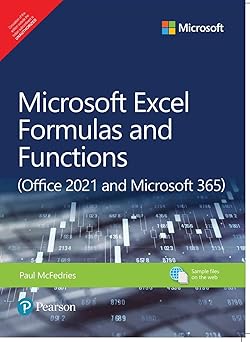
    1️⃣ Microsoft Excel Formulas and Functions (Office 2021 and Microsoft 365), 1st Edition – Paul McFedries

    Rating: 4.3/5 (77 reviews)
    📖 Pages: 508 | Publisher: Pearson Education

    This book provides step-by-step projects covering formulas, functions, dynamic arrays, XLOOKUP, LET, PivotTables, and Solver. Perfect for professionals who want to apply Excel to business modeling, forecasting, and financial analysis.

    💡 Best For: Intermediate to advanced Excel learners, finance & business analysts.
    💰 Price: ~₹599 (23% off)


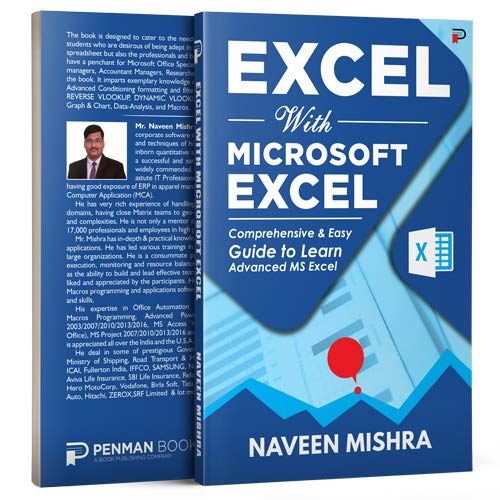
    2️⃣ Excel with Microsoft Excel: Comprehensive & Easy Guide – Naveen Mishra

    Rating: 4.2/5 (new release)
    📖 Pages: 286 | Publisher: Independently Published

    Written by an experienced corporate trainer, this book covers data formatting, advanced conditional formatting, VLOOKUP, HLOOKUP, INDEX, MATCH, dynamic formulas, charts, and macros. It’s practical and exam-friendly (MOS certification support).

    💡 Best For: Students, accountants, and working professionals preparing for Microsoft Office Specialist (MOS) exams.
    💰 Price: ~₹231 (42% off)


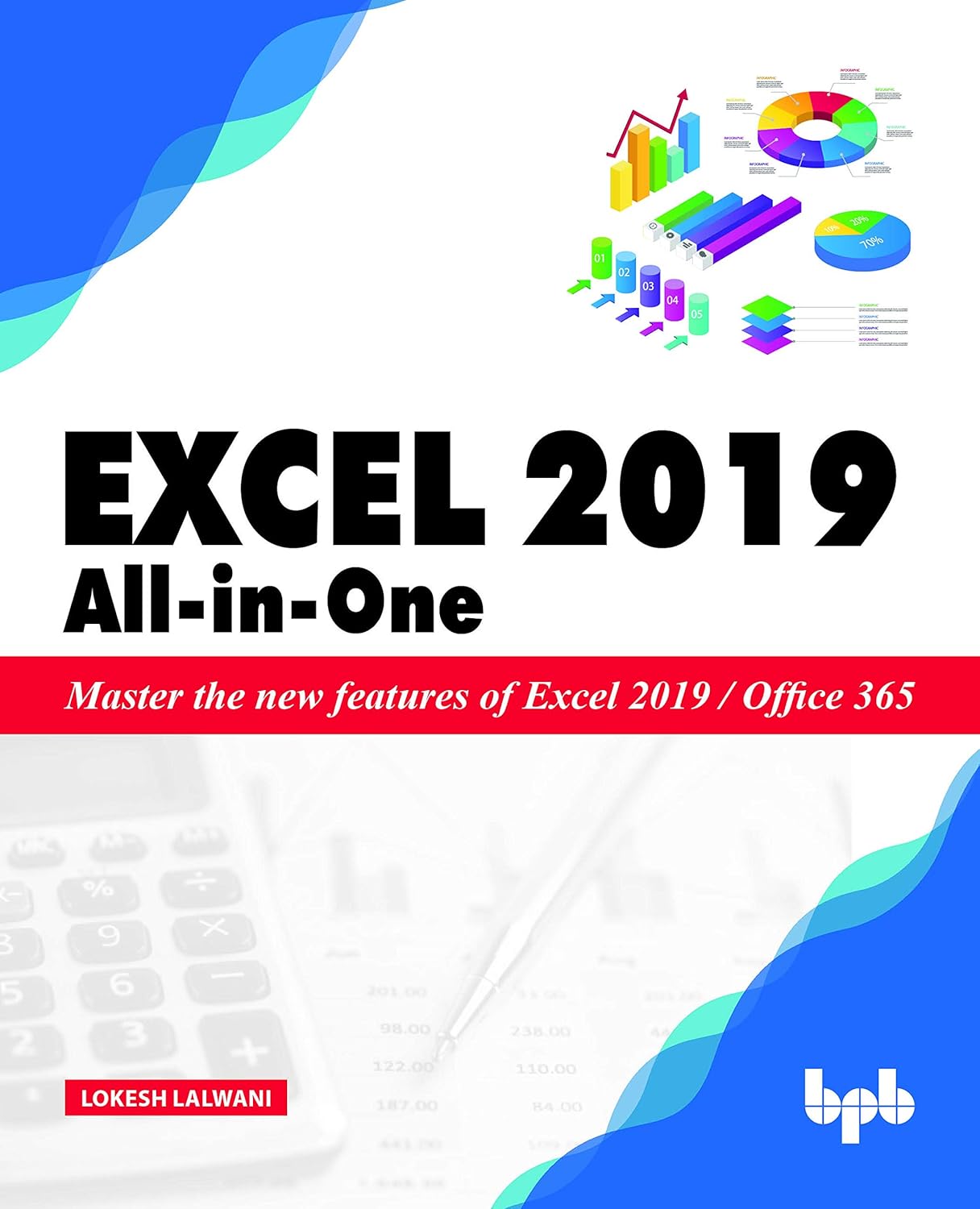
    3️⃣ Excel 2019 All-In-One – Lokesh Lalwani

    Rating: 4.1/5 (711 reviews)
    📖 Pages: 286 | Publisher: BPB Publications

    Authored by a Microsoft Certified Office Expert, this book focuses on Excel 2019 features but still relevant for Office 365 users. Covers data analysis, Power BI basics, PivotTables, and business reporting.

    💡 Best For: Professionals looking for corporate-level Excel use cases and business applications.
    💰 Price: ~₹496


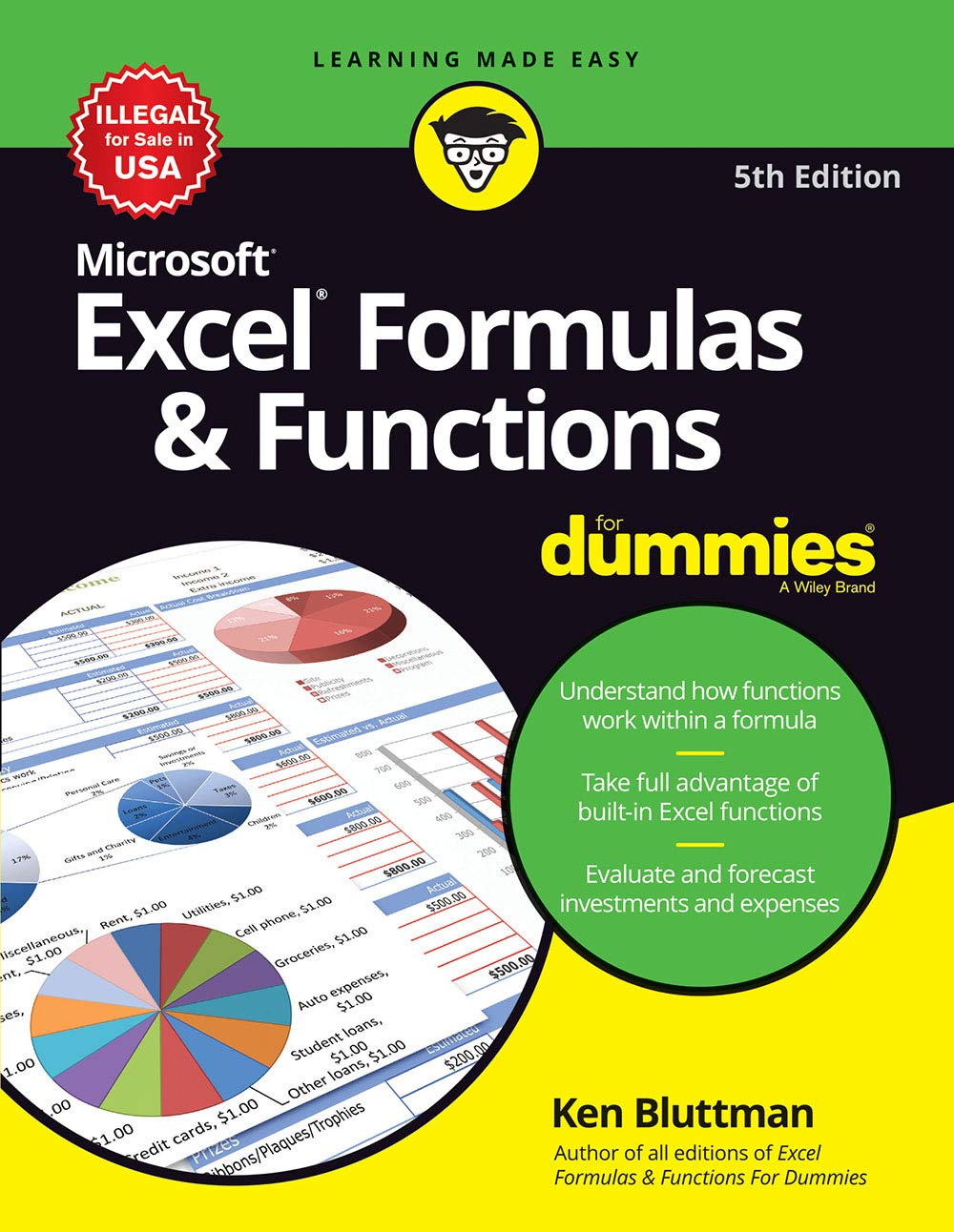
    4️⃣ Microsoft Excel Formulas & Functions for Dummies (5th Edition) – Ken Bluttman

    Rating: 4.4/5 (1,590 reviews)
    📖 Pages: 432 | Publisher: Wiley

    From the famous “For Dummies” series, this book simplifies complex formulas, VBA-based calculations, and practical problem-solving with Excel. It’s easy to understand, even for non-technical users.

    💡 Best For: Beginners to intermediate users who want easy-to-follow explanations of formulas & functions.
    💰 Price: ~₹670 (16% off)


    ✅ Final Recommendation:

    • For business professionalsMicrosoft Excel Formulas and Functions (Paul McFedries)
    • For students & exam prepExcel with Microsoft Excel (Naveen Mishra)
    • For corporate learnersExcel 2019 All-in-One (Lokesh Lalwani)
    • For easy learningExcel Formulas & Functions for Dummies (Ken Bluttman)

  • Top 3 Budget Tablets for Students Under ₹10,000 (2025)

    If you are a student looking for an affordable yet powerful tablet for online classes, studying, and entertainment, here are the Top 3 Best Tablets under ₹10,000 available on Amazon. All three support everyday learning needs like eBooks, YouTube, Zoom, MS Office, and light gaming.


    ⭐ 1. Lenovo Tab M9 (WiFi+4G)

    • Display: 9-inch HD IPS (1340×800) | 400 nits brightness
    • Performance: MediaTek Helio G80 octa-core | Android 12
    • Memory & Storage: 4GB RAM | 64GB ROM (expandable up to 128GB)
    • Battery: 5100 mAh | 13 hours video playback
    • Audio: Dual speakers with Dolby Atmos
    • Weight: Just 344g (very lightweight for students)

    💡 Why choose? Great for eBooks, video lectures, and note-taking. Slim, light, and student-friendly.

    💰 Price: ~₹9,149 (54% off)


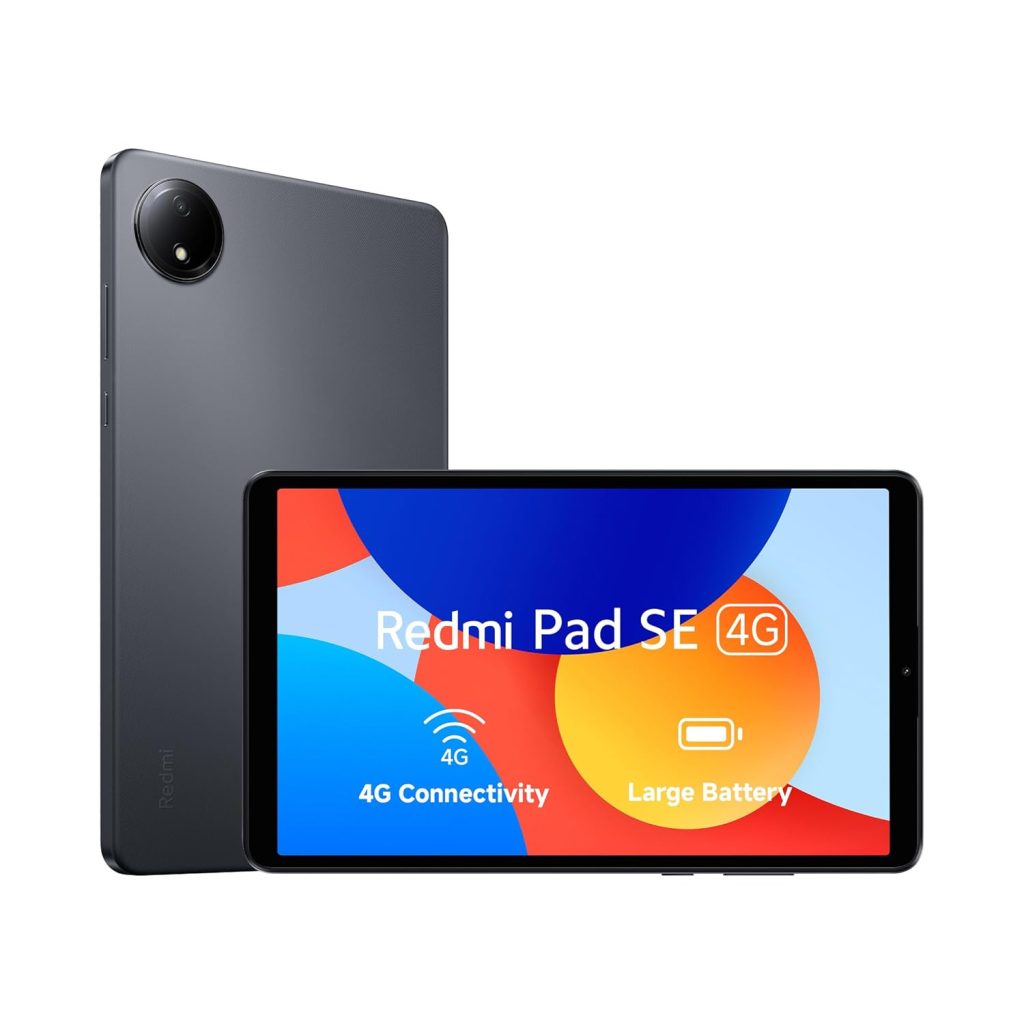
    ⭐ 2. Redmi Pad SE 4G (2025 Model)

    • Display: 8.7-inch (1340×800) | 90Hz smooth refresh rate | 1 Billion colours
    • Performance: MediaTek Helio G55 | Android 14 (latest OS)
    • Memory & Storage: 4GB RAM | 64GB ROM
    • Battery: Huge 6650 mAh | All-day battery backup
    • Audio: Dual speakers with Dolby Atmos

    💡 Why choose? Smooth display (90Hz) makes reading & online classes easier. Latest Android 14 OS ensures long-term support.

    💰 Price: ~₹9,898


    ⭐ 3. Lenovo Tab M10 HD (2nd Gen, WiFi+LTE)

    • Display: 10.1-inch HD IPS | 400 nits brightness
    • Performance: MediaTek Helio P22T octa-core | Android 10
    • Memory & Storage: 4GB RAM | 64GB ROM (expandable up to 256GB)
    • Battery: 5000 mAh | 8MP Rear + 5MP Front Camera
    • Build: Metallic body, premium look

    💡 Why choose? Bigger screen for reading PDFs, Excel/Word, and online study. LTE calling support is a plus for students.

    💰 Price: ~₹9,645 (68% off)


    ✅ Final Recommendation:

    • Best for Portability & Style: Lenovo Tab M9
    • Best for Performance & Future Proofing: Redmi Pad SE (Android 14 + 90Hz display)
    • Best for Big Screen & Online Classes: Lenovo Tab M10 HD

  • New TDS & TCS Rules for 2025 – Salary, Rent, Freelancers & E-Commerce

    India’s Budget 2025 has brought significant changes to the TDS (Tax Deducted at Source) and TCS (Tax Collected at Source) framework, effective from April 1, 2025. These revisions aim to simplify compliance, reduce tax deducted upfront, and ease the burden for individuals, freelancers, landlords, and e-commerce participants.


    1. TDS on Salaries

    TDS on salary continues to be deducted by employers based on the employee’s chosen tax regime and applicable income tax slabs. While there is no new TDS rule for salaries, the revised tax slabs and higher rebate under Section 87A will result in more take-home salary for many taxpayers.


    2. TDS on Interest & Dividends

    • Interest on securities – Now exempt up to ₹10,000.
    • Interest from banks, co-operative societies, and post offices:
      • Senior citizens: threshold raised from ₹50,000 to ₹1,00,000.
      • Other taxpayers: threshold raised from ₹40,000 to ₹50,000.
      • Miscellaneous cases: raised from ₹5,000 to ₹10,000.
    • Dividends & mutual funds – TDS threshold doubled from ₹5,000 to ₹10,000.

    3. TDS on Rent

    The annual rent threshold for TDS deduction has been increased from ₹2.4 lakh to ₹6 lakh, giving relief to small landlords and tenants.


    4. TDS on Professional & Freelance Fees

    Freelancers and professionals will now face TDS only if a single payment exceeds ₹50,000, up from the earlier threshold of ₹30,000. This change improves cash flow for independent professionals.


    5. TDS on Commission & Brokerage

    For commission and brokerage, the TDS rate has been reduced from 5% to 2%, and the exemption threshold has been increased to ₹20,000.


    6. TCS on Remittances, Foreign Payments & E-Commerce

    • For foreign remittances under the Liberalized Remittance Scheme (LRS) and for overseas tour packages, the TCS threshold has increased from ₹7 lakh to ₹10 lakh.
    • Payments for foreign education funded through loans are now exempt from TCS.
    • TCS on high-value goods (e.g., luxury vehicles above ₹10 lakh) continues, but with clearer limits.

    7. Simplification of TDS/TCS Structure

    The new Income Tax Bill consolidates the framework: instead of nearly 69 separate provisions earlier, only 13 simplified sections will remain. This reduces duplication and makes it easier for taxpayers and businesses to comply.


    8. New Provisions for Digital Economy

    A new section, 194T, has been introduced to cover emerging income streams in the digital economy. This aims to bring new-age business models under the TDS net.


    Summary Table

    Income Type / SourceOld Threshold / RateNew Threshold / Rate
    Salaried IncomeAs per tax slabsNo change; only slabs updated
    Interest (Senior Citizens)₹50,000₹1,00,000
    Interest (Others)₹40,000 / ₹5,000₹50,000 / ₹10,000
    Interest on SecuritiesNot specified₹10,000 exemption
    Dividends & Mutual Funds₹5,000₹10,000
    Rent₹2.4 lakh₹6 lakh
    Professional / Freelance Fees₹30,000₹50,000
    Commission / Brokerage₹15,000 @ 5%₹20,000 @ 2%
    LRS Remittance / Tour Packages (TCS)₹7 lakh₹10 lakh (loans exempt)
    TDS/TCS Sections69 fragmented provisions13 simplified provisions

    10 Exam-Style Questions & Answers

    1. Q: What is the revised TDS threshold for senior citizens on interest income?
      A: ₹1,00,000 per year.
    2. Q: At what annual rent amount does TDS apply from April 2025?
      A: ₹6 lakh.
    3. Q: What is the new TDS threshold for professional and freelance fees?
      A: ₹50,000.
    4. Q: What is the TDS threshold for dividends and mutual fund payouts?
      A: ₹10,000.
    5. Q: What is the revised TDS rate for commission and brokerage?
      A: 2% (reduced from 5%).
    6. Q: What is the TCS threshold for foreign remittances and tour packages?
      A: ₹10 lakh (increased from ₹7 lakh).
    7. Q: Is TCS applicable on foreign education loans?
      A: No, such remittances are exempt.
    8. Q: How many TDS/TCS sections will remain in the new Income Tax Bill?
      A: 13 simplified sections.
    9. Q: Does TDS on salaries change in 2025?
      A: No, only tax slab and rebate changes apply.
    10. Q: Which new section has been introduced for the digital economy?
      A: Section 194T.

    Conclusion

    The new TDS and TCS rules for 2025 simplify compliance, provide relief to landlords, freelancers, and senior citizens, and bring clarity for e-commerce and global transactions. With higher exemption thresholds and reduced rates, taxpayers will benefit from better liquidity and less administrative burden.


    Disclaimer

    This article is for educational purposes only. Tax laws are subject to amendments, and their application may vary based on individual circumstances. Readers should consult a qualified tax professional or refer to official government notifications before making financial decisions.


  • Top 5 Online Certifications for Accounting Professionals in 2025

    Accounting has always been the backbone of business. From maintaining books of accounts to preparing financial statements and ensuring compliance, accountants play a crucial role in every organization. But in 2025, the profession is no longer limited to tallying numbers – it’s about financial analysis, technology integration, and business decision-making.

    With businesses going digital, accounting professionals need to upgrade their skills regularly. Online certifications have become one of the best ways to stay competitive, gain global recognition, and open doors to higher salaries and better career opportunities.

    In this blog, we’ll explore the Top 5 Online Certifications for Accounting Professionals in 2025 that can give you an edge in the industry.


    1. Chartered Financial Analyst (CFA) Certification

    The CFA credential remains one of the most respected certifications in the finance and accounting industry. Offered by the CFA Institute (USA), it focuses on investment management, financial analysis, and portfolio management.

    Why Choose CFA in 2025?

    • Global recognition across 160+ countries
    • High demand in banking, investment firms, and corporate finance
    • Strong focus on financial modeling, equity research, and ethics

    Key Highlights:

    • Duration: 2–3 years (3 levels)
    • Mode: Online exam centers & remote proctoring available
    • Cost: ₹2.5–3 lakh approx. for all levels
    • Career Roles: Investment Analyst, Equity Researcher, Portfolio Manager

    Average Salary (India, 2025): ₹8–20 LPA


    2. Certified Management Accountant (CMA – USA)

    CMA is ideal for accountants who want to move into management and leadership roles. It focuses on financial planning, analysis, control, and decision support. The Institute of Management Accountants (IMA) offers this program worldwide.

    Why CMA is Trending in 2025?

    • Preferred by multinational corporations
    • Focuses on strategic business and analytics skills
    • Recognition in India, USA, Middle East, and Asia-Pacific

    Key Highlights:

    • Duration: 12–18 months
    • Mode: Online learning + exams conducted globally
    • Cost: ₹1.5–2 lakh approx.
    • Career Roles: Financial Analyst, Cost Accountant, Business Controller

    Average Salary (India, 2025): ₹7–15 LPA


    3. Chartered Accountant (CA – India) with Online Learning

    The CA designation offered by ICAI (Institute of Chartered Accountants of India) is still the most powerful accounting qualification in India. In 2025, ICAI has also embraced online modes for training, mock tests, and support classes, making it easier for students to prepare.

    Why CA Still Matters in 2025?

    • Strong credibility and recognition in India
    • Diverse career paths – audit, taxation, consulting, corporate finance
    • Rising demand for CAs in startups and MNCs

    Key Highlights:

    • Duration: 4–5 years (with articleship)
    • Mode: Online classes + offline exams
    • Cost: ₹2–3 lakh approx. (all levels)
    • Career Roles: Auditor, Tax Consultant, CFO, Finance Manager

    Average Salary (India, 2025): ₹7–18 LPA (Fresh CAs)


    4. Diploma in IFRS (ACCA, UK)

    With globalization, more companies are adopting International Financial Reporting Standards (IFRS). ACCA offers a globally recognized diploma that is highly valued by accountants working in multinational firms.

    Why IFRS Certification in 2025?

    • Mandatory for companies with global operations
    • Opens opportunities in Big 4 firms and MNCs
    • Short duration and high ROI certification

    Key Highlights:

    • Duration: 3–6 months
    • Mode: 100% Online classes and exams
    • Cost: ₹60,000–80,000 approx.
    • Career Roles: Financial Reporting Analyst, Audit Manager, IFRS Consultant

    Average Salary (India, 2025): ₹6–12 LPA


    5. Certified Public Accountant (CPA – USA)

    The CPA is considered the “gold standard” for accounting professionals worldwide. It covers auditing, taxation, financial reporting, and regulatory frameworks. With many US-based companies outsourcing to India, CPA demand has skyrocketed.

    Why CPA in 2025?

    • Global career opportunities, especially in USA, Canada, Middle East
    • High-paying roles in Big 4 firms (Deloitte, PwC, EY, KPMG)
    • Shorter duration compared to CA

    Key Highlights:

    • Duration: 12–18 months
    • Mode: Online classes + exams in India test centers
    • Cost: ₹2.5–3 lakh approx.
    • Career Roles: Auditor, Tax Specialist, Compliance Officer

    Average Salary (India, 2025): ₹10–20 LPA


    Bonus Certifications to Consider

    Apart from the top 5, here are some additional online certifications that are gaining popularity in 2025:

    • Financial Modeling & Valuation Analyst (FMVA) – Corporate finance & investment banking focus
    • Data Analytics for Accounting (Coursera/edX) – For accountants who want to specialize in analytics
    • GST & TallyPrime Certification – For small business accountants and freelancers
    • Forensic Accounting & Fraud Detection – Niche but high-demand skillset

    How to Choose the Right Certification

    When selecting the best certification, keep these factors in mind:

    1. Career Goal – Do you want to specialize in taxation, auditing, or corporate finance?
    2. Global vs Local Recognition – For India, CA and IFRS work well. For global roles, CPA/CMA/CFA is better.
    3. Budget & Duration – Short-term vs long-term certifications depend on your availability and budget.
    4. Job Market Trends – Look at industries hiring in your region (Big 4, startups, corporates).

    Final Thoughts

    2025 is an exciting time for accounting professionals. Businesses are demanding accountants who not only understand numbers but can also analyze data, support management, and adapt to global standards. Online certifications offer the flexibility to learn while working and can significantly boost your career prospects.

    Whether you choose CA, CMA, CPA, CFA, or IFRS, each certification opens new doors. The right choice depends on your career goals – if you want to grow in India, CA + IFRS is powerful. If you want global exposure, CPA or CMA is ideal. For finance-heavy roles, CFA remains unbeatable.

    Investing in these certifications in 2025 will ensure that you not only stay relevant but also thrive in a competitive job market.


  • MIS Executive Career Path 2025 – Salary, Skills, Roles & Growth Guide

    MIS Executive Career Path – Salary, Skills & Growth in 2025

    In today’s data-driven business world, the role of an MIS (Management Information System) Executive has become one of the most promising career options for fresh graduates and working professionals. Companies across industries rely on MIS professionals to gather, analyze, and present data that helps management make strategic decisions. If you are planning a career in MIS, or already working as an MIS Executive, 2025 is an exciting year full of opportunities, higher salaries, and new growth paths.

    This blog will guide you through the complete career path of an MIS Executive – from required skills, day-to-day responsibilities, salary expectations, and growth opportunities – so you can make the right career decisions.


    Who is an MIS Executive?

    An MIS Executive (Management Information System Executive) is responsible for collecting, processing, and analyzing business data to create meaningful reports. These reports support management in making decisions about operations, sales, finance, and strategy.

    In simple terms, an MIS Executive acts as a bridge between raw data and business decisions. Their work ensures that managers and leaders always have accurate and timely information.


    Key Responsibilities of an MIS Executive

    The role of an MIS Executive is dynamic and can vary across industries, but the core responsibilities include:

    • Data Collection & Management – Gathering data from multiple sources like sales software, ERP systems, CRM tools, or Excel sheets.
    • Data Analysis & Reporting – Preparing daily, weekly, and monthly reports that highlight trends, performance, and business insights.
    • Excel & Dashboard Creation – Using advanced Excel, Google Sheets, or BI tools to create dashboards and automate reports.
    • Database Management – Working with SQL or Access to maintain and retrieve information.
    • Support for Management – Assisting managers with ad-hoc analysis, presentations, and performance tracking.
    • Data Accuracy & Security – Ensuring reports are accurate, consistent, and stored securely.

    Skills Required for MIS Executives in 2025

    The skill set of an MIS Executive has evolved significantly. Earlier, basic Excel and reporting knowledge were enough, but now companies look for tech-savvy professionals who can handle data more efficiently. Here are the essential skills in 2025:

    1. Excel & Advanced Excel

    • Pivot Tables, VLOOKUP/XLOOKUP, INDEX-MATCH, Conditional Formatting
    • Data Cleaning & Validation
    • Power Query & Power Pivot

    2. Business Intelligence (BI) Tools

    • Power BI, Tableau, Google Data Studio
    • Creating interactive dashboards & real-time reporting

    3. Database Knowledge

    • SQL queries for data extraction and analysis
    • MS Access or cloud databases like MySQL/PostgreSQL

    4. Automation & Scripting

    • Basic knowledge of Python, VBA, or Google Apps Script for automating repetitive tasks

    5. Analytical & Problem-Solving Skills

    • Ability to interpret large data sets and provide actionable insights

    6. Communication Skills

    • Presenting data to managers in a clear and professional manner
    • Creating presentations and visual reports

    7. Domain Knowledge

    • Understanding of finance, sales, HR, supply chain, or whichever industry you work in

    Career Path of an MIS Executive

    The career path of an MIS Executive in 2025 is much more diverse than a decade ago. With the rising importance of data analytics, MIS professionals now have multiple routes to grow:

    1. MIS Executive (Entry-Level)

    • Role: Data entry, basic reporting, Excel sheets
    • Experience: 0–2 years
    • Salary Range (India, 2025): ₹2.5–4.5 LPA

    2. Senior MIS Executive

    • Role: Handle complex reports, automate processes, manage junior staff
    • Experience: 2–4 years
    • Salary Range: ₹4.5–7 LPA

    3. MIS Analyst / Data Analyst

    • Role: Work with BI tools, perform advanced data analysis, create dashboards
    • Experience: 3–5 years
    • Salary Range: ₹6–10 LPA

    4. Business Analyst

    • Role: Bridge between technical teams and management, define KPIs, provide business insights
    • Experience: 4–7 years
    • Salary Range: ₹8–14 LPA

    5. MIS/Reporting Manager

    • Role: Manage a team of MIS executives, oversee reporting processes, ensure accuracy & timeliness
    • Experience: 6–10 years
    • Salary Range: ₹12–20 LPA

    6. Data Scientist / BI Specialist (Optional Path)

    • Role: Use Python, R, AI/ML techniques for advanced analytics
    • Salary Range: ₹15–25 LPA+ (with additional technical skills)

    Salary of MIS Executives in 2025

    Salary depends on skills, industry, and experience. With growing demand for data professionals, pay scales are on the rise.

    Entry-Level (0–2 years)

    • Average Salary: ₹20,000–₹35,000 per month (₹2.5–4.5 LPA)

    Mid-Level (2–5 years)

    • Average Salary: ₹40,000–₹70,000 per month (₹5–9 LPA)

    Senior-Level (5–10 years)

    • Average Salary: ₹10–18 LPA depending on role and company size

    International Salary (2025)

    • USA: $50,000 – $85,000 annually
    • UK: £30,000 – £55,000 annually
    • Middle East: AED 7,000 – AED 15,000 per month

    Industries Hiring MIS Executives in 2025

    MIS Executives are required in almost every sector, but some industries offer higher growth:

    • Banking & Finance – For reporting compliance, customer analysis, and risk management
    • E-commerce & Retail – Tracking sales, inventory, customer trends
    • Healthcare – Patient data management, compliance reports
    • IT & Software – Internal operations reporting, project monitoring
    • Manufacturing & Supply Chain – Inventory, production efficiency reports
    • Education & Training – Student data, performance analytics

    Growth Opportunities in 2025

    The growth potential for MIS Executives has expanded due to digital transformation and AI adoption. Here are some ways MIS professionals can upgrade their career:

    1. Learning BI & Analytics Tools – Move beyond Excel to Power BI, Tableau, or Looker.
    2. Acquiring Programming Skills – Knowledge of Python/R helps transition into data analytics and data science.
    3. Certification Courses – MIS professionals can pursue certifications like:
      • Microsoft Excel Expert
      • Power BI / Tableau Certification
      • SQL for Data Analytics
      • Business Analytics Programs
    4. Moving to Managerial Roles – With strong communication and leadership skills, MIS Executives can become Reporting Managers or Business Analysts.
    5. Global Opportunities – Skilled MIS Executives are in demand globally, especially in IT hubs like USA, UK, Dubai, and Singapore.

    Future of MIS Executive Role in 2025 and Beyond

    The role of MIS Executives is evolving rapidly. By 2025, many routine tasks like manual data entry and report preparation are being automated through AI and cloud-based systems. However, MIS Executives who learn advanced tools and develop analytical thinking will continue to grow and remain highly valuable.

    • From Data Entry to Data Strategy – Instead of just preparing reports, MIS professionals will help shape business strategies.
    • Hybrid Role with Analytics – MIS Executives will increasingly overlap with Data Analysts and BI specialists.
    • Higher Salary Growth – Skilled MIS professionals with BI expertise can expect double-digit salary hikes.

    Tips to Build a Successful Career as an MIS Executive in 2025

    • Master Advanced Excel and BI tools – These are non-negotiable.
    • Stay Updated with New Tech – Cloud platforms, AI tools, and automation are shaping the future.
    • Develop Business Acumen – Understand the business side, not just technical reporting.
    • Work on Soft Skills – Communication, presentation, and teamwork set you apart.
    • Network & Learn – Join MIS/Analytics forums, LinkedIn groups, and keep upgrading your knowledge.

    Conclusion

    The career path of an MIS Executive in 2025 is full of opportunities. What started as a reporting and data entry role has now become a stepping stone into the world of business analytics, data science, and managerial leadership.

    If you are starting as an MIS Executive, focus on Excel, SQL, and BI tools. As you grow, build expertise in analytics, automation, and business understanding. With the right skills, you can move from an entry-level executive to a senior analyst, manager, or even transition into data science roles.

    In short, the MIS Executive role in 2025 is not just about preparing reports – it’s about becoming a data-driven decision enabler for businesses. And with data being the “new oil” of the digital economy, this career path will continue to offer high growth, attractive salaries, and global opportunities for years to come.


  • Best All-in-One Desktop PCs Under ₹35,000 for Accounting & GST Work in 2025

    If you’re an accountant, business owner, or GST practitioner, you know the importance of having a reliable desktop that can handle TallyPrime, Busy Accounting, Excel, GST filing portals, and everyday office applications smoothly.

    The good news? You don’t need to spend ₹50,000+ on a high-end machine. Today, some of the best All-in-One (AIO) desktops under ₹35,000 come with Intel’s latest N-series processors, 8GB RAM, 512GB SSD storage, Windows 11, and pre-installed MS Office, making them perfect for accounting, GST returns, and business productivity apps.

    Let’s compare some of the top models available on Amazon India right now 👇


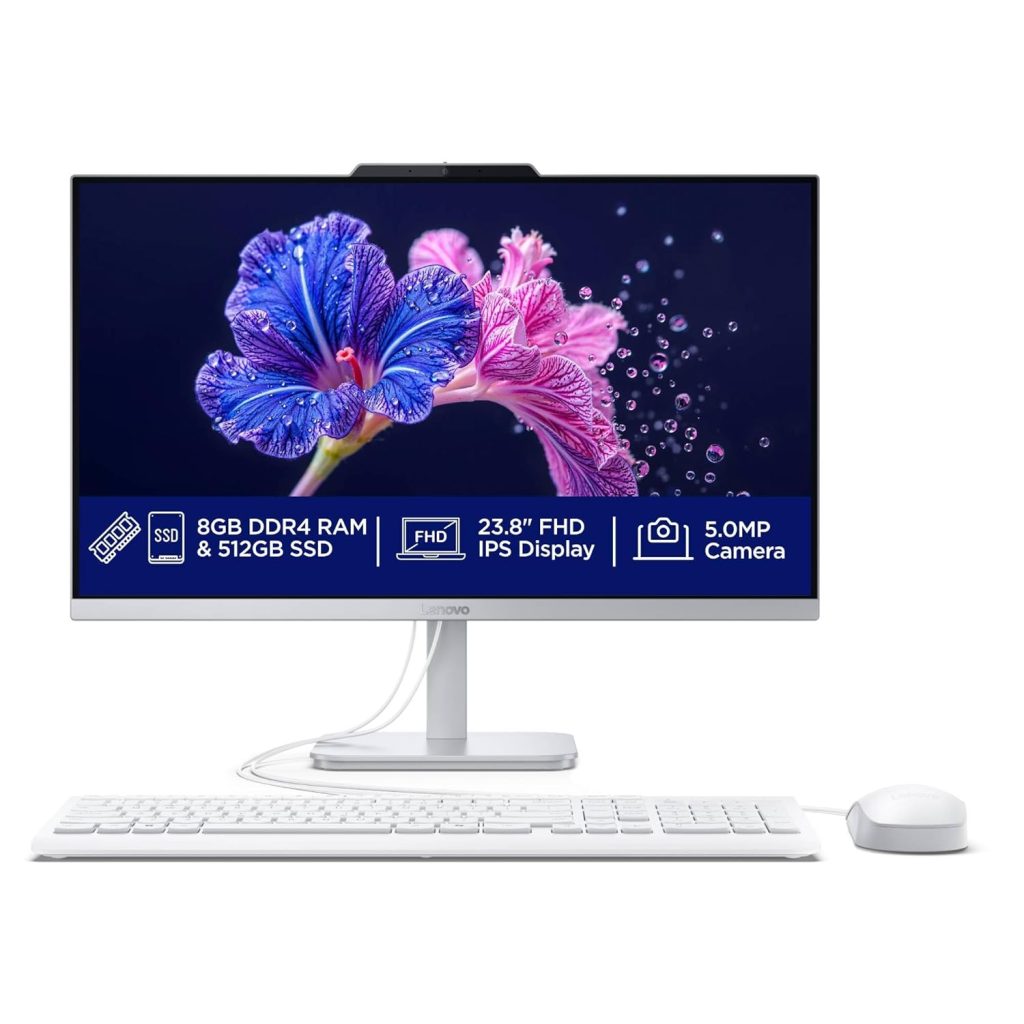
    1️⃣ Lenovo A100 All-in-One (Intel N100, 23.8″)

    🔗 Check on Amazon

    • Display: 23.8″ FHD IPS, Anti-glare, 3-side edgeless design
    • Processor: Intel N100 (3.4 GHz, 4 Cores, 6MB Cache)
    • RAM & Storage: 8GB DDR4 (Expandable to 16GB) + 512GB SSD
    • OS & Software: Windows 11 Home + MS Office 2024
    • Extras: 5MP Webcam, USB Calliope Keyboard & Mouse

    👉 Why it’s great for accounting?

    • Large 23.8-inch Full HD display is excellent for Tally & Excel multitasking.
    • Reliable performance for GST portal, filing software, and office work.
    • Expandable RAM for future-proofing.
    • Sleek design, perfect for professional workspace.

    💡 Best for: Accounting firms and professionals who want bigger display & camera for video calls with clients.


    2️⃣ HP All-in-One Desktop (Intel N100, 21.45″)

    🔗 Check on Amazon

    • Display: 21.45″ FHD VA, 250 nits, 99% sRGB
    • Processor: Intel N100 (Turbo up to 3.4 GHz, 4 Cores, 6MB Cache)
    • RAM & Storage: 8GB DDR5 + 512GB SSD
    • OS & Software: Windows 11 Home, Wired Keyboard & Mouse
    • Extras: HP True Vision 720p Camera, Wi-Fi 6, Dual Array Mics

    👉 Why it’s great for accounting?

    • DDR5 RAM is faster than DDR4 — smoother multitasking.
    • Strong connectivity with Wi-Fi 6 and multiple USB ports.
    • Slim & stylish HP design, easy fit for small offices.

    💡 Best for: Small businesses that need value + performance at an affordable price.


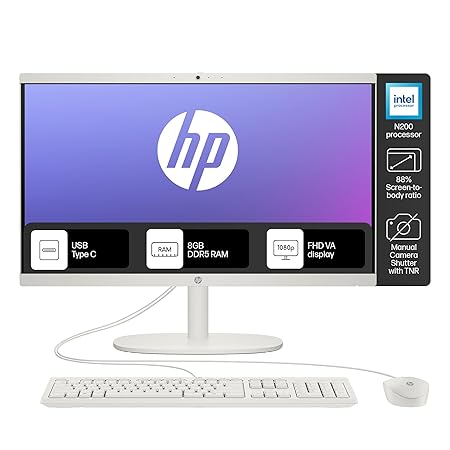
    3️⃣ HP All-in-One (Intel N200, 21.45″)

    🔗 Check on Amazon

    • Processor: Intel N200 (Newer than N100, 3.7 GHz Max, 6MB Cache)
    • RAM & Storage: 8GB DDR5 + 512GB SSD
    • Display: 21.45″ FHD Micro-edge, Anti-glare
    • Camera & Audio: 720p HD with privacy shutter + Dual Speakers
    • Connectivity: Wi-Fi 6, Bluetooth 5.3, USB-C + multiple USB-A ports

    👉 Why it’s great for accounting?

    • Newer & faster Intel N200 processor = smoother performance in GST portal, Excel, Tally.
    • Privacy shutter on webcam for security-conscious professionals.
    • Better speakers & display for longer work sessions.

    💡 Best for: Professionals who want latest-gen processor + conferencing features.


    4️⃣ ASUS AIO A3202 (Intel Celeron 7305, 21.45″)

    🔗 Check on Amazon

    • Processor: Intel Celeron 7305 (5 cores, 1.1 GHz Base, 8MB Cache)
    • RAM & Storage: 8GB DDR4 + 512GB NVMe SSD
    • Display: 21.45″ FHD, 250 nits
    • OS & Software: Windows 11 Home + Office 2024 + MS 365 Basic (1 Year Cloud)
    • Extras: Wi-Fi 6, HDMI out, Wireless Keyboard & Mouse

    👉 Why it’s great for accounting?

    • Comes with both Office 2024 (lifetime) and Office 365 cloud.
    • ASUS build quality, sleek design.
    • Good set of ports for connectivity.

    💡 Best for: Users who want Office suite + cloud storage bundle included.


    🔥 Our Recommendation – Best Pick for Accounting & GST Work

    After comparing, here’s the verdict 👇

    ✅ If you want best display + professional lookLenovo A100 (23.8″).
    ✅ If you want latest-gen processor + DDR5 RAMHP All-in-One N200 (21.45″).
    ✅ If you want cloud + bundled OfficeASUS AIO A3202.

    🏆 Overall Best Choice (Value + Performance): HP All-in-One with Intel N200 (₹32,990)

    • Newer N200 processor (better than N100).
    • DDR5 RAM ensures smooth multitasking in accounting apps.
    • Privacy shutter & better connectivity for client meetings.
    • Under ₹35,000, it strikes the best balance of speed, features, and reliability.

    👉 Check HP All-in-One N200 on Amazon


    ✨ Final Words

    For Accounting, Tally, Excel, and GST filing, you don’t need a high-end workstation. Any of these All-in-One desktops under ₹35,000 will give you smooth, reliable performance for years.

    But if you want the best balance of future-proofing, performance, and professional features, go for the HP All-in-One with Intel N200. It’s the perfect machine for accountants and business owners in 2025.


  • Power Query for Data Cleaning in Excel: Complete Guide with Examples

    ⚡ Power Query in Excel: Automate Data Cleaning

    🔹 What is Power Query?

    • Power Query is an ETL (Extract, Transform, Load) tool in Excel (also in Power BI).
    • It helps you:
      • Import data from multiple sources (Excel, CSV, SQL, Web, etc.).
      • Clean and transform data (remove blanks, split columns, merge tables, etc.).
      • Automate repetitive tasks — once you build steps, you can refresh anytime to reapply them.

    Shortcut to open: Data Tab → Get & Transform Data → Launch Power Query Editor.


    🔹 Why Use Power Query for Data Cleaning?

    1. Reproducible → Steps are recorded, no need to repeat manually.
    2. Error Reduction → Automates processes, avoids human mistakes.
    3. Time-Saving → One-click refresh updates transformed data.
    4. Handles Large Data → Better than formulas for huge datasets.

    🔹 Common Data Cleaning with Examples

    1️⃣ Remove Duplicates

    • Scenario: You have a sales list with repeated customer IDs.
    • Power Query Step: Home → Remove Rows → Remove Duplicates.
    • ✅ Result: Only unique records remain.

    2️⃣ Remove Blank/Null Values

    • Scenario: A dataset has missing entries in “Email” column.
    • Step: Home → Remove Rows → Remove Blank Rows.
    • ✅ Result: All empty records deleted.

    3️⃣ Change Data Types

    • Scenario: Date column imported as text.
    • Step: Transform → Data Type → Date.
    • ✅ Result: Column correctly recognized for calculations.

    4️⃣ Split Column

    • Scenario: “Full Name” column → “Himanshu Dhar”.
    • Step: Home → Split Column → By Delimiter (Space).
    • ✅ Result: First Name = Himanshu, Last Name = Dhar.

    5️⃣ Merge Queries (Joins)

    • Scenario: Two tables:
      • Table 1 → Customer details
      • Table 2 → Sales transactions
    • Step: Home → Merge Queries → Match on Customer ID.
    • ✅ Result: Combined dataset (like VLOOKUP but more powerful).

    6️⃣ Append Queries

    • Scenario: Monthly sales files Jan.xlsx, Feb.xlsx, Mar.xlsx.
    • Step: Home → Append Queries → Stack them into one table.
    • ✅ Result: One consolidated dataset.

    7️⃣ Remove Columns / Keep Columns

    • Scenario: You only need Customer Name & Sales Amount from 10-column table.
    • Step: Home → Choose Columns → Select relevant ones.
    • ✅ Result: Dataset trimmed to necessary info.

    8️⃣ Unpivot Columns

    • Scenario: Sales report: ProductJanFebMarLaptop100150120
    • Step: Transform → Unpivot Columns.
    • ✅ Result: ProductMonthSalesLaptopJan100LaptopFeb150LaptopMar120

    9️⃣ Replace Values

    • Scenario: Customer field has “NA” instead of blank.
    • Step: Transform → Replace Values (“NA” → null).
    • ✅ Result: Clean data with standard blanks.

    🔟 Group Data (Summarization)

    • Scenario: Sales by Region.
    • Step: Home → Group By → Region → Sum of Sales.
    • ✅ Result: Pivot-like summary inside Power Query.

    🔹 Real-Life Example (End-to-End)

    👉 Imagine you receive monthly sales files from different branches:

    • Step 1: Import all files (Folder option).
    • Step 2: Append Queries to combine them.
    • Step 3: Remove duplicates and null values.
    • Step 4: Split “Customer Name” into First/Last name.
    • Step 5: Merge with Customer Master file for full details.
    • Step 6: Unpivot Month columns for analysis.
    • Step 7: Group data by Region → Total Sales.

    Now, whenever new monthly files are added → just Refresh All → Data updates automatically. 🚀


    🎯 10 Interview Questions & Answers on Power Query

    Q1. What is Power Query in Excel?
    👉 Power Query is a data connection and transformation tool that helps automate importing, cleaning, and reshaping data.

    Q2. How is Power Query different from Excel formulas?
    👉 Formulas work inside sheets, but Power Query builds step-by-step transformations that are refreshable and can handle large datasets more efficiently.

    Q3. Can Power Query handle multiple file imports at once?
    👉 Yes, using the Folder option you can import all Excel/CSV files from a directory and consolidate them.

    Q4. What is the difference between Merge and Append in Power Query?
    👉 Merge = Combine tables side by side (like JOIN/VLOOKUP).
    👉 Append = Stack tables on top of each other (like UNION).

    Q5. What is “Unpivot” in Power Query?
    👉 Unpivot converts column headers into rows, making data tidy for analysis.

    Q6. How do you handle missing or null values in Power Query?
    👉 By removing rows, replacing null with default values, or filling down/up.

    Q7. Can Power Query perform calculations?
    👉 Yes, you can create Custom Columns using formulas in M language (Power Query’s scripting).

    Q8. What is the difference between Power Query and Power Pivot?
    👉 Power Query = Data Cleaning & Shaping.
    👉 Power Pivot = Data Modeling & Analysis with DAX.

    Q9. Is Power Query case sensitive?
    👉 Yes, transformations and M language functions are case sensitive.

    Q10. Give a practical example where you used Power Query.
    👉 Example: Consolidating 12 monthly sales reports, cleaning customer names, and preparing a pivot-ready dataset that refreshes automatically.


    ✅ With this, you can confidently explain Power Query in interviews and also showcase practical knowledge.

  • Step-by-Step Guide to Multi-Currency in TallyPrime (Export, Import & Forex Gain/Loss)

    🌍 Multi-Currency Transactions in TallyPrime

    🔹 Step 1: Enable Multi-Currency Feature

    1. Open TallyPrime → Press F11 (Features) → Accounting Features.
    2. Under General, set “Enable Multiple Currencies” → Yes.
    3. Save settings.

    🔹 Step 2: Create Currencies

    1. Go to Create → Accounts Info → Currencies → Create.
    2. Example:
      • Currency Name: US Dollar
      • Formal Name: USD
      • Symbol: $
      • Is symbol suffixed to amount: Yes
      • Number of decimal places: 2
      • Show amounts in millions: No
      • Specify Rate of Exchange: 1 USD = ₹84 (as on today’s rate)

    Repeat for other currencies (Euro, Pound, etc.).


    🔹 Step 3: Create Ledger Accounts

    • Bank Ledger (USD A/c) → Bank A/c under Bank Accounts, select currency as USD.
    • Customer Ledger (ABC Inc., USA) → Sundry Debtor, set Currency: USD.
    • Sales Ledger → Invoicing → Use default Base Currency (INR).

    🔹 Step 4: Record Multi-Currency Sales Voucher (Example 1: Export Sales)

    Scenario:

    👉 You sold goods worth $1,000 to ABC Inc. (USA).
    👉 Exchange Rate: 1 USD = ₹84

    Steps:

    1. Go to Sales Voucher (F8).
    2. Select Customer: ABC Inc. (Currency USD).
    3. Enter item details, amount will show in USD.
      • Example: 1,000 USD.
    4. Tally automatically converts → ₹84,000 (in INR books).

    📌 Entry shown in Tally

    • Dr. ABC Inc. (USD) → $1,000 (₹84,000)
    • Cr. Sales A/c → ₹84,000

    🔹 Step 5: Record Receipt Voucher (Example 2: Payment Received in USD)

    Scenario:

    👉 Customer pays $1,000 later, but now exchange rate = ₹85.

    1. Go to Receipt Voucher (F6).
    2. Dr. Bank A/c (USD) $1,000 (₹85,000).
    3. Cr. ABC Inc. (USD) $1,000 (₹84,000).

    📌 Tally automatically shows Forex Gain: ₹1,000 (difference due to exchange rate).


    🔹 Step 6: Import Purchase Example (Vendor in USD)

    Scenario:

    👉 You import raw materials worth $500, exchange rate ₹83.
    👉 Bank pays later at ₹84.

    1. Purchase Voucher (F9) → Select Supplier (USD Ledger).
    2. Purchase recorded as $500 = ₹41,500.
    3. At payment time (Payment Voucher F5):
      • Dr. Supplier $500 = ₹42,000
      • Cr. Bank A/c = ₹42,000
      • Forex Loss = ₹500

    🔹 Step 7: Reports & Analysis

    • Check Ledger → Customer/Supplier → Display → Tally shows both foreign currency & INR equivalent.
    • Balance Sheet / P&L → Consolidated in base currency (INR).
    • Forex gains/losses shown separately.

    ✅ Practical Example Summary

    TransactionCurrencyRateLedger Impact (INR)Forex Effect
    Sales to US Client$1,00084₹84,000
    Receipt from Client$1,00085₹85,000Gain ₹1,000
    Import Purchase$50083₹41,500
    Payment to Supplier$50084₹42,000Loss ₹500

    👉 This way, TallyPrime auto-tracks exchange rate fluctuations and shows real forex gain/loss in your accounts.


  • Top 50 Shortcut Keys in Tally Prime Every Accountant Must Know

    Tally Prime is one of the most widely used accounting software in India. To work efficiently, accountants rely heavily on keyboard shortcuts that save time and speed up navigation. Here’s a complete list of the 50 most useful Tally Prime shortcut keys you must remember.


    🔹 A. Navigation Shortcuts

    1. Alt + G – Go To (navigate anywhere in Tally Prime)
    2. Alt + K – Company menu
    3. Alt + Y – Data menu
    4. Alt + Z – Exchange menu
    5. Alt + O – Import
    6. Alt + E – Export
    7. Alt + M – Email
    8. Ctrl + H – Change mode (Voucher/Report)
    9. Alt + P – Print
    10. Esc – Exit / Close screen

    🔹 B. Masters (Ledger, Groups, Stock, etc.)

    1. Alt + C – Create master (Ledger/Stock) while entering voucher
    2. Alt + D – Delete master
    3. Alt + N – Create a new master (anywhere)
    4. Alt + Enter – Alter master during voucher entry
    5. Ctrl + Enter – Drill down from report to alter master

    🔹 C. Vouchers Entry Shortcuts

    1. F2 – Change Voucher Date
    2. Alt + F2 – Change Period
    3. F4 – Contra Voucher
    4. F5 – Payment Voucher
    5. F6 – Receipt Voucher
    6. F7 – Journal Voucher
    7. F8 – Sales Voucher
    8. F9 – Purchase Voucher
    9. F10 – Reversing Journal
    10. F11 – Features (Company Features)
    11. F12 – Configuration
    12. Alt + I – Insert Voucher
    13. Alt + 2 – Duplicate Voucher
    14. Alt + R – Repeat narration in voucher
    15. Ctrl + V – Toggle between Invoice and Voucher mode

    🔹 D. Reports & Display

    1. Alt + F1 – Detailed report view
    2. Alt + F5 – Columnar report view
    3. Ctrl + A – Save (report / configuration)
    4. Ctrl + Q – Quit without saving
    5. Ctrl + R – Remove line in report
    6. Ctrl + U – Restore line in report
    7. Alt + G + D – Day Book
    8. Alt + G + L – Ledger Voucher report
    9. Alt + G + S – Stock Summary
    10. Alt + G + T – Trial Balance

    🔹 E. Banking / Utility Shortcuts

    1. Alt + B – Balance Sheet
    2. Alt + P + D – Print Day Book
    3. Alt + J – GST report
    4. Alt + O + S – Import Bank Statement
    5. Alt + Y + R – Register for Tally Software Services (TSS)
    6. Ctrl + N – Calculator Panel
    7. Ctrl + Alt + C – Copy text from Tally
    8. Ctrl + Alt + V – Paste text into Tally
    9. Ctrl + Alt + R – Rewrite company data
    10. Ctrl + K – Keyboard Language toggle

    ✅ Why Learn These Shortcuts?

    • Boost speed: No need to scroll menus for common tasks
    • Error reduction: Enter data faster, fewer manual mistakes
    • Professionalism: Clients and employers value quick, accurate accounting work
    • Efficiency: Handle high-volume vouchers & reports in less time