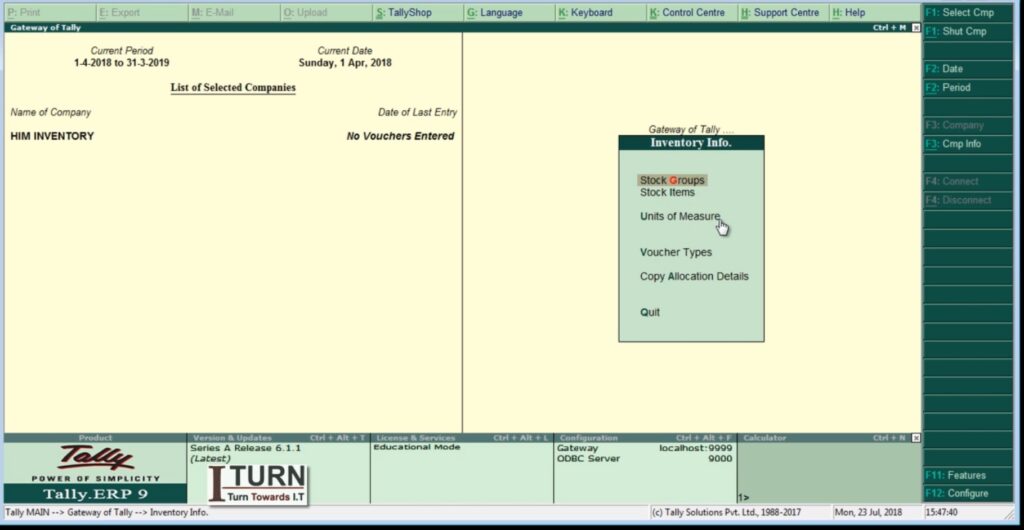
Task 1: Inventory Setup
- Create a new company in Tally ERP 9.
- Set up inventory features such as units of measure, stock categories, and stock groups.
- Add a few sample inventory items with different units of measure.
Task 2: Purchase Entry
- Record the purchase of inventory items from a supplier.
- Enter the purchase invoice details including item name, quantity, rate, and taxes.
- Ensure that the inventory stock is updated after the purchase transaction.
Task 3: Sales Entry
- Record the sales of inventory items to customers.
- Enter the sales invoice details including item name, quantity sold, rate, and taxes.
- Ensure that the inventory stock is updated after the sales transaction.
Task 4: Inventory Reorder Level
- Set up reorder levels for inventory items to maintain optimum stock levels.
- Generate a report that shows inventory items falling below the reorder level.
- Analyze the report and understand the importance of maintaining reorder levels.
Task 5: Inventory Valuation
- Explore different methods of inventory valuation such as FIFO, LIFO, and Weighted Average.
- Calculate the valuation of inventory using each method for a set of sample transactions.
- Compare the results and understand how inventory valuation affects financial statements.
Task 6: Inventory Aging Analysis
- Generate an inventory aging report to analyze the age of inventory items in stock.
- Classify inventory items based on their age (e.g., 0-30 days, 31-60 days, 61-90 days, etc.).
- Interpret the aging report to identify slow-moving or obsolete inventory items.
Task 7: Inventory Adjustment
- Perform inventory adjustments for damaged, lost, or stolen items.
- Record the adjustments in Tally ERP 9 by increasing or decreasing the quantity of affected inventory items.
- Analyze the impact of inventory adjustments on inventory valuation and financial statements.
These tasks cover various aspects of inventory management in Tally ERP 9 and provide students with hands-on experience in using the software for inventory-related transactions and analysis.
Solutions
Solution 1: Inventory Setup
- Open Tally ERP 9 and create a new company.
- Go to Gateway of Tally > Inventory Info > Units of Measure to set up units of measure.
- Next, navigate to Inventory Info > Stock Categories to define stock categories.
- Then, go to Inventory Info > Stock Groups to create stock groups.
- Finally, under Inventory Info > Stock Items, add sample inventory items with their respective units of measure, stock categories, and stock groups.
Solution 2: Purchase Entry
- Go to Gateway of Tally > Accounting Vouchers > F9: Purchase.
- Enter the supplier’s invoice number, date, and other relevant details.
- Select the inventory items purchased along with their quantities, rates, and applicable taxes.
- Save the voucher to record the purchase transaction and update the inventory stock.
Solution 3: Sales Entry
- Navigate to Gateway of Tally > Accounting Vouchers > F8: Sales.
- Enter the customer’s invoice number, date, and other necessary details.
- Choose the inventory items sold with their quantities, rates, and applicable taxes.
- Save the voucher to record the sales transaction and update the inventory stock.
Solution 4: Inventory Reorder Level
- Go to Gateway of Tally > Inventory Info > Reorder Levels.
- Set up reorder levels for each inventory item by specifying the minimum quantity to maintain.
- Generate the Reorder Level report from Inventory Info to view items falling below the reorder level.
Solution 5: Inventory Valuation
- Explore different methods of inventory valuation such as FIFO, LIFO, and Weighted Average.
- Use the appropriate features in Tally ERP 9 to calculate inventory valuation based on each method.
- Compare the valuation results to understand the impact on financial statements.
Solution 6: Inventory Aging Analysis
- Generate an Inventory Aging report from Inventory Info to analyze the age of inventory items.
- Classify inventory items based on their age ranges (e.g., 0-30 days, 31-60 days, etc.).
- Interpret the report to identify slow-moving or obsolete inventory items that may need attention.
Solution 7: Inventory Adjustment
- Go to Gateway of Tally > Inventory Vouchers > F7: Stock Journal.
- Record inventory adjustments by increasing or decreasing the quantity of affected items.
- Provide reasons for adjustments such as damages, losses, or thefts.
- Analyze the impact of adjustments on inventory valuation and financial statements.
These solutions provide step-by-step guidance on how to perform each task in Tally ERP 9 related to inventory management.