Tag: Tally ERP Guide

  • 100 Voucher Entry Examples for Service-Based Companies in Tally

    In a service-based company, day-to-day financial activities—like receiving payments, paying expenses, and adjusting accounts—are recorded using vouchers in Tally.ERP 9 or TallyPrime.
    Voucher entries ensure that every business transaction is documented properly for accounting accuracy, GST compliance, and financial reporting.

    There are several types of vouchers in Tally, including:

    • Payment Vouchers – For expenses, purchases, and other outgoing payments.
    • Receipt Vouchers – For recording income, customer payments, or advances received.
    • Journal Vouchers – For adjustments, provisions, or non-cash transactions.
    • Contra Vouchers – For internal cash/bank transfers.
    • Sales & Purchase Vouchers – For billing customers or recording vendor invoices.

    Below is a comprehensive list of 100 sample voucher entries for a service-based company.

    Tally-style ledger entry format with:

    Date | Voucher Type | Debit Ledger | Credit Ledger | Amount | Narration
    

    We’ll group by type so it’s easier to follow but still have 100 unique entries.


    100 Voucher Entries for a Service-Based Company (Tally Style)


    A. Sales Vouchers – 20 Entries

    01-04-2025 | Sales | Accounts Receivable | Service Revenue | 50000 | Consulting services to ABC Pvt Ltd, Inv#001
    03-04-2025 | Sales | Accounts Receivable | Service Revenue | 75000 | Digital marketing to XYZ Ltd, Inv#002
    04-04-2025 | Sales | Bank | Service Revenue | 32000 | Design services to Rohan Enterprises, paid immediately
    05-04-2025 | Sales | Accounts Receivable | Service Revenue | 125000 | Annual software support to TechWorld, Inv#003
    07-04-2025 | Sales | Accounts Receivable | Service Revenue | 15000 | SEO package to WebX, Inv#004
    08-04-2025 | Sales | Accounts Receivable | Service Revenue | 20000 | Social media management for Neo Fashions, Inv#005
    09-04-2025 | Sales | Bank | Service Revenue | 45000 | Logo & branding for Fresh Foods, paid upfront
    10-04-2025 | Sales | Accounts Receivable | Service Revenue | 18000 | Email campaign for Smart Solutions, Inv#006
    11-04-2025 | Sales | Accounts Receivable | Service Revenue | 40000 | Consulting fees to GoFast Logistics, Inv#007
    13-04-2025 | Sales | Bank | Service Revenue | 22000 | Mobile app UI design project, paid
    15-04-2025 | Sales | Accounts Receivable | Service Revenue | 60000 | Market research for Prime Foods, Inv#008
    17-04-2025 | Sales | Accounts Receivable | Service Revenue | 35000 | Video editing project for SmartAds, Inv#009
    19-04-2025 | Sales | Bank | Service Revenue | 28000 | Website redesign payment from CoolTech
    20-04-2025 | Sales | Accounts Receivable | Service Revenue | 42000 | Training session billed to BizGrow, Inv#010
    21-04-2025 | Sales | Accounts Receivable | Service Revenue | 55000 | Cloud integration setup to DataLink, Inv#011
    23-04-2025 | Sales | Bank | Service Revenue | 38000 | Hosting migration for GreenSoft, paid
    24-04-2025 | Sales | Accounts Receivable | Service Revenue | 29000 | API integration billed to AppMax, Inv#012
    26-04-2025 | Sales | Accounts Receivable | Service Revenue | 75000 | Annual AMC billed to MegaTrade, Inv#013
    28-04-2025 | Sales | Bank | Service Revenue | 44000 | Creative design for BrandX, paid
    30-04-2025 | Sales | Accounts Receivable | Service Revenue | 50000 | Digital strategy billed to InnovateCo, Inv#014
    

    B. Receipt Vouchers – 20 Entries

    05-04-2025 | Receipt | Bank | Accounts Receivable | 50000 | Payment from ABC Pvt Ltd
    06-04-2025 | Receipt | Bank | Accounts Receivable | 75000 | Payment from XYZ Ltd
    08-04-2025 | Receipt | Bank | Accounts Receivable | 15000 | Payment from WebX
    09-04-2025 | Receipt | Bank | Accounts Receivable | 125000 | Payment from TechWorld
    10-04-2025 | Receipt | Bank | Accounts Receivable | 20000 | Payment from Neo Fashions
    12-04-2025 | Receipt | Bank | Accounts Receivable | 18000 | Payment from Smart Solutions
    13-04-2025 | Receipt | Bank | Accounts Receivable | 40000 | Payment from GoFast Logistics
    15-04-2025 | Receipt | Bank | Accounts Receivable | 60000 | Payment from Prime Foods
    18-04-2025 | Receipt | Bank | Accounts Receivable | 35000 | Payment from SmartAds
    19-04-2025 | Receipt | Bank | Accounts Receivable | 28000 | Payment from CoolTech
    21-04-2025 | Receipt | Bank | Accounts Receivable | 42000 | Payment from BizGrow
    23-04-2025 | Receipt | Bank | Accounts Receivable | 55000 | Payment from DataLink
    24-04-2025 | Receipt | Bank | Accounts Receivable | 38000 | Payment from GreenSoft
    25-04-2025 | Receipt | Bank | Accounts Receivable | 29000 | Payment from AppMax
    27-04-2025 | Receipt | Bank | Accounts Receivable | 75000 | Payment from MegaTrade
    28-04-2025 | Receipt | Bank | Accounts Receivable | 44000 | Payment from BrandX
    29-04-2025 | Receipt | Bank | Accounts Receivable | 50000 | Payment from InnovateCo
    30-04-2025 | Receipt | Bank | Accounts Receivable | 33000 | Payment from AlphaBuild
    01-05-2025 | Receipt | Bank | Accounts Receivable | 46000 | Payment from BetaWare
    02-05-2025 | Receipt | Bank | Accounts Receivable | 58000 | Payment from VisionSoft
    

    C. Payment Vouchers – 20 Entries

    05-04-2025 | Payment | Rent Expense | Bank | 25000 | Office rent for April
    06-04-2025 | Payment | Internet Expense | Bank | 2000 | April broadband bill
    07-04-2025 | Payment | Salaries Expense | Bank | 120000 | April salaries paid
    08-04-2025 | Payment | Printing & Stationery | Cash | 1500 | Printing expense
    09-04-2025 | Payment | Electricity Expense | Bank | 6500 | Electricity bill
    10-04-2025 | Payment | Office Supplies | Cash | 3000 | Office consumables
    11-04-2025 | Payment | Travel Expense | Bank | 4500 | Client visit fare
    12-04-2025 | Payment | Marketing Expense | Bank | 8000 | Google Ads spend
    13-04-2025 | Payment | Software Subscription | Bank | 12000 | Annual Zoom license
    14-04-2025 | Payment | Cleaning Expense | Cash | 2200 | Office cleaning
    15-04-2025 | Payment | Telephone Expense | Bank | 2500 | Mobile bills
    16-04-2025 | Payment | Courier Charges | Cash | 800 | Documents couriered
    17-04-2025 | Payment | Repairs & Maintenance | Bank | 5000 | AC repair
    18-04-2025 | Payment | Security Charges | Bank | 3500 | Office security
    19-04-2025 | Payment | Staff Welfare | Cash | 1500 | Refreshments
    20-04-2025 | Payment | Professional Fees | Bank | 20000 | Auditor fee
    21-04-2025 | Payment | Subscription Expense | Bank | 1500 | Online tool subscription
    22-04-2025 | Payment | Insurance Expense | Bank | 7000 | Office insurance premium
    23-04-2025 | Payment | Legal Charges | Bank | 6000 | Contract review
    24-04-2025 | Payment | Training Expense | Bank | 9000 | Staff workshop
    

    D. Journal Vouchers – 15 Entries

    30-04-2025 | Journal | Depreciation Expense | Accumulated Depreciation | 5000 | Depreciation for April
    30-04-2025 | Journal | Provision for Tax | Provision for Income Tax | 15000 | Income tax provision
    30-04-2025 | Journal | Accrued Income | Service Revenue | 10000 | Services rendered but not yet billed
    30-04-2025 | Journal | Prepaid Insurance | Insurance Expense | 6000 | Prepaid adjustment
    30-04-2025 | Journal | Interest Receivable | Interest Income | 3000 | Accrued interest on deposit
    30-04-2025 | Journal | Rent Expense | Prepaid Rent | 2500 | Rent paid in advance
    30-04-2025 | Journal | Bonus Expense | Provision for Bonus | 8000 | Staff bonus provision
    30-04-2025 | Journal | Outstanding Expenses | Salaries Expense | 12000 | Unpaid salary provision
    30-04-2025 | Journal | Bad Debt Expense | Accounts Receivable | 5000 | Write-off customer dues
    30-04-2025 | Journal | Discount Allowed | Accounts Receivable | 2000 | Discount to client
    30-04-2025 | Journal | Interest Expense | Interest Payable | 3500 | Loan interest accrued
    30-04-2025 | Journal | Bank Charges | Bank | 1200 | Bank service fees
    30-04-2025 | Journal | GST Input | Accounts Payable | 4500 | GST adjustment
    30-04-2025 | Journal | Advertising Expense | Prepaid Advertising | 3000 | Advance payment for ads
    30-04-2025 | Journal | Office Expense | Outstanding Expenses | 2500 | Office expense accrued
    

    E. Contra Vouchers – 10 Entries

    05-04-2025 | Contra | Bank | Cash | 10000 | Cash deposit in bank
    06-04-2025 | Contra | Cash | Bank | 5000 | Cash withdrawn for petty cash
    07-04-2025 | Contra | Bank | Cash | 15000 | Cash deposit
    09-04-2025 | Contra | Cash | Bank | 8000 | Withdrawal for office use
    12-04-2025 | Contra | Bank | Cash | 7000 | Cash deposit
    15-04-2025 | Contra | Cash | Bank | 6000 | Withdrawal for petty expenses
    17-04-2025 | Contra | Bank | Cash | 12000 | Cash deposit
    20-04-2025 | Contra | Cash | Bank | 4000 | Withdrawal for emergency
    22-04-2025 | Contra | Bank | Cash | 9000 | Cash deposit
    25-04-2025 | Contra | Cash | Bank | 3000 | Withdrawal for petty expenses
    

    F. Purchase Vouchers – 15 Entries

    06-04-2025 | Purchase | Office Equipment | Bank | 45000 | Laptop purchase
    07-04-2025 | Purchase | Furniture | Accounts Payable | 12000 | Chairs purchased on credit
    08-04-2025 | Purchase | Software Subscription | Bank | 18000 | Adobe Creative Cloud annual plan
    10-04-2025 | Purchase | Office Stationery | Cash | 2500 | Office paper and pens
    12-04-2025 | Purchase | Printer | Bank | 8000 | New office printer
    14-04-2025 | Purchase | UPS Battery | Bank | 5500 | Battery replacement
    15-04-2025 | Purchase | CCTV Equipment | Bank | 22000 | Security cameras purchase
    17-04-2025 | Purchase | Coffee Machine | Cash | 6000 | Staff coffee machine
    18-04-2025 | Purchase | Whiteboard | Cash | 1500 | Meeting room whiteboard
    20-04-2025 | Purchase | Projector | Bank | 18000 | Conference projector
    21-04-2025 | Purchase | Mobile Phone | Bank | 25000 | Company mobile for manager
    23-04-2025 | Purchase | External Hard Drive | Cash | 4000 | Backup drive
    25-04-2025 | Purchase | AC Unit | Bank | 30000 | AC for meeting room
    27-04-2025 | Purchase | Website Hosting | Bank | 12000 | Annual hosting plan
    29-04-2025 | Purchase | Domain Registration | Bank | 1500 | Company domain renewal
    

    How to Enter These Vouchers in Tally

    1. Prepare Ledgers Before Entering

    Before you start, make sure you’ve created these ledger groups in Tally → Accounts Info → Ledgers → Create:

    • Assets:
      • Accounts Receivable (Sundry Debtors)
      • Bank (Bank Accounts)
      • Cash (Cash-in-hand)
      • Office Equipment, Furniture, etc. (Fixed Assets)
    • Income:
      • Service Revenue
      • Interest Income
    • Expenses:
      • Rent Expense, Salaries Expense, Electricity Expense, etc. (Indirect Expenses)
      • Marketing Expense, Travel Expense, etc. (Indirect Expenses)
      • Depreciation Expense (Indirect Expenses)
    • Liabilities:
      • Accounts Payable (Sundry Creditors)
      • Provision for Income Tax
      • Provision for Bonus
      • Interest Payable, Outstanding Expenses

    2. Choosing Voucher Type in Tally

    When entering a transaction:

    • Sales → F8: Sales (DR customer / CR Service Revenue)
    • Receipt → F6: Receipt (DR Bank/Cash / CR Customer)
    • Payment → F5: Payment (DR Expense / CR Bank/Cash)
    • Purchase → F9: Purchase (DR Asset/Expense / CR Bank/Creditors)
    • Journal → F7: Journal (Any adjustment that’s not cash/bank)
    • Contra → F4: Contra (Cash-Bank transfers within the business)

    3. Steps for Entering a Voucher in Tally

    Example: Sales Entry — 01-04-2025

    1. Go to Gateway of Tally → Accounting Vouchers → F8 Sales
    2. Enter Date: 01-04-2025
    3. Party’s A/c Name: Select Accounts Receivable (or customer ledger)
    4. Sales Ledger: Service Revenue
    5. Amount: 50000
    6. Narration: Consulting services to ABC Pvt Ltd, Inv#001
    7. Press Ctrl + A to save.

    Example: Receipt Entry — 05-04-2025

    1. Go to F6: Receipt
    2. DR Ledger: Bank → ₹50,000
    3. CR Ledger: Accounts Receivable → ₹50,000
    4. Narration: Payment from ABC Pvt Ltd
    5. Save.

    Example: Payment Entry — 05-04-2025

    1. Go to F5: Payment
    2. DR Ledger: Rent Expense → ₹25,000
    3. CR Ledger: Bank → ₹25,000
    4. Narration: Office rent for April
    5. Save.

    Example: Journal Entry — 30-04-2025

    1. Go to F7: Journal
    2. DR Ledger: Depreciation Expense → ₹5,000
    3. CR Ledger: Accumulated Depreciation → ₹5,000
    4. Narration: Depreciation for April
    5. Save.

    Example: Contra Entry — 05-04-2025

    1. Go to F4: Contra
    2. DR Ledger: Bank → ₹10,000
    3. CR Ledger: Cash → ₹10,000
    4. Narration: Cash deposit in bank
    5. Save.

    4. Best Practice Tips

    • Always check DR = CR before saving.
    • Keep narrations clear for future reference.
    • Use Alt + 2 in the voucher screen to duplicate similar entries.
    • For bulk entries, first create all ledgers so voucher entry is faster.

    Impact on Tally Reports

    Voucher TypePrimary EffectReports Impacted
    SalesIncreases revenue & debtor balanceP&L (Income ↑), Balance Sheet (Debtors ↑)
    ReceiptsIncreases cash/bank, reduces debtor balanceBalance Sheet (Cash/Bank ↑, Debtors ↓)
    PaymentsIncreases expense or asset, reduces cash/bankP&L (Expense ↑) or Balance Sheet (Assets ↑, Cash ↓)
    PurchasesIncreases asset or expenseBalance Sheet (Asset ↑) or P&L (Expense ↑)
    JournalAdjusts balances without cash/bankDepends on accounts affected
    ContraMoves funds within businessOnly Balance Sheet (Cash/Bank movement)

    💡 Tip for Practice:
    If you enter all 100 of these in Tally Education / TallyPrime sample company, by the end:

    • P&L will show your Service Revenue vs all expenses.
    • Balance Sheet will reflect Assets, Liabilities, and Closing Cash/Bank.
    • You’ll get real practice with narrations, ledger grouping, and DR/CR rules.

  • Applying VAT on Fixed Assets in Tally.ERP 9 – Step-by-Step Tutorial with Examples

    In Tally.ERP 9, applying VAT (Value Added Tax) on fixed assets involves a few steps. Here’s a comprehensive guide on how to apply VAT on fixed assets in Tally.ERP 9:

    Step 1: Creating Fixed Assets Ledger:

    1. Go to Gateway of Tally > Accounts Info > Ledger > Create.
    2. Create a ledger named “Fixed Assets” under the group “Fixed Assets”.

    Step 2: Enabling VAT in Tally.ERP 9:

    1. Go to Gateway of Tally > F11: Features > F3: Statutory & Taxation.
    2. Enable VAT by selecting “Yes” in the option “Enable Value Added Tax (VAT)?”

    Step 3: Creating VAT Ledger:

    1. Go to Gateway of Tally > Accounts Info > Ledger > Create.
    2. Create a ledger named “VAT @ X%” (replace X with your applicable VAT rate) under the group “Duties & Taxes”.

    Step 4: Recording Purchase of Fixed Asset with VAT:

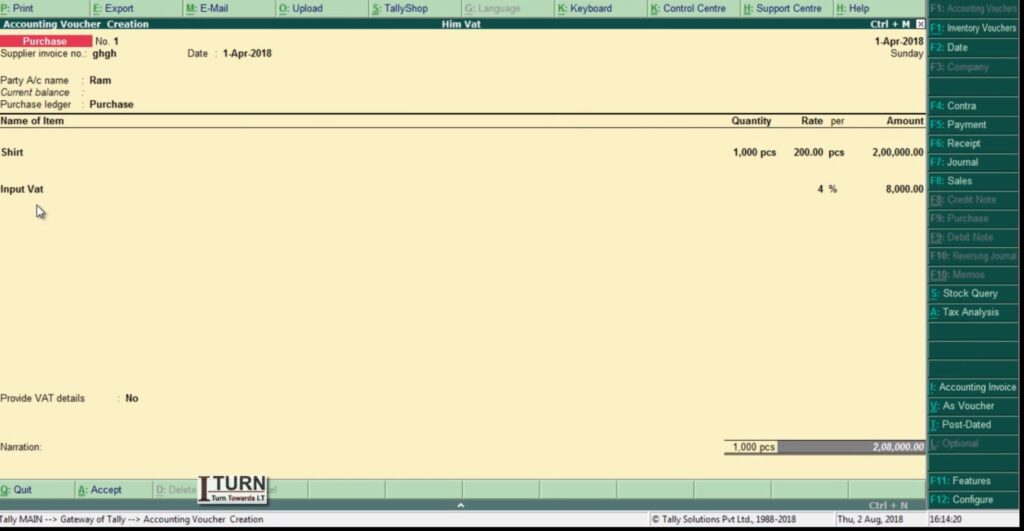
    1. Go to Gateway of Tally > Accounting Vouchers > F9: Purchase.
    2. Enter the date of purchase, supplier invoice number, and other details.
    3. Debit the “Fixed Assets” ledger with the total amount (excluding VAT).
    4. Debit the “VAT @ X%” ledger with the VAT amount.
    5. Credit the supplier’s ledger with the total amount (including VAT).

    Step 5: Calculating Input VAT Credit:

    1. Go to Gateway of Tally > Display > Statutory Reports > VAT > VAT Computation.
    2. Check the Input VAT credit available against the VAT ledger.

    Step 6: Adjusting Input VAT Credit:

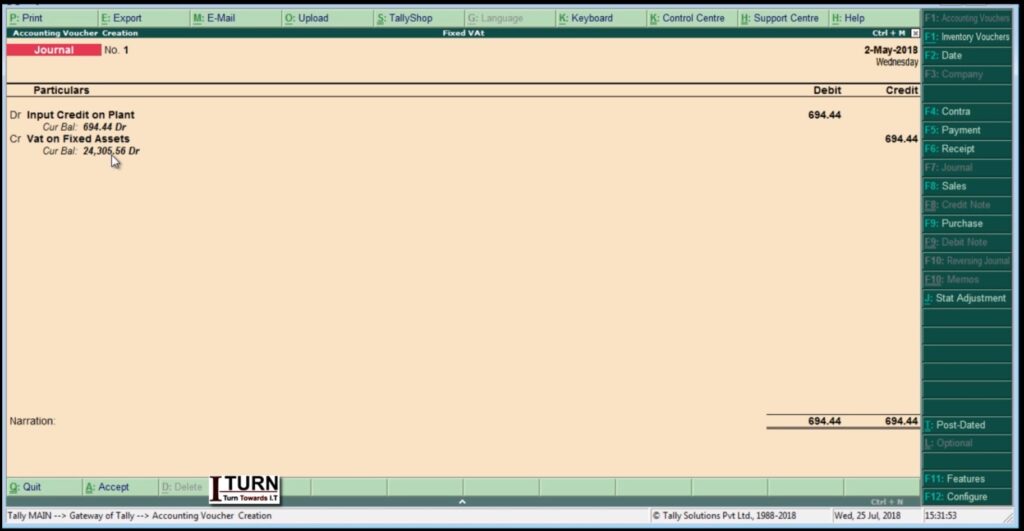
    1. Go to Gateway of Tally > Accounting Vouchers > F7: Journal.
    2. Debit the Input VAT ledger and credit the VAT Payable ledger to adjust the input VAT credit against the VAT liability.

    Step 7: Calculating Depreciation:

    1. Go to Gateway of Tally > Accounts Info > Ledger > Create.
    2. Create a ledger named “Depreciation” under the group “Indirect Expenses”.
    3. Record depreciation entries as per the applicable rates and methods.

    Step 8: Recording Sale of Fixed Asset:

    1. Go to Gateway of Tally > Accounting Vouchers > F8: Sales.
    2. Enter the date of sale, buyer details, and other necessary information.
    3. Debit the buyer’s ledger with the sales amount (excluding VAT).
    4. Credit the “Fixed Assets” ledger with the original purchase cost.
    5. Credit the “VAT @ X%” ledger with the VAT amount charged on the sale.

    Step 9: Paying VAT Liability:

    1. Go to Gateway of Tally > Display > Statutory Reports > VAT > VAT Challan Reconciliation.
    2. Check the VAT payable amount.
    3. Go to Gateway of Tally > Accounting Vouchers > F5: Payment.
    4. Debit the VAT Payable ledger and credit the bank ledger for paying the VAT liability.

    Step 10: Updating VAT Returns:

    1. Go to Gateway of Tally > Display > Statutory Reports > VAT > VAT Returns.
    2. Generate VAT returns and file them as per legal requirements.

    Throughout these steps, ensure compliance with VAT regulations and consult with a tax advisor if needed.


    Professional Courses

  • Recording VAT Entries in Tally.ERP 9 with Detailed Steps and Examples

    VAT entry in Tally.ERP 9 is essential for businesses to accurately record Value Added Tax transactions. Below, I will guide you through the process step-by-step, including examples and explanations:

    Step 1: Create VAT Ledgers

    1. Access Ledger Creation: Open Tally.ERP 9 and navigate to Gateway of Tally > Accounts Info > Ledgers > Create.
    2. Create VAT Ledger: Create a ledger named ‘VAT Input’ and ‘VAT Output’ under the group ‘Duties & Taxes’.

    Step 2: Enable VAT in Tally

    1. Activate VAT: Go to Gateway of Tally > F11: Features > F3: Statutory & Taxation.
    2. Enable VAT: Set ‘Enable Value Added Tax (VAT)’ to ‘Yes’.

    Step 3: Make Sales Entry with VAT

    1. Create Sales Voucher: Go to Gateway of Tally > Accounting Vouchers > F8: Sales.
    2. Enter Sales Details: Fill in the necessary details like the party’s name, invoice number, date, and sales amount (e.g., Rs. 10,000).
    3. Select VAT Ledger: In the Accounting Voucher screen, under Particulars, select the sales ledger and enter the sales amount.
    4. Specify VAT Rate: In the Tax Analysis screen, select the VAT ledger and enter the applicable VAT rate (e.g., 12.5%).

    Step 4: Record Purchase Entry with VAT

    1. Create Purchase Voucher: Go to Gateway of Tally > Accounting Vouchers > F9: Purchase.
    2. Enter Purchase Details: Fill in the necessary details like the supplier’s name, invoice number, date, and purchase amount (e.g., Rs. 8,000).
    3. Select VAT Ledger: In the Accounting Voucher screen, under Particulars, select the purchase ledger and enter the purchase amount.
    4. Specify VAT Rate: In the Tax Analysis screen, select the VAT ledger and enter the applicable VAT rate (e.g., 12.5%).

    Step 5: View VAT Reports

    1. Access VAT Reports: Go to Gateway of Tally > Display > Statutory Reports > VAT.
    2. Generate VAT Computation: Select the period for which you want to view the VAT computation.
    3. Review VAT Details: You can view details like total sales, total purchases, input VAT, output VAT, and VAT payable.

    Example:

    Let’s consider a scenario:

    • Sales amount: Rs. 50,000
    • Purchase amount: Rs. 30,000
    • VAT rate: 12.5%

    Sales Entry:

    1. Create a sales voucher.
    2. Enter the sales details: Party name, invoice number, date, and sales amount (Rs. 50,000).
    3. Select the sales ledger and enter the sales amount.
    4. Specify the VAT rate as 12.5%.

    Purchase Entry:

    1. Create a purchase voucher.
    2. Enter the purchase details: Supplier’s name, invoice number, date, and purchase amount (Rs. 30,000).
    3. Select the purchase ledger and enter the purchase amount.
    4. Specify the VAT rate as 12.5%.

    Summary:

    • Enable VAT in Tally.
    • Create VAT ledgers for input and output.
    • Record sales and purchase transactions separately.
    • Specify the VAT rate for each transaction.
    • Review VAT reports to ensure accurate computation.

    By following these steps and example, you can effectively manage VAT entries in Tally.ERP 9 for your business transactions.

  • Comprehensive Guide to Sales Order Management in Tally ERP 9

    Let’s walk through the stages and voucher entries in the sales order process in Tally ERP 9:

    1. Sales Order:

    Definition: A sales order is a document issued by a seller to a buyer, confirming the details of the products or services the buyer intends to purchase.

    Steps to Create a Sales Order in Tally ERP 9:

    1. Navigate to Gateway of Tally > Inventory Vouchers > F5: Sales Order.
    2. Enter the sales order number, date, and other relevant details.
    3. Select the customer from the list.
    4. Enter details of the items to be sold including quantity, rate, and any applicable taxes.
    5. Save the sales order.

    Example: ABC Company receives a sales order from Customer XYZ for 50 units of Product A at a rate of $20 per unit. They create a sales order with these details.

    2. Delivery Note:

    Definition: A delivery note is prepared by the seller to confirm the delivery of goods to the buyer. It serves as an acknowledgment of the transfer of goods.

    Steps to Create a Delivery Note in Tally ERP 9:

    1. Go to Gateway of Tally > Inventory Vouchers > F8: Delivery Note.
    2. Select the sales order against which goods are to be delivered.
    3. Enter the delivery note number, date, and other relevant details.
    4. Specify the quantity and condition of goods being delivered.
    5. Save the delivery note.

    Example: ABC Company prepares a delivery note to confirm the delivery of 50 units of Product A to Customer XYZ as per the sales order.

    3. Rejection In:

    Definition: If the goods delivered are not as per the buyer’s specifications or are damaged, a rejection in voucher is prepared to return the goods to the seller.

    Steps to Create a Rejection In Voucher in Tally ERP 9:

    1. Navigate to Gateway of Tally > Inventory Vouchers > F7: Rejection In.
    2. Select the delivery note against which goods are to be rejected.
    3. Specify the quantity and condition of goods being returned.
    4. Save the rejection in voucher.

    Example: Customer XYZ rejects 5 units of Product A delivered by ABC Company due to damage. They create a rejection in voucher to return these 5 units.

    4. Sales Bill:

    Definition: A sales bill is issued by the seller to the buyer, requesting payment for the goods or services supplied.

    Steps to Create a Sales Bill in Tally ERP 9:

    1. Go to Gateway of Tally > Accounting Vouchers > F8: Sales.
    2. Select the customer from the list.
    3. Enter the sales bill number, date, and other relevant details.
    4. Specify the details of the items sold including quantity, rate, and taxes.
    5. Save the sales bill.

    Example: ABC Company sends a sales bill to Customer XYZ for the 45 units of Product A that were accepted.

    5. Credit Note:

    Definition: If there are discrepancies in the sales bill, such as over-delivery or damaged goods, the seller may issue a credit note to the buyer for adjustments in the amount owed.

    Steps to Create a Credit Note in Tally ERP 9:

    1. Navigate to Gateway of Tally > Accounting Vouchers > F7: Journal.
    2. Select Credit Note as the voucher type.
    3. Enter the credit note number, date, and other relevant details.
    4. Specify the reason for issuing the credit note and the amount to be adjusted.
    5. Save the credit note.

    Example: If ABC Company over-delivered 5 units of Product A, they issue a credit note to Customer XYZ to adjust the sales bill accordingly.

    These are the stages and voucher entries involved in the sales order process in Tally ERP 9. Each step ensures proper documentation and tracking of transactions between the seller and the buyer.

    Reports

    After completing the stages and voucher entries for sales orders in Tally ERP 9, you can view various reports related to sales transactions and inventory management. Here’s where you can find relevant reports:

    1. Sales Register:

    • Location: Gateway of Tally > Display > Account Books > Sales Register.
    • Description: The Sales Register provides a comprehensive view of all sales transactions, including sales bills and credit notes, within a specified period.

    2. Sales Summary:

    • Location: Gateway of Tally > Display > Account Books > Sales Summary.
    • Description: The Sales Summary report gives an overview of sales transactions summarized by customer, product, or sales group.

    3. Outstanding Receivables:

    • Location: Gateway of Tally > Display > Statements of Accounts > Outstandings > Receivables.
    • Description: The Outstanding Receivables report helps track pending payments from customers based on sales invoices and credit notes issued.

    4. Stock Summary:

    • Location: Gateway of Tally > Display > Inventory Books > Stock Summary.
    • Description: The Stock Summary report provides an overview of all stock items, including opening balance, inward and outward movements, and closing balance.

    5. Delivery Note Register:

    • Location: Gateway of Tally > Display > Inventory Books > Delivery Note Register.
    • Description: The Delivery Note Register displays details of all delivery notes issued, including quantities delivered and pending deliveries.

    6. Rejection In Register:

    • Location: Gateway of Tally > Display > Inventory Books > Rejection In Register.
    • Description: The Rejection In Register shows details of all goods returned by customers, helping to track rejected items and reasons for rejection.

    7. Credit Note Register:

    • Location: Gateway of Tally > Display > Accounts Books > Credit Note Register.
    • Description: The Credit Note Register provides a summary of all credit notes issued to customers, including reasons for issuing the credit notes.

    8. Inventory Ageing Analysis:

    • Location: Gateway of Tally > Display > Inventory Books > Inventory Ageing Analysis.
    • Description: The Inventory Ageing Analysis report helps identify slow-moving or obsolete inventory items based on their age.

    These reports in Tally ERP 9 enable you to monitor sales transactions, track inventory movements, analyze receivables, and manage customer accounts effectively. They provide valuable insights into your business operations and help in making informed decisions for business growth and optimization.

  • Setting Up and Executing Purchase Order Processes in Tally ERP 9

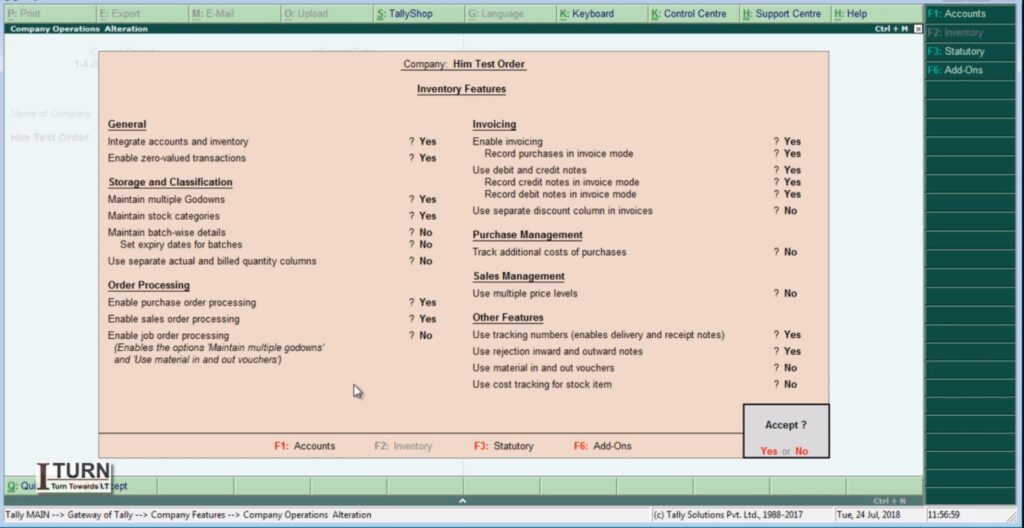
    Before performing the entries related to purchase orders, receipt notes, rejection outs, purchase bills, and debit notes in Tally ERP 9, it’s important to ensure that relevant features are activated. Here’s how you can activate these features:

    1. Enable Inventory Management:

    1. Go to Gateway of Tally.
    2. Select ‘F11: Features’ or press F11.
    3. Under ‘F1: Accounting Features’, ensure that ‘Maintain Accounts only’ is set to ‘No’.
    4. Set ‘Maintain Inventory’ to ‘Yes’.

    2. Set Up Inventory Features:

    1. Go to Gateway of Tally.
    2. Select ‘F11: Features’ or press F11.
    3. Under ‘F2: Inventory Features’, ensure that the required options such as ‘Maintain Multiple Godowns’, ‘Use Tracking Numbers (Batch Numbers)’, ‘Use Expiry Dates for Batches’, etc., are set according to your business needs.

    3. Configure Purchase and Sales Vouchers:

    1. Go to Gateway of Tally.
    2. Select ‘F12: Configure’ or press F12.
    3. Under ‘Accounting Features’, ensure that ‘Allow Purchase Orders’ and ‘Allow Sales Orders’ are set to ‘Yes’.

    4. Activate Rejection In and Out Vouchers:

    1. Go to Gateway of Tally.
    2. Select ‘F11: Features’ or press F11.
    3. Under ‘Inventory Features’, ensure that ‘Enable Rejection In/Out Voucher’ is set to ‘Yes’.

    5. Enable Debit and Credit Notes:

    1. Go to Gateway of Tally.
    2. Select ‘F11: Features’ or press F11.
    3. Under ‘Accounting Features’, ensure that ‘Enable Invoicing’ is set to ‘Yes’.
    4. Additionally, check if ‘Use Rejection In/Out for Purchase Returns’ and ‘Use Debit/Credit Notes’ are set to ‘Yes’ as required.

    6. Set Up Stock Groups, Stock Categories, and Units of Measure:

    1. Go to Gateway of Tally.
    2. Under ‘Inventory Info’, set up stock groups, stock categories, and units of measure as per your business requirements.

    7. Configure Godowns (if applicable):

    1. Go to Gateway of Tally.
    2. Under ‘Inventory Info’, set up multiple godowns if your business involves maintaining inventory at different locations.

    By activating these features and configuring settings in Tally ERP 9, you ensure that the software is ready to handle inventory management, purchase orders, sales orders, rejection vouchers, purchase bills, and debit notes efficiently. This setup enables seamless recording and tracking of transactions related to inventory and purchase/sales operations.

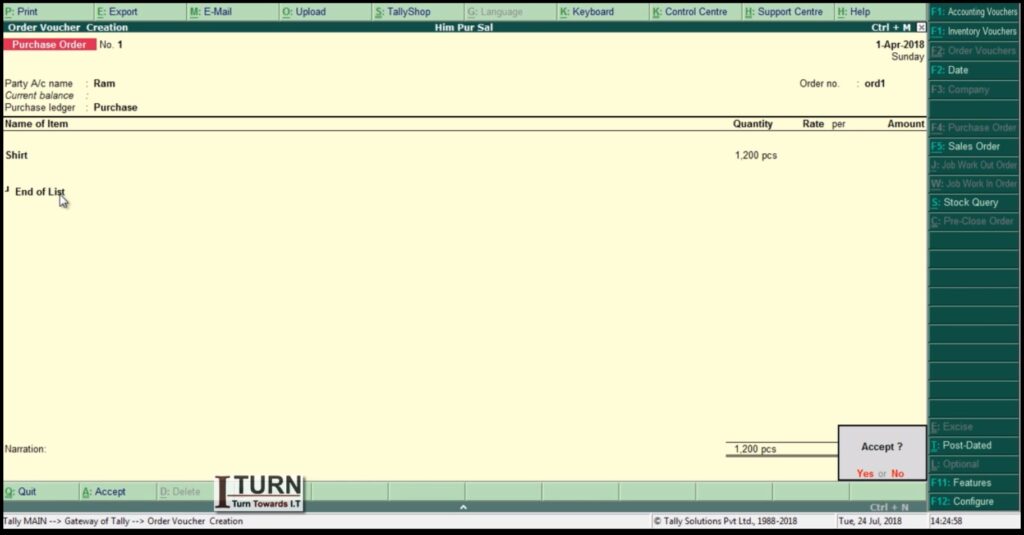
    1. Purchase Order (PO):

    Definition: A purchase order is a document issued by a buyer to a seller, specifying the details of the goods or services the buyer intends to purchase.

    Steps to Create a Purchase Order in Tally ERP 9:

    1. Navigate to Gateway of Tally > Inventory Vouchers > F4: Purchase Order.
    2. Enter the purchase order number, date, and other relevant details.
    3. Select the supplier/vendor from the list.
    4. Enter details of the items to be purchased including quantity, rate, and any applicable taxes.
    5. Save the purchase order.

    Example: Let’s say your company, XYZ Enterprises, needs to purchase 100 units of Product A from Supplier ABC at a rate of $10 per unit. The purchase order would specify these details along with other terms such as delivery date and payment terms.

    2. Receipt Note:

    Definition: A receipt note is prepared by the buyer upon receiving goods from the seller. It serves as acknowledgment of receipt of goods.

    Steps to Create a Receipt Note in Tally ERP 9:

    1. Go to Gateway of Tally > Inventory Vouchers > F9: Purchase Order.
    2. Select the purchase order for which goods have been received.
    3. Enter the receipt note number, date, and other relevant details.
    4. Specify the quantity and condition of goods received.
    5. Save the receipt note.

    Example: Using the previous example, if Supplier ABC delivers 100 units of Product A, XYZ Enterprises creates a receipt note to acknowledge the receipt of these goods.

    3. Rejection Out:

    Definition: If the goods received are damaged or do not meet the buyer’s specifications, a rejection out voucher is prepared to return the goods to the seller.

    Steps to Create a Rejection Out Voucher in Tally ERP 9:

    1. Navigate to Gateway of Tally > Inventory Vouchers > F6: Rejection Out.
    2. Select the receipt note against which goods are to be rejected.
    3. Specify the quantity and condition of goods being returned.
    4. Save the rejection out voucher.

    Example: If XYZ Enterprises finds that 10 units of Product A received from Supplier ABC are damaged, they create a rejection out voucher to return these 10 units to the supplier.

    4. Purchase Bill:

    Definition: A purchase bill is issued by the seller to the buyer, requesting payment for the goods or services supplied.

    Steps to Create a Purchase Bill in Tally ERP 9:

    1. Go to Gateway of Tally > Accounting Vouchers > F9: Purchase.
    2. Select the supplier/vendor from the list.
    3. Enter the purchase bill number, date, and other relevant details.
    4. Specify the details of the items purchased including quantity, rate, and taxes.
    5. Save the purchase bill.

    Example: Supplier ABC sends a purchase bill to XYZ Enterprises for the 90 units of Product A that were accepted.

    5. Debit Note:

    Definition: If there are discrepancies in the purchase bill, such as overcharging or damaged goods, the buyer may issue a debit note to the seller requesting adjustments to the amount owed.

    Steps to Create a Debit Note in Tally ERP 9:

    1. Navigate to Gateway of Tally > Accounting Vouchers > F7: Journal.
    2. Select Debit Note as the voucher type.
    3. Enter the debit note number, date, and other relevant details.
    4. Specify the reason for issuing the debit note and the amount to be adjusted.
    5. Save the debit note.

    Example: If XYZ Enterprises finds that Supplier ABC has overcharged for 5 units of Product A, they issue a debit note requesting a reduction in the purchase amount accordingly.

    These are the stages and voucher entries involved in the purchase order process in Tally ERP 9. Each step ensures proper documentation and tracking of transactions between the buyer and the seller.

    Check Reports

    After completing the entries for purchase orders, receipt notes, rejection out, purchase bills, and debit notes in Tally ERP 9, you can check various stock-related aspects including reports to ensure accurate inventory management. Here’s where you can find relevant information and reports:

    Stock Summary:
    • Go to Gateway of Tally > Display > Inventory Books > Stock Summary.
    • This report provides a summary of all stock items, including their opening balance, inward and outward movements, and closing balance.
    Stock Item Vouchers:
    • Navigate to Gateway of Tally > Display > Inventory Books > Stock Item Vouchers.
    • Here, you can view all transactions related to a specific stock item including purchase orders, receipts, sales, rejection outs, etc.
    Inventory Reports:
    • Under Gateway of Tally > Display > Inventory Books, you can access various reports such as Stock Item Vouchers, Movement Analysis, and Inventory Ageing Analysis.
    • These reports provide insights into the movement and status of inventory items over time.
    Stock Query:
    • You can use the Stock Query feature in Tally ERP 9 to check the availability, location, and other details of specific stock items.
    • Go to Gateway of Tally > Display > Inventory Books > Stock Query.
    Stock Valuation Reports:
    • To analyze the valuation of your inventory, you can access reports such as Stock Valuation Summary and Stock Valuation Tally.
    • These reports help you understand the total value of your inventory based on different valuation methods (FIFO, LIFO, Weighted Average, etc.).
    Movement Analysis:
    • This report provides insights into the movement of goods in and out of the organization over a specified period.
    • Go to Gateway of Tally > Display > Inventory Books > Movement Analysis.
    Sales and Purchase Register:
    • You can review the sales and purchase registers to track transactions, invoices, and payments.
    • Go to Gateway of Tally > Display > Account Books > Journal Register / Purchase Register / Sales Register.

    By utilizing these reports and features in Tally ERP 9, you can effectively monitor your inventory, track stock movements, analyze valuation, and ensure accurate financial reporting. It helps in making informed decisions related to inventory management and optimizing stock levels to meet business requirements.