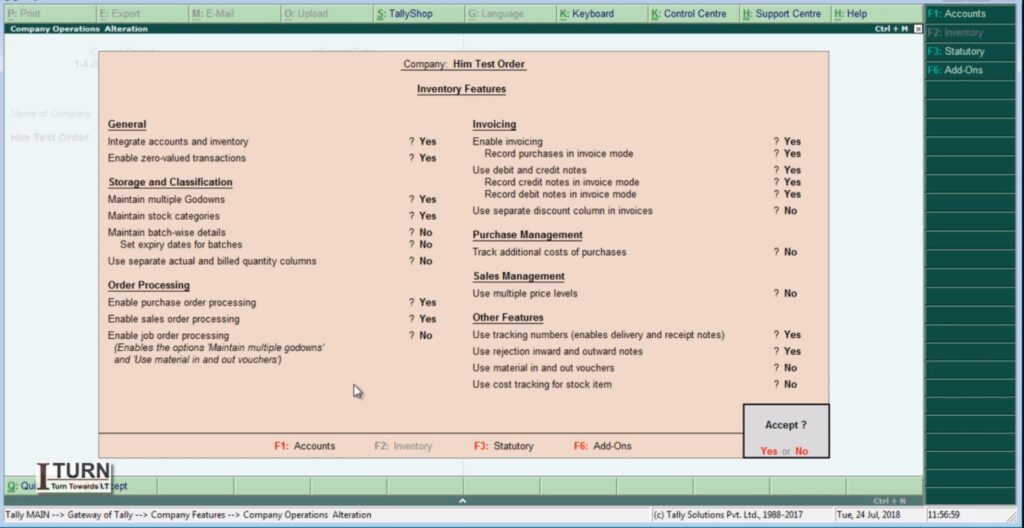
Before performing the entries related to purchase orders, receipt notes, rejection outs, purchase bills, and debit notes in Tally ERP 9, it’s important to ensure that relevant features are activated. Here’s how you can activate these features:
1. Enable Inventory Management:
- Go to Gateway of Tally.
- Select ‘F11: Features’ or press F11.
- Under ‘F1: Accounting Features’, ensure that ‘Maintain Accounts only’ is set to ‘No’.
- Set ‘Maintain Inventory’ to ‘Yes’.
2. Set Up Inventory Features:
- Go to Gateway of Tally.
- Select ‘F11: Features’ or press F11.
- Under ‘F2: Inventory Features’, ensure that the required options such as ‘Maintain Multiple Godowns’, ‘Use Tracking Numbers (Batch Numbers)’, ‘Use Expiry Dates for Batches’, etc., are set according to your business needs.
3. Configure Purchase and Sales Vouchers:
- Go to Gateway of Tally.
- Select ‘F12: Configure’ or press F12.
- Under ‘Accounting Features’, ensure that ‘Allow Purchase Orders’ and ‘Allow Sales Orders’ are set to ‘Yes’.
4. Activate Rejection In and Out Vouchers:
- Go to Gateway of Tally.
- Select ‘F11: Features’ or press F11.
- Under ‘Inventory Features’, ensure that ‘Enable Rejection In/Out Voucher’ is set to ‘Yes’.
5. Enable Debit and Credit Notes:
- Go to Gateway of Tally.
- Select ‘F11: Features’ or press F11.
- Under ‘Accounting Features’, ensure that ‘Enable Invoicing’ is set to ‘Yes’.
- Additionally, check if ‘Use Rejection In/Out for Purchase Returns’ and ‘Use Debit/Credit Notes’ are set to ‘Yes’ as required.
6. Set Up Stock Groups, Stock Categories, and Units of Measure:
- Go to Gateway of Tally.
- Under ‘Inventory Info’, set up stock groups, stock categories, and units of measure as per your business requirements.
7. Configure Godowns (if applicable):
- Go to Gateway of Tally.
- Under ‘Inventory Info’, set up multiple godowns if your business involves maintaining inventory at different locations.
By activating these features and configuring settings in Tally ERP 9, you ensure that the software is ready to handle inventory management, purchase orders, sales orders, rejection vouchers, purchase bills, and debit notes efficiently. This setup enables seamless recording and tracking of transactions related to inventory and purchase/sales operations.
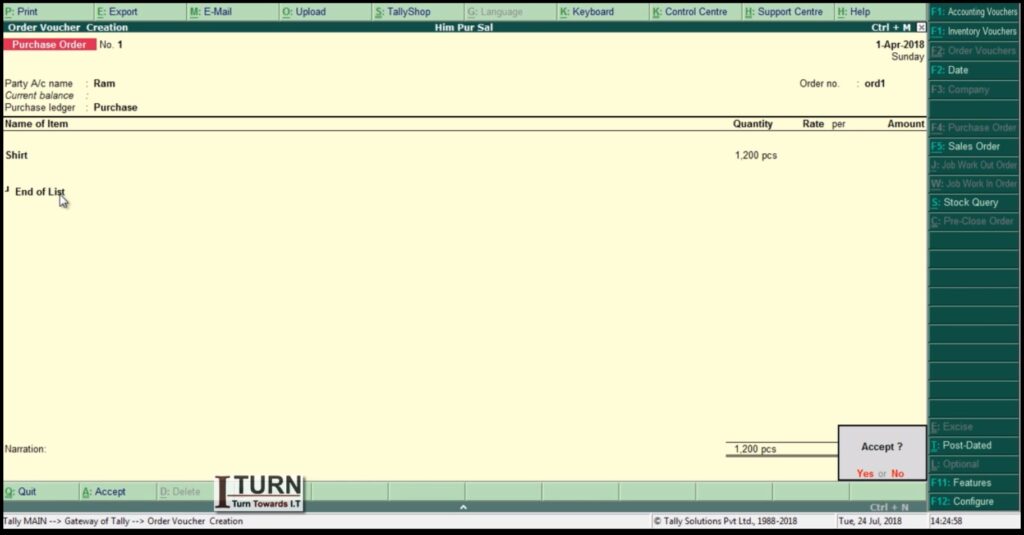
1. Purchase Order (PO):
Definition: A purchase order is a document issued by a buyer to a seller, specifying the details of the goods or services the buyer intends to purchase.
Steps to Create a Purchase Order in Tally ERP 9:
- Navigate to Gateway of Tally > Inventory Vouchers > F4: Purchase Order.
- Enter the purchase order number, date, and other relevant details.
- Select the supplier/vendor from the list.
- Enter details of the items to be purchased including quantity, rate, and any applicable taxes.
- Save the purchase order.
Example: Let’s say your company, XYZ Enterprises, needs to purchase 100 units of Product A from Supplier ABC at a rate of $10 per unit. The purchase order would specify these details along with other terms such as delivery date and payment terms.
2. Receipt Note:
Definition: A receipt note is prepared by the buyer upon receiving goods from the seller. It serves as acknowledgment of receipt of goods.
Steps to Create a Receipt Note in Tally ERP 9:
- Go to Gateway of Tally > Inventory Vouchers > F9: Purchase Order.
- Select the purchase order for which goods have been received.
- Enter the receipt note number, date, and other relevant details.
- Specify the quantity and condition of goods received.
- Save the receipt note.
Example: Using the previous example, if Supplier ABC delivers 100 units of Product A, XYZ Enterprises creates a receipt note to acknowledge the receipt of these goods.
3. Rejection Out:
Definition: If the goods received are damaged or do not meet the buyer’s specifications, a rejection out voucher is prepared to return the goods to the seller.
Steps to Create a Rejection Out Voucher in Tally ERP 9:
- Navigate to Gateway of Tally > Inventory Vouchers > F6: Rejection Out.
- Select the receipt note against which goods are to be rejected.
- Specify the quantity and condition of goods being returned.
- Save the rejection out voucher.
Example: If XYZ Enterprises finds that 10 units of Product A received from Supplier ABC are damaged, they create a rejection out voucher to return these 10 units to the supplier.
4. Purchase Bill:
Definition: A purchase bill is issued by the seller to the buyer, requesting payment for the goods or services supplied.
Steps to Create a Purchase Bill in Tally ERP 9:
- Go to Gateway of Tally > Accounting Vouchers > F9: Purchase.
- Select the supplier/vendor from the list.
- Enter the purchase bill number, date, and other relevant details.
- Specify the details of the items purchased including quantity, rate, and taxes.
- Save the purchase bill.
Example: Supplier ABC sends a purchase bill to XYZ Enterprises for the 90 units of Product A that were accepted.
5. Debit Note:
Definition: If there are discrepancies in the purchase bill, such as overcharging or damaged goods, the buyer may issue a debit note to the seller requesting adjustments to the amount owed.
Steps to Create a Debit Note in Tally ERP 9:
- Navigate to Gateway of Tally > Accounting Vouchers > F7: Journal.
- Select Debit Note as the voucher type.
- Enter the debit note number, date, and other relevant details.
- Specify the reason for issuing the debit note and the amount to be adjusted.
- Save the debit note.
Example: If XYZ Enterprises finds that Supplier ABC has overcharged for 5 units of Product A, they issue a debit note requesting a reduction in the purchase amount accordingly.
These are the stages and voucher entries involved in the purchase order process in Tally ERP 9. Each step ensures proper documentation and tracking of transactions between the buyer and the seller.
Check Reports
After completing the entries for purchase orders, receipt notes, rejection out, purchase bills, and debit notes in Tally ERP 9, you can check various stock-related aspects including reports to ensure accurate inventory management. Here’s where you can find relevant information and reports:
Stock Summary:
- Go to Gateway of Tally > Display > Inventory Books > Stock Summary.
- This report provides a summary of all stock items, including their opening balance, inward and outward movements, and closing balance.
Stock Item Vouchers:
- Navigate to Gateway of Tally > Display > Inventory Books > Stock Item Vouchers.
- Here, you can view all transactions related to a specific stock item including purchase orders, receipts, sales, rejection outs, etc.
Inventory Reports:
- Under Gateway of Tally > Display > Inventory Books, you can access various reports such as Stock Item Vouchers, Movement Analysis, and Inventory Ageing Analysis.
- These reports provide insights into the movement and status of inventory items over time.
Stock Query:
- You can use the Stock Query feature in Tally ERP 9 to check the availability, location, and other details of specific stock items.
- Go to Gateway of Tally > Display > Inventory Books > Stock Query.
Stock Valuation Reports:
- To analyze the valuation of your inventory, you can access reports such as Stock Valuation Summary and Stock Valuation Tally.
- These reports help you understand the total value of your inventory based on different valuation methods (FIFO, LIFO, Weighted Average, etc.).
Movement Analysis:
- This report provides insights into the movement of goods in and out of the organization over a specified period.
- Go to Gateway of Tally > Display > Inventory Books > Movement Analysis.
Sales and Purchase Register:
- You can review the sales and purchase registers to track transactions, invoices, and payments.
- Go to Gateway of Tally > Display > Account Books > Journal Register / Purchase Register / Sales Register.
By utilizing these reports and features in Tally ERP 9, you can effectively monitor your inventory, track stock movements, analyze valuation, and ensure accurate financial reporting. It helps in making informed decisions related to inventory management and optimizing stock levels to meet business requirements.