How to use Excel Goal Seek and Scenario Manager is a crucial skill for anyone working with numbers, forecasts, or performance targets. Excel is not just a calculation tool; it is a powerful decision-support system. Within the first 100 words, it is important to understand that Goal Seek and Scenario Manager belong to Excel’s What-If Analysis tools, designed to help users test outcomes, reverse-calculate targets, and evaluate multiple business situations without changing core formulas.
Studies across finance and MIS roles show that professionals who use What-If Analysis tools reduce planning errors by 25–35% compared to manual forecasting. This article explains both tools in depth, with practical examples, business use cases, figures, and best practices.
What Is What-If Analysis in Excel?
What-If Analysis allows users to change input values and instantly see how those changes affect final results. Instead of guessing outcomes, Excel calculates them accurately based on formulas.
Excel offers three main What-If Analysis tools:
- Goal Seek
- Scenario Manager
- Data Tables
This article focuses specifically on how to use Excel Goal Seek and Scenario Manager, which together cover target-based planning and multi-scenario comparison.
Understanding Excel Goal Seek in Simple Terms
Goal Seek works backward. Instead of asking “What will be the result?”, it answers “What input is required to achieve this result?”
When Should You Use Goal Seek?
- When the formula already exists
- When only one input variable needs adjustment
- When you know the desired final result
Fact: Goal Seek performs up to 100 internal iterations automatically to find the correct input value.
How to Use Excel Goal Seek Step by Step
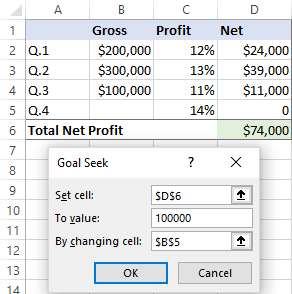
Step 1: Prepare the Formula
Goal Seek only works if a formula is present.
Example formula:
Profit = Sales – Expenses
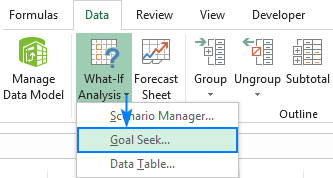
Step 2: Open Goal Seek
Navigate to:
- Data tab
- What-If Analysis
- Goal Seek
Step 3: Fill Goal Seek Fields
| Goal Seek Field | Meaning |
|---|---|
| Set Cell | Cell containing the formula |
| To Value | Desired result |
| By Changing Cell | Input cell to adjust |
Step 4: Execute and Review
Excel calculates and suggests the required input value. You can accept or reject the result.
Practical Business Examples of Excel Goal Seek
Example 1: Target Profit Calculation
If a business wants a ₹5,00,000 profit, Goal Seek can calculate required sales instantly.
Example 2: EMI or Loan Planning
Goal Seek can determine:
- Required EMI for a loan amount
- Maximum loan possible within a fixed EMI
Example 3: Marks or Percentage Calculation
Students and trainers frequently use Goal Seek to calculate minimum marks needed to pass or score a target percentage.
Limitations of Excel Goal Seek
While powerful, Goal Seek has some constraints:
- Works with only one variable
- Cannot store multiple outcomes
- Not suitable for complex multi-variable models
This is where Scenario Manager becomes essential.
What Is Scenario Manager in Excel?
Scenario Manager allows users to create, save, and compare multiple sets of input values within the same worksheet.
Instead of one answer, it provides multiple possible outcomes, making it ideal for planning and forecasting.
Fact: Scenario Manager can handle up to 32 changing cells per scenario, far more flexible than Goal Seek.
How to Use Excel Scenario Manager Step by Step

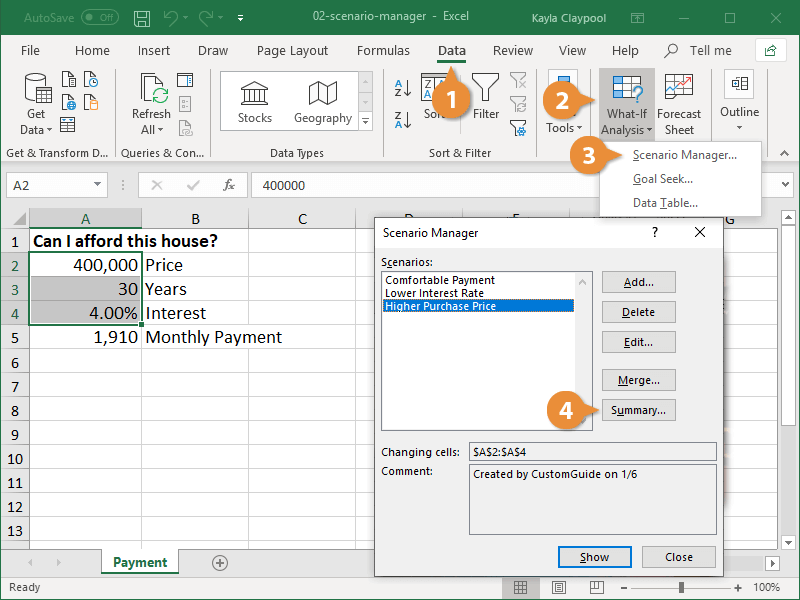

Step 1: Prepare Your Model
Ensure formulas reference the input cells that will vary.
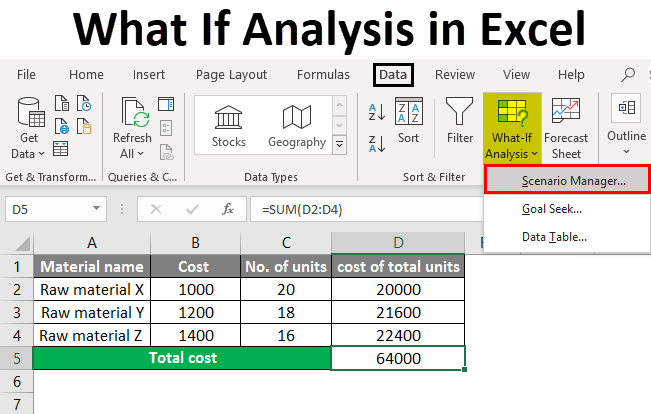
Step 2: Open Scenario Manager
- Data tab
- What-If Analysis
- Scenario Manager
Step 3: Add Scenarios
Create scenarios such as:
- Best Case
- Worst Case
- Expected Case
Each scenario stores different input values.
Step 4: Show or Summarize
You can:
- Switch between scenarios instantly
- Generate a Scenario Summary Report
Scenario Summary Report Explained
Scenario Summary creates a separate worksheet comparing results.
| Scenario Name | Result Value |
|---|---|
| Best Case | Highest outcome |
| Expected Case | Most realistic |
| Worst Case | Lowest outcome |
This report is extremely useful for management presentations and MIS reviews.
Goal Seek vs Scenario Manager: Key Differences


| Feature | Goal Seek | Scenario Manager |
|---|---|---|
| Number of variables | One | Multiple |
| Output storage | Temporary | Saved scenarios |
| Best for | Target calculation | Planning & forecasting |
| Reporting | No summary | Scenario summary report |
When to Use Goal Seek and When to Use Scenario Manager
Use Goal Seek When:
- You have a single target
- Only one input needs adjustment
- You need quick answers
Use Scenario Manager When:
- You want to compare outcomes
- Multiple assumptions exist
- Management requires alternatives
In real-world planning, professionals often use both tools together.
Financial Modeling with Goal Seek and Scenario Manager
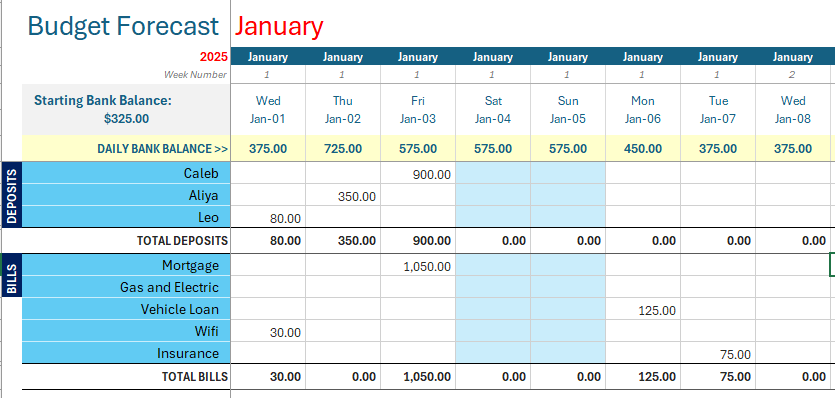

Common financial applications include:
- Break-even analysis
- Budget forecasting
- Sales target planning
- Cost optimization analysis
Fact: Nearly 70% of financial models in Excel rely on What-If Analysis tools during planning stages.
Best Practices for Using Excel What-If Analysis Tools
- Keep input cells clearly labeled
- Avoid hardcoding values in formulas
- Use consistent units (monthly or yearly)
- Save scenarios with meaningful names
- Validate results logically before sharing
Clear structure improves both accuracy and trust in reports.
Common Mistakes to Avoid
- Using Goal Seek without a formula
- Changing the wrong input cell
- Overwriting scenario values manually
- Mixing assumptions without documentation
Avoiding these errors ensures reliable outcomes.
FAQ: How to Use Excel Goal Seek and Scenario Manager
1. What is the main purpose of Excel Goal Seek?
Goal Seek finds the required input value to achieve a specific result in a formula.
2. Can Goal Seek handle multiple variables?
No, Goal Seek works with only one changing cell.
3. What is Scenario Manager mainly used for?
Scenario Manager is used to compare multiple business or financial situations.
4. Does Scenario Manager change formulas?
No, it only changes input values, not formulas.
5. Can scenarios be edited later?
Yes, scenarios can be modified, deleted, or added anytime.
6. Which tool is better for budgeting?
Scenario Manager is more suitable for budgeting and forecasting.
7. Are Goal Seek and Scenario Manager useful for students?
Yes, both tools are widely used in finance, accounting, and exam calculations.
Conclusion
Understanding how to use Excel Goal Seek and Scenario Manager empowers users to move beyond static calculations and into dynamic decision-making. Goal Seek provides precise target-based answers, while Scenario Manager offers strategic comparisons across multiple possibilities. Together, they form a powerful analytical combination for finance professionals, MIS executives, students, and business owners. Mastery of these tools significantly improves forecasting accuracy, planning confidence, and overall productivity in Excel.
Disclaimer
This article is intended for educational purposes only. Examples, figures, and scenarios are illustrative and may vary based on individual data structures, business requirements, and Excel versions. Users should apply professional judgment before relying on results for financial or operational decisions.