Tag: GST Return Accuracy

  • GST Summary Comparison in Tally and Excel: Detailed Guide for Accurate GST Compliance and Reconciliation

    GST Summary Comparison in Tally and Excel is one of the most critical processes for businesses, accountants, and tax professionals in India. In the first 100 words itself, it is important to understand that GST compliance is not just about filing returns but also about ensuring that data reported in accounting software like Tally perfectly matches analytical summaries prepared in Excel. Even a small mismatch in taxable value, CGST, SGST, or IGST can result in notices, penalties, or delayed refunds. This detailed article explains how GST summaries are generated in Tally and Excel, how they differ, and how to compare them effectively for error-free compliance.


    What Is a GST Summary and Why It Matters

    A GST summary is a consolidated snapshot of all GST-related transactions for a specific period. It includes outward supplies, inward supplies, tax liability, input tax credit, and net payable tax.

    Businesses rely on GST summaries to:

    • File periodic GST returns accurately
    • Reconcile books with GST portal data
    • Detect errors in tax classification
    • Ensure proper utilization of input tax credit

    According to industry estimates, over 65% of GST notices issued to small and medium businesses arise due to mismatches between accounting data and GST returns. This highlights why GST summary comparison in Tally and Excel is not optional but essential.


    Understanding GST Summary in Tally

    Tally generates GST summaries directly from accounting entries. Once GST is enabled and ledgers are correctly configured, Tally automatically classifies transactions into taxable, exempt, zero-rated, and reverse charge categories.

    Key Components of GST Summary in Tally

    • Total taxable value
    • CGST, SGST, and IGST breakup
    • Input tax credit summary
    • Return-wise summary aligned with GSTR-1 and GSTR-3B

    Advantages of Tally GST Summary

    • Real-time data from books
    • Automatic tax calculation
    • Built-in compliance structure
    • Lower risk of manual calculation errors

    However, Tally summaries depend entirely on correct ledger setup. A single wrong GST rate or ledger classification can distort the entire summary.


    Understanding GST Summary in Excel

    Excel-based GST summaries are usually prepared by exporting data from Tally or other systems and then restructuring it manually or through formulas. Many accountants prefer Excel because it allows deep customization and flexible analysis.

    Key Components of GST Summary in Excel

    • Voucher-wise taxable values
    • Rate-wise GST calculation
    • ITC eligibility analysis
    • Month-on-month comparison

    Advantages of Excel GST Summary

    • High flexibility in reporting
    • Custom formats for management review
    • Easy reconciliation with portal data
    • Advanced analysis using Pivot Tables

    The downside is that Excel relies heavily on human accuracy. Studies show that nearly 88% of spreadsheets contain at least one error, which makes reconciliation skills crucial.


    GST Summary Comparison in Tally and Excel: Core Differences

    The real value emerges when both summaries are compared side by side. This comparison helps identify inconsistencies that may otherwise go unnoticed.

    Comparison Table: GST Summary in Tally vs Excel

    AspectDetails
    Data SourceTally uses live accounting entries, Excel uses imported or manually structured data
    Accuracy ControlTally depends on ledger setup, Excel depends on formulas and data validation

    Why GST Summary Comparison in Tally and Excel Is Essential

    1. Detection of Classification Errors

    Misclassification of GST rates (5%, 12%, 18%, 28%) is one of the most common issues. Comparing summaries helps detect such mistakes early.

    2. Input Tax Credit Reconciliation

    ITC mismatches can block working capital. A proper comparison ensures that eligible ITC claimed in returns matches accounting records.

    3. Audit and Assessment Readiness

    During audits, authorities often ask for reconciled GST data. A well-documented GST summary comparison strengthens audit defense.

    4. Reduction in Interest and Penalties

    Even a delay caused by mismatch can attract interest at 18% per annum. Regular comparison minimizes this risk.


    Step-by-Step Process for GST Summary Comparison in Tally and Excel

    Step 1: Generate GST Summary in Tally

    Select the reporting period and extract GST summaries including outward supplies, inward supplies, and ITC.

    Step 2: Export Data to Excel

    Export voucher-level or summary-level data from Tally into Excel format for detailed analysis.

    Step 3: Prepare Excel GST Summary

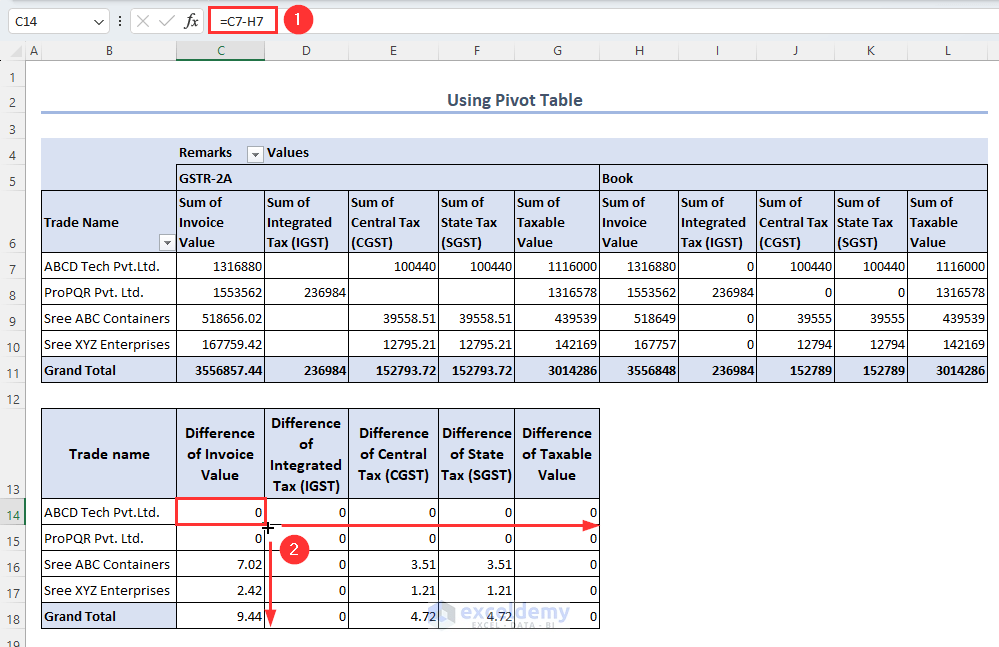
    Use formulas or pivot tables to consolidate taxable values and GST amounts rate-wise.

    Step 4: Match Key Figures

    Compare taxable value, CGST, SGST, IGST, and total tax liability.

    Step 5: Identify and Rectify Differences

    Check ledgers, vouchers, and GST rates for mismatches and correct them in Tally.
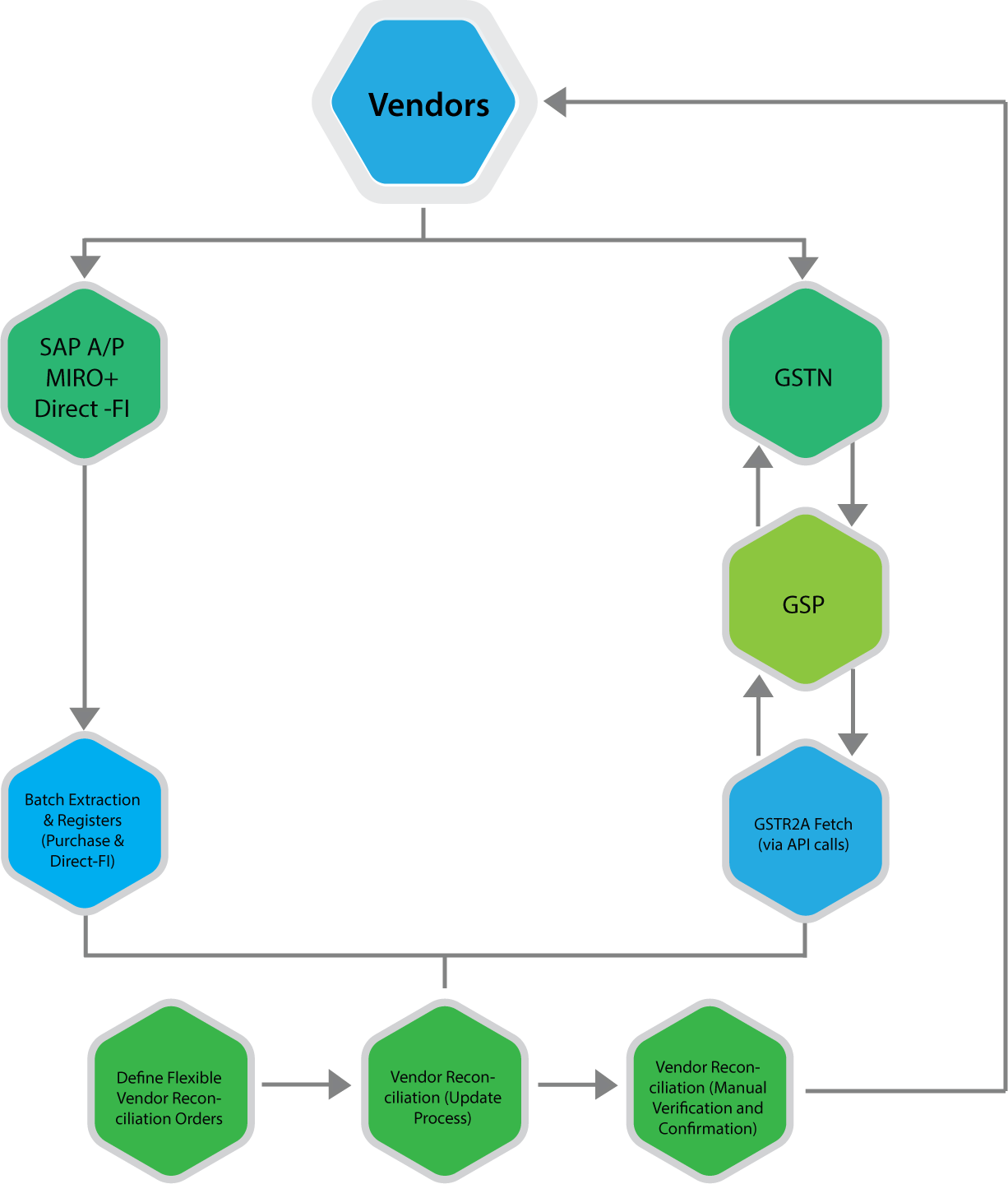

    https://www.nexus-business.com/assets/img/vendors.png
    https://www.exceldemy.com/wp-content/uploads/2023/07/19-Obtaining-the-difference-of-invoice-and-GST-values-from-the-Pivot-table-to-Do-GST-reconciliation-in-Excel.png

    Common Reasons for Differences Between Tally and Excel GST Summaries

    • Wrong GST rate selected in ledger
    • Incorrect place of supply
    • Missing reverse charge entries
    • Manual Excel formula errors
    • Rounding differences

    In practice, rounding differences alone account for nearly 10–12% of minor mismatches, especially in high-volume transactions.


    Best Practices for Accurate GST Summary Comparison

    • Use standardized Excel templates every month
    • Lock GST rates in Tally ledgers
    • Perform monthly reconciliation instead of annual
    • Maintain documentation for adjustments
    • Review summaries before filing returns

    Regular monthly reconciliation can reduce year-end workload by up to 40%, according to accounting workflow studies.


    GST Summary Comparison in Tally and Excel for Different Returns

    GSTR-1 Perspective

    Focus on outward supplies, invoice values, and tax breakup.

    GSTR-3B Perspective

    Focus on summary-level tax liability and ITC utilization.

    Aligning both summaries ensures that outward tax declared and tax paid are consistent.


    Impact of GST Summary Comparison on Business Decision-Making

    Beyond compliance, reconciled GST summaries help businesses:

    • Forecast tax outflows
    • Optimize pricing strategies
    • Improve cash flow planning
    • Avoid surprise tax demands

    Large businesses report saving 2–3% of annual tax outflow by identifying excess tax payments through proper reconciliation.


    Frequently Asked Questions (FAQ)

    1. What is GST Summary Comparison in Tally and Excel?

    It is the process of matching GST figures generated in Tally with GST summaries prepared in Excel to ensure accuracy and compliance.

    2. Why do GST summaries differ between Tally and Excel?

    Differences arise due to ledger misclassification, incorrect GST rates, manual Excel errors, or rounding differences.

    3. How often should GST summary comparison be done?

    Ideally, it should be done monthly before filing GST returns to avoid cumulative errors.

    4. Is Excel mandatory for GST reconciliation?

    No, but Excel provides flexibility and detailed analysis that complements system-generated summaries.

    5. Can GST summary comparison help during audits?

    Yes, reconciled summaries provide strong documentary evidence during audits and assessments.

    6. What is the biggest risk of not comparing GST summaries?

    The biggest risk is incorrect return filing, leading to interest, penalties, and blocked input tax credit.


    Conclusion

    GST Summary Comparison in Tally and Excel is a foundational practice for accurate GST compliance in India. Tally offers automation and real-time accuracy, while Excel provides analytical depth and flexibility. When both are used together, businesses gain complete control over their GST data. With increasing scrutiny and data-driven compliance, regular and structured comparison is no longer optional but a necessity for sustainable and compliant business operations.


    Disclaimer

    This article is for educational and informational purposes only. GST laws, rules, and interpretations are subject to change. Readers should verify figures and compliance requirements independently and apply professional judgment before making accounting or tax decisions.


  • GST Reconciliation Using Excel – Step-by-Step Tutorial for Accurate Tax Filing and Error-Free Compliance

    Goods and Services Tax (GST) reconciliation is a vital process for every business registered under GST. It ensures that the data recorded in the company’s books matches the data uploaded to the GST portal by suppliers and customers. A mismatch can lead to wrong tax credits, notices from the GST department, and financial penalties.

    Performing GST reconciliation using Excel is one of the most efficient and accessible ways for small and medium businesses (SMEs) to ensure data accuracy without expensive software. Excel allows you to organize, compare, and analyze large data sets with formulas, conditional formatting, and pivot tables.

    This step-by-step tutorial will guide you through the process of performing GST reconciliation using Excel, helping you understand how to identify mismatches, automate checks, and maintain clean compliance records.


    What is GST Reconciliation?

    GST reconciliation is the process of matching details of sales and purchases recorded in your books of accounts with the details available on the GST portal (via GSTR-2A/2B, GSTR-1, and GSTR-3B).

    The purpose is to ensure that:

    • Input Tax Credit (ITC) claimed matches supplier filings
    • All outward supplies (sales) are properly reported
    • No duplication or omission of invoices occurs
    • Tax liability is correctly calculated

    A proper reconciliation process eliminates discrepancies and reduces the risk of compliance issues.


    Why GST Reconciliation is Important

    ReasonExplanation
    Accurate ITC ClaimEnsures that Input Tax Credit is claimed only on valid and matched invoices.
    Avoid GST NoticesPrevents discrepancies that may trigger departmental scrutiny or notices.
    Timely Returns FilingSpeeds up the filing process of GSTR-1, GSTR-3B, and annual returns.
    Financial AccuracyHelps maintain accurate accounting books and audit compliance.
    Vendor Compliance TrackingEnsures vendors are filing GST returns correctly for your ITC claims.

    Data Required for GST Reconciliation in Excel

    Before beginning the reconciliation process, collect the following data sets:

    Data SourceFile Type / Details
    GSTR-2A or GSTR-2BDownload from GST portal (in Excel or JSON format)
    Purchase RegisterExtract from your accounting software or manual books
    GSTR-1Details of outward supplies filed by you
    GSTR-3BTax payment and summary return filed by you
    Vendor MasterSupplier details, GSTIN, and contact data

    Once you have these files, save them in a single folder for easy reference.


    Step-by-Step Guide to GST Reconciliation Using Excel

    Step 1: Import Data into Excel

    1. Open a new Excel workbook.
    2. Create multiple sheets and rename them as:
      • GSTR2A
      • Purchase Register
      • Reconciliation Report
    3. Paste the GSTR-2A data in the “GSTR2A” sheet.
    4. Paste your purchase register data in the “Purchase Register” sheet.

    Each sheet should include these essential columns:

    Column NameDescription
    Supplier NameVendor providing goods or services
    GSTINSupplier’s GST Identification Number
    Invoice NumberUnique number for each invoice
    Invoice DateDate of issue
    Taxable ValueValue before GST
    Tax AmountTotal GST (IGST, CGST, SGST)
    Total Invoice ValueTaxable value + GST
    Place of SupplyState code for intra/inter-state
    Filing StatusWhether uploaded to portal (optional)

    Step 2: Standardize Data Formatting

    Before comparing, ensure both datasets (GSTR-2A and Purchase Register) have the same column headers, spelling, and data formats.

    • Use Text to Columns to correct mismatched formats.
    • Format Invoice Date columns to DD-MM-YYYY.
    • Trim extra spaces using the formula =TRIM(A2) if data is inconsistent.
    • Convert all invoice numbers to uppercase for uniformity:
      =UPPER(A2)

    Step 3: Match Invoices Using Excel Formulas

    Now we compare invoices between the Purchase Register and GSTR-2A to identify matches or mismatches.

    In the Reconciliation Report sheet:

    • Use the formula below to check if an invoice exists in GSTR-2A: =IF(COUNTIFS(GSTR2A!C:C, [@[Invoice Number]], GSTR2A!B:B, [@[GSTIN]])>0,"Matched","Not Matched")
    • This formula checks both the Invoice Number and GSTIN to confirm if the invoice exists in the supplier filing.

    You can extend this formula to also check the Invoice Value:

    =IF(AND(COUNTIFS(GSTR2A!C:C,[@[Invoice Number]],GSTR2A!B:B,[@[GSTIN]])>0,ABS(GSTR2A!F:F-[@[Total Value]])<1),"Matched","Mismatch in Value")
    

    Step 4: Use Conditional Formatting for Quick View

    To highlight mismatches visually:

    1. Select your reconciliation results column.
    2. Go to Home → Conditional Formatting → Highlight Cell Rules → Text That Contains.
    3. Enter “Not Matched” and choose a red fill.
    4. Enter “Matched” and choose a green fill.

    This helps instantly identify which invoices are mismatched.


    Step 5: Generate Summary Using Pivot Table

    After formula comparison, create a Pivot Table to summarize the results:

    StatusCount of InvoicesTotal Value (₹)
    Matched42058,50,000
    Mismatch365,20,000
    Missing in GSTR-2A182,10,000
    Missing in Books101,45,000

    To create this:

    1. Select your reconciliation data.
    2. Go to Insert → PivotTable.
    3. Drag “Status” to Rows and “Invoice Number” to Values (Count).
    4. Drag “Total Value” to Values (Sum).

    Step 6: Analyze and Correct Mismatches

    Now identify the causes of mismatches:

    Mismatch TypePossible ReasonAction Required
    Missing in GSTR-2ASupplier did not upload invoiceContact supplier and request correction
    Missing in BooksRecorded only in portalVerify for duplicate or forgotten entry
    Value MismatchTypographical or rounding errorsCross-check and correct in accounting books
    GSTIN ErrorWrong GST number enteredCorrect GSTIN in records
    Date DifferenceInvoice date mismatchVerify correct financial period

    After analyzing, adjust entries in your books or communicate with vendors for corrections.


    Step 7: Prepare Final GST Reconciliation Report

    Your Final Report should include the following summary table:

    Reconciliation ParameterValue
    Total Purchase Invoices484
    Invoices Matched420
    Invoices with Mismatch36
    Invoices Missing in GSTR-2A18
    Invoices Missing in Books10
    Accuracy Percentage86.7%
    ITC Eligible Value (Matched)₹58,50,000
    ITC Discrepancy Value₹8,75,000

    To calculate Accuracy Percentage, use:
    = (Matched Invoices / Total Invoices) * 100

    This report helps management and auditors to understand the level of compliance at a glance.


    Tips for Efficient GST Reconciliation in Excel

    1. Always use unique invoice numbers to avoid duplication.
    2. Perform reconciliation monthly to reduce year-end workload.
    3. Backup data regularly in Excel and on cloud storage.
    4. Use Excel Table Format (Ctrl + T) to make formula references dynamic.
    5. Avoid manual typing; copy-paste directly from GSTR files to prevent errors.
    6. Use Data Validation to restrict incorrect GSTIN entries.
    7. Keep GSTR-2A download date noted, as data may change with supplier revisions.

    Advantages of Doing GST Reconciliation in Excel

    FeatureBenefit
    FlexibilityCustomize columns, formulas, and filters easily
    Low CostNo need for external reconciliation tools
    TransparencyEvery step can be reviewed and audited
    AccuracyFormula-based checks minimize manual mistakes
    SpeedPivot tables and lookups make comparisons fast

    Common Mistakes to Avoid

    • Not reconciling invoices with the same financial year
    • Ignoring small rounding differences
    • Using inconsistent invoice formats
    • Forgetting to update GSTR-2A download files regularly
    • Failing to verify the GSTIN master list before reconciliation

    Conclusion

    Performing GST Reconciliation using Excel is one of the most practical, transparent, and cost-effective ways for businesses to maintain compliance. With a structured workbook, accurate formulas, and monthly reviews, you can ensure that your tax credits are accurate, your books are clean, and your GST filings are audit-ready.

    By following this step-by-step Excel process, you’ll not only save time and cost but also strengthen your tax reporting accuracy. Regular reconciliation builds trust with vendors, improves cash flow by ensuring proper ITC claims, and keeps your organization compliant with GST laws.


    Disclaimer

    The information provided in this article is for educational purposes only. While every effort has been made to ensure accuracy, users are advised to verify data and compliance rules as per the latest GST notifications and their business requirements. The author is not responsible for any financial or legal consequences arising from the use of this information.