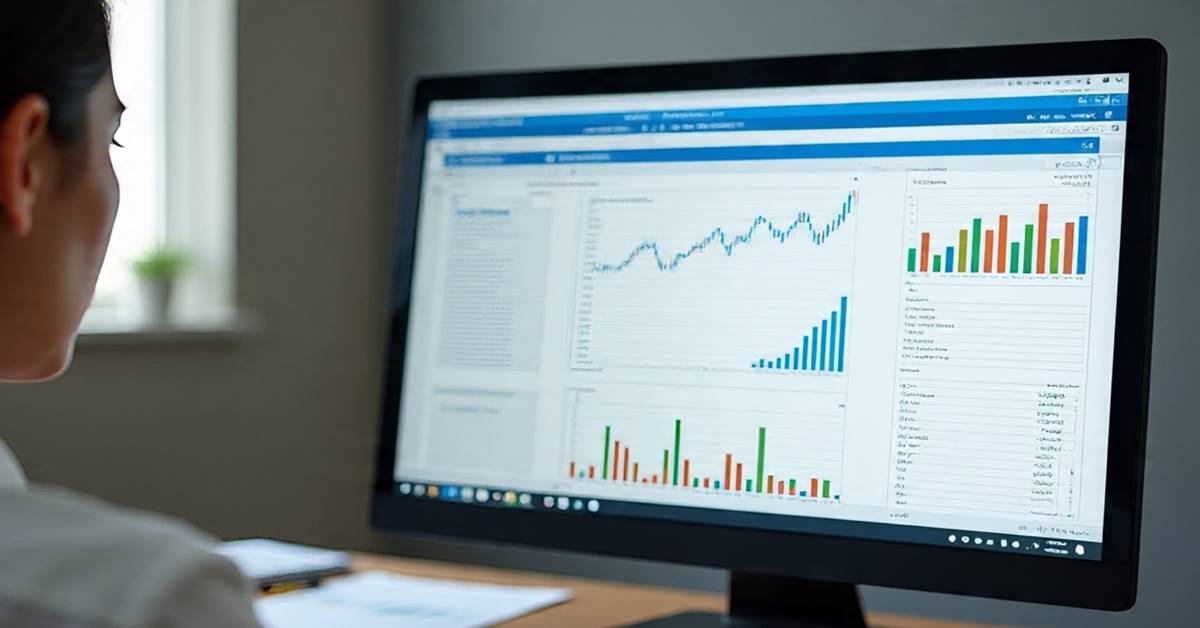
In today’s fast-evolving digital economy, learning Excel in 2026 is no longer optional—it’s a core professional skill. Whether you are a student, working professional, freelancer, or business owner, Excel continues to dominate as one of the most widely used tools for data handling, reporting, and decision-making.
The demand for Excel skills has grown significantly in recent years. According to industry observations, over 80% of corporate roles require at least basic Excel knowledge, while advanced Excel skills can increase productivity by up to 40%. From finance to marketing and operations to HR, Excel remains a backbone tool across industries.
In this detailed guide, we will explore the top 10 reasons to learn Excel in 2026, supported by practical insights, real-world relevance, and career benefits.
Quick Overview: Why Excel Still Matters in 2026
| Reason | Key Benefit |
|---|---|
| Universal Tool | Used across industries |
| Automation | Saves time with formulas & macros |
| Data Analysis | Helps in smart decision-making |
| Career Growth | Increases job opportunities |
| Integration | Works with AI, Power BI, and databases |
1. Excel Is Still the Most Widely Used Business Tool
Despite the rise of new technologies, Excel remains a dominant tool in business environments. From small startups to large corporations, Excel is used for:
- Financial analysis
- Data tracking
- Reporting dashboards
- Inventory management
In fact, Excel is used by more than 1 billion users globally, making it one of the most reliable and accessible tools.
2. High Demand for Excel Skills in Jobs
Excel skills directly impact employability
In 2026, recruiters are prioritizing candidates who can handle data efficiently. Job roles such as:
- MIS Executive
- Data Analyst
- Accountant
- Business Analyst
require strong Excel knowledge.
Professionals with advanced Excel skills can earn 20%–35% higher salaries compared to those with basic knowledge.
3. Excel Helps You Automate Repetitive Tasks
One of the biggest advantages of learning Excel is automation.
Using tools like:
- Formulas (IF, VLOOKUP, INDEX-MATCH)
- Pivot Tables
- Macros (VBA)
You can automate tasks that normally take hours.
Example:
A report that takes 2 hours manually can be reduced to 10 minutes using Excel automation.
4. Strong Data Analysis Skills Made Easy
Learn Excel in 2026 for better decision-making
Excel makes data analysis simple even for beginners.
With features like:
- Pivot Tables
- Conditional Formatting
- Charts & Dashboards
You can convert raw data into meaningful insights.
Businesses rely heavily on data, and Excel is often the first tool used before advanced analytics platforms.
5. Excel Works Seamlessly with AI and Modern Tools
In 2026, Excel is no longer just a spreadsheet tool—it integrates with:
- AI-based analysis
- Power BI dashboards
- SQL databases
Modern Excel versions include smart suggestions, automation tools, and predictive analysis features, making it future-ready.
6. Essential for Freelancers and Entrepreneurs
If you are running a business or working as a freelancer, Excel can help you manage:
- Income and expenses
- Client databases
- Project tracking
- Budget planning
Small businesses using Excel effectively can reduce operational costs by up to 25%.
7. Excel Improves Productivity and Efficiency
Professionals who use Excel daily report:
- Faster report generation
- Better accuracy
- Reduced manual errors
A study suggests that employees with Excel expertise complete tasks 30% faster than those without.
8. Easy to Learn, Yet Powerful
Excel has a low entry barrier. Even beginners can start with:
- Basic formulas
- Simple tables
- Data entry
And gradually move to advanced topics like:
- VBA Automation
- Power Query
- Dashboard creation
This makes Excel one of the best skills for beginners in 2026.
9. Essential for Financial and Accounting Roles
Excel is a must-have skill in finance-related careers.
Common use cases include:
- Budget forecasting
- Financial modeling
- GST calculations
- Payroll management
Over 90% of accounting professionals use Excel daily in their workflow.
10. Opens Doors to Advanced Career Paths
Learn Excel in 2026 to transition into high-growth fields
Excel acts as a foundation for advanced skills such as:
- Data Analytics
- Business Intelligence
- Financial Analysis
- Automation Development
Many professionals start with Excel and later move into high-paying domains like Data Science.
Real-World Use Cases of Excel
| Use Case | Example |
|---|---|
| Sales Tracking | Monthly revenue reports |
| HR Management | Employee attendance sheets |
| Finance | Expense and profit analysis |
| Marketing | Campaign performance tracking |
How Learning Excel in 2026 Gives You an Edge
Learning Excel today is not just about spreadsheets—it’s about becoming data-driven.
Professionals who master Excel:
- Make better decisions
- Save time
- Increase earning potential
- Gain job security
FAQ Section (Optimized for Featured Snippets)
1. Is Excel still worth learning in 2026?
Yes, Excel remains one of the most essential business tools. It is widely used across industries for data analysis, reporting, and automation.
2. What are the benefits of learning Excel in 2026?
Learning Excel improves productivity, enhances job opportunities, helps in automation, and builds strong data analysis skills.
3. How long does it take to learn Excel?
Basic Excel can be learned in 1–2 weeks, while advanced Excel may take 1–3 months depending on practice.
4. Which jobs require Excel skills?
Jobs like MIS Executive, Accountant, Data Analyst, HR Executive, and Business Analyst require Excel knowledge.
5. Can Excel help in freelancing?
Yes, freelancers use Excel for budgeting, client tracking, reporting, and financial management.
6. What is the future of Excel?
Excel is evolving with AI integration, automation tools, and data visualization features, making it highly relevant for the future.
7. Is Excel useful for students?
Yes, students can use Excel for projects, data analysis, and skill development, which improves employability.
Final Thoughts
Excel is not just a tool—it is a career accelerator. In 2026, the ability to analyze data, automate tasks, and generate insights will define professional success. Excel provides all these capabilities in one platform.
Whether you are starting your career or looking to upgrade your skills, learning Excel is one of the smartest decisions you can make today.
Upgrade Your Skills with Professional Training
If you want to master Excel along with advanced tools like Access, Macros, and SQL, consider enrolling in a structured program.
Learn more about this complete job-oriented course here:
Complete MIS Training: Excel, Access, Macros & SQL CourseThis course is designed to help you become job-ready with practical skills and real-world applications.
Disclaimer
This article is for informational and educational purposes only. The statistics and figures mentioned are based on general industry trends and may vary depending on region, industry, and experience level. Readers are advised to verify specific career requirements and learning paths based on their individual goals.