Tag: excel beginner to advanced

  • COUNTIF and SUMIF Explained with Examples: A Practical Guide to Conditional Counting and Summation in Excel

    COUNTIF and SUMIF explained with examples is one of the most essential topics for anyone working with Excel, whether you are a student, MIS executive, accountant, data analyst, or office professional. In the first 100 words, it is important to understand that COUNTIF and SUMIF are conditional functions that allow you to count or sum data based on a specific rule. Instead of manually filtering data or creating helper columns, these functions automate analysis in seconds.

    Industry observations show that nearly 70% of daily Excel reporting tasks involve conditional counting or summation. Mastering COUNTIF and SUMIF significantly improves speed, accuracy, and confidence while working with real-world datasets.


    What Are Conditional Functions in Excel?

    Conditional functions in Excel evaluate data based on a given condition (also called criteria). Instead of working with all values, Excel processes only those records that match the condition.

    COUNTIF and SUMIF are:

    • Easy to learn
    • Widely used in reports and dashboards
    • Extremely powerful for business analysis

    They are often the first step toward advanced data analysis.


    Understanding the COUNTIF Function in Excel

    COUNTIF counts how many cells meet a specified condition.

    COUNTIF Syntax

    COUNTIF(range, criteria)

    Explanation

    • Range: The cells to be evaluated
    • Criteria: The condition that must be met

    Fact: COUNTIF evaluates text, numbers, dates, and even logical expressions.


    COUNTIF Explained with Simple Examples
    https://cdn.ablebits.com/_img-blog/excel-countif/countif-greater-than.png

    Example 1: Counting Text Values

    If you want to count how many times “Completed” appears in a status column:

    COUNTIF(A2:A50,”Completed”)

    This formula counts all cells containing the exact word “Completed”.


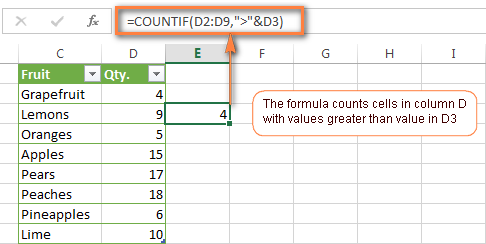
    Example 2: Counting Numbers Greater Than a Value

    To count how many sales values exceed 10,000:

    COUNTIF(B2:B50,”>10000″)

    This is commonly used in sales performance analysis.


    Example 3: Counting Blank or Non-Blank Cells

    COUNTIF(C2:C50,””)
    Counts blank cells.

    COUNTIF(C2:C50,”<>”)
    Counts non-blank cells.


    Using COUNTIF with Dates

    COUNTIF works efficiently with dates, which is critical for attendance, billing, and tracking tasks.

    Example

    COUNTIF(A2:A100,”>=01-01-2025″)

    This counts records on or after a given date.

    Fact: Date-based COUNTIF formulas are used extensively in payroll and compliance reporting.


    Common COUNTIF Criteria Types

    Criteria TypeExample
    Exact match“Yes”
    Greater than“>5000”
    Less than“<100”
    Not equal“<>Closed”
    Wildcards“A*”

    Wildcards allow partial matching, making COUNTIF extremely flexible.


    Limitations of COUNTIF

    While COUNTIF is powerful, it has some limitations:

    • Works with only one condition
    • Cannot evaluate multiple ranges
    • Not suitable for complex logic

    For multi-condition scenarios, COUNTIFS is used, but COUNTIF remains the foundation.


    Understanding the SUMIF Function in Excel

    SUMIF adds values based on a condition.

    SUMIF Syntax

    SUMIF(range, criteria, sum_range)

    Explanation

    • Range: Cells to evaluate
    • Criteria: Condition to match
    • Sum_range: Cells to add

    If sum_range is omitted, Excel sums the range itself.


    SUMIF Explained with Practical Examples
    https://www.exceltip.com/wp-content/uploads/2019/12/0023-1.png
    https://excelmojo.com/wp-content/uploads/2022/05/SUMIFS-in-Excel-Intro-Example-1.png
    https://www.statology.org/wp-content/uploads/2022/01/sumcat13.jpg

    Example 1: Sum Sales for a Specific Product

    SUMIF(A2:A50,”Laptop”,B2:B50)

    This adds sales values from column B only where product is “Laptop”.


    Example 2: Sum Based on Numeric Condition

    SUMIF(B2:B50,”>10000″,B2:B50)

    Adds all values greater than 10,000.


    Example 3: Sum Based on Text Criteria

    SUMIF(C2:C50,”North”,D2:D50)

    Calculates region-wise sales, a common MIS requirement.


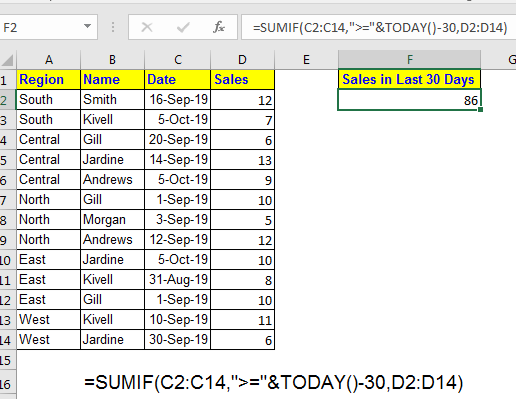
    SUMIF with Dates Explained

    Date-based SUMIF formulas are essential for monthly and yearly analysis.

    Example

    SUMIF(A2:A100,”>=01-04-2024″,B2:B100)

    This sums all values after a specific date.

    Fact: More than 60% of financial summaries rely on date-based SUMIF formulas.


    COUNTIF vs SUMIF: Key Differences

    https://learn-attachment.microsoft.com/api/attachments/4ee960a3-5da4-4d1f-96b4-cd4acc32b02b?platform=QnA
    https://www.goskills.com/blobs/blogs/383/6ae12954-480f-4386-8a53-8d9c8b8d6fc9.png
    FeatureCOUNTIF / SUMIF
    PurposeCount / Add
    OutputNumber / Total
    CriteriaSingle condition
    Use caseAnalysis & reporting

    COUNTIF tells how many, SUMIF tells how much.


    Real-Life Business Use Cases

    Sales Reporting

    • COUNTIF: Count number of high-value deals
    • SUMIF: Calculate total revenue from those deals

    Attendance Tracking

    • COUNTIF: Days present
    • SUMIF: Total working hours

    Accounting & MIS

    • COUNTIF: Number of unpaid invoices
    • SUMIF: Total outstanding amount

    Fact: Excel users applying conditional functions reduce manual errors by up to 40%.


    Best Practices for COUNTIF and SUMIF

    • Keep data clean and consistent
    • Avoid merged cells
    • Use clear column headers
    • Lock ranges when copying formulas
    • Validate results logically

    Structured data improves both speed and accuracy.


    Common Mistakes to Avoid

    MistakeImpact
    Wrong range sizeIncorrect result
    Text-number mismatchFormula fails
    Missing quotes in criteriaError
    Date formatting issuesWrong totals

    Understanding these pitfalls prevents reporting errors.


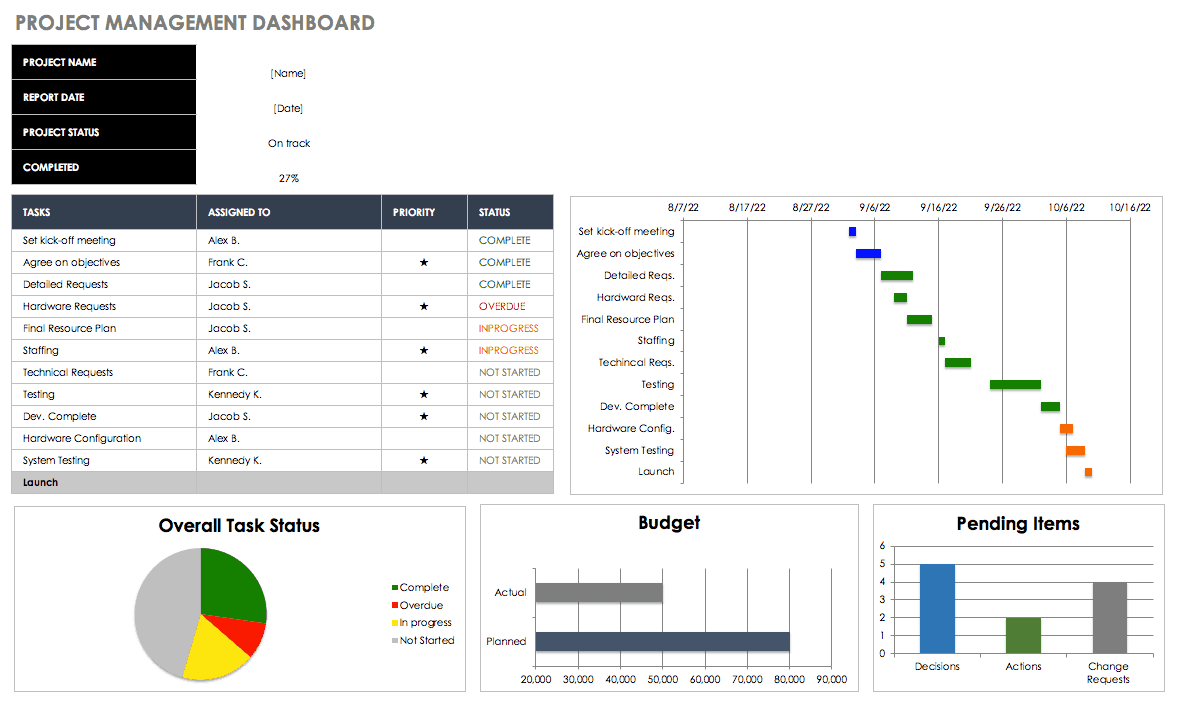
    COUNTIF and SUMIF in Dashboards and Reports
    https://www.smartsheet.com/sites/default/files/styles/1300px/public/IC-Project-Management-Dashboard.png?itok=WmxgwjZi
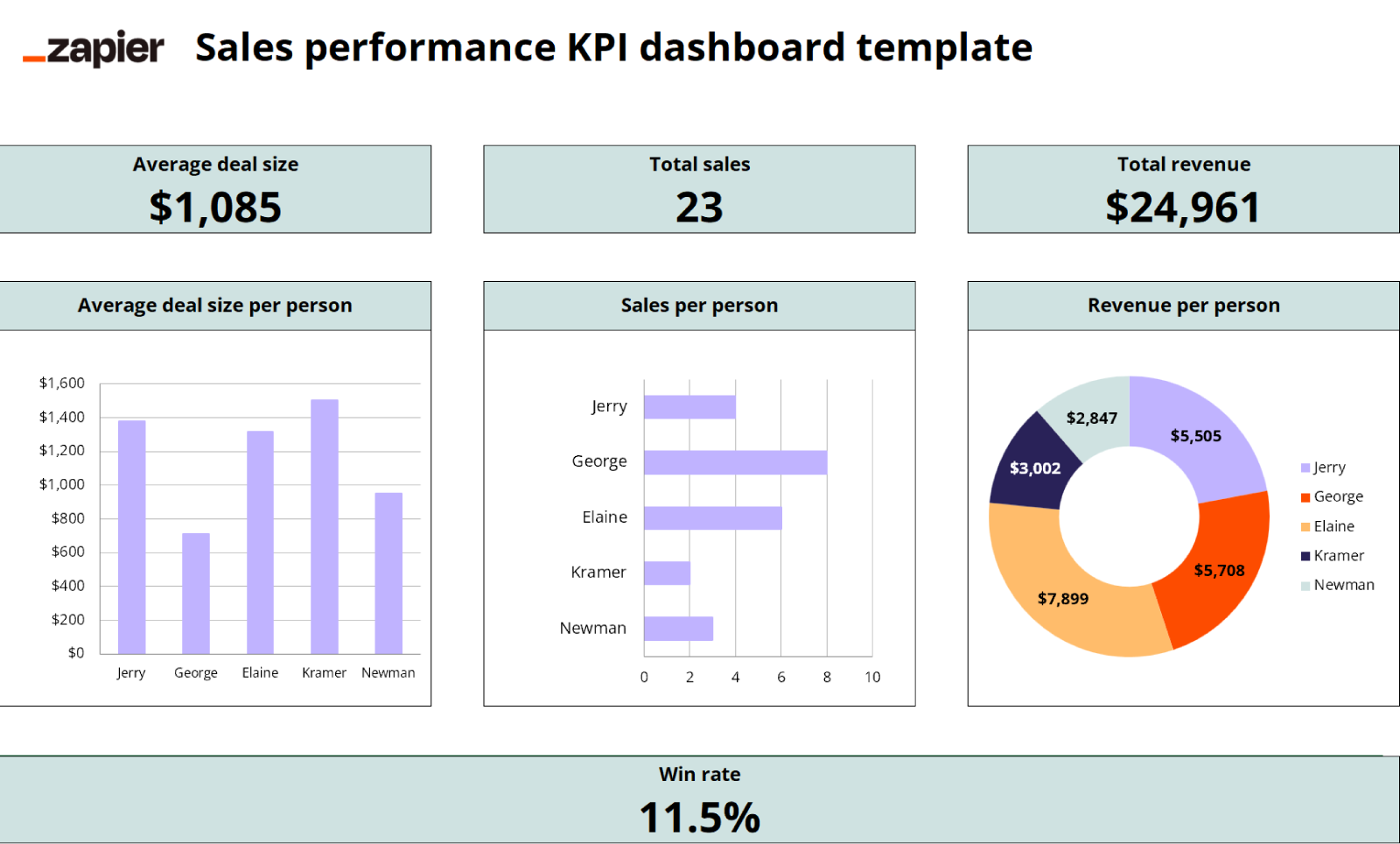
    https://images.ctfassets.net/lzny33ho1g45/1Vf0JXwklbmiyf1Ike6guI/dca431a141c7cff525f284c739cd13f9/kpi-dashboard-excel-07-template-sales-performance-kpi-dashboard.png

    COUNTIF and SUMIF are widely used behind:

    • KPI dashboards
    • Monthly MIS reports
    • Performance scorecards

    They help convert raw data into meaningful insights quickly.


    Performance Impact in Large Datasets

    COUNTIF and SUMIF are efficient even with large datasets:

    • Can handle tens of thousands of rows
    • Faster than manual filters
    • Optimized in modern Excel versions

    Using structured references further improves performance.


    FAQ: COUNTIF and SUMIF Explained with Examples

    1. What is the main difference between COUNTIF and SUMIF?

    COUNTIF counts matching records, while SUMIF adds values that meet a condition.

    2. Can COUNTIF work with text and numbers?

    Yes, it supports text, numbers, dates, and logical expressions.

    3. Is SUMIF case-sensitive?

    No, SUMIF is not case-sensitive.

    4. Can SUMIF work without a sum_range?

    Yes, Excel sums the range itself if sum_range is omitted.

    5. Are COUNTIF and SUMIF used in MIS reporting?

    Yes, they are core functions in MIS and management reports.

    6. What happens if ranges don’t match in SUMIF?

    Excel may return incorrect results, so ranges should be equal in size.

    7. Are COUNTIF and SUMIF enough for advanced analysis?

    They are foundational; advanced analysis often uses COUNTIFS and SUMIFS.


    Conclusion

    Understanding COUNTIF and SUMIF explained with examples transforms Excel from a basic spreadsheet tool into a powerful analytical platform. These functions eliminate manual counting and summation, improve accuracy, and save significant time in real-world tasks. Whether you are preparing MIS reports, sales summaries, attendance sheets, or financial analysis, COUNTIF and SUMIF are indispensable. Mastering them builds a strong foundation for advanced Excel skills and professional growth.


    Disclaimer

    This article is intended for educational purposes only. Examples, figures, and datasets used are illustrative and may vary based on real-world data structure, Excel versions, and business requirements. Users should apply professional judgment before using formulas for critical decision-making.


  • Microsoft Excel Training for Jobs – From Basic to Advanced Tools (Skillshare Review)

    Why Excel Skills Matter in Today’s Job Market

    In today’s competitive job market, Microsoft Excel is not just another software tool—it’s a professional survival skill. From finance to marketing, HR to data analysis, every industry uses Excel for managing and analyzing data. Recruiters often rank Excel proficiency as one of the top 5 employable skills.

    Yet, many students and professionals only know Excel at a surface level—basic data entry, formatting, or simple formulas. To truly stand out, you need to master advanced functions, business reporting, dashboards, and automation.

    That’s exactly what the Microsoft Excel Training for Jobs – From Basic to Advanced Tools course on Skillshare offers. Designed by Himanshu Dhar, a veteran trainer with 14+ years of experience and 19,000+ students worldwide, this course takes you from beginner level to advanced Excel user with job-oriented skills.


    About the Instructor – Himanshu Dhar

    When choosing an online course, the instructor’s background matters as much as the content. Himanshu Dhar is a corporate trainer and MIS expert with over 14 years of hands-on industry experience. Having trained 19,000+ students, his teaching style focuses on practical application rather than just theory.

    His experience in Excel, SQL, Access, and reporting gives learners the confidence that the course is not just academic—it’s designed for real-world jobs.


    What This Excel Course Covers

    The course is structured to build your skills gradually, starting from the basics and moving towards advanced Excel and data handling tools.

    1. Excel Basics – The Foundation

    • Navigating worksheets & workbooks
    • Formatting cells, rows, and columns
    • Basic formulas (SUM, AVERAGE, MIN, MAX)
    • Simple charts and data presentation

    2. Intermediate Excel Skills

    • Conditional Formatting for better insights
    • Sorting & Filtering data efficiently
    • Lookup functions (VLOOKUP, HLOOKUP, INDEX, MATCH)
    • Dynamic charts for presentations

    3. Advanced Excel Tools

    • PivotTables & PivotCharts for data analysis
    • Advanced formulas (IF, Nested IFs, SUMIFS, COUNTIFS)
    • Data Validation & Error Handling
    • Text functions and date functions for reporting

    4. Business Reporting & Dashboards

    • Creating professional dashboards
    • Automating repetitive tasks
    • Visualization techniques to impress managers/clients

    5. Beyond Excel – SQL, Access & Macros

    • Introduction to Microsoft Access for database handling
    • Basics of SQL queries for data extraction
    • Excel Macros for automation

    👉 Direct Link: Microsoft Excel Training for Jobs – From Basic to Advanced Tools


    Why This Course Is Unique

    Unlike many Excel courses that stop at PivotTables or charts, this course goes the extra mile by covering Access, SQL, and Macros. This means you’re not just learning Excel—you’re preparing for complete data management workflows.

    Most Excel tutorials online are either:

    • Too basic (only covering data entry & formatting), or
    • Too advanced (jumping straight into financial modeling).

    This course strikes the perfect balance—structured for absolute beginners but rich enough for working professionals who want to level up.


    Who Should Enroll in This Course?

    • Students & Fresh Graduates – preparing for job interviews
    • Job Seekers – looking for MIS, Data Analyst, or Business Analyst roles
    • Working Professionals – in finance, sales, HR, or marketing who need Excel for reporting
    • Entrepreneurs & Freelancers – managing accounts, sales data, or client projects

    Basically, if you use Excel for work or want to boost your career prospects, this course is for you.


    Pros & Cons

    ProsCons
    Covers beginner to advanced in a single courseRequires Skillshare membership (but free trial available)
    Practical, job-focused trainingNo live Q&A since it’s recorded
    Instructor with 14+ years industry experienceAdvanced finance modeling not covered in full depth
    Includes SQL, Access & Macros basicsNeeds self-discipline to complete
    Certificate of Completion for LinkedIn/Resume

    Real-World Benefits After Completion

    • Build job-ready Excel dashboards
    • Save hours of manual work with automation
    • Impress interviewers with advanced formula knowledge
    • Handle large datasets using PivotTables & SQL
    • Add a Skillshare certificate to your LinkedIn profile

    One of the biggest advantages is that learners feel confident to apply Excel in real job scenarios rather than just practicing formulas.


    Comparison with Other Excel Courses

    FeatureThis Skillshare CourseFree YouTube TutorialsExpensive Bootcamps
    Structured Learning Path✅ Yes❌ No✅ Yes
    Covers SQL & Access✅ Yes❌ No❌ Rare
    Practical Business Reporting✅ Yes❌ Limited✅ Yes
    Certificate of Completion✅ Yes❌ No✅ Yes
    Cost-Effective✅ Skillshare Trial Available✅ Free❌ Often $200+

    This makes the Skillshare course the most balanced option for learners looking for affordable yet professional Excel training.


    FAQs

    Q1. Do I need prior Excel knowledge?
    No. The course starts from basics, so beginners can easily follow along.

    Q2. Will I get a certificate?
    Yes. Skillshare provides a certificate of completion which you can add to your resume or LinkedIn.

    Q3. Is this course only for office professionals?
    Not at all. Students, freelancers, and business owners can equally benefit.

    Q4. What’s the course duration?
    The course is self-paced, around 11+ hours of structured training.

    Q5. Is there a free way to try it?
    Yes, Skillshare usually offers a free trial, so you can explore the course without risk.


    Pricing & How to Enroll

    The course is hosted on Skillshare. With a Skillshare trial, you can access the full training for free initially, and continue if you find it valuable.

    👉 Enroll Now: Microsoft Excel Training for Jobs – From Basic to Advanced Tools


    Final Verdict

    If you’re serious about building a career where data handling and reporting matter, Excel is non-negotiable. And instead of wasting time on scattered tutorials, this Skillshare course gives you a complete roadmap—from basics to advanced tools like SQL, Access, and Macros.

    It’s practical, affordable, and taught by an experienced trainer with a proven track record. In short, this is one of the best Excel courses online for job-oriented learning.

    👉 Start your journey today: Microsoft Excel Training for Jobs – From Basic to Advanced Tools


    Disclaimer

    This blog is for educational and promotional purposes. The course is provided via Skillshare, and learning outcomes may vary. Always choose courses based on your career goals.